Mobile Location Settings
Enable Mobile Location Settings
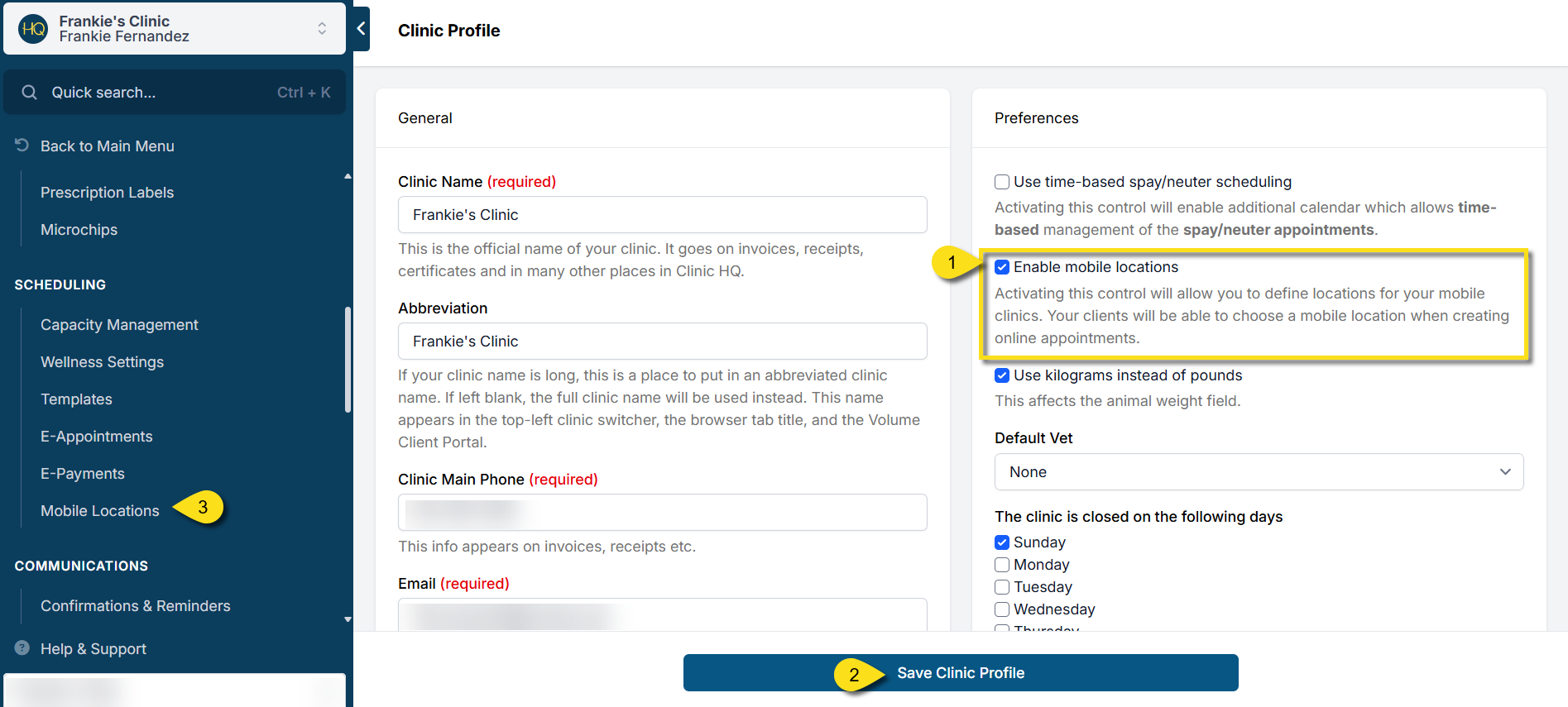
To enable this area of settings, first go to Settings > Clinic Profile > Preferences.
Tick the box for Enable mobile locations, then Save Clinic Profile.
This will add a Mobile Locations page in Settings under Scheduling.
Set up Mobile Locations
You can create your different locations in Settings > Mobile Locations > +Create Mobile Locations.
To alter an existing location's settings, click Edit - here, you can fill out the name and location, mark the type of location (stationary or not), and add a status.
Should the location be "Stationary?"
Marking a location as stationary will automatically add it to all days your clinic is open on the Calendar.
It is assumed that the stationary location is always open when your calendar is open. If this is not the case, do not mark it as stationary. You will need to manually assign which clinic days that location is operating using the "Adjust mobile locations" tool on the calendar.
Location Description
These are the extra details about the location, beyond the physical address, to help clients. For example: Clinic is located across the street from Walmart, or Drive behind the building to the white tent.
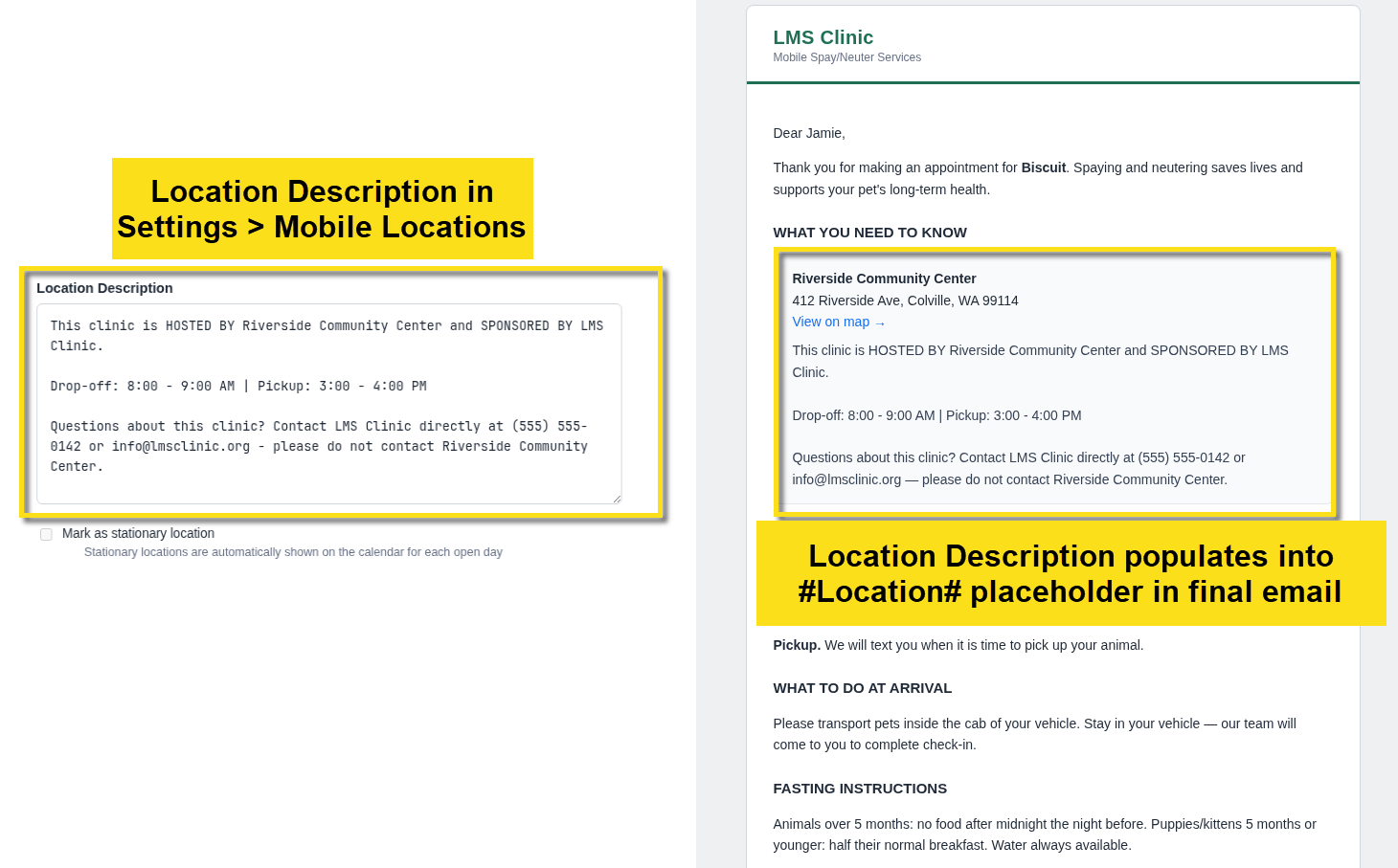
The location description appears in your custom email reminders wherever the #Location# placeholder is used.
Mobile Location Reminders
Currently, separate confirmation and reminder templates cannot be created for individual mobile locations. However, you can use Location Descriptions to include location-specific information in your existing templates.
Your standard templates under Settings > Confirmations and Reminders should contain information that applies to all locations your clinic operates.
For information that varies by location, such as parking instructions, arrival details, or landmarks, follow these steps:
- Go to Settings > Mobile Locations.
- Select the applicable location and click Edit.
- Enter the location-specific information in the Location Description field.
- Save your settings.
- Go to Settings > Confirmations and Reminders.
- Edit the appropriate reminder template.
- Use the Mobile Locations button to insert the #Location# placeholder where applicable.
The #Location# placeholder will automatically populate its description based on which mobile location is associated with the client's appointment.
This allows clients to receive the correct location instructions without requiring a separate reminder template for each location.
Location-Specific Reminder Example
Troubleshooting Mobile Location Setup
If a new location is set up incorrectly, the user may experience an unexpected error message. These are the most common reasons an error message will occur.
- Information is left blank - all fields must have data.
- There are integrity issues with the address. This tool uses geolocation to add a pinpoint to a map. Please ensure the address coordinates populate. If no coordinates are present please revise the address.