E-Payments
Enabling Online Payments
If your clinic is signed up for integrated credit card processing with MP Group, go to Settings > E-payments to input your Merchant ID, Consumer Key, and Consumer Secret to take online payments.
These codes can be found in your MX Merchant account, or you can contact MP Group for help accessing these credentials. To find your codes, follow this guide.
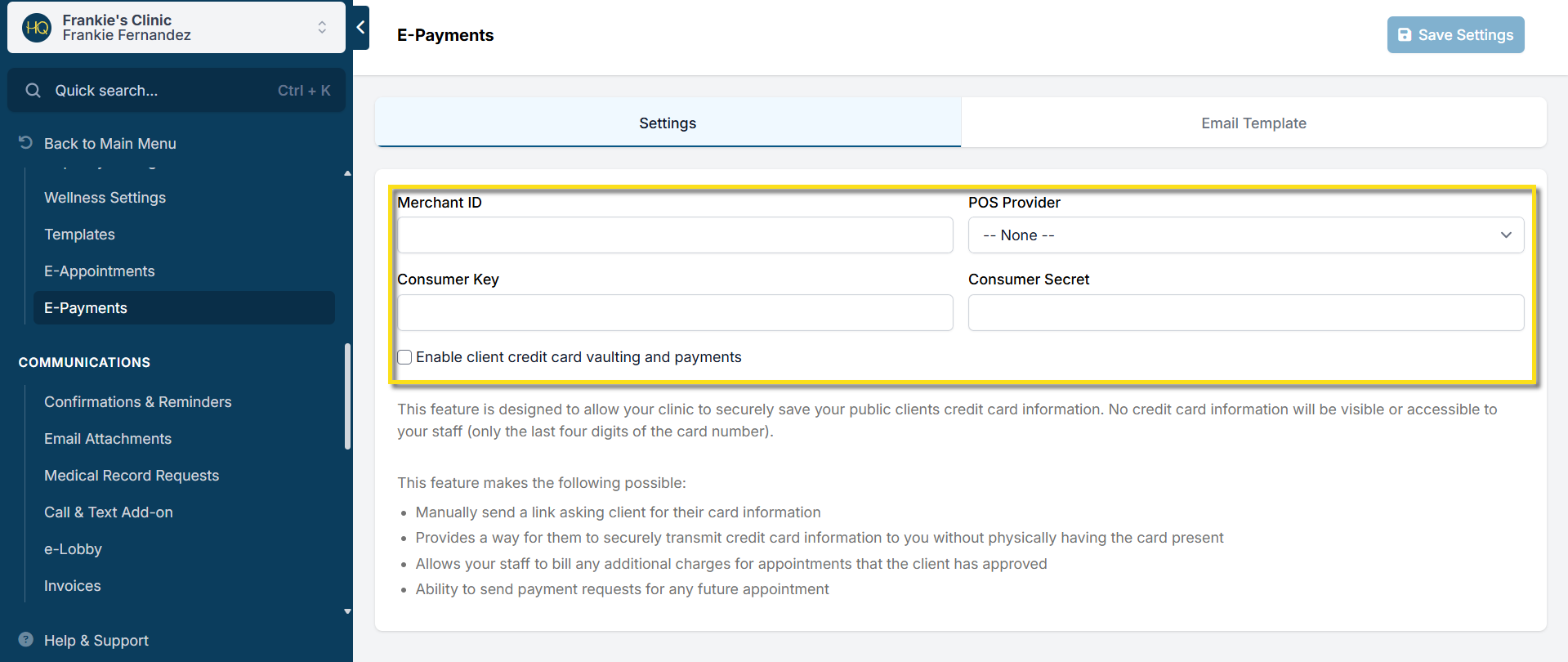
*Regardless of whether your clinic has a POS terminal, you will need to set the *POS Provider to Dejavoo.
Card Vaulting
With E-Payments comes the time-saving tool of card vaulting. Vaulting a card is designed to allow your clinic to securely save your public client's credit card information. No credit card information will be visible or accessible to your staff (only the last four digits of the card number).
This feature makes the following possible:
- Allows your staff to bill any additional charges for appointments that the client has approved
- Ability to send payment requests for future appointments
To enable card vaulting, tick the checkbox for "Enable client credit card vaulting and payments".
Read more about E-pay & Vaulting HERE
Setting up the Dejavoo Credit Card Machine
When you receive a new terminal, MP Group will help you set it up but here are some of the steps.
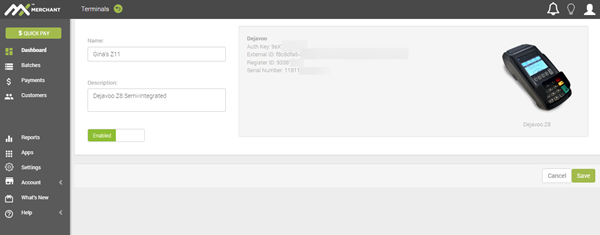
- First, in HQ go to Settings > E-Payments and enter your MX Merchant credentials. These codes can be found in your MX Merchant account, or contact MP Group for help accessing these credentials.
- In E-Payment settings, the POS Provider should be set as Dejavoo.
- Next, on the Dejavoo machine click the Wi-Fi icon in the upper left corner and make sure the machine is on the same Wi-Fi as the computer.
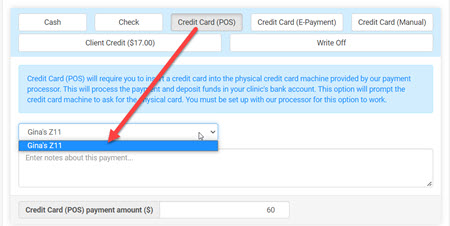
If you have more than one terminal, in HQ when making a payment, select which terminal.
Customizing E-Payment Email
You can now customize the email sent with E-Payment links. Adjust the tone or add any details to match your clinic's style. We hope this makes communication with your patients easier and more personalized.
Here's how to do it:
- Go to Settings
- Under Scheduling, select E-Payments
- On the e-payment page you will see a tab called Email Template
- You can update the email template as you see fit. If you so not wish to personalize it, there is a pre-populated message you are welcome to keep
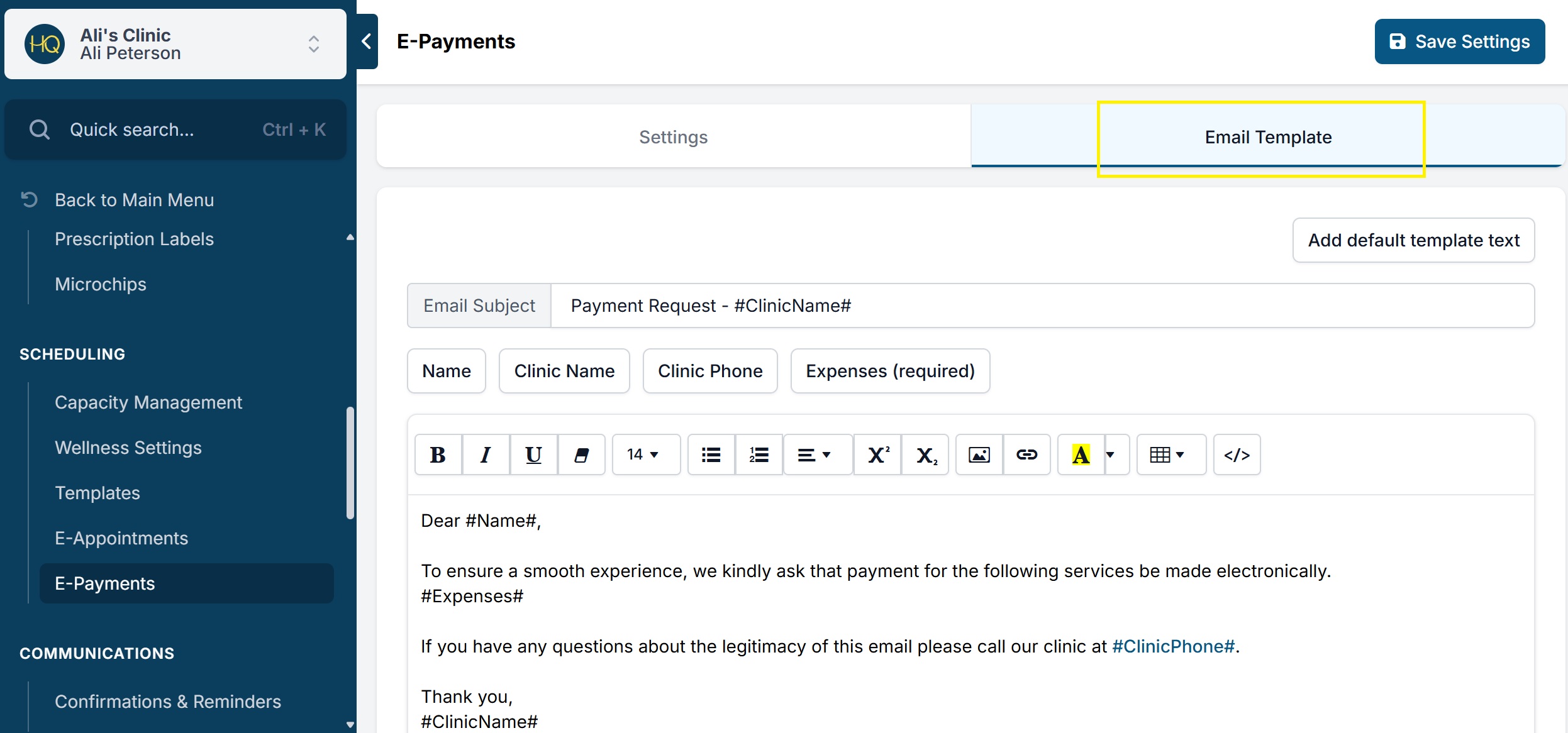
Here is what the pre-populated test reads:
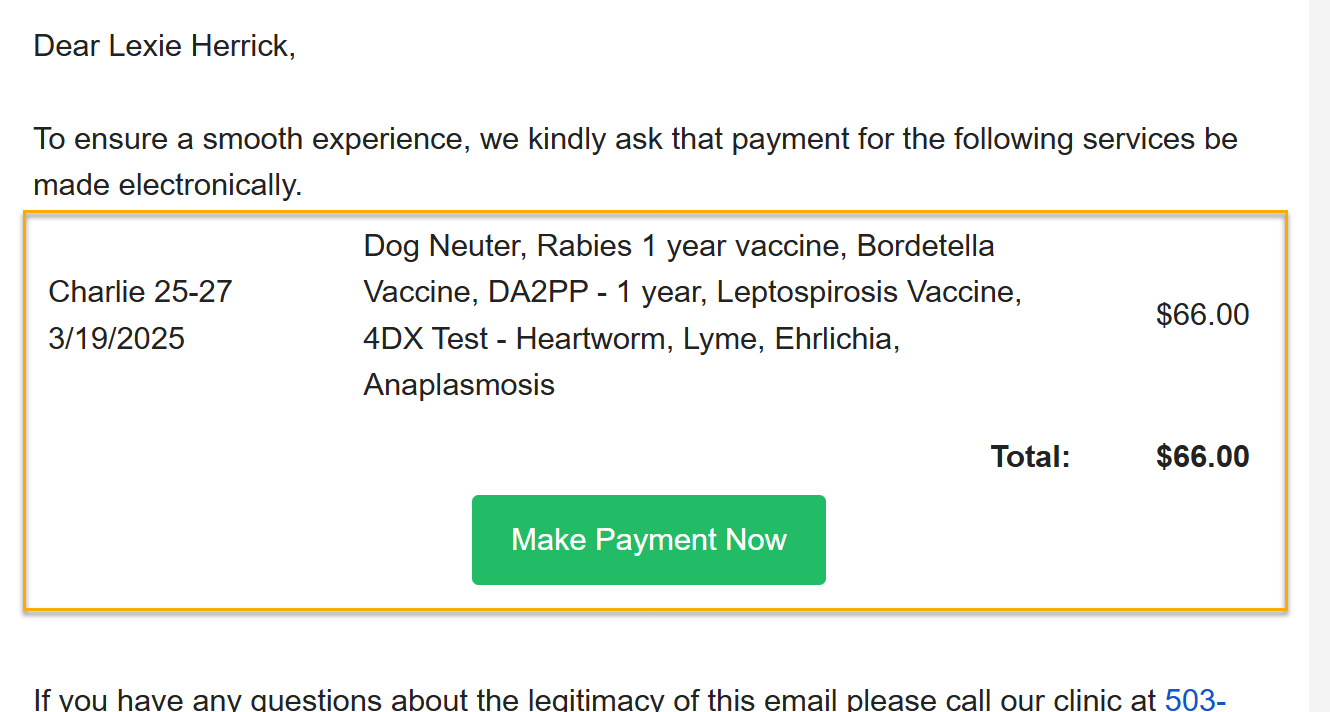
Note: This feature is only applicable for clinics with e-payments enabled.
Credit Card Machine Setup
Setting up the Dejavoo Credit Card Machine
Need to setup the credit card machine to work with your computer? When you receive a new terminal, MP Group will help you set it up but here are some of the steps.
- In MX Merchant go to Settings > Terminals and Add a Terminal
- Input data here. The name field can be like "Front Desk." You can see the inputs you'll need here.
- Then, in HQ go to Settings > E-Payments and enter your credentials. These codes can be found in your MX Merchant account, or contact MP Group for help accessing these credentials.
- The POS Provider is Dejavoo.
- Next, on their Dejavoo machine click the Wi-Fi icon in the upper left corner and make sure the machine is on the same Wi-Fi as the computer.
!TIP Need help setting up the terminal? Contact MP GROUP: 770-818-6188
Connecting your Dejavoo terminal to Wi-Fi
- Click the three little lines at the bottom of the terminal screen. Password 1234
- Click Utility Password 1234
- Click Communications > Local Parms > Wifi > Settings
- A list of local networks should appear. Select the network and enter the password.
- Exit the wifi setup by hitting the red X until you get back to the home screen. The home screen has a spinning globe and says "POS online"