24.19.2. Adding E-appointments to Your Website
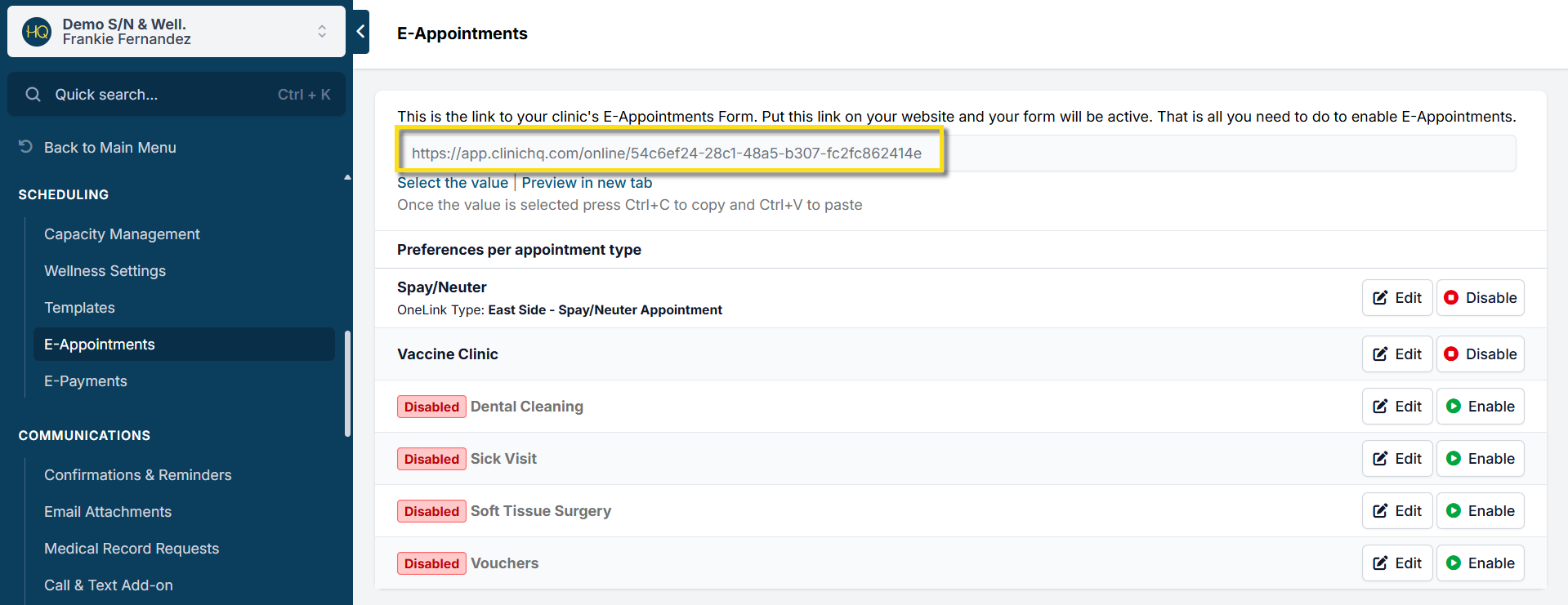
Your E-appointment form has a unique link clients can use to book online appointments. Share it on your website, via email, or on social media.
Add the link behind a "Book Now" button
Right click any of the images below and click Save Image As to download them. You can also find more buttons via Google Images search.



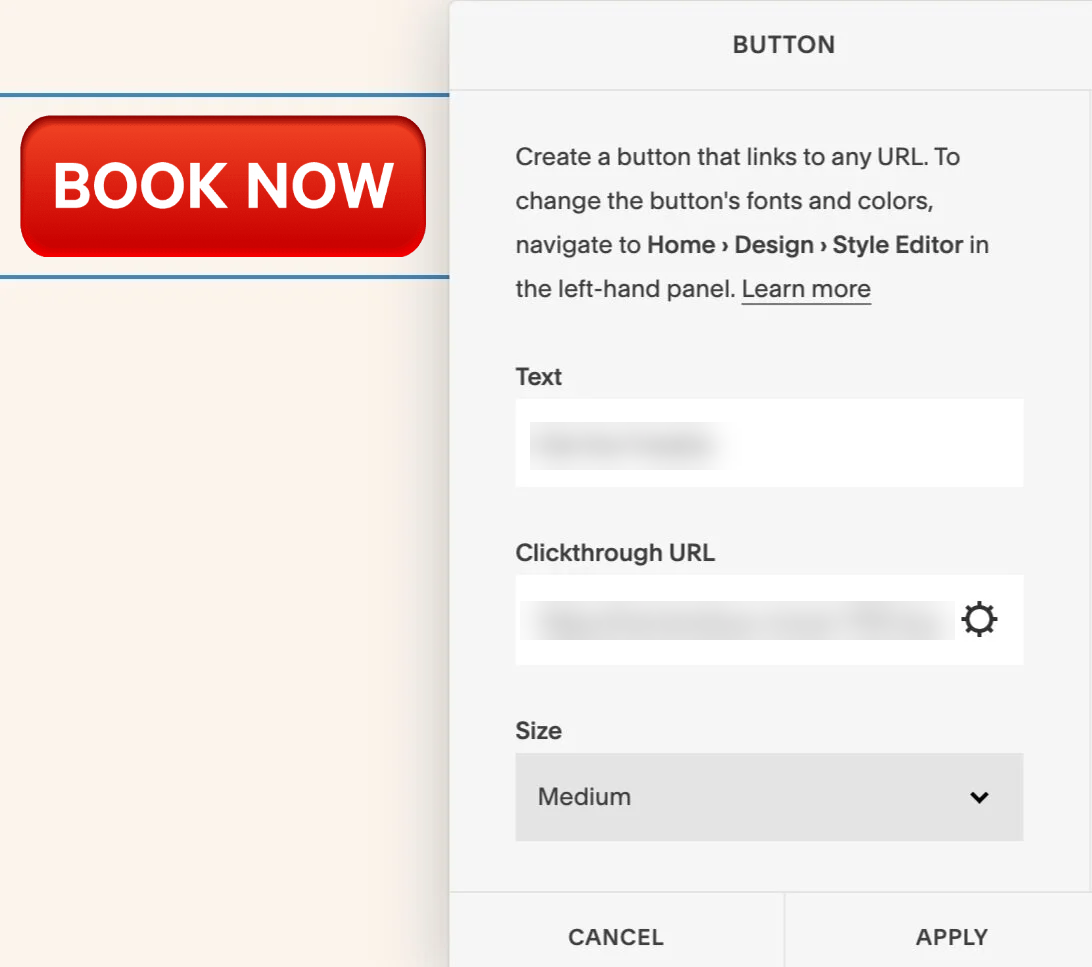
Once you've selected a button to put on your site, all you have to do is copy and paste the iFrame link located in Settings > E-appointments into the URL slot of your website builder. All website builders are different but generally, you're looking for a slot something like this:
Embedding the form on your site
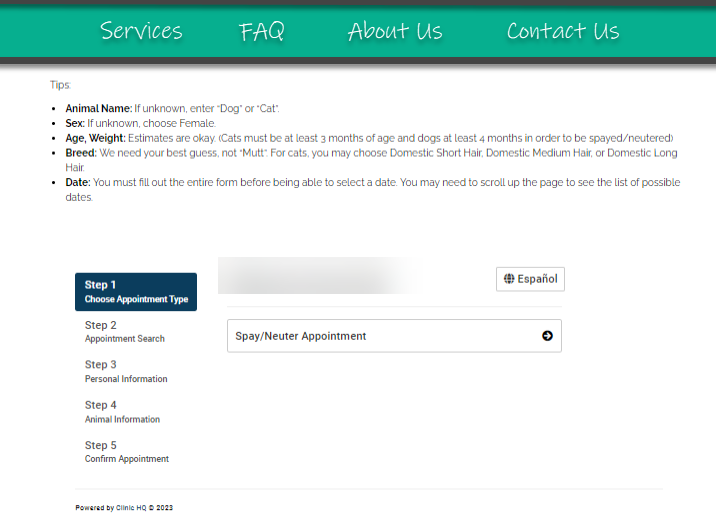
You can also embed your e-appointment form directly on your website so you can have text around the page. To do so, put the iFrame link within a table on your html page.
Here is an example of what an embedded form looks like: