Divvy Setup
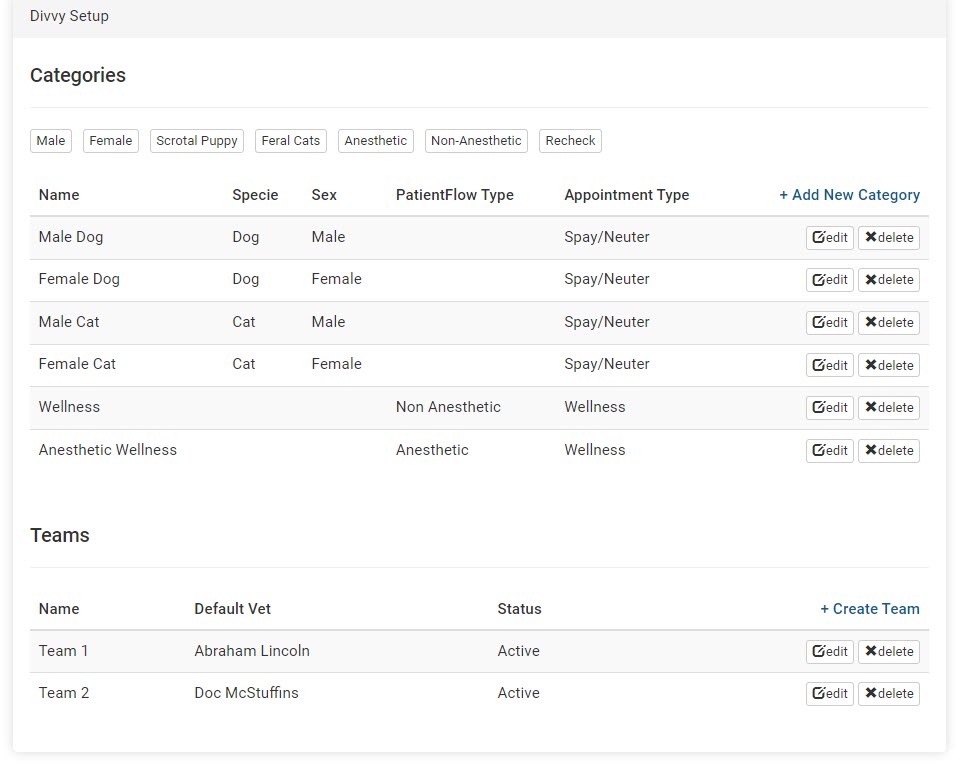
The divvy setup allows you to divide up roles/groups within your clinic. You can create animal groups here like "male cat" or "puppy". You can also create teams here, assigning a vet and naming the team. This is useful for larger clinics that may be working with multiple vets and is an essential setup step if you use Decentralized Controlled Drug Drawing.
Setting up the Divvy tool
- Go to Settings > Divvy Setup. Your clinic should have the basic surgery types you offer. Use the preset categories from the top or create additional category types if needed by clicking +Add New Category. The categories will be how your appointments are broken down to then divvy up to teams.
- Create the Teams: click +Create Team. Here the team NAME can be the name of the veterinarian, a color, or “Team A” and “Team B.”
- Choosing the Default Vet: If choosing a veterinarian from the list as the Default Vet for the team, this will override the default vet listed in Settings > Clinic Profile > Preferences. When an animal’s appointment is started/checked in, the team’s assigned vet will be listed as the vet for that animal as part of Patient Flow.
However, if you choose ‘Default Vet’ from the list, it will assign whoever is selected in Preferences. This would be beneficial to use if you have one vet but multiple prep teams.
Using the Divvy
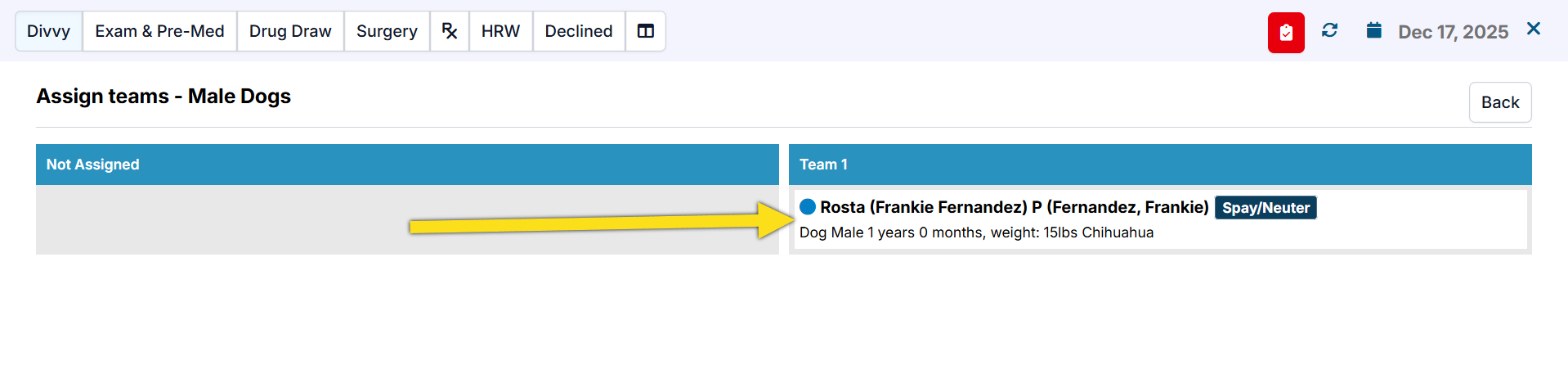
Once you've set up teams, a new tab will appear in Patient Flow. Now, the first step in Patient Flow will be to assign animals to a team. This can be done by clicking on the animal category, then dragging and dropping appointments to the corresponding team. The vet assigned to that team will be applied to their appointment and the patient will have a team tag displayed throughout Patient Flow.