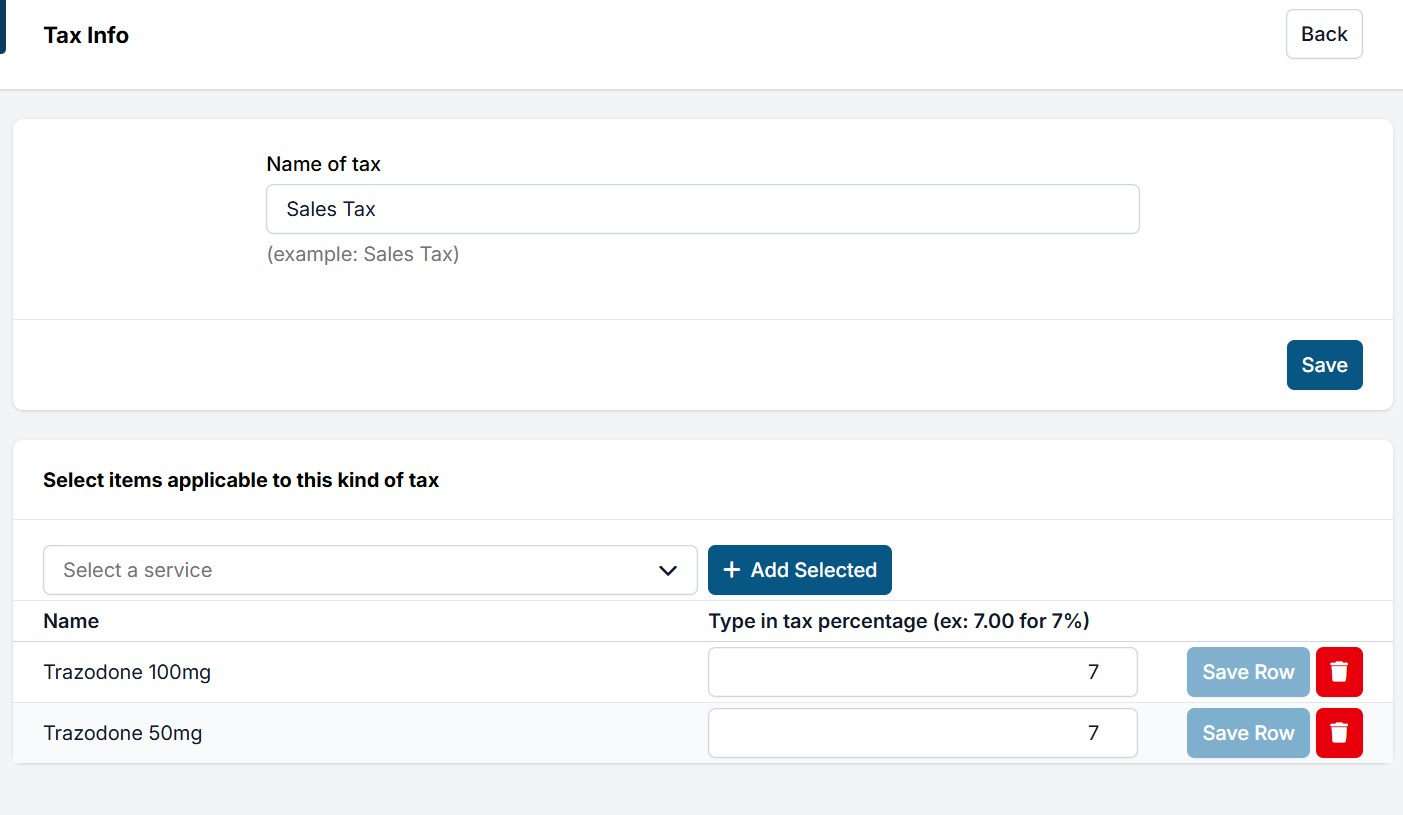
Tax Info
Tax info is where you configure taxes for any taxable items sold by your clinic.
Configuring a Tax
- To add a new tax category, click Setup a New Tax.
- Enter the name of the tax, such as "Sales Tax" and click Save.
- Select the items/services that are taxable within this category from the dropdown menu.
- For each item/service, enter the tax percentage and Save Row.
Rounding Issues with Tax
Occasionally you may notice what you believe to be a rounding error within HQ related to tax that is collected. Here's an example. On the Services menu, say we see .6750 charged as tax for amoxicillin and .4050 for the e-collar. However on the Apply Payment screen, we notice 6750 is rounded up to .68 and the .4050 not rounded, but left at .40.
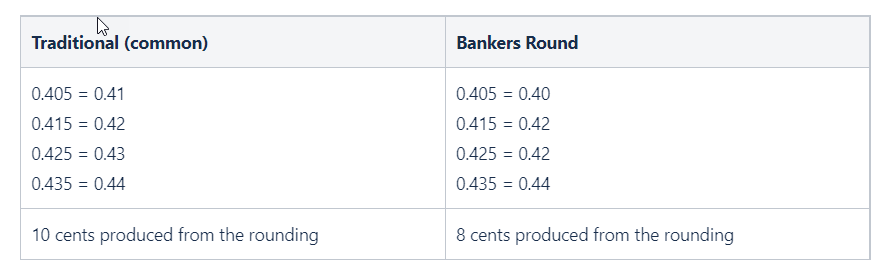
HQ is actually working correctly because .NET (the computer code used to create software) by default uses an algorithm for rounding called Bankers Round. This kind of rounding is statistically a better way of rounding.
Below is an example of the effect of the Banker's Round. It produces a closer match to the cents when they wouldn’t have been rounded. It is considered more precise than traditional rounding. There is nothing we here at HQ can do to change how it rounds.