Documenting User Actions
HQ maintains several audit and activity logs to help administrators track changes, monitor user activity, and maintain accountability across appointments, payments, and system actions.
Change / Audit Logs
Change Logs in HQ allow you to track user activity for specific actions such as changing appointments, merging records, and much more. This section will detail the different types of auditing logs we have available and how to use them.
Auditing Logs

- The auditing logs keep record of important, typically irreversible actions that have been made in HQ. To find it, go to Clients > Appointments > Auditing Logs.
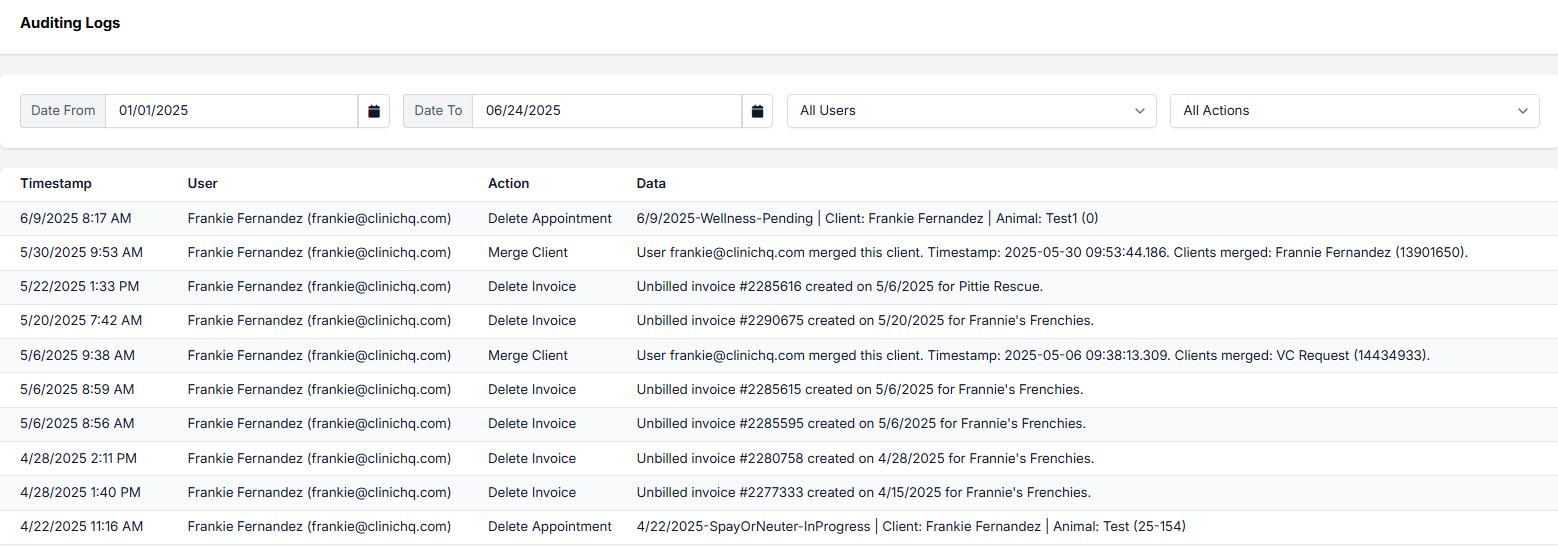
- You can filter by date, user, and type of action. Actions include deleting appointments, invoices, and drug bottles, merging clients or animals, and editing your HQ subscription.
- The Audit Log will also capture E-appointment requests that were canceled as these are considered deleted appointments.
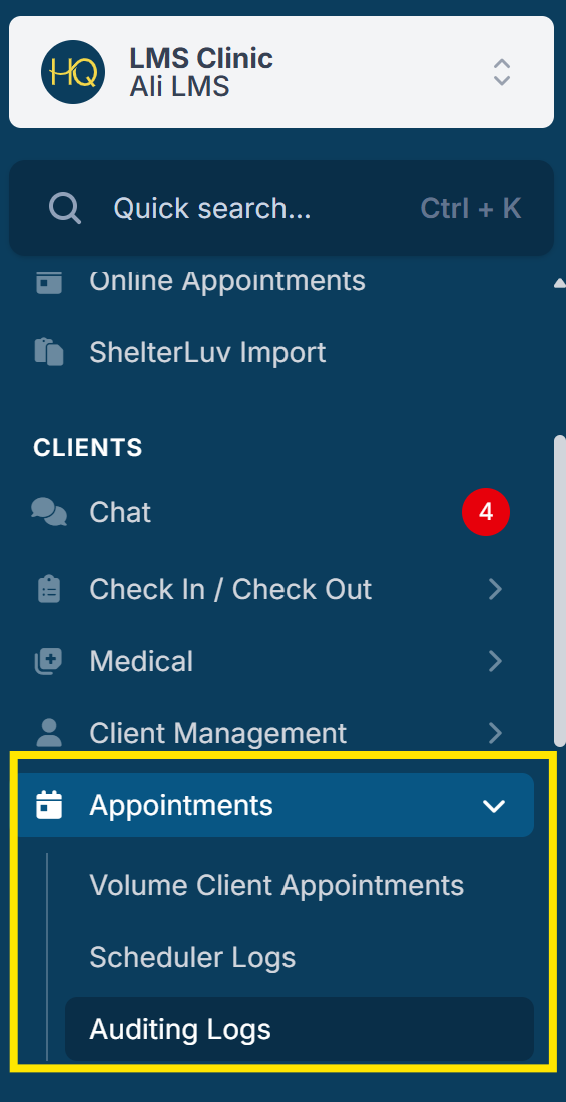
Here is what an auditing log looks like:
Animal Details Change Log

You can find an audit log relating to a specific animal record.
- Search for the client or animal via Quick Search (Ctrl + K) or Search Clients/Animals.
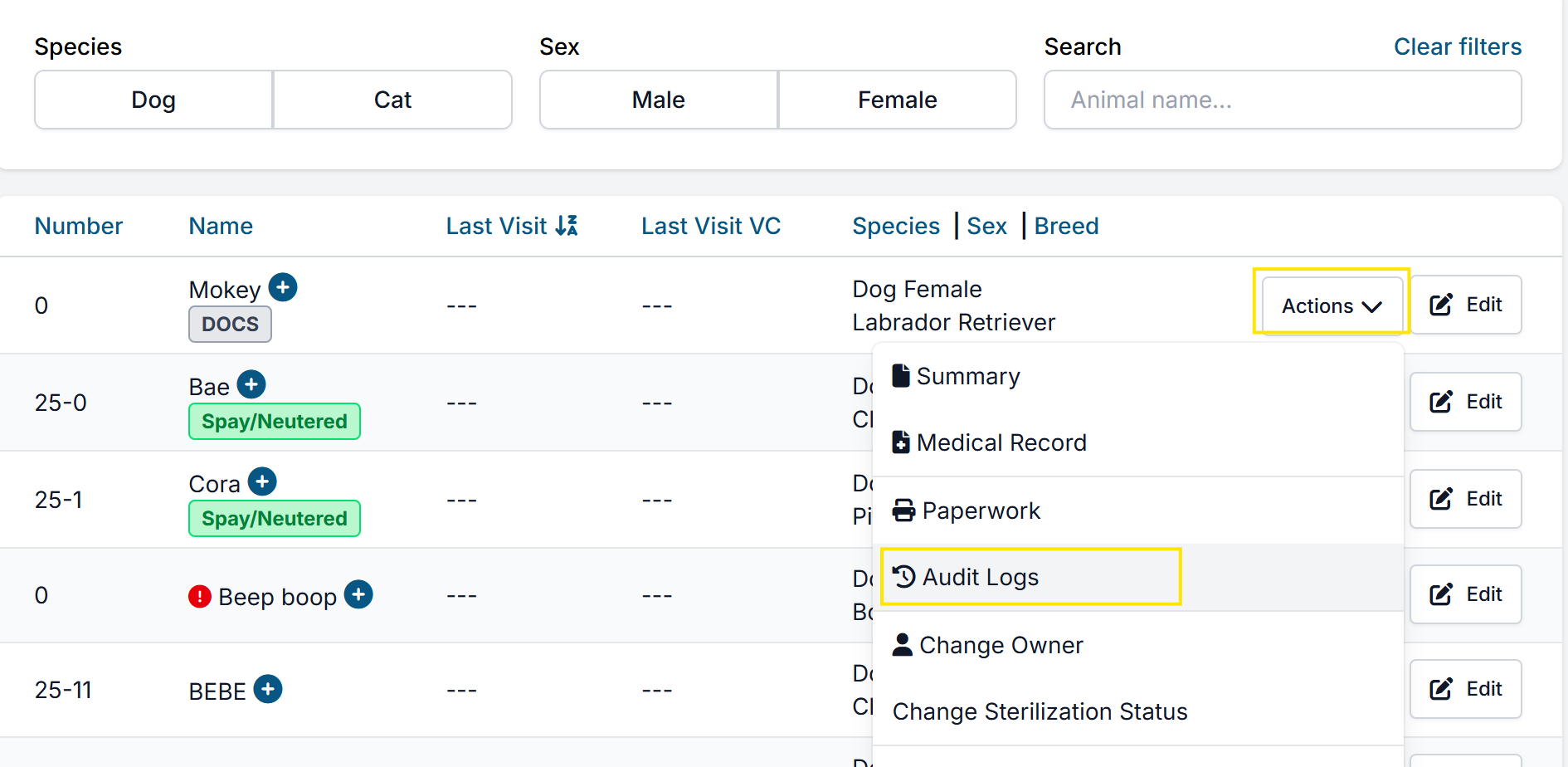
- Once you find the client profile, go to the Animals tab. Find the animal’s record and click Action > Audit Logs.
- This log will capture major changes made to the animal’s details as well as the user and time stamp details of that change.
Important: The Audit / Change Log only records merge actions (who did it and when). It does not allow you to undo or “unmerge” clients or animals.
Scheduler Logs

Need to know who scheduled an appointment and when?
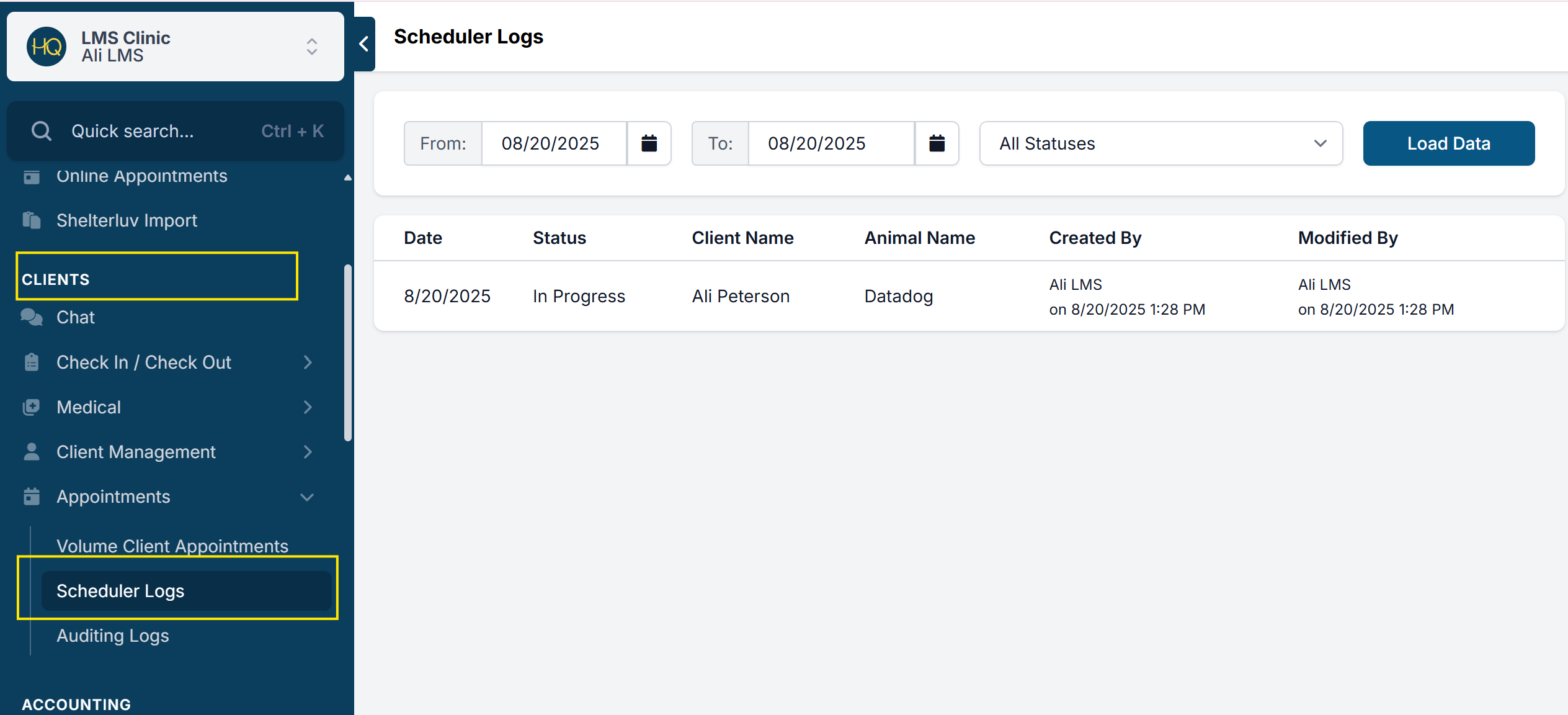
- This info is stored in Clients > Appointments > Scheduler Logs.
- You can filter to see who created or edited an appointment and what the status is.
Communication Log

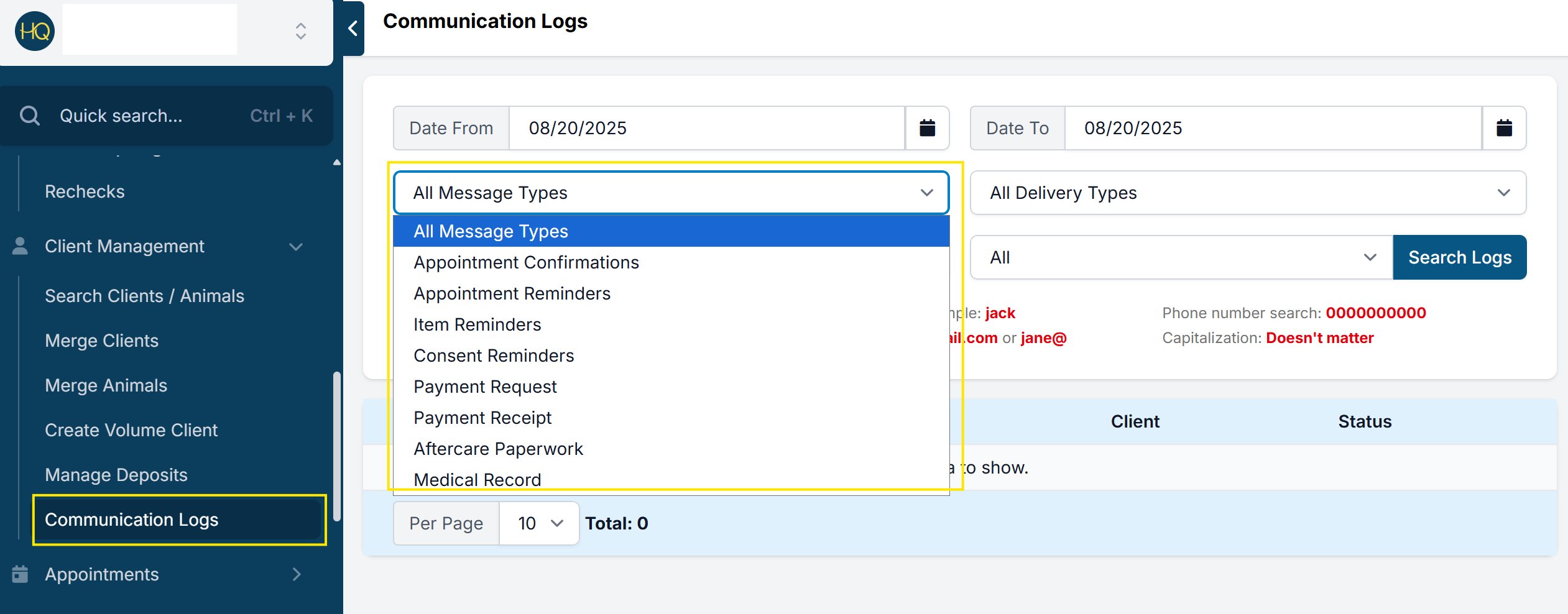
The communication log allows you to see a record of reminders and confirmations sent to clients.
- In Clients > Client Management > Communication Logs you can filter for types of communication, like appointment reminders and payment requests via email, text, and calling.
- You can also search for only completed or only failed ones.
Deleted Payment Log
Deleting or voiding payments should be an uncommon action within a clinic and must be restricted to authorized users based on their specific roles.
- Accessible through the Accounting > Reports > Deleted Payments section, this report tracks activities related to appointment financials, specifically focusing on any actions involving the deletion or voiding of payments.
- In Clinic HQ "delete" and "void" terms are used interchangeably and both refer to the removal of a payment.
The log provides key details, including the date and time of the payment deletion, the amount, payment type, associated appointment, and the user responsible for the action. This feature enhances security and accountability within your clinic's accounting system, serving as a safeguard against fraud and errors. Additionally, the log data can be easily exported to an Excel spreadsheet for further analysis and record-keeping.
Read more about deleted payment logs HERE
Microchip Log

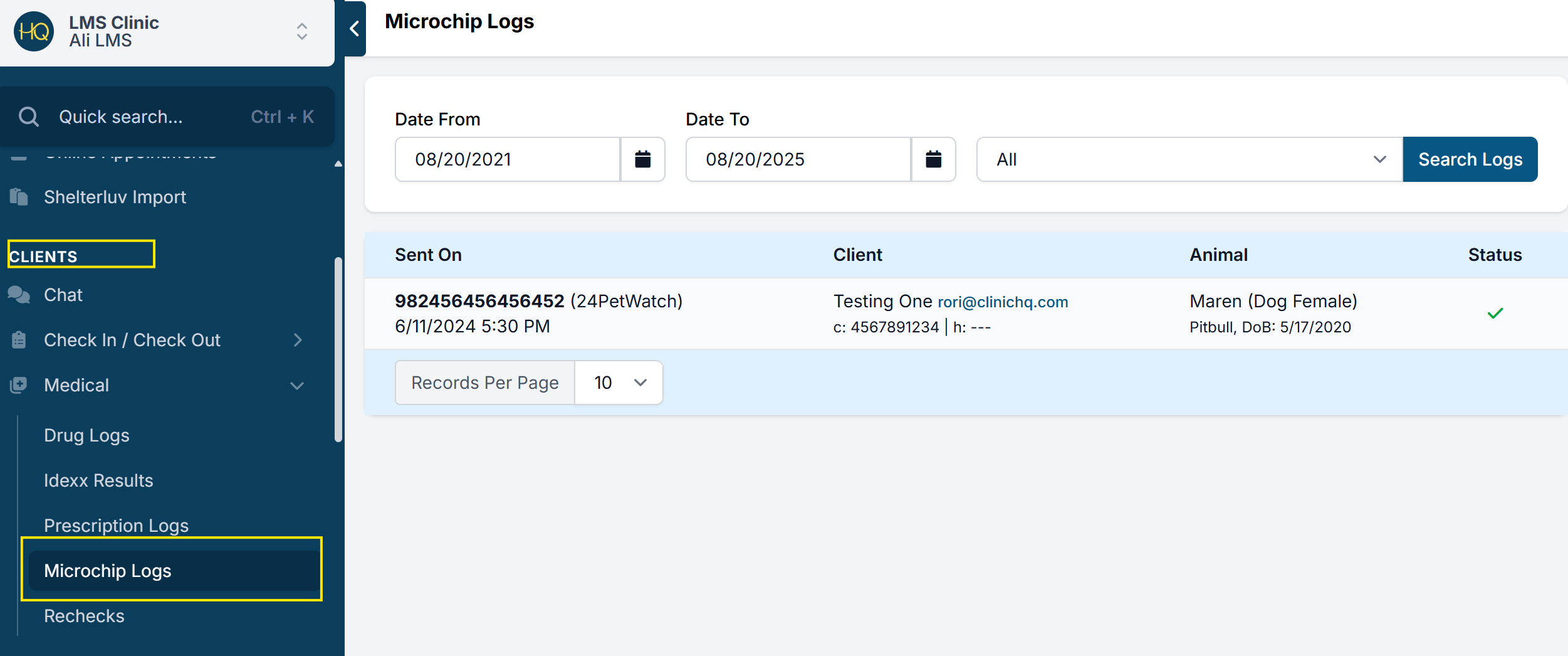
You can also view the status of registration for all microchips via the Microchip Log located in Clients > Medical > Microchip Log.
- Here, you can search by appointment date to make sure there were no errors with the registration process. You can filter for completed, pending, and failed microchips. If you hover over the red x, it will tell you the reason for the error.
- You can correct the error in checkout and click the green Checkout button to revise the checkout.
- It will send the information to be resubmitted to the microchip registry overnight.
Microchip Log vs. Export
Microchip Export
What it is:
- A reporting tool that gives you a summary of animals and their microchip data for a selected date range.
What it includes:
- All microchipped animals seen at your clinic in the chosen period.
- Optionally, all animals (so you can compare which ones are chipped vs. not chipped).
- Owner details, address, breed, and other registered info.
Purpose:
- Generate standardized files (CSV or Excel) to send to registries like 24Pet Watch, Petlink, and Petstablished.
- Useful for compliance, registry submissions, or comparing your internal records.
How you use it:
- Run the export → download CSV/Excel → upload to registry or analyze internally.
- Very much a bulk data transfer / report function.
Microchip Log
What it is:
- An operational log that tracks the status of registration submissions for microchips at the clinic.
What it includes:
- Each attempt to register a microchip with a registry.
- Status filters: completed, pending, failed.
- Error details (e.g., if you hover over a red “X,” you see why it failed).
Purpose:
- Monitor whether the registration process worked correctly.
- Fix errors (e.g., incorrect info) at checkout and resubmit.
- Provides a quality control and troubleshooting view.
How you use it:
- Search by appointment date to confirm all microchips were submitted.
- Resolve failures and re-send overnight.
Key Difference
- Export = Summary/report for external use (registries, comparisons, bulk data).
- Log = Transactional audit/status tool (ensuring registrations go through without errors).
Think of it like this:
- The Export is what you send out or review as a complete dataset.
- The Log is where you double-check the process and fix issues before that data becomes final.
Prescription Log

Prescription Logs
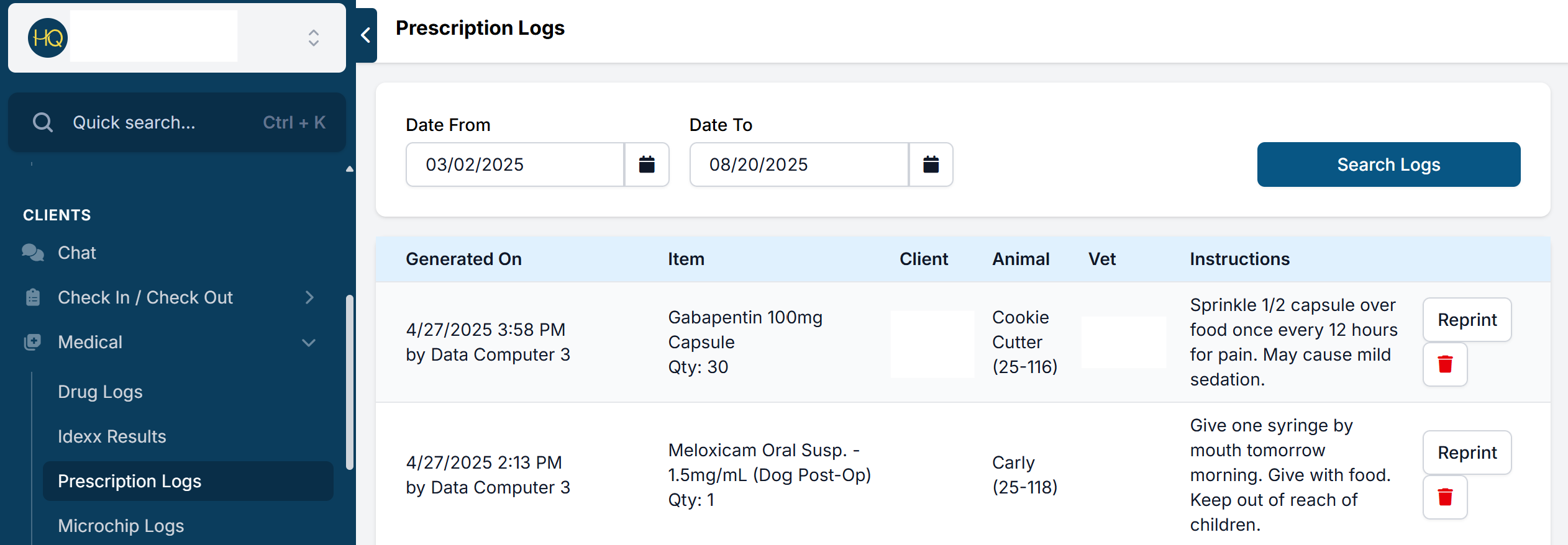
The prescription log gives you an overview of and allows you to search through prescriptions created.
- It is found under Clients > Medical > Prescription Logs.
- The log shows you the drug, who generated it and when, the animal it was prescribed to, the vet it was prescribed by, the client's name, and the prescription instructions.
- Here it allows you to reprint the prescription or delete it.
Scheduler Log
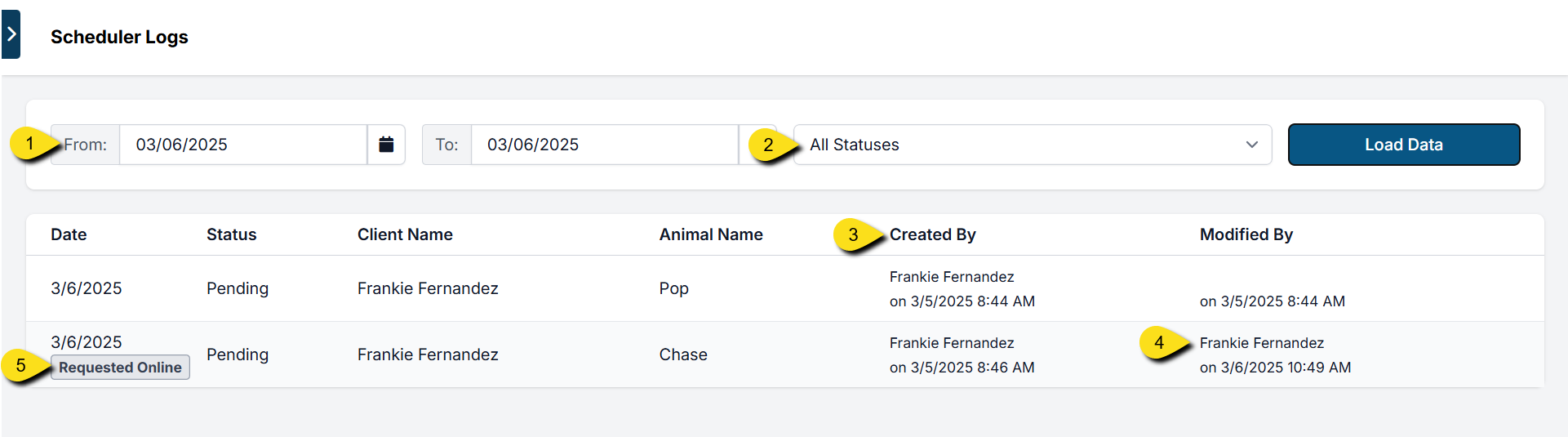
The Scheduler Log tracks all appointment activity. It records:
- The user who confirmed the appointment.
- The user who last updated the appointment.
This makes it easy to review when an appointment was created or changed, and by whom.
Accessing Scheduler Logs
You can find scheduler logs under: Clients > Appointments > Scheduler Logs
From here, you can filter by:
- Date: Use the date picker to view appointments created on a specific day (e.g., selecting March 6 shows all appointments scheduled that day).
- Appointment Status: Filter by pending, in-progress (checked in), checked out, canceled, or no-showed.
- Created By: Displays the user who confirmed the appointment.
- Modified By: Displays the user who last updated the appointment (changes may include rescheduling, editing details, applying an e-payment request, etc.).
Internal vs. External Appointments
Scheduler Logs also show how the appointment was created:
- Online Request: Marked with an “online appointment request” stamp.
- Internal Booking: If no stamp is present, the appointment was scheduled internally.
Deleted Payment Log

Deleted Payment Log
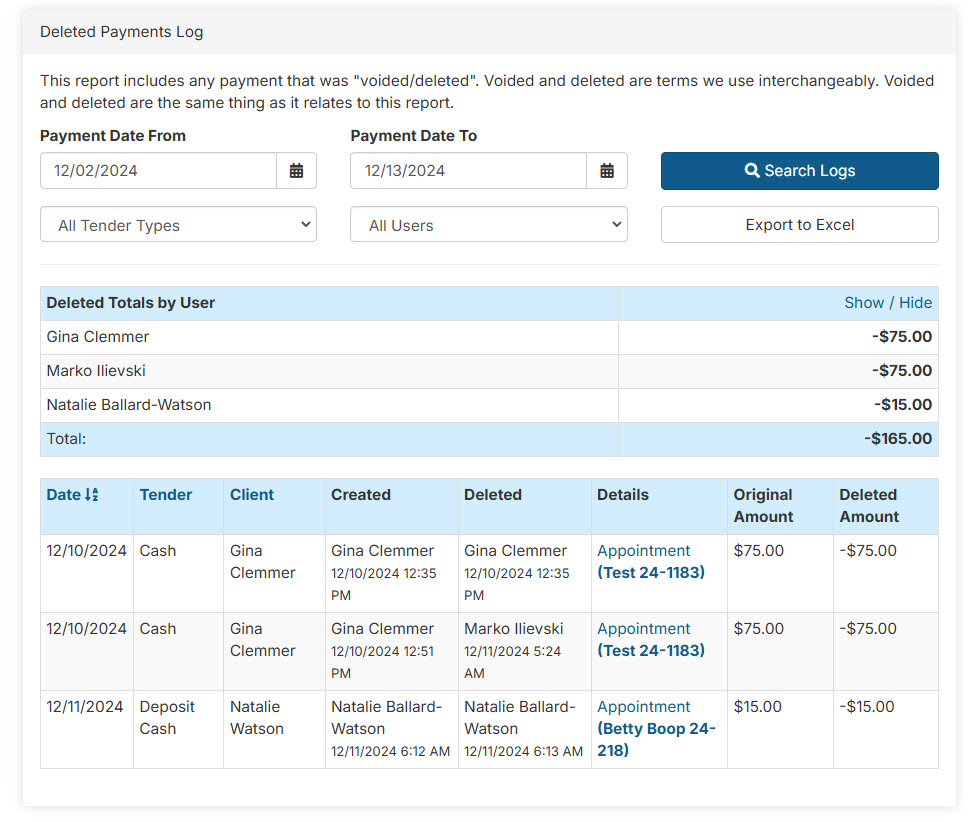
The Deleted Payments Log will capture all data surrounding the removal of a cash, check, credit card (manual), or client credit as payment on an appointment.
The report will help identify theft within the clinic. The only time a payment should be deleted is to correct a mistake. Deleting or voiding payments should be an uncommon action within a clinic and must be restricted to authorized users based on their specific roles. Learn more about User Roles and how to set up permissions for each role, HERE.
Accessible through the Accounting section, this report tracks activities related to appointment financials, specifically focusing on any actions involving the deletion or voiding of payments. In Clinic HQ "delete" and "void" terms are used interchangeably and both refer to the removal of a payment.
The log shows important details such as the date and time of a payment deletion, the amount, payment type, related appointment, and the user who performed the action. This helps improve security and accountability, protecting your clinic against fraud and mistakes. You can also export the log to Excel for further review or record-keeping.
Timestamp Tool
You can quickly add a timestamp to most text fields by clicking alt t (alt key and t). This will insert a timestamp that has the date, time, and person's initials who clicked it.

All locations where the Timestamp Tool can be used:
- Animal Notes
- Appointment Notes
- payment notes
- Surgical notes
- Internal Medical Notes
- External Client Communication
- Long notes Internal
- Staff Notes
- Team Notes PF
- e-appointment note field
- Client Quick Notes
- Animal Notes
- Appointment Notes
- Patient Flow
- Add Note in Drug log
- Animal Quick Notes in Update Appointment
The initials in the timestamp will be pulled directly from the User that is logged in at the workstation. As discussed here, ensure each team member has their own personal login.