Subsidies

A subsidy can be applied to line items on an appointment to change the price and/or pull money from a grant or bill a third party
What is a Subsidy?
The words "Subsidy" and "Discount" may be used interchangeably in most discussions. A subsidy is created from a funding partnership. The funding partnership is where the money comes from while the subsidy is how the money will be used. A subsidy could stem from an in-house discount, a voucher issued by an outside group, or a grant awarded to your facility.
When a discount is applied a subsidy is selected and used to change prices and who owes what.
How Subsidies Work
Read how to create a subsidy in the Settings section of the Manual HERE.
After a subsidy is created, it can be used to reduce the cost of services and products during an appointment. The subsidy is applied as a discount on each item and can be added when scheduling the appointment, after it's confirmed, or on the day of the visit. Once applied, it changes the price by using the client’s discount amount.
There are two types of partnerships a subsidy can be linked to. If it’s an invoiced partnership, the discounted cost is billed to a volume client after the appointment is checked out. If it’s a pre-paid partnership, the money comes from a grant or donation. This amount is held in a pending state and only taken out once the appointment is checked out.
To keep track of available funds in pre-paid grants, you can run the Subsidies Summary Report. This report shows how much money is left, including any amounts that are still pending.
Reports can be generated to see exactly how much money is available from a pre-paid grant. Take a look at the Subsidies Summary Report for current pot balances that account for your pending subsidies.
- Using a Subsidy Discount
- View the services on an animal's appointment. Notice next to each line item is a green "Discount" button. The discount can be applied in nearly all places the services are listed - except when editing a pending e-appointment request. Note: A subsidy discount cannot be applied by a client in the E-appointment form. Discounts are currently only managed internally.
- Click the Discount button to apply a subsidy to that service line item.
- A list of available subsidies will appear. Review and click Apply to change the price of the service item.
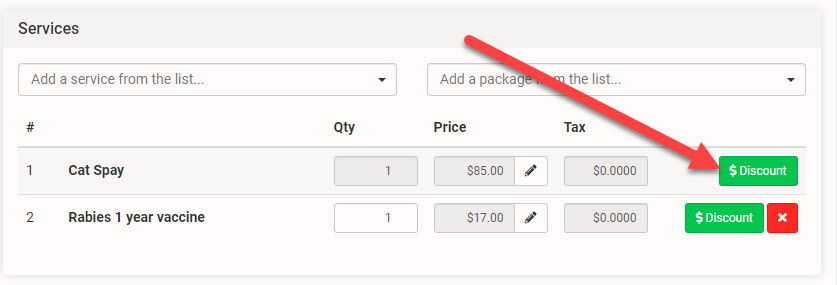
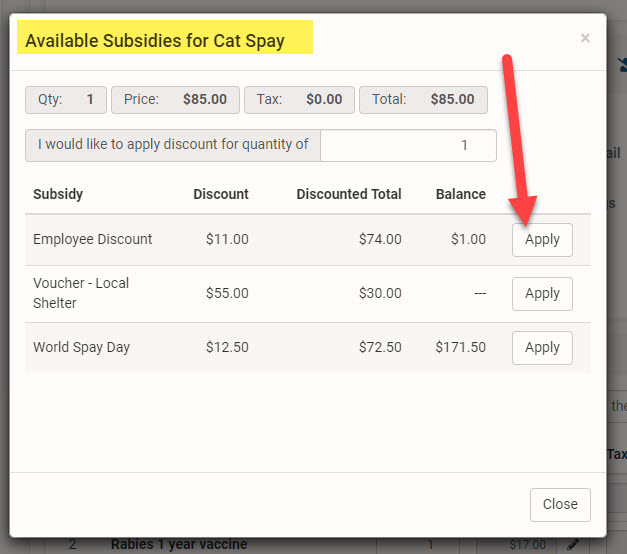
Each line item can receive its own discount. You can mix and match subsidies across an appointment's services, such as applying a PetSmart grant to the spay/neuter but using a Petco Love discount for the distemper vaccine.
NOTE: Only one subsidy discount per line item. You cannot apply more than one subsidy to a line item. If your clinic needs to discount a service using more than one subsidy, read about how to set that up HERE.
Troubleshooting Subsidies
Subsidies Not Showing Up
There are only four reasons why a subsidy would not show up.
- You have no funds in your pot of funds. To check, go to Settings > Accounting > Funding Partnerships and look at the balance for the partnership. If it is a zero, this subsidy will not be offered. The solution is to put funds into the pot. In the case of a subsidy discount where no money is pulled from the pot, the same rule applies. In all use cases, there must be an amount greater than $0 for the subsidy to be used.
- One of the restrictions of the subsidy is not being met. For example, if the subsidy is restricted to Pitbulls only, but the breed that you have enabled is a bulldog, that subsidy will not show up. Or if the address is incorrect or incomplete.
- The item that you are trying to apply the subsidy to, for example, rabies one year, has not been enabled within the subsidy itself. To check, go to Settings > Funding Partnerships. The solution is to open the subsidy, look at the items that it covers, and make sure you have enabled the missing item.
- The subsidy or funding partnership status has been set as “Disabled.” The funding partnership and subsidy must be edited and the status updated to Active and saved. To check, go to Settings > Funding Partnerships The status will appear in the column list.
Incorrect Deduction or Invoiced Amount
You'll need to review your subsidy values under Settings > Subsidies. Edit the subsidy and go to the Items this subsidy covers tab. Review the values in the Pot Deduct or Invoiced Amount column. If you are not changing the service price, be sure you didn't edit the New Service Price column.
Value of subsidy is too high and cannot be applied
Most often, this issue pops up when the New Service Price column under Items this subsidy covers was edited. The New Service Price column is only used in specific instances where the service price must first be altered before applying a subsidy. A typical use case of this is when you are applying two or more subsidies for one item. This column should be left alone if you are not editing the service price beyond the subsidy discount. If you have edited this and didn't mean to, please set the New Service Price to the original price of your service/products.
Can I change the funding partnership on a subsidy?
No. Once a subsidy is created it is locked to the associated funding partnership. This allows for clear reporting and minimizes room for error. If you are needing to use a different funding partnership, a new subsidy must be created.
Check out our video on HQ University titled "Grant Management" for a walkthrough on subsidies.