Credit Cards

Clinic HQ is growing. With over 600 clinics using our software, we can receive volume discounts on credit card processing.
To help our clinics save money, we’ve partnered with the MP Group to provide more affordable rates for credit card processing.
VIDEO ON E-PAY AND CREDIT CARD PROCESSING
Collecting payment from clients is a big part of the daily operations of most clinics. You can collect payment via cash, check and credit card. When we say "credit card" we also mean debit cards. Collecting credit card payments previously has been a straightforward physical process. A client hands you a physical card, or a credit card machine beeps, and someone either swipes the card or sticks the card in the chip reader. Alternatively, it's also possible that someone provided their credit card number over the phone, and those numbers were typed into a credit card machine. Often, this scenario of "face to face" credit card transactions still occurs.
Integrated versus Non-Integrated Credit Card Processing
It's important to understand the difference between Integrated and Non-Integrated credit card processing. Integrated credit card processing means when the card is swiped, on the credit card machine, HQ automatically updates with the amount paid and details of the payment. This automation is called an "integration." To have this happen in HQ, you must get a Dejavoo credit card machine from our partner, MP Group. We have written code to specifically integrate with this machine. If you've not already signed up with MP Group, see Signing Up for Credit Card Processing.
However, you are not required to use HQ's processing. You can use any credit card machine and processor to process transactions. In HQ, instead of the screen and client record automatically updating, you would need to enter the payment as a Credit Card (Manual) payment. Entering the payment this way transcribes in HQ that payment was taken by credit card, but it does not process the credit card.
Online versus Face to Face Processing
Discussed above is "Face to Face" processing. Next, let's turn our attention to "Online" processing tools. There are four tools available for online processing.
- Payment of deposit or full amount of services when making an appointment. Clients can pay a deposit or pay for all services (depending on your settings in HQ) at the time of making an appointment. They input their credit number, and the card is processed; funds collected and deposited into your bank account, they are sent a receipt, and it updates in HQ.
- E-Payment link: You can send a link to a client to pay the balance of what is owed.
- A client can "vault" a card with you, and you can use that to make payment for secondary charges.
- Within HQ, you can enter the credit card information and the card will be processed.
Note: Card numbers are never stored in HQ, however, a screen is available to type the numbers into to process the card.
How Credit Card Processing Works In HQ
Credit card processing means you use a client credit (or debit) card to collect payment.
In HQ, this can happen in numerous ways, not just by receiving a client credit card and running it on a machine. Below are the various ways processing works.
Using HQ's processor or a different processor
The first and most important thing to understand is whether your clinic is using our processor, which we refer to as MP Group. When we say “our processor,” we’re referring to clinics that have signed up with MP Group to handle their credit card transactions.
MP Group offers our clinics discounted processing rates along with excellent customer service, which is why we recommend them. However, please note: You are not required to use MP Group for credit card processing. You are welcome to use a different processor if you prefer.
There are also two ways you can work with MP Group:
- Full Sign-Up: You use both the Dejavoo credit card machine provided by MP Group and their online e-Pay tools.
- Partial Sign-Up: You do not use their credit card machine, but you still use their online e-Pay tools for processing.
Understanding which setup your clinic is using is the first step before proceeding with any payment-related tools or troubleshooting.
- Credit Card (Manual) does NOT charge this person's card. This option simply notes it in HQ that you ran that card somewhere else (outside of HQ). No funds will be deposited in your clinic's bank account related to this payment.
- Credit Card (POS) will require you to insert a credit card into the physical credit card machine provided by our payment processor. This will process the payment and deposit funds in your clinic's bank account. This option will prompt the credit card machine to ask for the physical card. You must be set up with our processor for this option to work.
- Credit Card (E-Payment) will process the credit card through HQ's API. This means the card will be charged in real-time, and the funds will be collected and deposited into your clinic's bank account. The client will receive an email receipt (if they have an email on file).
The six ways to collect payment
Here are the six options you have available for processing credit card based transactions.
- Fully Integrated With HQ
When you are using the Dejavoo credit card machines, we think of this as "Fully Integrated." This means when you process a payment in HQ, the credit card machine will prompt you to insert a card. Once that card is processed, it will auto-update in HQ.
Tip: Clinic HQ has negotiated special pricing with MP Group on behalf of clinics using integrated credit card processing.
One major benefit of these negotiated rates is flexibility:
- You can run credit card transactions in the way that’s most convenient for your clinic—whether the card is swiped, dipped, tapped, or keyed in manually—without paying higher fees.
- Keyed-in (non-swiped) cards? No problem - same rate applies!
- Enjoy consistent pricing with no hidden upcharges, regardless of how the card is entered.
Credit Card (POS)
(Number 1 above) This is the option you will always select when you want to run the transaction through the Dejavoo credit card machine. This uses the credit card machine like a little computer. It takes the information from the credit card and connects it in the cloud with a client. Then pulls the funds from that client's account, and deposits them in your bank account.
Credit Card (e-Payment)
(Number 2 above) This is an option to use when you don't have the card present, but you'd like to run it through MX Merchant's API. For example, if you're speaking with someone on the phone, and they give you their credit card information. You can "key" the full card number into Clinic HQ and run the transaction that way.
Credit Card (Manual)
(Number 3 above) This is an option to use when your organization does not process with HQ. For example, if your credit card machines are from Clover or Square. This option does NOT process the payment, but instead simply logs it in HQ that you've taken a credit card payment outside of HQ.
E-Payment link
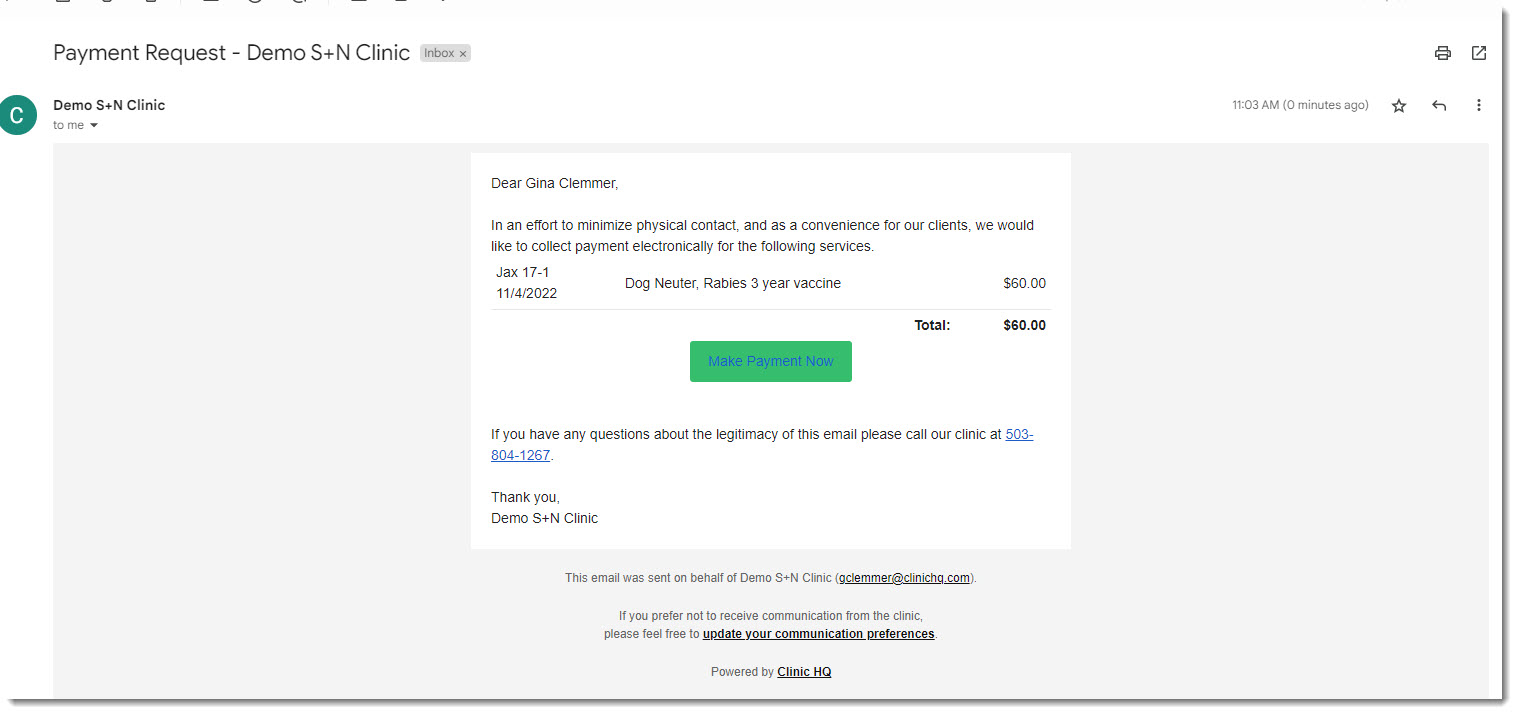
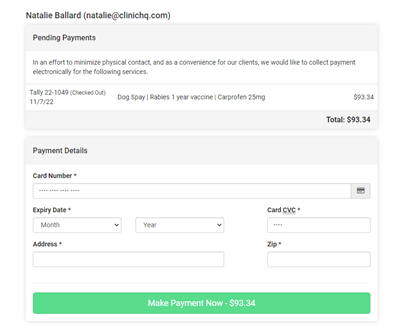
This is the option to use when you want to email a client a link to pay. The client will get an email that looks like this. They can then pay you and also have the added bonus of "vaulting" the card. Read how to use this tool HERE.
Vaulted cards
Processing a vaulted card means the owner gave permission for you to charge against this card for any other services. If the icon is green, it means you can simply charge that card again. If it's red, you cannot. If it's yellow, it means the owner has responded. Read how to use this tool HERE.
Paying via the VCP portal
HQ Volume Client Portal (the "VCP") is where volume clients should pay their invoices. Once you create the invoice in HQ, it is released to their portal and they can pay it there. It is then auto-updated in HQ that it's paid.
Batching Out
Batching Out
- An auto-batch runs at 7 pm EST / 6 pm CST / 5 pm MST / 4 pm PST.
- The machine must be turned on & connected to the Internet for the batch to auto-run.
- You can manually batch out if needed (although it is somewhat time-consuming).
- If the machine is broken (dropped, cracked, program erased) and there are transactions still in the terminal and they’ve not been batched out, contact MP Group for assistance.
- Batches typically settle within 48 hours, but it might take up to 72 hours.
Signing Up for Credit Card Processing
Ready to know more about processing with MP Group? Take a look at HQ perks for information on discounted rates.
Getting Started
The first place to start is to get a quote from us. It will include what your rate is and how much you’ll save annually by switching. If you’re currently processing with another merchant MP Group will provide an analysis and let you know how much you can save annually.
Get a Quote, Savings Estimate & Sign Up Link
Note: Only available for US-based clinics.
The Rates
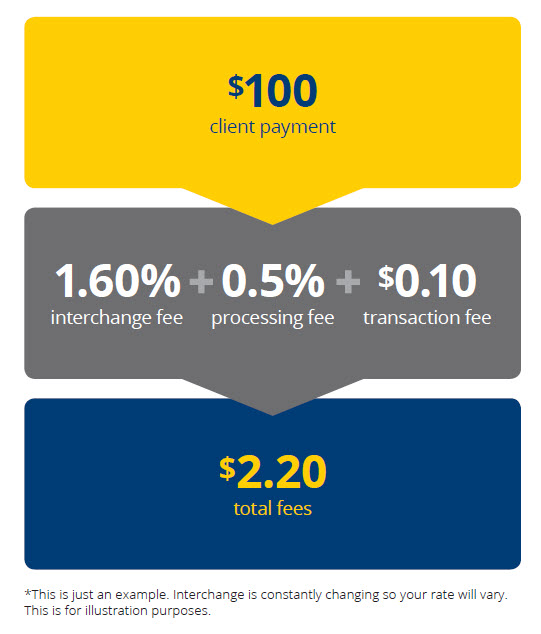
We use cost plus pricing. What is the cost? Interchange “cost” is the base rate set by Visa and Mastercard. It’s the lowest rate charged to consumers. The rate itself is based on the card class (luxury cards or debit cards) and the type of industry (government, retail, etc.). Cost plus the pricing at less than 1% makes it extremely competitive.
For clinics that don’t currently accept credit cards but would like to, your rate will be cost less than 1% a .10 cent transaction fee. There are no monthly fees.
If your clinic currently accepts credit cards, but you’d like to see if you can save money by switching, the MP Group will provide a quote based on how many transactions you process per month.
Processing Fees
If your clinic serves several low-income clients, chances are – they are paying with debit cards. Debit cards have an even lower interchange rate, typically 1.35% OR LOWER.
The more debit cards your clients use, the more money you’ll save on credit card processing. If most of your clients use debit cards, you’ll have incredibly low processing fees. This is why cost (interchange) plus pricing, instead of flat fee pricing, is great for spay/neuter clinics. How does that compare with other big-name processors?
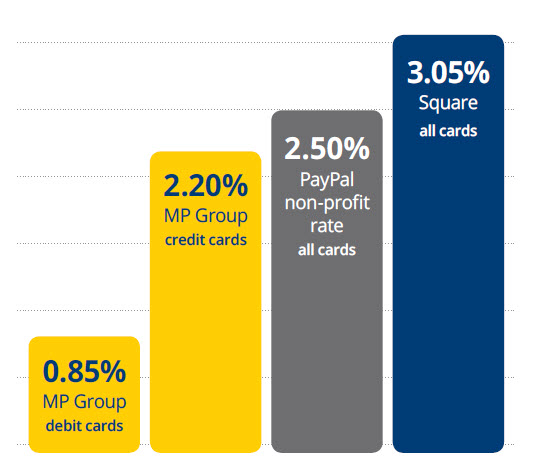
Tip: Clinic HQ has negotiated pricing with MP Group on behalf of the clinics that use integrated credit card processing. One of the perks of the integrated and negotiated rates: Run cards in the way that is most convenient for your clinic - you will not pay higher fees for (keyed) non-swiped cards. The price is the same!
Questions and Answers
Q: How long before money is deposited in my account? A: 24 hours Q: Do we have to buy a credit card machine? A: No, you don’t have to, but it will make your life easier by being integrated with HQ.
Sign up for MP Group
Visit this page to request a quote and get started with the sign-up process! Get a Quote, Savings Estimate & Sign Up Link Once you receive your quote and complete the application with MP Group it takes a week to be approved and a few more days to receive the machine.
Credit Card Via Machine
Using a credit card machine to process a transaction is sometimes called "Face to Face" transactions.
This means someone hands you a physical credit card and you either use the chip slot to stick the card into the terminal or if they do not have a chip, you can use the swiper slot on the side of the terminal. Once you process the card this way, the funds will arrive in your bank account.
Update as of 11/4/22: We are phasing out Exidigm machines as the company will phase them out by 12/31/22. It is unclear if the machines will work after that point. We have built a new integration with Dejavoo machines.
The Credit Card Machine
For credit card machines, we recommend the Dejavoo Z9 Wireless Terminal or for a wired option, the Z11 Tri Comm Touch Screen These are integrated with Clinic HQ. The cost for the Z9 is $550 and for the Z11 is $350.
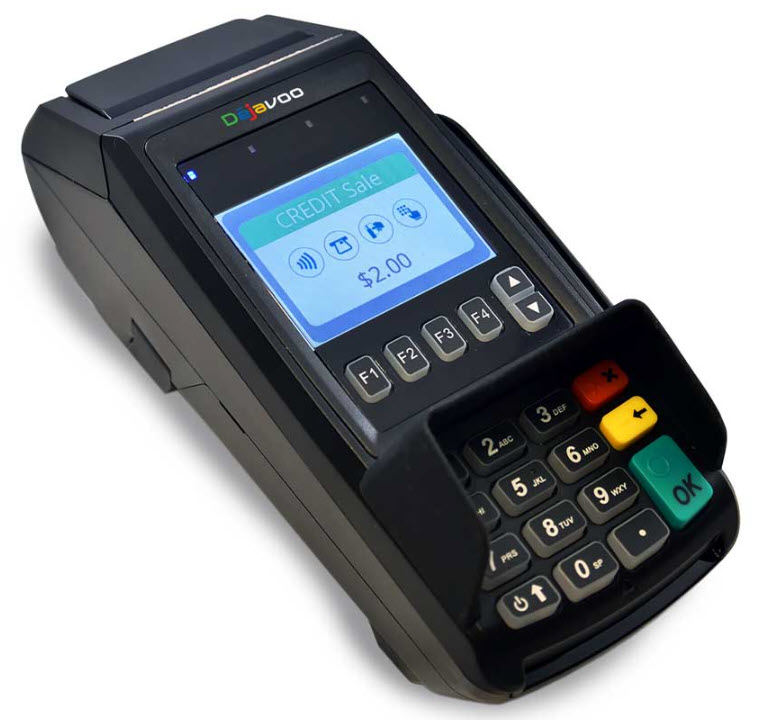
Purchasing a Dejavoo Terminal
To order a Dejavoo terminal you must be set up with MP Group for card processing. If you already have an MX Merchant account through MP Group but need to purchase a terminal, please email Amanda at amanda@gompgroup.com.
Setting up a Dejavoo machine
Once you receive the Dejavoo terminal, follow the steps outlined in Settings> E-Payments for Credit Card Machine Setup
Credit Card Processing Online
!TIP THE BIG WHAT Making a credit/debit card payment through Clinic HQ's integrated site tools and not through a machine is what we call an "Online" payment. This process requires typing in a card number by hand. The card is charged at that time through the integrated merchant system. An online payment can be made by clinic staff (E-Payments), the public clients (E-Pay Request), or volume clients (VCP.)
Taking a payment online can be done if you are signed up with our integrated merchant system through MP Group.--- Unknown node: hardBreak ---Here are the ways to run a credit/debit card transaction online.
Entering Card Information into HQ via E-Payments
Credit Card (E-Payment) will process the credit card through HQ's API. This means the card will be charged in real-time, and the funds will be collected and deposited into your clinic's bank account. The client will receive an email receipt (if they have an email on file).
!TIP TIP: You can set in MX Merchant settings whether the card should be rejected or passed through if the address and/or zip code don't match the card number.
Deposits
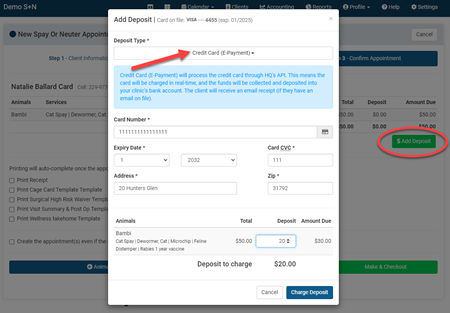
When scheduling internally, staff have the option to collect the deposit payment by entering the card number right into HQ. Deposits are collected and applied to appointments for Public Clients only. When creating the appointment, the deposit will be applied on the last screen: Step 3 Confirm Appointment.
- On Step 3, click the green Add Deposit button.
- Choose the payment type as Credit Card (E-Payment)
- Enter the card details: card number, expiration, security code, and billing address are all required fields. If the client has previously been to your clinic and was sent an e-Pay request where they vaulted their card, staff can choose to make the deposit using a vaulted card or add a new card. Most clients will not have a vaulted card.
- Enter the deposit amount for each animal being scheduled for this appointment.
- Click the blue Charge Deposit button. Here the system will run the transaction and the client will be charged right then.
Direct
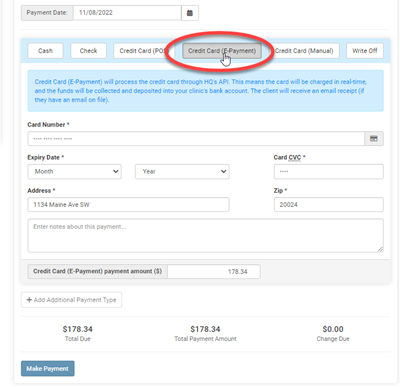
When collecting a payment to apply to an appointment or volume client invoice, staff can enter a transaction directly into HQ to charge a card. For Public Client payments, there are two places staff can go to make the online payment. Option A) Edit the appointment and go to the Financial tab. Option B) Go to Accounting > Public Apply Payment. From this screen, you can only see appointment from today and back. Not future appointments. This is a great place to make payment if the public client has more than one animal with a balance owed.
For Volume Client payments, go to Accounting > Volume Apply Payment.
No matter where you are in HQ, making the E-Payment will be the same and it is easy!
- Choose payment type E-Payment
- Enter the client's card details - card number, expiration, security code, and billing address are all required fields. If it is a public client, you may see the option to use a vaulted card.
- Add any payment notes if you need and then click the blue Make Payment button. The client's card will be charged right then.
Sending an E-Pay Request to Public Clients
A common practice is for a clinic to require a deposit during scheduling but collect the remainder due the week of surgery or day of. By utilizing the e-Pay request you can expedite the check in or check out - whichever time you typically collect payments. This tool is only for Public Clients only. The e-Pay request can be sent at any time: before, during, or after an appointment. To send the request, simply click the icon. An email will be sent to the client for ALL animals with an outstanding balance due for that same visit date.
!TIP TIP: If collecting payment day of, tell your clients at check in to expect a payment request via email and to please pay this before returning for pick up.
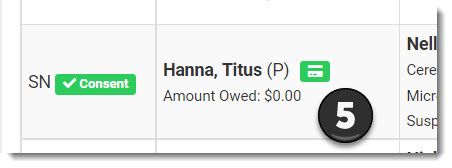
You will notice the e-pay request as a credit card icon next to the public client's name on the Check In/Checkout screen or on the Financial tab within an appointment.
- Click the credit card icon to receive the option of sending a payment request.
- Once done, a green banner will appear across HQ indicating the request was sent successfully and the icon will turn yellow.
- The client will receive an email with the outstanding balance of all animals for this visit date. They will click the Make Payment in the email, enter their card information, and submit the payment. The client cannot pay a partial amount. They are only given the option to pay in full through the payment request.
- When the client pays, the card icon will turn either green or red and the balance due will drop to $0. This will be recorded as a credit card "Online" transaction when looking at the payment details in HQ.
Read more about e-Pay and Vaulting HERE.
Volume Client Portal (VCP) Pay
Learn how to bill a Volume Client HERE.
!TIP TIP: Edit your invoice email template in Settings > Invoices. Add the following statement: "Once you have thoroughly reviewed the invoice, please login into your Volume Client Portal (portal.clinichq.com) to pay this invoice."
When an invoice is generated, the volume client will have the ability to review and pay online by logging into their Portal.
- Volume Client must log into their Portal at portal.clinichq.com.
- There the VC will click Invoices.
- Review the invoice. Select which invoice(s) to pay for. Then, click Bulk Pay.
- A pop up will appear for the VC to enter their card information. The VC can choose to save the card. Saving the card will not allow your clinic to charge the card automatically. The VC must always review and pay through their Portal, but they will have the option to use the saved card instead of reentering card information each time. The Volume Client can only pay in full. They do not have the option to make a partial payment on an invoice. If they need to make a partial payment they must go through the clinic directly to pay.
On the clinic's side of the software, when the Volume Client makes their payment online through the Portal, these will appear as Credit Card Online transactions with a a tender type of "VCP" followed by the card type. The payments will update in real time on the clinic's side of HQ accounting.
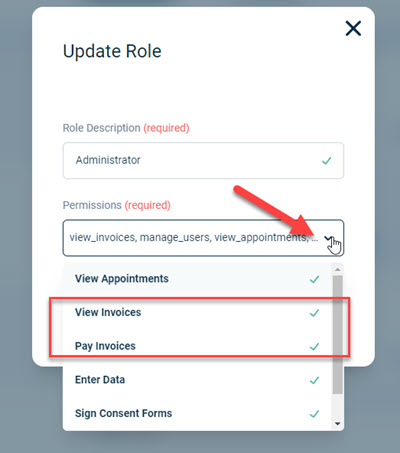
*NOTE: If your Volume Client says they cannot pay online - this is often caused by user role functions. The VC must have the user permissions enabled to view invoices and pay invoices. The VCP administrator role can view and edit the user roles for their Portal. They must edit their user role to turn these options on in the event they are not already enabled.
Credit Card Troubleshooting
Important Credit Card Processing Information
Swiping a credit card and having it update in HQ makes your life much easier. 99% of the time, there’s nothing to it. But since we’re a cloud-based system, and the credit machine is WiFi-based, Internet access is key. Here are a few things your clinic should be aware of related to credit card processing.
- Swiping Cards
- When a card is swiped, staff MUST wait until the HQ screen is updated before changing/closing the computer screen
- Staff cannot type the card into MX Merchant and expect it will then update in HQ.
- Refunds MUST be generated via HQ using the “Refund POS Payment” button, NOT done in MX Merchant.
- Reconciling
- It is imperative that you reconcile your transactions in MX Merchant with the transactions in HQ, weekly – if not daily.
- It should be understood that if your clinic takes payment online, clients can make payments any time of day, including after the auto-batch run for that day. In this case, these transactions will be on that day’s reconciliation in HQ but not in the batch for that day. They will be in the batch for the next day.
- If you put the link on your website to take donations, there will be transactions in MX Merchant, which then need to be entered into HQ as a donation. There is no “link back” for that yet in HQ.
Declined Error Message & Meaning
When processing through the integrated merchant system, if a payment cannot be processed a red error banner will appear with a reason provided by the merchant API for the decline. Here are common errors and what they mean.
_Do Not Honor_ Often seen when refunding a payment.
The "Do Not Honor" (also sometimes displayed as "Do Not Honour") response code is a message that can be generated by a credit card issuer or payment processing system when a credit card transaction is declined. This response code typically indicates that the issuer of the credit card has chosen not to authorize the transaction for some reason.
There can be various reasons why a transaction might receive a "Do Not Honor" response code, including: - Insufficient Funds: The cardholder's account does not have enough available credit or funds to cover the transaction amount. - Suspected Fraud: The transaction is considered suspicious, and the issuer is taking precautionary measures to protect the cardholder from potential fraud. - Expired Card: The credit card being used for the transaction has expired, and the cardholder has not received a new one. - Account Restriction: The cardholder's account may be restricted due to various reasons, such as overdue payments or suspicious activity. - Incorrect Information: The information entered for the transaction (e.g., card number, expiration date, CVV code) may be incorrect or incomplete. - Issuer's Policy: The issuer may have certain policies in place that restrict certain types of transactions or transactions with specific merchants.
What should the clinic and cardholder do? When a transaction receives a "Do Not Honor" response, it is generally advisable for the cardholder to contact their card issuer or bank to understand the specific reason for the decline and to resolve the issue.
Merchants(the clinic) may also have policies in place for handling such responses, and customers may need to provide corrected information or choose an alternative payment method to complete the transaction. It's important to note that different payment processors and card issuers may use slightly different response codes or messages, but "Do Not Honor" is a common one used to indicate that the issuer has declined the transaction for some reason.
Alternative to refunding when this error occurs. The clinic and the cardholder may also decide to leave the payment as a client credit or a donation instead of trying to refund the payment.
Common Credit Card Decline Codes and Reasons
Common Credit Card Decline Codes and What They Mean
When a credit card transaction fails, the system returns a decline code to indicate the reason. Understanding these codes helps determine whether to retry the transaction, contact the customer, or request a new payment method.
Clinic HQ is not given any additional information beyond the decline code and cannot provide insight into why the card was declined.
Card Declined (General)
Code 05: Do Not Honor - The issuing bank is declining the transaction, and the cardholder should contact their bank for more information.
Rapid Refund Activity Detected - There are refund thresholds in place to prevent fraud. The default is 50 refunds in 24 hours or 10 within 2 minutes. If you are constantly getting this message, please call MP Group at 770-818-6188 to review your account. It's possible there is a lock on your account.
Code 51: Insufficient Funds - The cardholder does not have enough available credit or funds in their account to cover the transaction.
Code 54: Expired Card - The card being used has expired, and the cardholder needs to update their card information.
Code 14: Invalid Card Number - The card number entered is not valid.
Code 55: Incorrect PIN - The PIN entered for a debit transaction is incorrect.
Code 62: Decline of Authorization - The issuing bank suspects fraudulent activity, and the cardholder should contact their bank. Card Not Activated:
Code 78: No Account - The card has not been activated by the cardholder.
Code 83: Fraudulent Card - The cardholder has reported the card as lost or stolen. Issuer Unavailable:
Code 91: Issuer Unavailable - The issuing bank is temporarily unable to authorize the transaction.
Code 93: Cannot Complete, Violation of Law - There’s a violation on the customer account, and the issuing bank has prevented the transaction.
Code 65: Exceeds Withdrawal Limit - The withdrawal amount exceeds the cardholder's daily limit.
Code 36: Restricted Card - The card may be restricted from certain types of transactions, such as online purchases.
Code 96: System Error - There was an issue with the card authorization system.
It's important to note that these codes can vary, and different card networks (e.g., Visa, Mastercard, American Express) and issuing banks may use slightly different codes or messages. When a transaction is declined, the best course of action is for the cardholder to contact their issuing bank for specific information about why the transaction was declined and how to resolve the issue.
Here is a more comprehensive list of various declined reasons.
A complete list of credit card decline reasons can be quite extensive because different credit card networks and issuing banks may use unique codes and messages to indicate why a transaction was declined. However, I can provide a more comprehensive list of common decline reasons:
Do Not Honor Codes
- 05: Do Not Honor
- 41: Lost Card
- 43: Stolen Card
- 51: Insufficient Funds
- 52: No Checking Account
- 53: No Savings Account
- 54: Expired Card
- 55: Incorrect PIN
- 57: Transaction Not Permitted to Cardholder
- 61: Exceeds Withdrawal Limit
- 62: Restricted Card
- 63: Security Violation
- 65: Exceeds Withdrawal Frequency
- 78: No Account
Issuer Unavailable or System Error Codes
- 91: Issuer Unavailable
- 92: Destination Not Found
- 93: Transaction Cannot Be Completed
- 94: Duplicate Transmission
- 96: System Error
- 97: System Malfunction
Suspected Fraud or Security Concerns Codes
- 03: Invalid Merchant or Service Provider
- 12: Invalid Transaction
- 13: Invalid Amount
- 14: Invalid Card Number
- 15: No Such Issuer
- 23: Unacceptable Transaction Fee
- 24: File Update Not Supported
- 25: Unable to Locate Record
- 26: Duplicate Record
- 27: File Update Field Edit Error
- 28: File Update File Locked
- 29: File Update Failed
- 30: Format Error
- 31: Bank Not Supported by Switch
- 32: Completed Partially
- 34: Suspected Fraud
- 35: Contact Acquirer
- 36: Restricted Card
- 37: Call Card Issuer
- 38: Allowable PIN Tries Exceeded
- 39: No Credit Account
- 40: Requested Function Not Supported
- 42: No Universal Account
- 44: No Investment Account
- 45: Account Closed
- 46: No Card Record
- 47: No Savings Account
- 48: No Checking Account
- 49: Reserved for Future Use
Other Codes
- 75: PIN Tries Exceeded
- 76: Reserved for National Use
- 77: Reserved for Private Use
- 98: Reserved for Future Use
What to Do When a Card Is Declined
- Retry the transaction if the error appears to be temporary (e.g., system error or issuer unavailable).
- Ask the client to update payment details if the card is expired, invalid, or not activated.
- Have the cardholder contact their bank for fraud-related declines (e.g., Do Not Honor, Restricted Card).
- Call MP Group at 770‑818‑6188 if you are receiving rapid refund activity warnings or think there is a lock on your account.
Note on Code Variations: Card decline codes may vary slightly depending on the issuing bank and card network (Visa, Mastercard, AmEx, etc.). Always refer to the exact message returned at the time of the decline and contact the bank for clarification if needed.
To reference a full list of codes, please see MX MERCHANT'S PAGE If you're confused about error codes or declined charges, Try using ChatGPT to help you understand what the error message means. If you receive an email saying a charge was declined, don’t worry, it means the payment didn’t go through, not that you were charged.
Loss Prevention & Chargebacks
Loss prevention refers to you preventing fraud and loss of revenue from credit card transactions. There are a few things you can do to tighten or loosen these restraints as you deem necessary.
- Chargebacks
A chargeback is when a client protests the charge your clinic charged them for services.
Unfortunately, there is not much we can do from an HQ perspective about this. We have no tool to adjust the charge on their account.
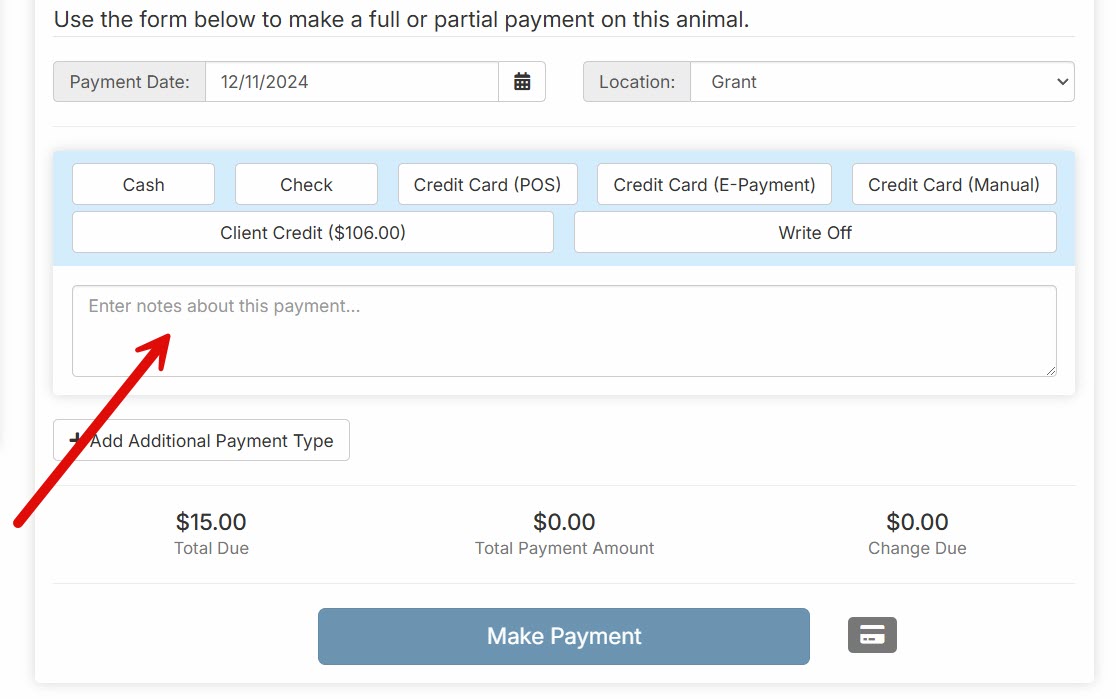
There are two things you can do - Add a note and add a client tag.
Adding a note
You can add a note here
Adding a client tag
You add a client tag in Settings > Tags