Accounting Tools

Accounting Tools consists of the ability to remove Volume Client payments and delete Volume Client invoices most commonly performed to correct mistakes with billing.
Unbilling & Unpaying An Invoice
There might be a time when, for some reason, you need to unpay a bill or an invoice. We created a tool that makes it easy and accessible for anyone to do just that. In HQ we refer to deleting an invoice as "unbilling."
What kind of invoice is it? Item Sale or animal services
Unbilling an Item Sale
These invoices will not have animal details and will have a header labeled "Products." To unbill an Item Sale:
- Go to over-the-counter sales (access from the Jumbo Menu or Accounting > Item Sales.)
- Change the date range to that of when the item sale invoice was created.
- Delete the invoice using the red trashcan button.
- Read more in Item Sales section of the manual
Unbill = delete invoice (irreversible)Unpay = delete payment (irreversible)
Unbilling & Unpaying A Service Based Invoice
NOTE: ONLY cash, check, and credit card (manual) payments can be removed from an invoice with the unpay tool.
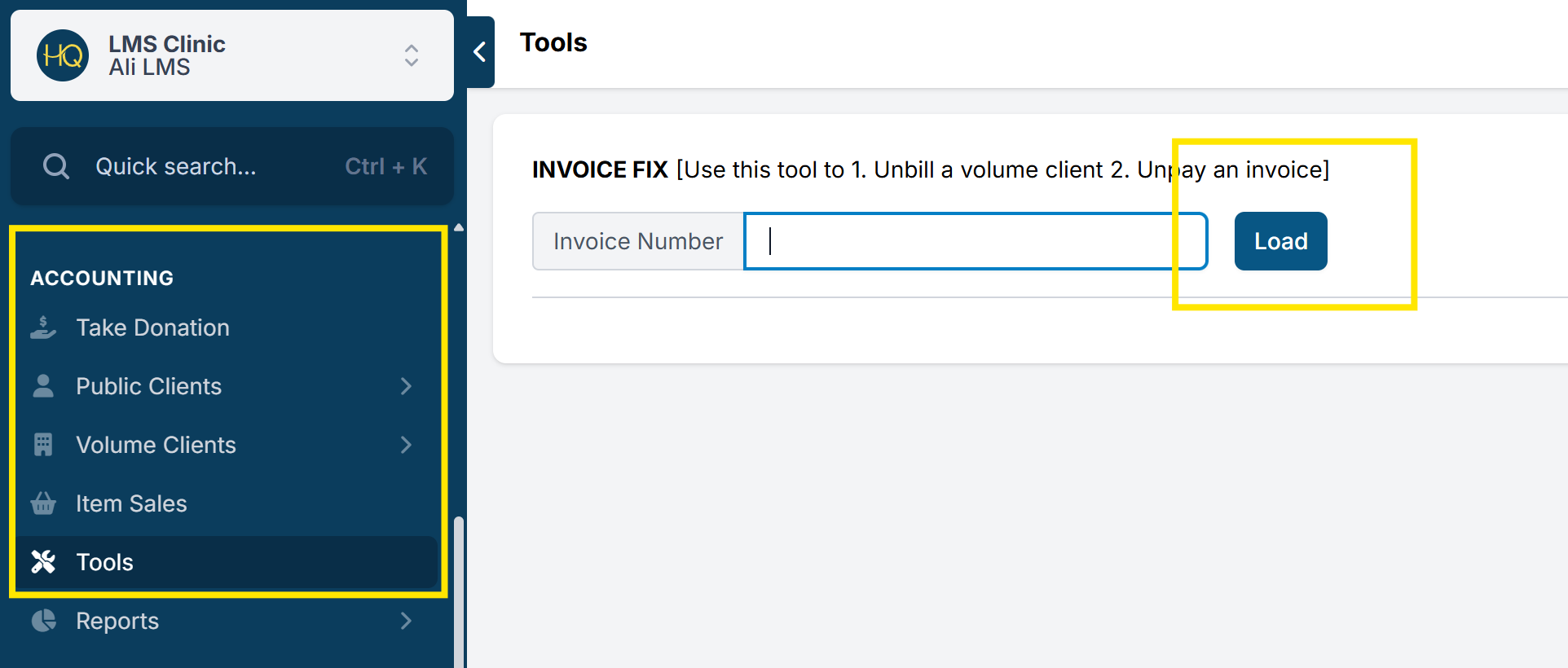
- Navigate to Accounting > *Tools
- You will need the number of the invoice you want to unpay/unbill. When you get the number, type it in the text box and click on Load, as shown.
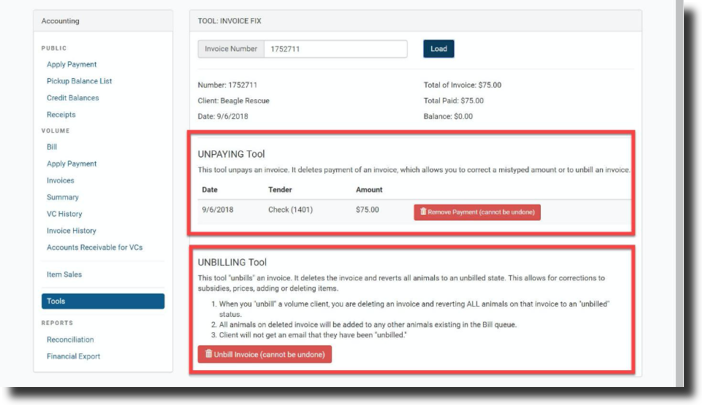
- It’s very important to check if the invoice you typed is the correct one. Unbilling/Unpaying is a definitive step. Once it’s done, it can’t be undone.
- After you’ve checked all the information regarding the invoice, check to see if the invoice has been paid. Any payment will appear under the “Unpaying tool” list. You will have to manually remove all payments before being able to unbill the invoice.
- If you just want to remove a payment from an invoice, you need only to click the Remove Payment (cannot be undone) button, and you’re done!
- If you want to unbill the invoice (and effectively remove it from the system), you will need to remove every payment first.
- After that, you can click the Unbill Invoice (cannot be undone), and the invoice will be removed.
Unbill an Invoice with Online or POS Credit Card Payment
Important: Credit card "Online Payments" (e-payments or VC Portal payments) and "POS" transactions, cannot be removed.
What can be done if there is a mistake on the invoice but the client paid using a POS, VCP/Online credit card?
In the event, that an invoice needs to be revised but the credit card payment applied that was processed through the integrated merchant, you will not be able to "remove payment." Instead, you must repurpose the payment to a client credit. Once the credit card payment is repurposed unbill the invoice using the steps above.
Here are the steps to repurpose the credit card POS or online payment:
- Go to Clients > Search Clients/Animals, find and view the VC profile.
- On the Payments tab, locate the credit card payment and click View Details.
- Click Action > Repurpose Payment.
- Once the payment has been converted to a Client Credit, go to Accounting > Tools and unbill the invoice.
Make corrections to the services/prices on the appointment and generate a new invoice. You will not be able to apply the original credit card transaction to the new invoice. The form of payment will have to be applied as Client Credit.