Refunds

A refund can only occur when a payment has already been made.
The objective of the payment as being a deposit, direct payment, or donation will not affect the ability to perform refunds as long as it is cash, check, or credit card payment.
Understanding Refunds
Use cases: Why would you offer a refund?
There are generally two common reasons for performing refunds. The client has overpaid for an appointment or the client needs to cancel an appointment and the clinic policy allows for refunding deposits with notice.
Overpayment – Refund*
An overpayment occurs on an appointment where the services or prices change. This could happen when a surgery is declined, services or no longer needed, a subsidy discount is applied, or one-offs such as comped services for an unhappy client.
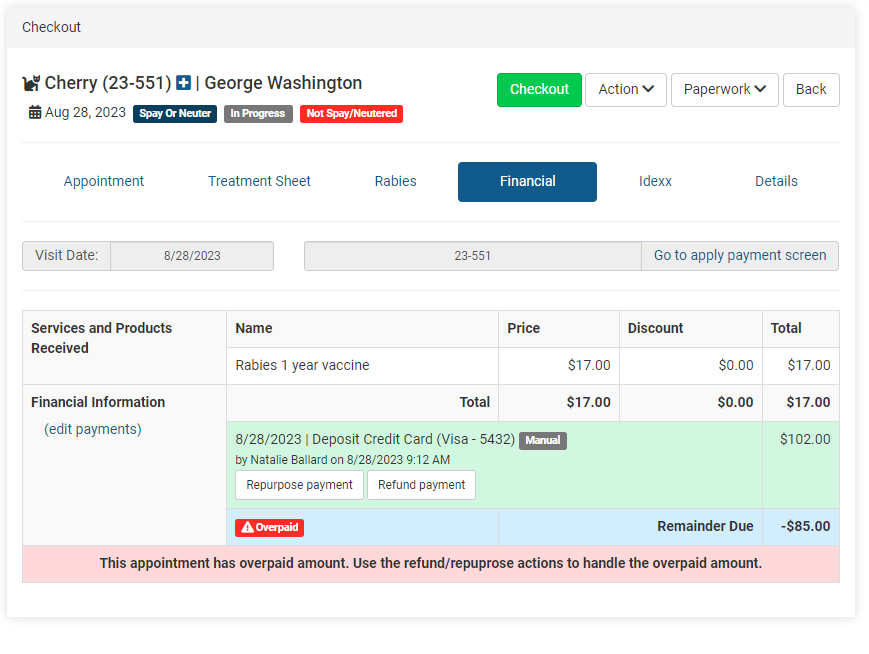
TIP: If a client has overpaid for services instead of refunding, ask the client if they would like to leave the overpayment as a donation! In this case, use the action button and repurpose the money to a donation. This is a great way to save on credit card fees if the original payment was a credit card.
Overpayments to create “Change Due” is not the same as a refund. If the client’s total is $18 and they give you $20 – the extra $2 given back to the client, is not a refund. This is the change due amount. In Clinic HQ, you would enter the payment amount as $18, not $20.
Cancelled Appointment – Refund Deposit
If the client contacts the clinic to cancel their appointment and a deposit was made, the clinic may offer a refund to the client.
NOTE: Discuss your clinic policy with a manager – some clinics may have a no-refund policy for canceled appointments. Before the appointment can be marked as canceled, the deposit would need to be managed and the action taken to refund the payment. Once an action is taken with the deposit the appointment can be cancelled.
Things to note about Refunds
- Discuss with your manager your clinic’s policy on refunds.
- MX Merchant has a refund threshold in place to prevent fraud. The default is 50 refunds in 24 hours or 10 within 2 minutes. If your clinic exceeds the threshold, you will see an error banner with “Rapid Refund Activity Detected” If you are constantly getting this message, please call MP Group at 770-818-6188 to review your account. It’s possible there is a lock on your account.
Process all refunds through Clinic HQ. Do not process refunds via MX Merchant directly.
Unable to refund a credit card?
Read about credit card refund errors what they mean and what you should do if you get an error, HERE.
Never Process Transactions in MX Merchant First!
IMPORTANT: All transactions must be processed through Clinic HQ FIRST
Never process any transactions through MX before they are processed through Clinic HQ. The team has posted numerous memos about this topic, and cannot provide individual transaction assistance if this process is done either incorrectly or accidentally.
One-Way Street
It is not a two-way street between Clinic HQ and MX Merchant. Clinic HQ can 'talk to' MX but MX cannot 'talk back' making it a one-way street from HQ to MX. If you process any transactions through MX Merchant first, they will not be reflected in Clinic HQ. To avoid this situation, you'll need to process all transactions through Clinic HQ first.

We cannot make it refund in HQ if you've already done a refund in MX Merchant
It is physically impossible for us to 'make' HQ refund a payment when you have already refunded it in MX Merchant. We have no suggestions on what to do to "fix" the situation in HQ if you make this mistake. You can leave a note in the financial memo but that is the only suggestion we can give for these circumstances.
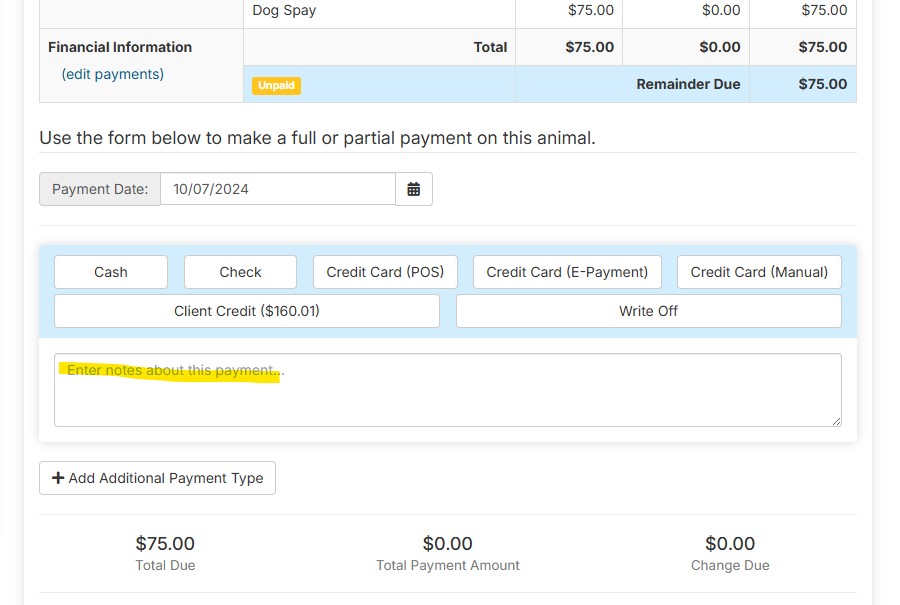
How To Process a Refund
How to Process a Refund
Your clinic may process refunds for a variety of reasons, such as canceled appointments, billing errors, or overpayments
How to Issue a Refund
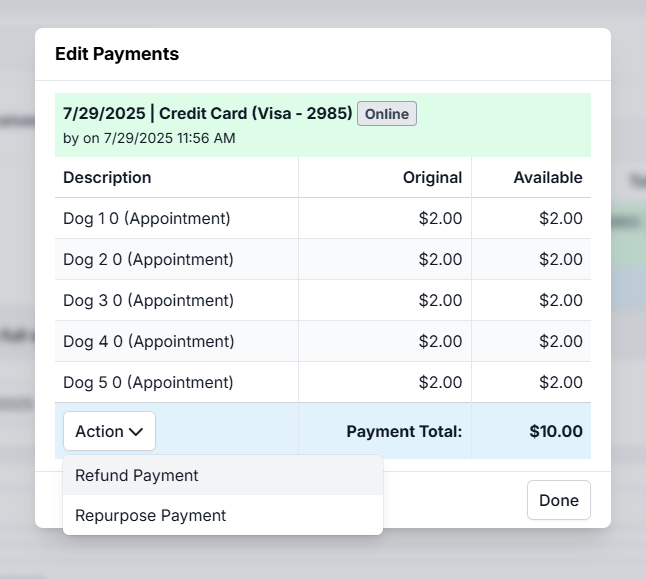
Every payment will have an action menu. From the action menu, you can opt to repurpose or refund the payment.
Locate the Payment Payments can be viewed and managed in any of the following places:
- Deposit Management Go to Clients > Deposits > Locate the payment and click Action
- Appointment Financial Tab Go to Clients > Check In/Checkout > Edit appointment > Financial
- Client Profile Payment History Go to Clients > Search Clients/Animals > Locate the client via Search > View profile > Payments
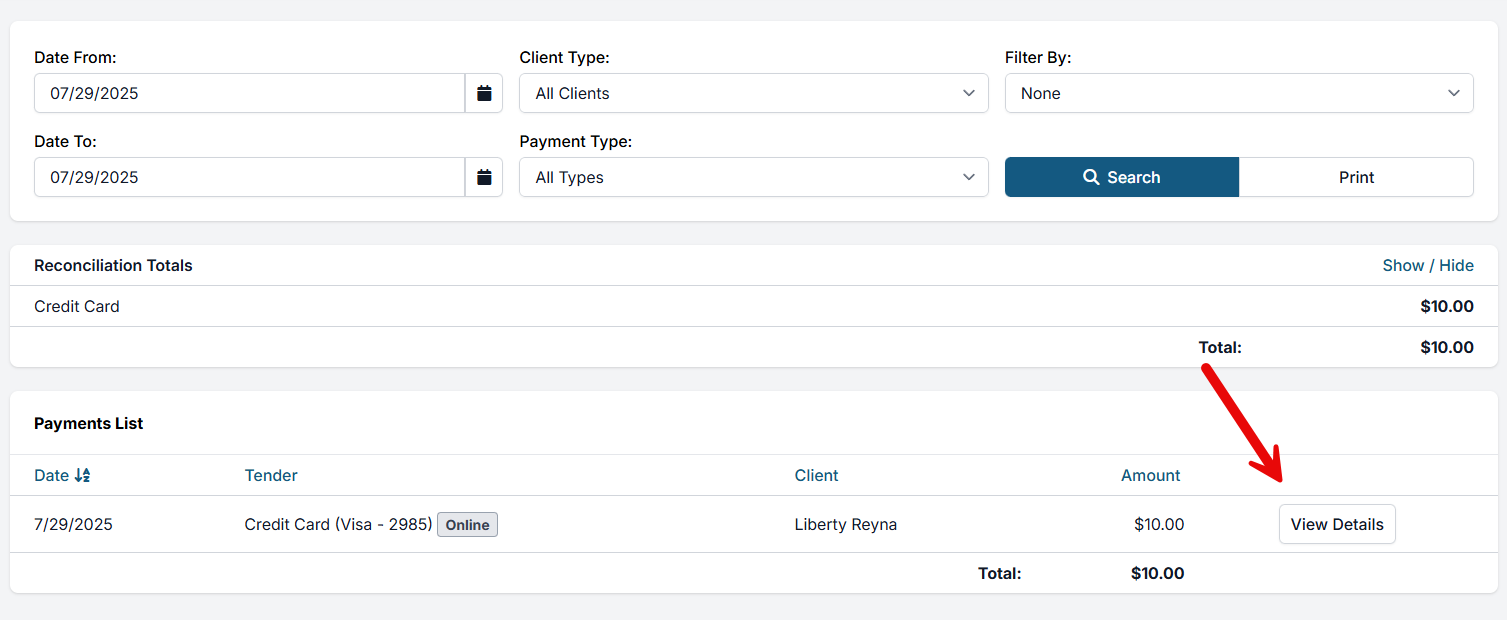
- Reconciliation Report Go to Accounting > Reconciliation > Choose a date range and Search > Locate payment and View Details
Cash or Check
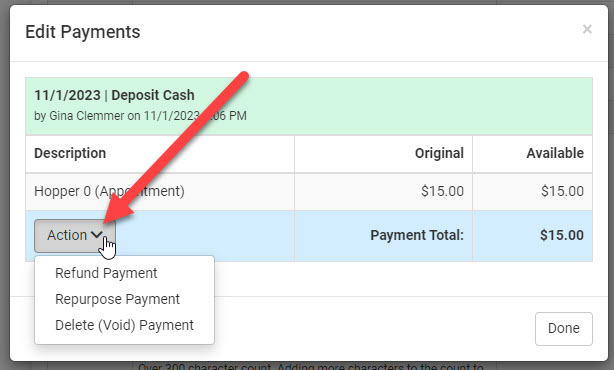
- In Clinic HQ, locate the payment and edit the payment.
- Click the Action menu and choose Refund Payment.
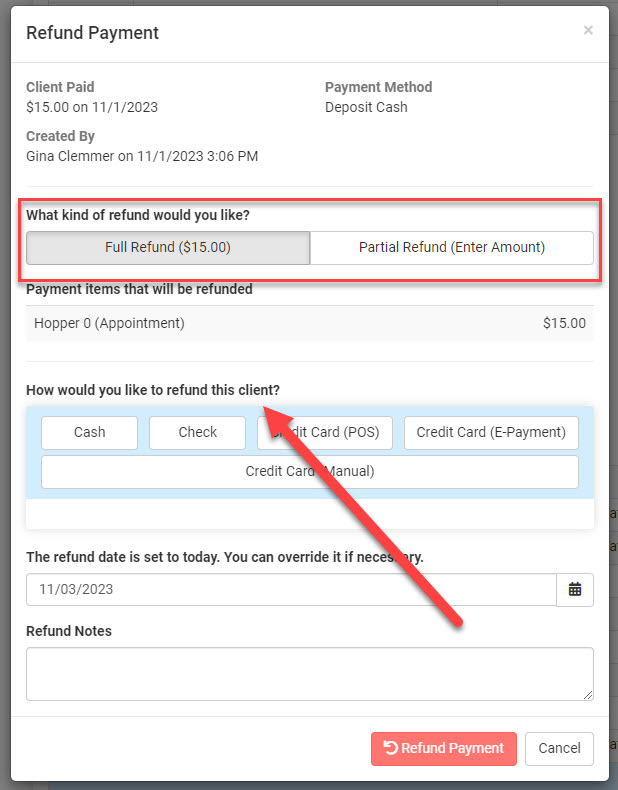
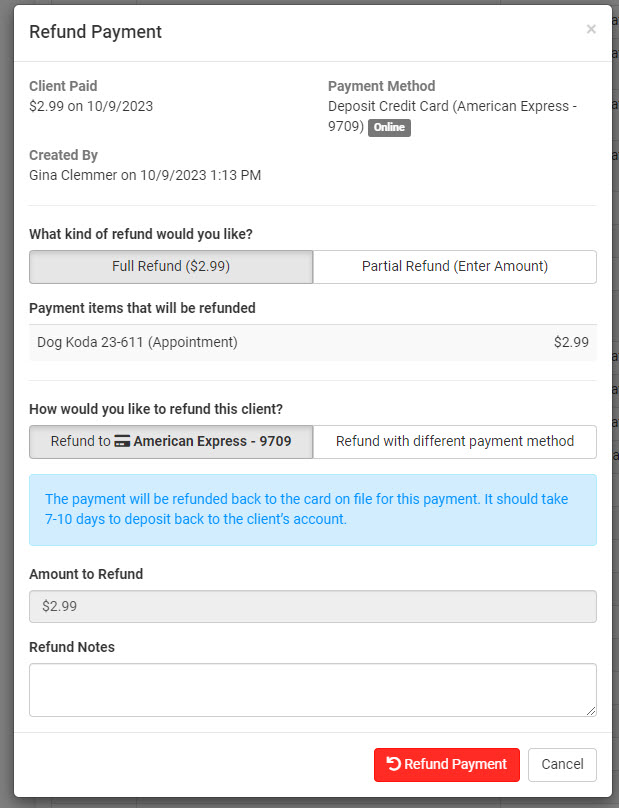
- From the refund screen, confirm the payment type and refund amount: is it a full refund or partial refund of the original payment?
- Save the refund details by clicking the red Refund Payment button.
Credit Cards
NON-INTEGRATED CREDIT CARD (MANUAL)
Review the original payment type. If it is Credit Card (Manual), then the refund will also be manual. Refunding as Credit Card (Manual): This option does not use the integrated MX Merchant system. Your clinic will need to process the refund on the card outside of Clinic HQ manually and record in Clinic HQ that the refund was processed. Using the refund tool will simply notate in Clinic HQ that the refunds occurred.
- User your clinic's merchant platform to process the refund transaction.
- In Clinic HQ, locate the payment and edit the payment.
- Click the Action menu and choose Refund Payment.
- From the refund screen confirm the payment type, card details, and refund amount: is it a full refund or partial refund of the original payment?
- Save the refund details by clicking the red Refund Payment button.
INTEGRATED (POS) or CREDIT CARD (E-PAYMENT)
If the original payment was processed through MX Merchant as Credit Card (POS) or Online through E-payments, the card is not needed to process the refund. The system will utilize the original transaction to refund the client.
- In Clinic HQ, locate the payment and edit the payment.
- Click the Action menu and choose Refund Payment.
- From the refund screen confirm the payment type, card details, and refund amount: is it a full refund or partial refund of the original payment?
- Save the refund details by clicking the red Refund Payment button.
Difference in Refund, Repurpose and Voiding Payments
Refunds vs Voiding Payments in HQ
Understanding the difference between a refund and a void is essential for accurate payment processing in HQ. Using the wrong option can lead to accounting issues or client dissatisfaction.
- Refund: Returns money to the client via their original payment method. Use this when the payment has already been processed. The transaction remains in records as "refunded" and appears in reports and history. If integrated with MX Merchant, the funds are actually returned; if not, the refund is only recorded internally.
- Repurpose: Instead of refunding, you can apply the payment as a client credit for future use or convert it into a donation.
- Void: Cancels the payment before it settles - like it never happened. The payment is removed but will still show in your deleted payments log.
Important: Once a payment is voided, it cannot be refunded.
Refunding Multiple Animals All At Once
Refunding Multiple Animals At Once
From Client Profile:
- Locate the payment in the "Payments" tab
- View details on payment
- Select full refund
- Select how you want to refund (cash, card, check, etc.)
- Enter the amount
- Select Refund Payment
Note: If you want to select any partial amount of a refund, it must be done individually.
From The Appointment Screen:
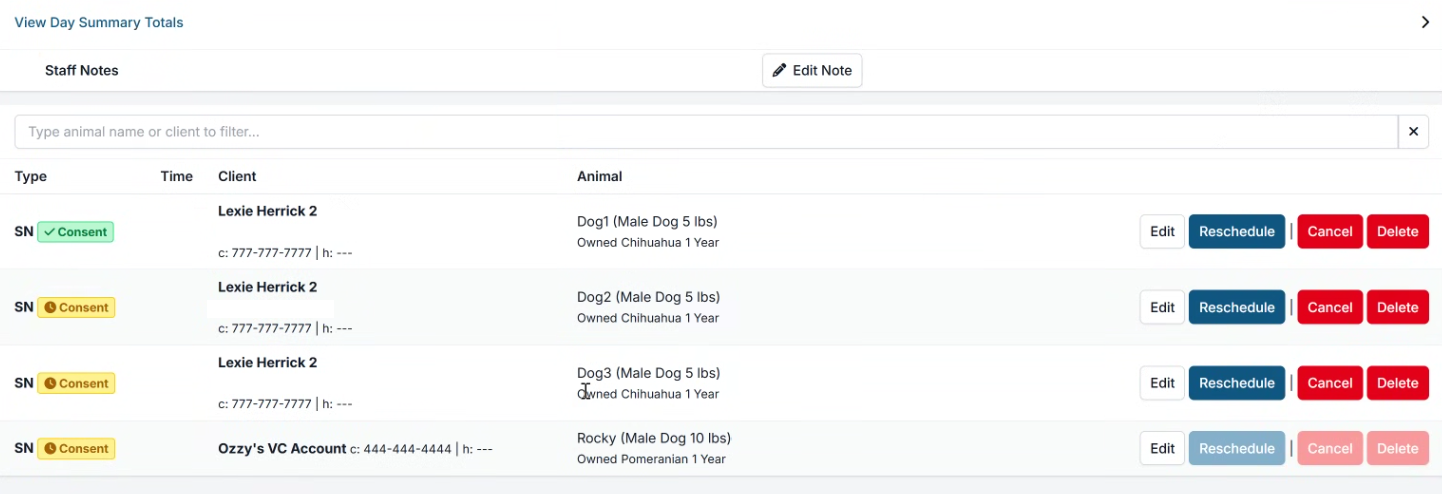
- In the appointment, navigate to the financial tab. Your screen will look like this (below). You will only need to select one of the animals on this payment in order to refund the full amount.
- Select Edit Payments
- Select how you want to refund (cash, card, check, etc.)
- Enter the amount
- Click Refund Payment.
Refunding One Animal Out of Multiple Animals
Refunding One Animal out of Multiple Animals
From Client Profile:
- Locate the payment in the "Payments" tab
- View details on payment
- Select Partial Refund
- Select which animals you'd like to refund
- Select how you want to refund (cash, card, check, etc.)
- Enter the amount
- Click Refund Payment
Note: The amount of a single refund cannot exceed the amount of the original payment.
From Appointment Screen
- In the appointment, navigate to the financial tab
- Click Edit Payments
- Select which animals you'd like to refund
- Select how you want to refund (cash, card, check, etc.)
- Enter the amount
- Click Refund Payment
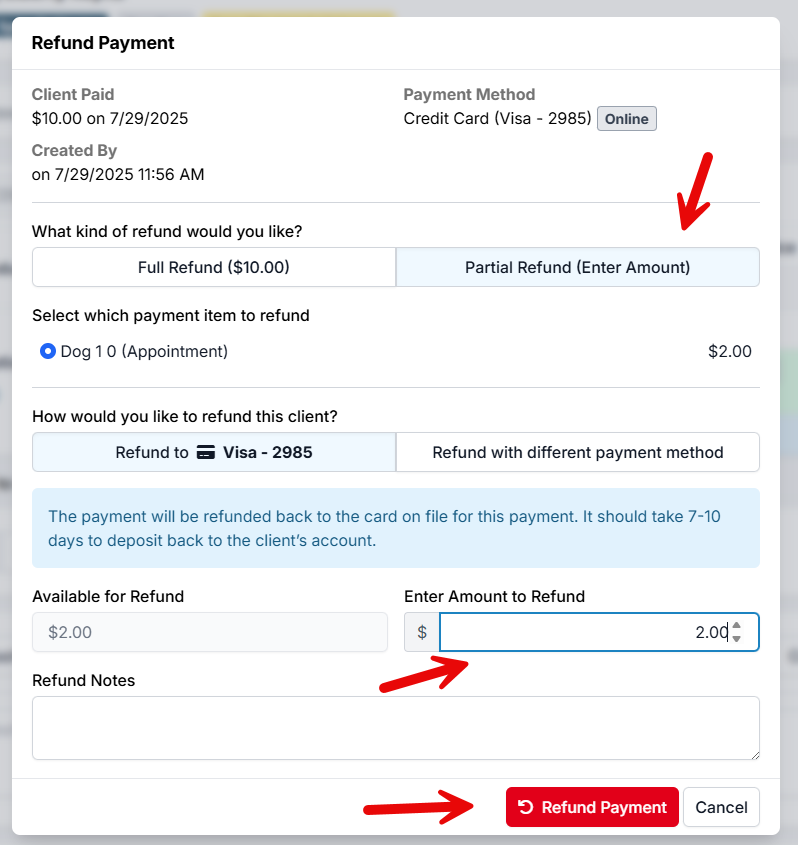
Refunding Partial Amounts
Refunding Partial Amounts
From Client Profile
- Locate the payment in the "Payments" tab
- View details on payment
- Select Partial Refund
- Select how you want to refund (cash, card, check, etc.)
- Enter the amount
- Click Refund Payment
From The Appointment Screen
- In the appointment, navigate to the Financial tab
- Click Edit Payments
- View details on payment
- Select Partial Refund
- Select how you want to refund (cash, card, check, etc.)
- Enter the amount
- Click Refund Payment
Refunding Deposits
How to Refund?
Each payment has an action menu. From there, you can choose to either repurpose or refund the payment. Locate The Payment
Payments can be viewed and managed in any of the following places:
- Deposit Management Go to Clients > Deposits > Locate the payment and click Action
- Appointment Financial Tab Go to Clients > Check In/Checkout > Edit appointment > Financial
- Client Profile Payment History Go to Clients > Search Clients/Animals > Locate the client via Search > View profile > Payments
- Reconciliation Report Go to Accounting > Reconciliation > Choose a date range and Search > Locate payment and View Details
CASH, CHECK
- In Clinic HQ, locate the payment and edit the payment.
- Click the Action menu and choose Refund Payment.
- From the refund screen confirm the payment type and refund amount: is it a full refund or partial refund of the original payment?
- Save the refund details by clicking the red Refund Payment button.
CREDIT CARD
NON-INTEGRATED CREDIT CARD (MANUAL)
Review the original payment type. If it is Credit Card (Manual), then the refund will also be manual. Refunding as Credit Card (Manual): This option does not use the integrated MX Merchant system. Your clinic will need to process the refund on the card outside of Clinic HQ manually and record in Clinic HQ that the refund was processed. Using the refund tool will simply notate in Clinic HQ that the refunds occurred.
- User your clinic's merchant platform to process the refund transaction.
- In Clinic HQ, locate the payment and edit the payment.
- Click the Action menu and choose Refund Payment.
- From the refund screen confirm the payment type, card details, and refund amount: is it a full refund or partial refund of the original payment?
- Save the refund details by clicking the red Refund Payment button.
INTEGRATED (POS) or CREDIT CARD (E-PAYMENT)
If the original payment was processed through MX Merchant as Credit Card (POS) or Online through E-payments, the card is not needed to process the refund. The system will utilize the original transaction to refund the client.
- In Clinic HQ, locate the payment and edit the payment.
- Click the Action menu and choose Refund Payment.
- From the refund screen confirm the payment type, card details, and refund amount: is it a full refund or partial refund of the original payment?
- Save the refund details by clicking the red Refund Payment button.
How to Refund a Client Credit
Refunding Client Credits
If a Client Credit has been applied to an appointment, and you now need to refund the amount, you will need to take the Client Credit back to its original form of payment before refunding.
Follow the steps below to refund a Client Credit:
- Remove the payment from the appointment using Delete (void) Payment. (This will remove the client credit payment from the appointment, this will revert the transaction back to an unused client credit and will be logged as a Deleted Payment)
- Revert the client credit on the original payment using the reverse arrow on the client credit line
- Refund overpayment by selecting Action > Refund Payment
Refunding a Partial Client Credit
If you need to use portion of the Client Credit and refund the rest, you will first need to take the initial payment back to its original form, run the partial refund, then go back through converting the remainder to a client credit and re-applying it back to the appointment.
To do so, follow Steps 1-3 above, and continue with the steps below:
- Once the Client Credit has been reverted, run a Partial Refund for the amount needing to be refunded to the client
- Convert the remaining balance back to Client Credit by selecting Action > Repurpose Payment
- Apply Client Credit to appointment
Unable to refund a credit card?
Read about credit card refund errors what they mean and what you should do if you get an error, HERE.
Rapid Refund Error - What To Do
What To Do with Rapid Refund Errors
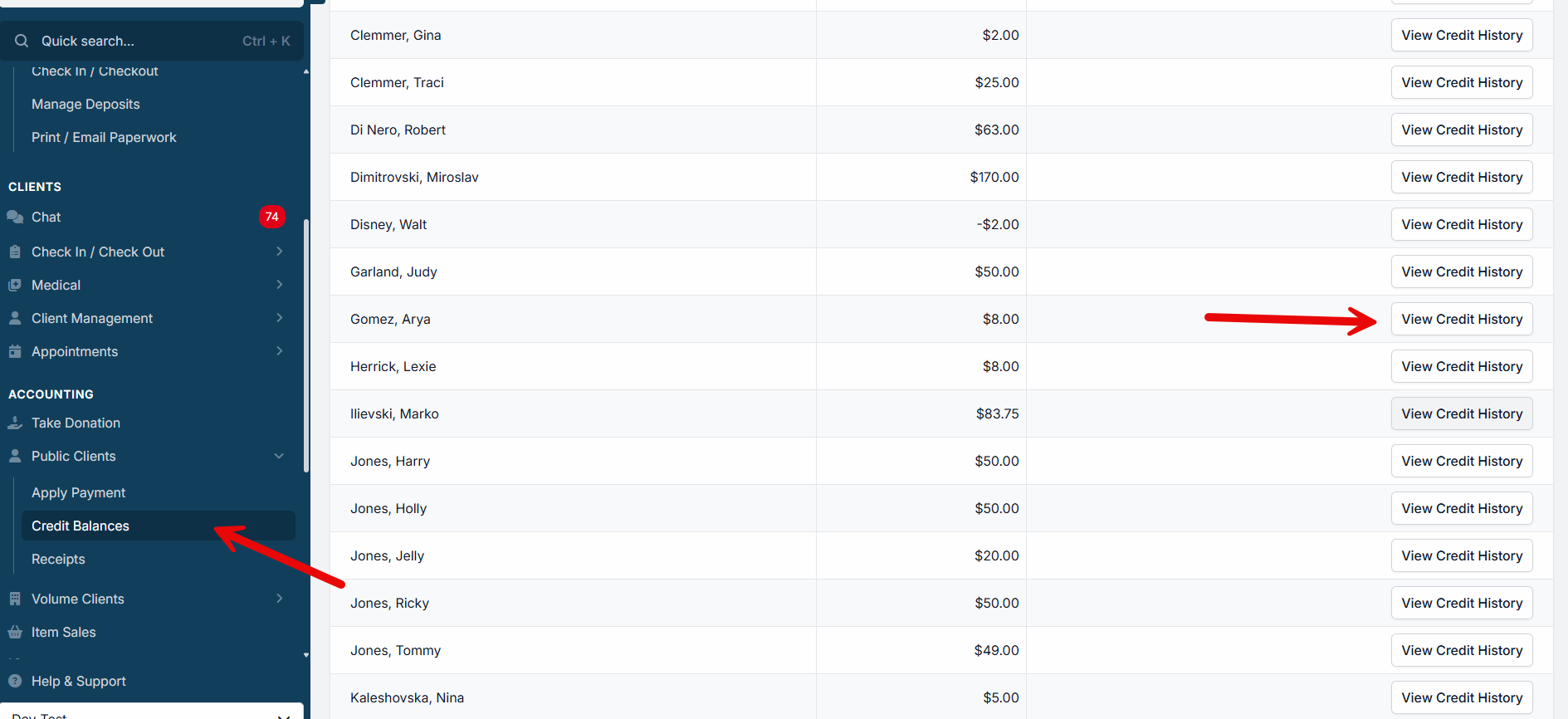
• MX Merchant has a refund threshold in place to prevent fraud. The default is 50 refunds in 24 hours or 10 within 2 minutes. If your clinic exceeds the threshold, you will see an error banner with “Rapid Refund Activity Detected”
If you are constantly getting this message, please call MP Group at 770-818-6188 to review your account. It’s possible there is a lock on your account.
- Process all refunds through Clinic HQ. Do not process refunds via MX Merchant directly.
Refund With Different Payment Method
Refund with a different payment type
If the original payment was made by credit card, your clinic should default to refunding that same card. While alternative refund methods (e.g., cash, check, or a different card) are available, they should only be used if there's an issue with the original card.
Why this matters: Refunding to a different method can lead to duplicate refunds. A client could dispute the original charge and receive a chargeback, while also receiving your manual refund—resulting in them being refunded twice. Refunding to the original card helps prevent this risk. That said, exceptions may arise where an alternative method is necessary.
- From the refund window, the default refund method will be the same as the original payment.
- Choose the option next to this to refund using a different payment method.
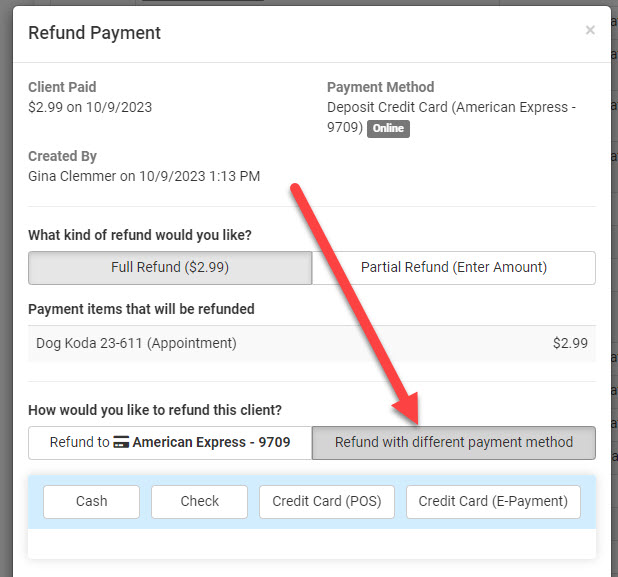
What if you refund a client using cash or check and the original payment was Credit Card POS or Online?
Refunding as Cash or Check will cross-post the transaction to MX Merchant since the original payment was processed there. This simply notates in MX Merchant that the credit card was refunded using a different payment type. Once refunded, the transaction details cannot be revised or voided.