Accounting Volume

There are many tools and features available in Accounting > Volume Clients. Here you can invoice volume clients, pay invoices and look at many reports related to accounting.
- Creating Invoices
As you check animals out in checkout, the volume client animals are accruing charges. Regardless of whether the volume client pays the same day or not, you will need to generate an invoice. Invoices can be generated daily, biweekly, or monthly, however this is a manual process so you can determine the frequency.
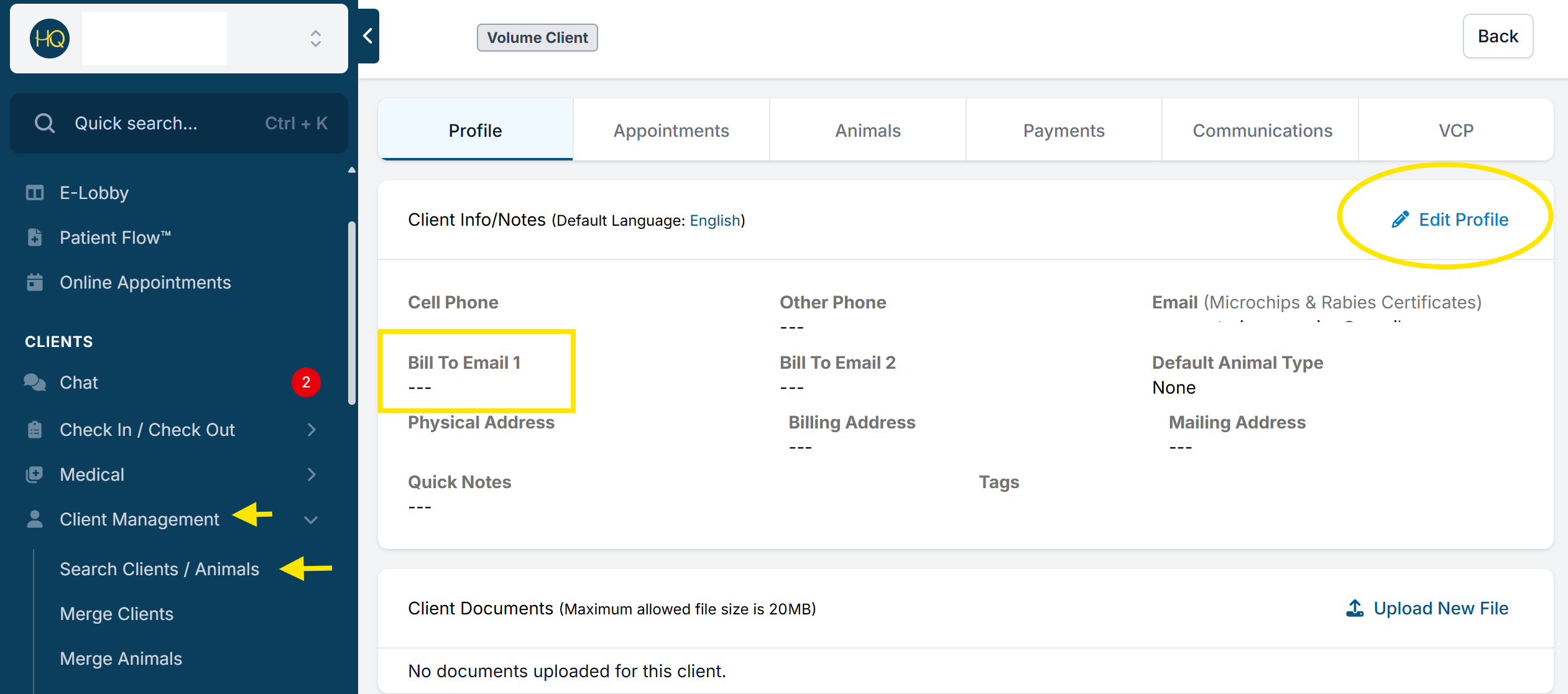
Invoices are designed to be emailed to your volume clients. To make sure your clients receive an invoice via email, make sure you have an email on file in their client profile. If you don’t want to email invoices, don’t put an email in the email field. HQ has two email fields, so invoices can be sent to more than one person. There is no way to send an invoice to more than two people, although in settings, you can set it up to send you a copy of the email. Be careful not to enter more than one email address per field.
- Confirming Charges/Checkout
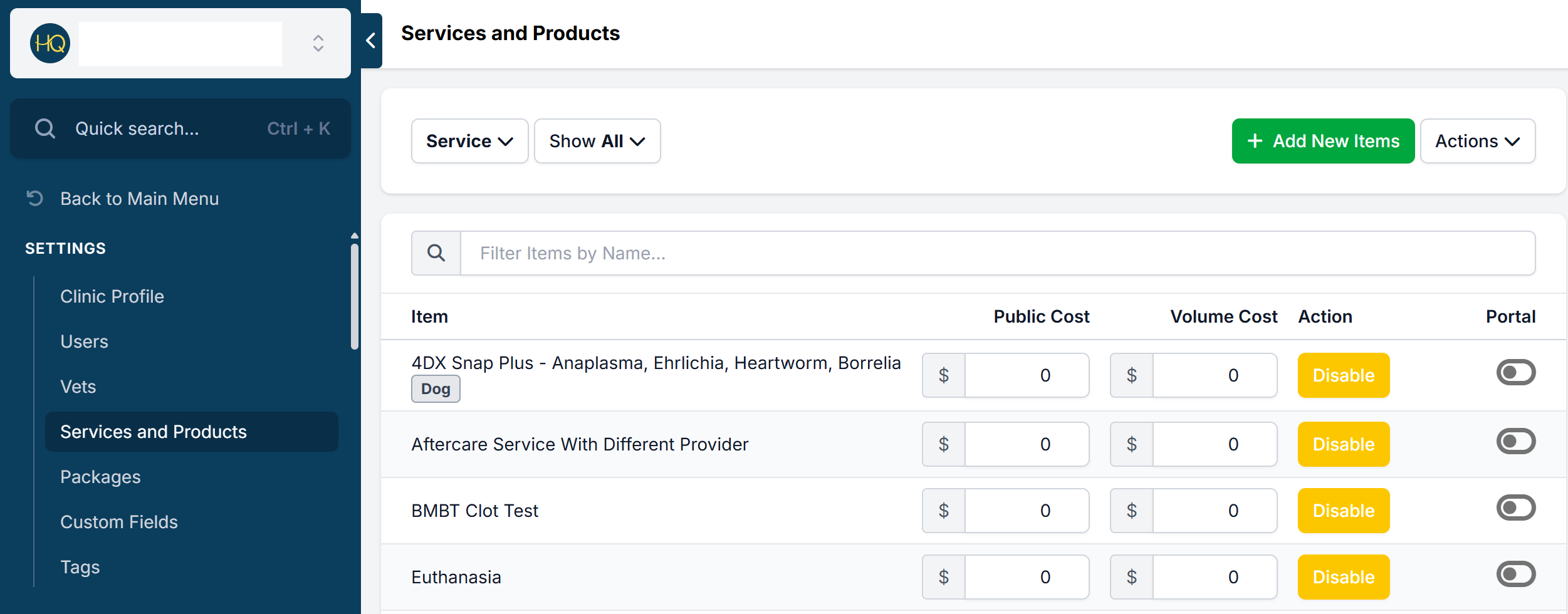
Note: Before we get into how to bill volume clients, it's critical to understand that all charges can be edited in Settings > Services and Products. The charges are set here in "service" in the price column, but any subsidies that are applied can change this price too.
IMPORTANT: On the Financial tab, you will see what will be charged for each animal. Before you check the animal out, it's critical to confirm the amount you are charging for the animal is correct. Sex affects the price for each animal, as does the number of services performed during the surgery. So, it's important to get any changes that happened during surgery into the computer system before checkout.
Why Accurate Pre-Checkout Info Is Critical:
Imagine Tulsa Animal Control brings in 25 cats. You assume all had surgery and bill the volume client $30 for neuters, $40 for spays, based on the sexes listed at check-in. The client pays by credit card. Weeks later, the shelter realizes one cat marked as female was actually male.
Now you're stuck, you've already billed and been paid. Our system locks invoices once billed, meaning you must un-bill and un-pay to make changes. This design prevents post-billing edits like sneaking in extra charges, but it also means fixing errors is a hassle.
Once you unlock an invoice, the client gets a new one, and the old one becomes inaccessible. This often leads to confusion and extra work.
To avoid this, it’s vital to have a system for vets to report any changes from original paperwork - sex, services, complications like pregnancy or intra-surgery death, before checkout. These changes often affect the total charge.
Bottom line: Always enter any changes in HQ before checkout. It ensures clean, accurate billing with no headaches later.
Collect and add all changes that affect changes before you check the animal out. This cannot be emphasized enough. As long as you add all changes into HQ, it will result in headache-free billing and smooth sailing.
- Find Invoices
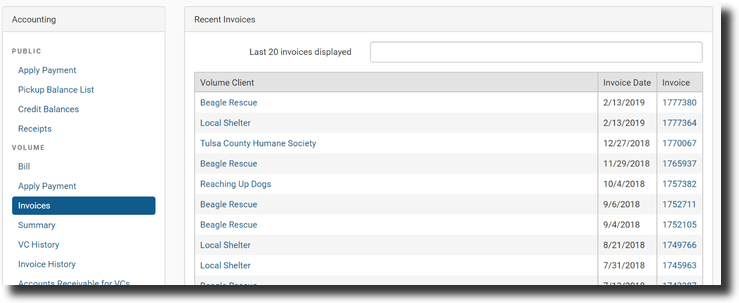
You can easily look up invoices in the Accounting > Invoices screen.
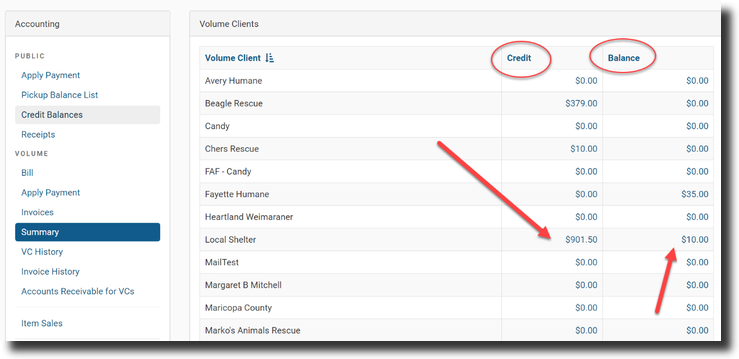
- Review Volume Client Credit And Balances
- Click Accounting > Volume Clients > Summary.
- Click any of the active balances to review the history.
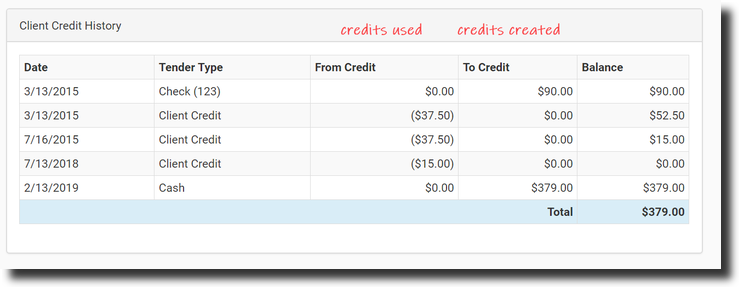
Volume Client Payment History
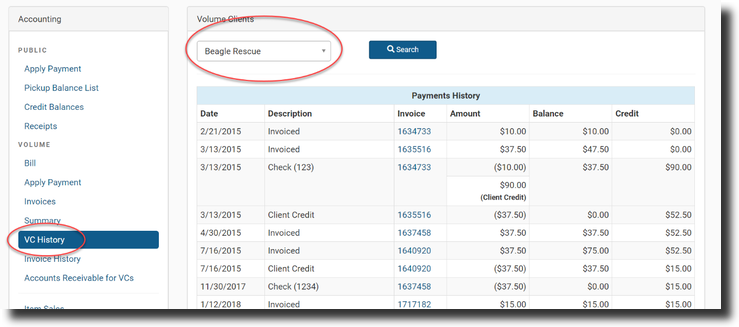
- This is a key report in HQ. It’s the ledger for the volume client payment history. Navigate to Accounting > Volume Clients > VC History.
- Select a volume client from the drop-down list and review the ledger.
- Invoice History
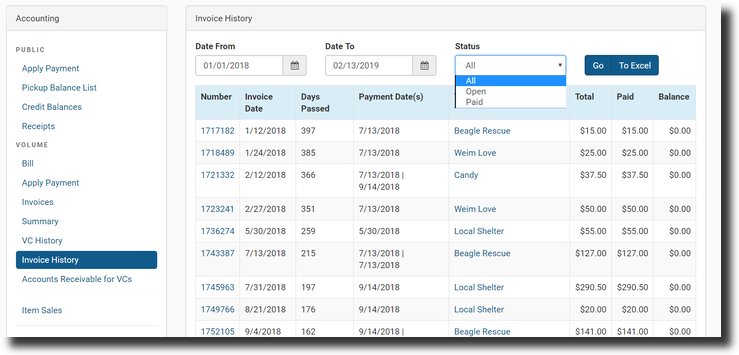
Here you can check and see which invoices are still outstanding and how overdue they are.
- Accounts Receivable For VCS
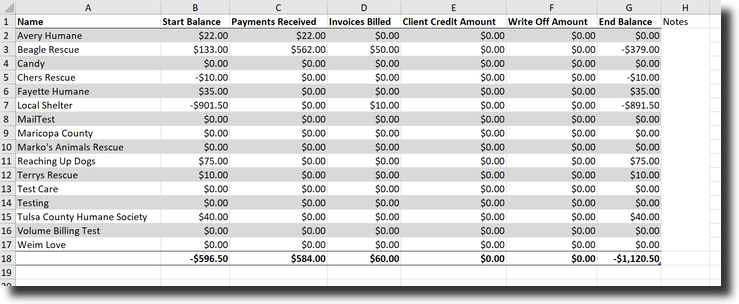
This is your clinic’s accounts receivable report. Select the month, and it will tell you what was due and owed for that time frame. This data is easily exported to an Excel spreadsheet.
Bill Volume Clients
Volume Clients Invoices
Volume Clients should always pay through an Invoice. You may generate an invoice for volume clients who are paying for services rendered on an animal or for an invoiced partnership such as vouchers. An invoice can be created the same day of service, weekly, bi-weekly, monthly. The frequency of billing is determined by your clinic.
Important: Only animals that are marked as "checked out" can be invoiced out.
- Go to Accounting > Volume Clients > Bill
- Change the date picker to the beginning of the month and the end of the month and click the Search button.
- Here, you will see the volume client names and amounts that have been unbilled during that time period.
- Click on the first volume client names, which are active links, and notice the pending charges here. It’s critical that you review these charges in detail before you create an invoice. If anything is incorrect, click the date link to the far left, go into checkout, fix it, and come back to this screen.
- Once you’ve verified all charges are correct, click the back arrow and search again to regenerate the page.
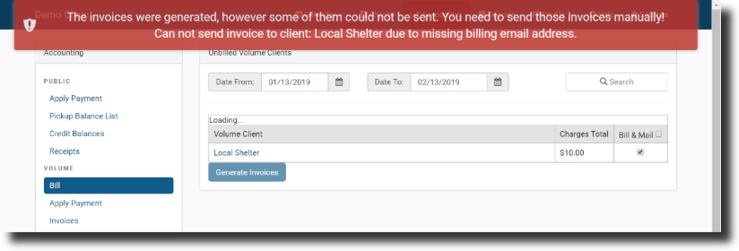
- Next, tick the tick box to the right “Bill & Mail” and click Generate Invoices. This is how you create an invoice. The invoice will automatically be emailed to the volume client if there is an email on their profile under "Bill To."
If there is no email on file, you will see the error message below. The invoice is still created, but it’s physically impossible to send via email since no email is on file.
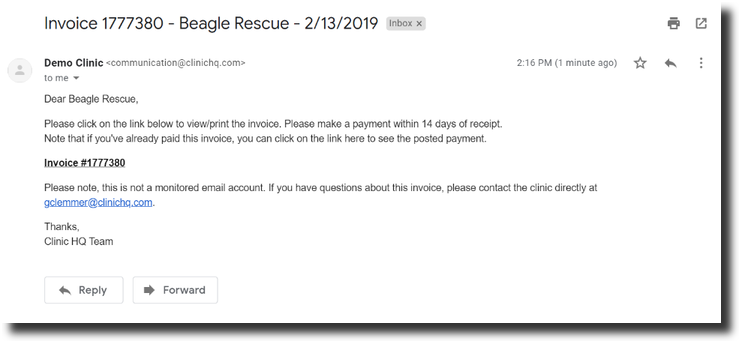
Once the charges are billed, they are removed from this screen and moved to the Volume: Apply Payment screen. At this point, an invoice is emailed to the email in the client profile.
- Zero Dollar Invoices
All Volume Clients get an invoice generated, even if there is a $0 balance. We've also made it so that once you generate the $0 invoice, it will also be auto-paid.
Now, when your client clicks on the invoice, they will instantly see a big red "Paid" stamp. This should help with clients misunderstanding any time a payment is due.
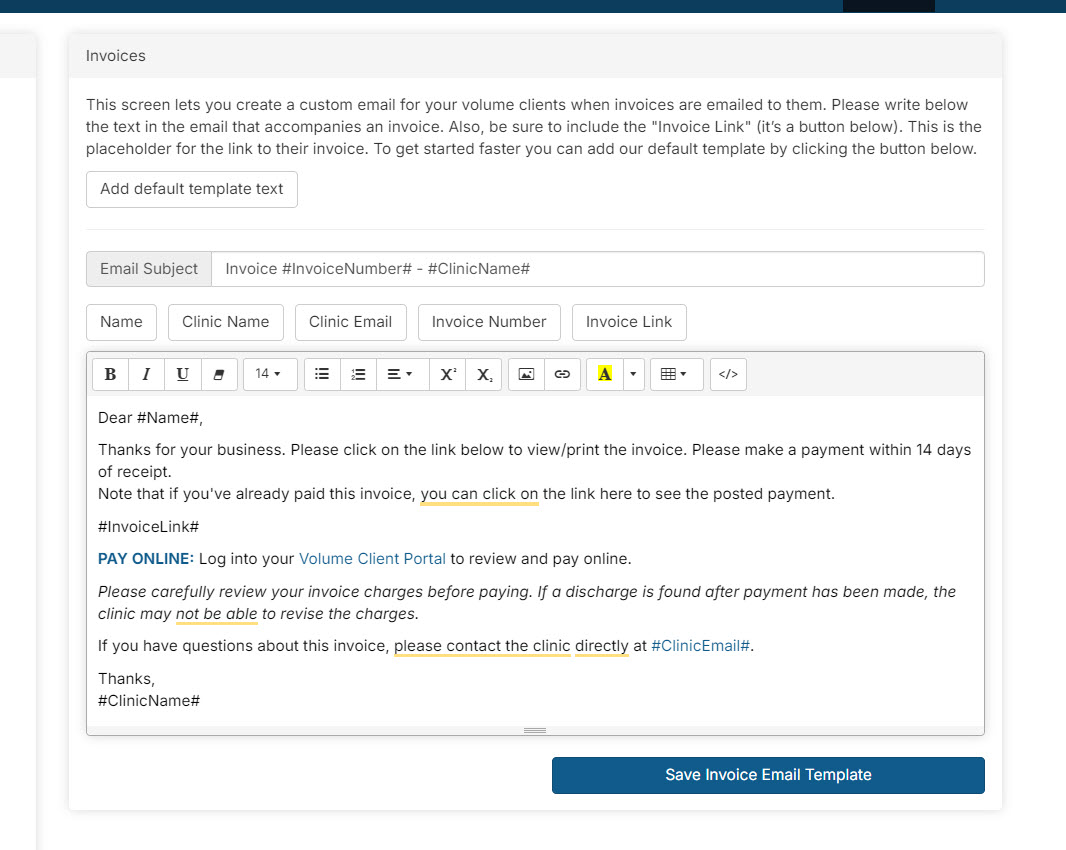
You can also update the language in your invoice email (in Settings here: https://app.clinichq.com/settings/invoices) which includes a line that says "We generate an invoice for all transactions, even though there may be a zero balance. Please check the invoice balance by clicking the invoice link. If $0 is owed, nothing needs to be done on your part."
The invoice will include ALL of their checked-out animals regardless of whether there is a balance owed. This allows the VC to see service prices for all of their animals and if it was paid out when either A) the owner/caretaker option within the appointment was used or B) if it was covered by a subsidy.
In the Volume Client profile, there are two email address fields labeled "Bill To Email 1" and "Bill To Email 2." If there is an email in this field, the client will receive the invoice email automatically when the invoice is generated.
- Resending Invoices
The emailed invoice link is live, the client can always view the invoice anytime by opening the email and clicking the invoice number. The VC can also log into their Portal to view invoices. There may be times when you want to resend an invoice that is unpaid. Here is how:
Go to Accounting > Apply Payment to view unpaid invoices.
- Click on the invoice number.
- From the next screen, click View Invoice. The invoice will open in a new browser tab.
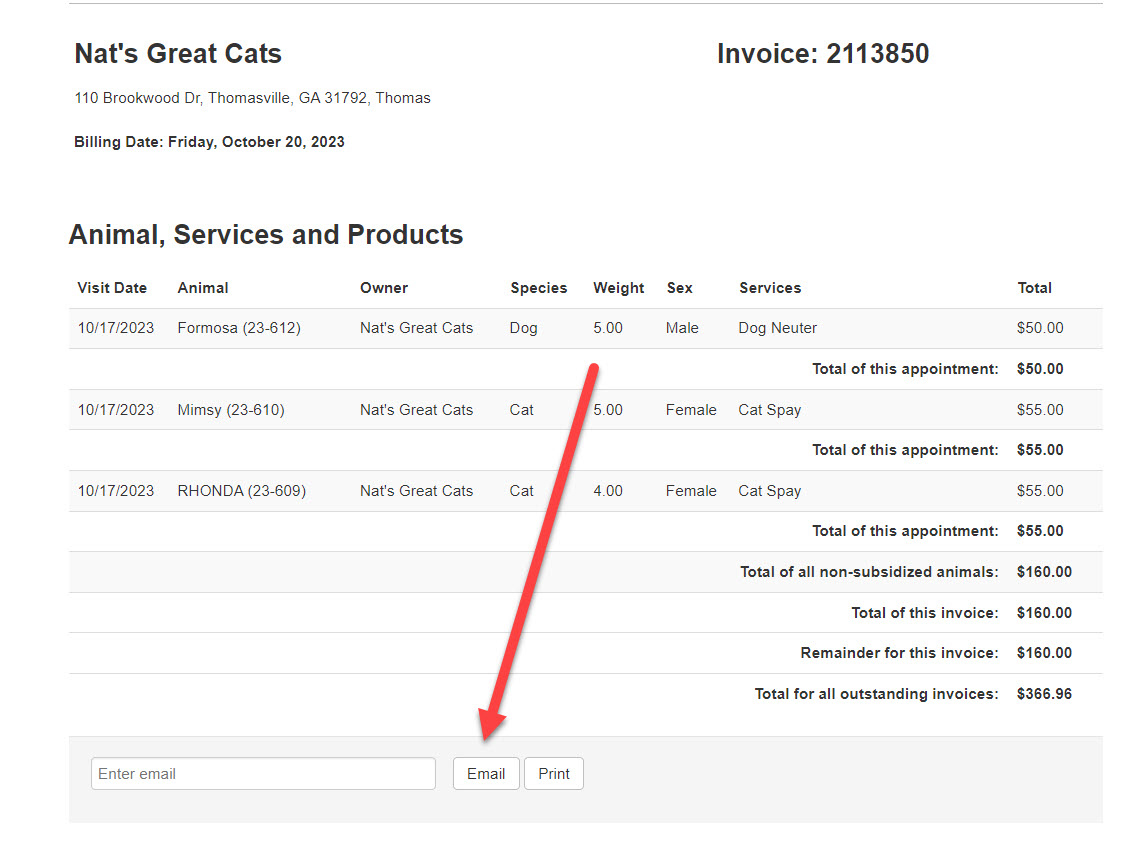
- Scroll to the bottom of the invoice and click Email. This will email the invoice to the addresses listed in the "Bill To" of the VC profile. If you need to send it to someone who is not listed as the billing contact for the VC, enter the email address and click email.
- Can HQ send automated unpaid invoice reminders?
Volume Clients will NOT receive an automated reminder to pay invoices. If your clinic needs to resend an invoice, this must be done manually.
Apply Payment for Volume Client
In order to apply a payment for a volume client, you must first have an invoice.
Payments made in person or over the phone are recorded by the clinic team in Accounting > (Volume) Apply Payment. If your clinic uses the integrated merchant processor, the Volume Client can pay invoices through their Portal. Read about that HERE.
TIP: Ask your Volume Clients to review the invoice BEFORE THEY PAY*. It is much easier to make changes before they pay. In some cases changes may not be possible if the invoice has been paid by a credit card online or as a POS transaction.
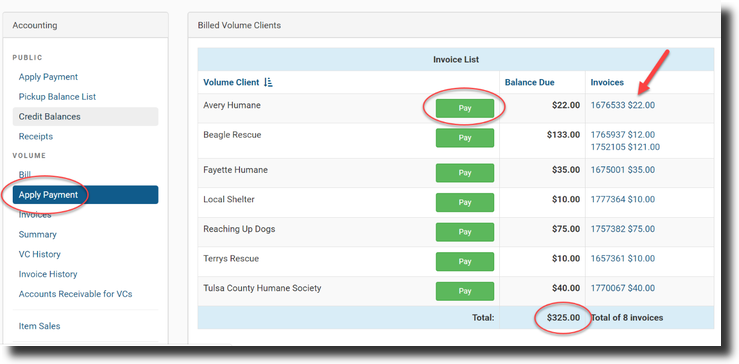
- After you create an invoice, it’s moved to the Volume: Apply Payment screen and awaits payment. Once you receive payment, this is where you’ll go.
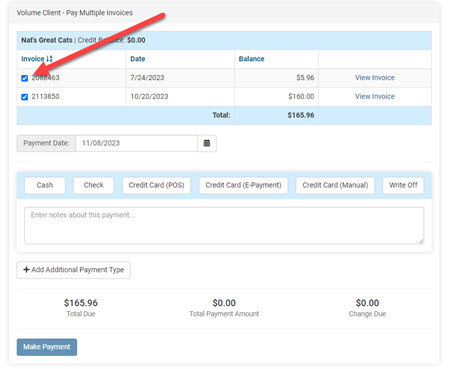
- To pay one or more invoices, click the green Pay button. Here you can also view the invoice by clicking any invoice in the Invoices column
- You might also notice the total number of unpaid invoices. This is the current account receivable.
- Once you click the Pay button, tick the invoices you’d like to pay and scroll down to the payment section. The options here are cash, check, Credit Card (Manual), Credit Card (POS) (if your clinic uses our processor), Credit Card (E-Payment), Write Off, and if the volume client has a credit balance, then you’ll also see the Credit Balance with the balance amount here.
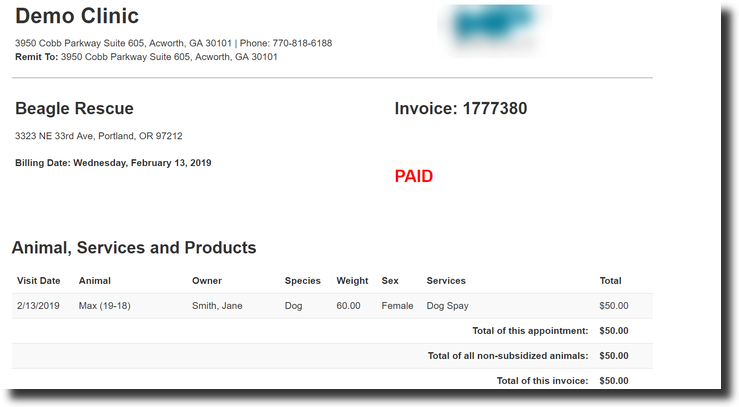
- Once the invoice is paid, the invoice is stamped with a red “PAID” – if it was sent via email, when the client clicks on the invoice link in their email, it will also have this paid stamp – so it functions as a receipt.
Note: You can re-email the invoice by typing an email address in the field at the bottom of the invoice.
Sometimes, the caretaker/foster/adopter wants to pay for the services that day. This must be done before invoicing the Volume Client for the animal. Continue to the next section of the Manual to read how to apply an individual's payment.
Owner/Caretaker Payment on Volume Appointment
Sometimes, the caretaker/foster/adopter wants to pay for the services of an animal's appointment. This must be done before invoicing the Volume Client for the animal.
To record an individual's payment:
- Edit the appointment from the Check/In Checkout list and go to the Financial tab.
- You will see a checkbox labeled "The animal's owner/caretaker is making a payment."
- Once this is selected, the available payment options will appear:
- Cash
- Check
- Credit Card (POS)
- Credit Card (Manual)
- Write Off
- Select the payment type and enter the amount the owner/caretaker is contributing for this appointment. Then click Make Payment.
Important: Any remaining balance for this appointment will be added to the Volume Client’s (VC) invoice at the time of billing. Do not record the Volume Client's payment under the Financial tab. The VC should be invoiced, and any payments from them should be applied directly to that invoice.
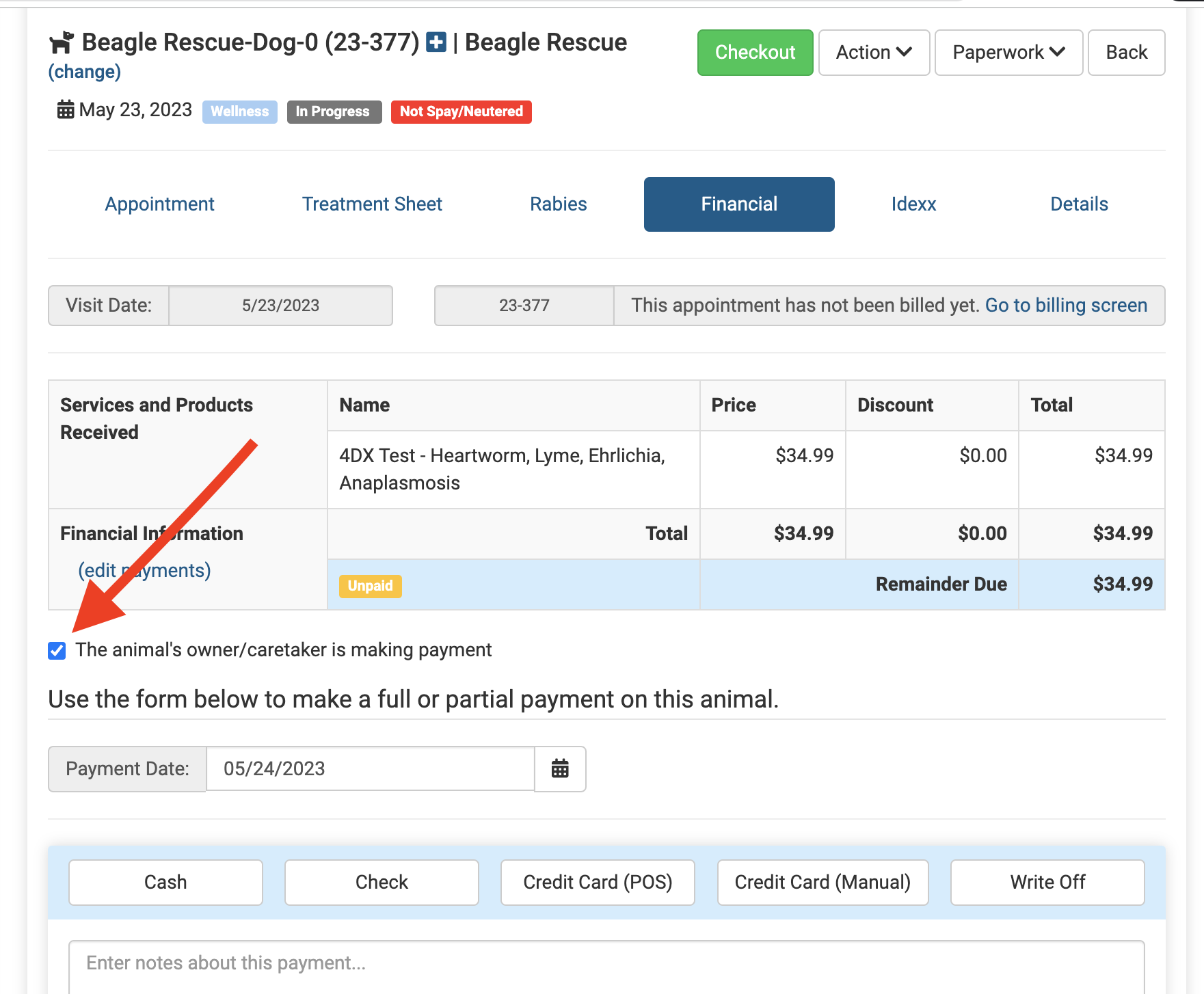
Credit Card (E-Payment) cannot be used with owner payments towards a Volume Client appointment.
Note that when paying for services this way, the Credit Card (E-payment) option will not be available in the Financial tab. Payments must be processed with Cash, Check, Credit Card (POS), or Credit Card (Manual).
The e-payment option creates a payment profile with the client the appointment is scheduled under. The person paying is not listed as the client and so the payment profile is inaccurately created in the merchant system. This can lead to other transaction problems. Our developers have spent lots of time trying to create an e-pay option for owner/caretakers in the VC appointment but unfortunately, it is not possible at this time.
Important: If your clinic uses the integrated MX Merchant for card processing and performs a high number of transactions, you may consider purchasing a terminal. Read more about purchasing a terminal from MP Group HERE.
Why a terminal? Credit Card (E-Payment) is not an option on the Financial tab for Volume Clients and you can take payments through the terminal by swiping or keying in the card number.
Adding & Deleting Items from VC Invoices
Once an invoice is generated the services within the invoice cannot be removed, new items cannot added, and prices cannot be changed. To make changes, to an invoice it must be "unbilled."
Invoicing a volume client will lock down the appointment details and changes cannot be made until the invoice is "unbilled." If you need to add or remove a service item, correct the prices, or apply subsidies you must delete the invoice. Then, edit the appointment(s) and apply the necessary changes to the services/prices.
Here are the detailed steps:
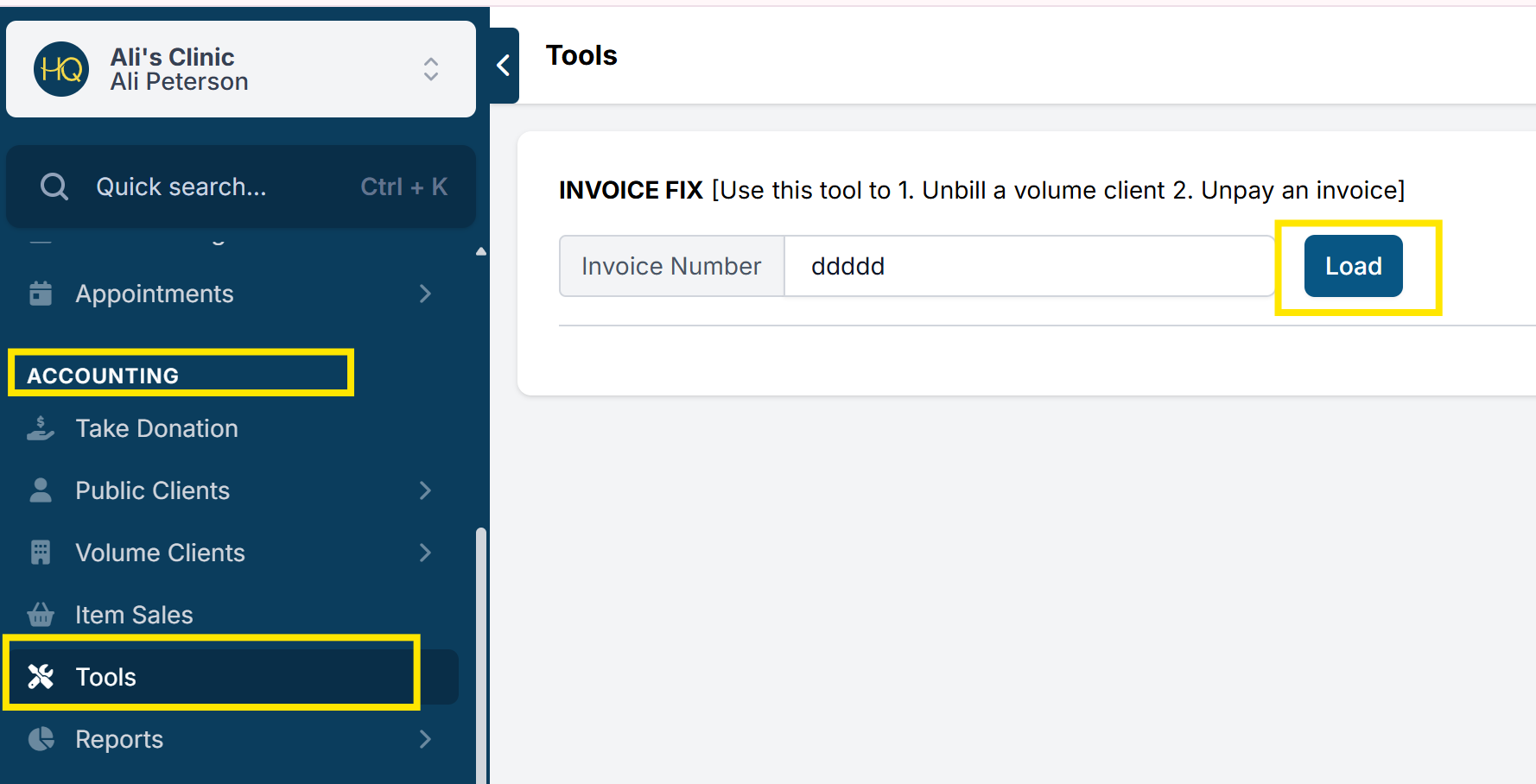
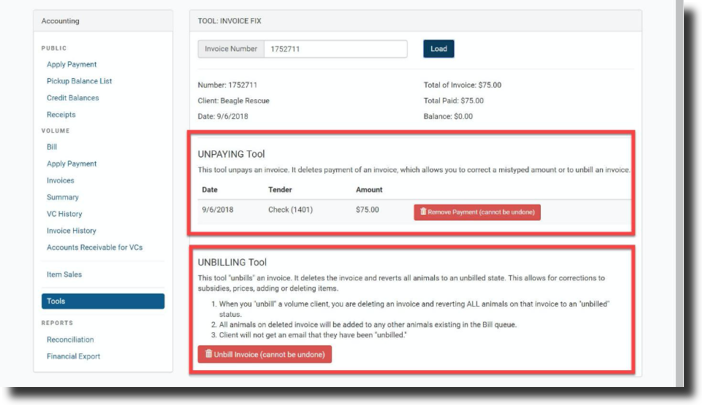
- Navigate to Accounting > Tools
- “Tool: Invoice Fix”. Click on Go to continue.
- You will need the number of the invoice you want to un-pay/un-bill. When you get the number, type it in the text box and click on Load, as shown.
- It’s very important to check if the invoice you typed is the correct one. Un-billing/Un-paying is a definitive step. Once it’s done, it can’t be undone.
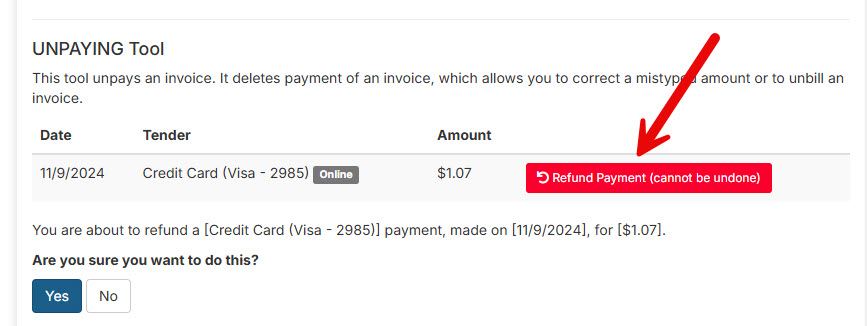
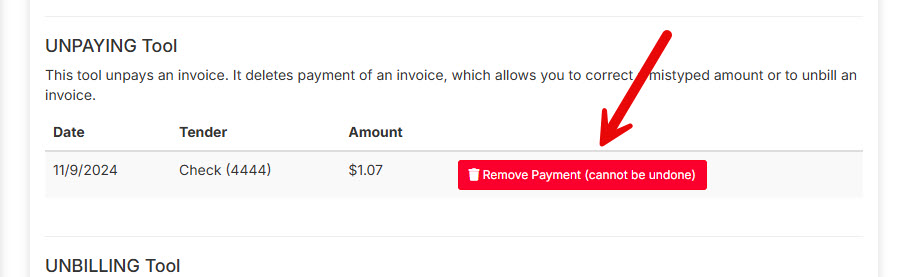
- After you’ve checked all the information regarding the invoice, check to see if the invoice has been paid. Any payment will appear under the “Unpaying tool” list. You will have to either refund the payment if a credit card was used to pay the invoice, or remove the payment if paid by cash, check or credit card manual.
- Review the invoice, if the invoice is paid you will need to start by removing the payment. If they paid with a credit card, the open that will be present is to "Refund Payment."
- If another method was used to make the payment (cash, check, credit card (manual)) the option that will present is to "Remove payment."
- After that, you can click the Unbill Invoice (cannot be undone), and the invoice will be removed.
Now you can go to the services, fix the issue, and rebill the invoice. Note, the client will receive a new invoice and they will need to repay it.
There is one except to all of this. If you simply need to change the sex of the animal, you can do so without re-invoicing.
AR Status & Resending Invoices
Accounts Receivable Invoice Report
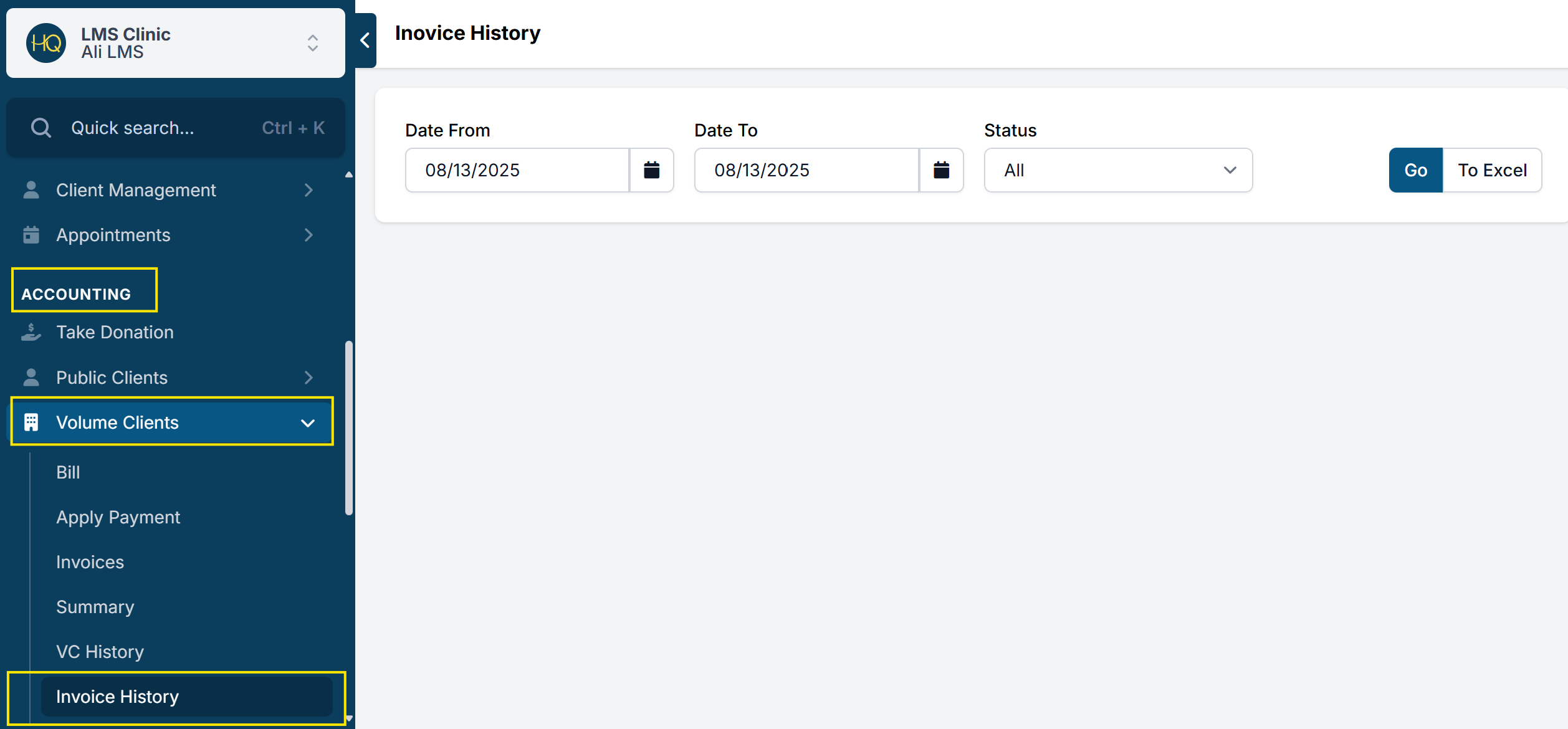
In Accounting > Invoice History, run a report to review the accounts receivable status for volume client invoices. Use this report to know if a VC should be notified of a past-due invoice.
- Can HQ send automated unpaid invoice reminders?
Volume Clients will NOT receive an automated reminder to pay invoices. If your clinic needs to resend an invoice, this must be done manually.
- Resending Volume Client Invoices
The emailed invoice link is live, the client can always view the invoice anytime by opening the email and clicking the invoice number. The VC can also log into their Portal to view invoices. There may be times when you want to resend an unpaid invoice. Here is how:
- Go to Accounting > Invoice History to view open/unpaid invoices.
- Choose a date range to search.
- Click on the invoice number.
- Scroll to the bottom of the invoice and click Email. This will email the invoice to the addresses listed in the “Bill To” of the VC profile. If you need to send it to someone who is not listed as the billing contact for the VC, enter the email address and click email.
Invoice Email Template
In Settings > Invoices be sure to include your clinic's payment policy: How long does the VC have to pay? What form of payments do you accept? If your clinic uses MP Group's MX Merchant, we recommend adding the following phrase to your invoice email template:
- "PAY ONLINE: Log into the Volume Client Portal to review and pay your invoice. Please carefully review your invoice charges before paying. If a mischarge is found after payment has been made, the clinic may not be able to revise the charges."