Deposits

A deposit is any kind of pre-payment for a public appointment. This can take the form of $20 before every appointment, or it can be full payment for all services. Most clinics have moved to take some type of deposit.
Are they a good idea?
Yes.
Appointment slots are precious these days and you want to ensure clients show up. Clinics that take deposits typically have less than a 1% no show rate, compared to a 7% average no show rate for clinics that do not take deposits. One good point is that even if they no show, you still earn revenue on that appointment.
However, it does take considerable effort to manage deposits. HQ makes it fairly easy but there is definitely another administrative layer added. The first thing you'll want to do is to determine what your no show policy is and stick to it. We recommend a policy of "no show/no refund." Immediately most compassionate souls begin to find issues with this policy. "What if they get in a car accident?" "What if their pet dies?"
In order to reduce the time it takes to think through all the various options, it's good to come up with an exception list for the appointment schedulers. Car accidents, deaths of any sort, covid cases, etc. If the reason is not on the list, staff can go ahead and manage the deposit appropriately (see below). If a caustic client challenges staff it's good to have a script employees can follow. Here's one sample script.
- "I'm so sorry you weren't able to bring in your pet today due to
. I really hate to disappoint you but we will not be able to return your deposit. We have a policy that we really have to apply evenly to all clients which is if you are not able to make your appointment, your deposit is forfeited. As a low-cost clinic, we work on a shoestring budget and every single appointment slot matters. I am really sorry you had to deal with today. I know that must be tough. Feel free to schedule another appointment with us online."
In the Managing Deposits section, we discuss the various ways you can manage the deposit for a no show client. Now let's talk about the various deposit types.
Internal versus Online Deposits
You are able to take deposits when you make appointments internally and when people sign up online for an appointment. When you make a deposit internally (we think of this as a "manual" deposit) you can type in any deposit amount. When you set up HQ to take deposits online, naturally you must set up designated amounts for the deposits.
Deposits by Appointment Type
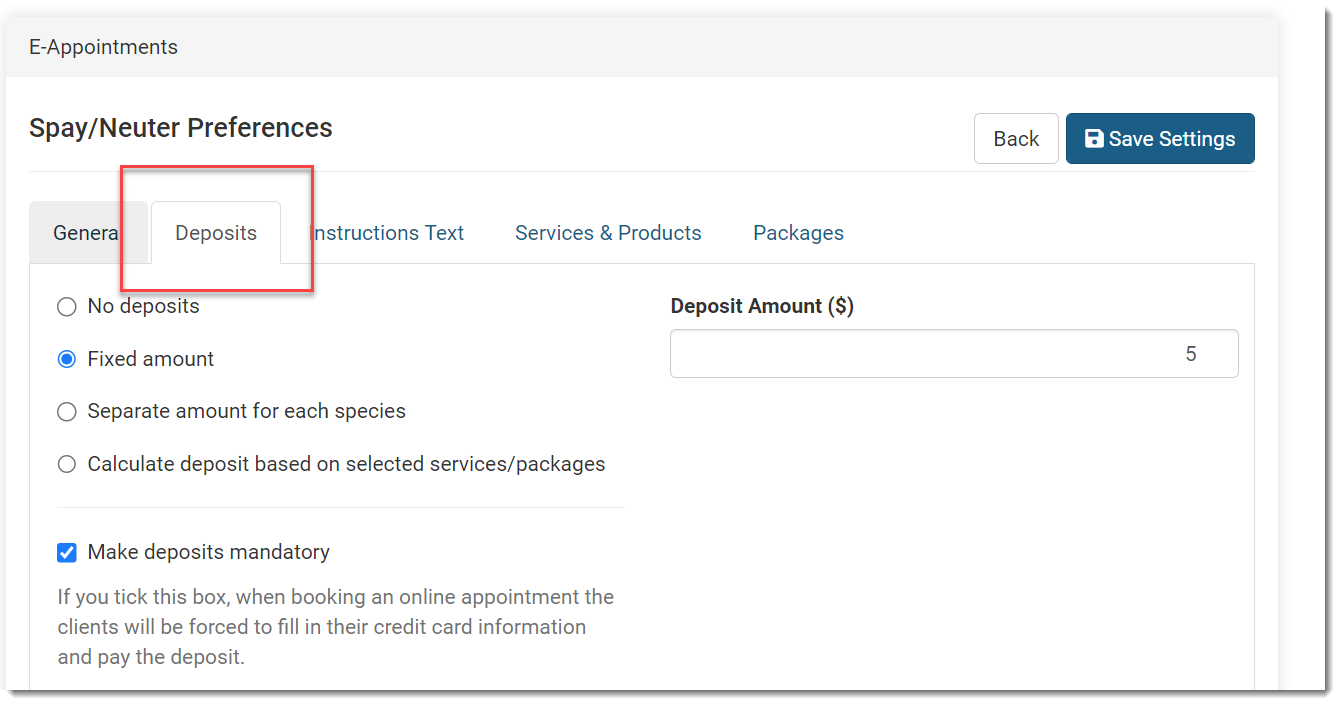
Deposits are not a one-size-fits all situation. Different clinics have different needs and wishes. We've made it possible to set a deposit amount based on a few different factors. To review the various options, go to Settings > E-Appointments and click the Edit button for the appointment type. Here you'll find a Deposits tab.
By Appointment Type: The first factor is the type of appointment. For example, you may want to take a deposit for spay/neuter, but you may not want to take a deposit for a vaccine-only appointment. Or you may want to take a deposit for dental appointments, but not vaccine-only appointments.
Amount of Deposit
Within one appointment type, you can select one option for deposits. Here are the options:
- No Deposit: No deposit is the default in HQ. If this is selected, no deposit is required online to make an appointment.
- Fixed Price: This means you take one deposit amount for all animals. For example, you may require a $10 deposit on every dog and cat.
- Separate amount for each species: This means you can set one price for dogs and one for cats, or any other species.
- Calculate deposit based on selected services/packages: This means full payment for selected services is the deposit amount. For example, if the client chooses a dog spay ($50) and a rabies vaccine ($10), the deposit amount is $60.
Mandatory or Not
By ticking the tick mark in settings, you can require the client to pay the deposit before the appointment can be made. When this setting is enabled a client MUST put money towards the appointment request in a value greater than $1. In the event of free services, a mandatory deposit cannot be set. An error will be given if you have a deposit as mandatory but the amount is $0.
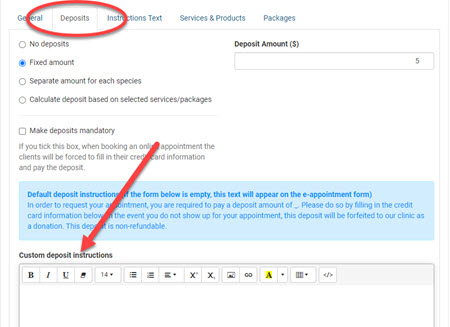
Editing Non-Refundable Language On The E-Appointments Screen
This language is managed within the E-Appointment configuration.
- Go to Settings > E-Appointments > Edit the appointment type > Deposits tab.
- In just the same way you can have different deposits amounts for each appointment type, you can set a custom deposit text for each appointment type.
Deposits on Internal Appointments
When you make an appointment internally for a client by phone, if your clinic requires a deposit for appointments, you will still need to take a deposit.
Entering A Deposit on an Internal Appointment:
The only time staff enter deposits is when creating an appointment internally. A staff entered deposit will only occur when the client did not enter payment online when they made the appointment.
Here are the steps to make a deposit on an internal appointment:
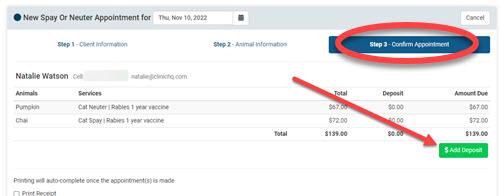
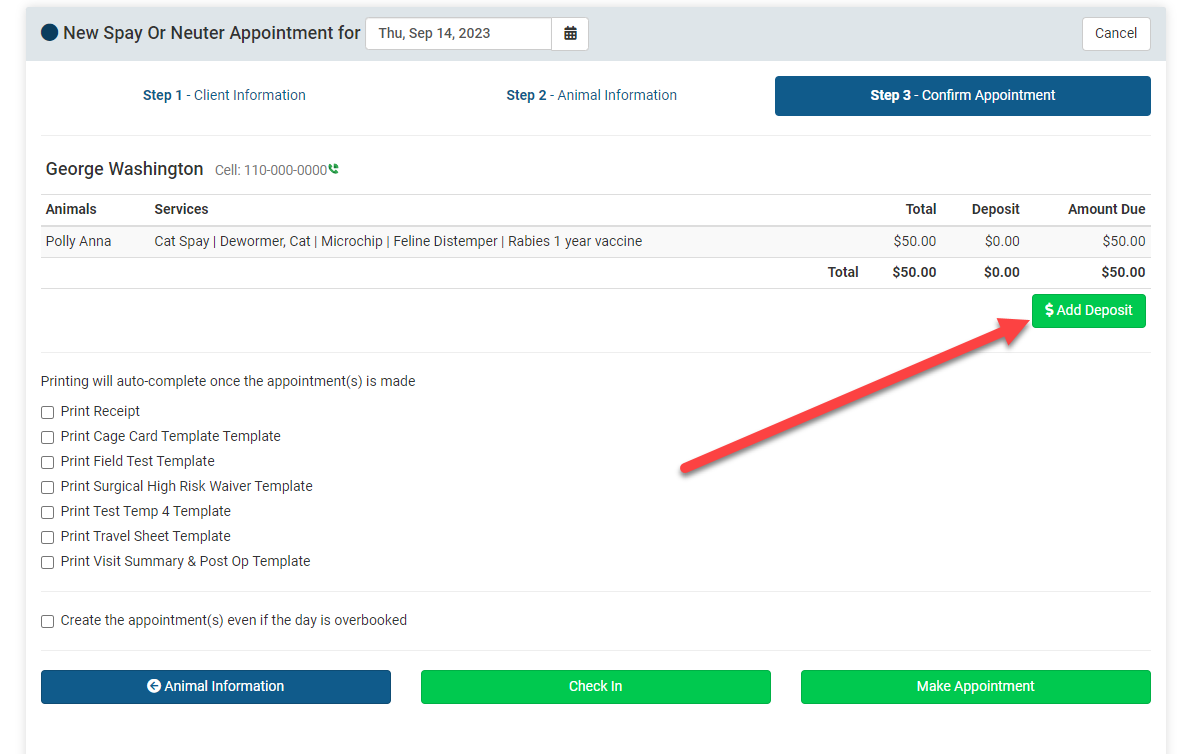
- Enter the appointment data for all animals and click the Confirm Appointment button to go to the last screen of appointment making (Step 3 - Confirm Appointment).
- Here click the Add Deposit button.
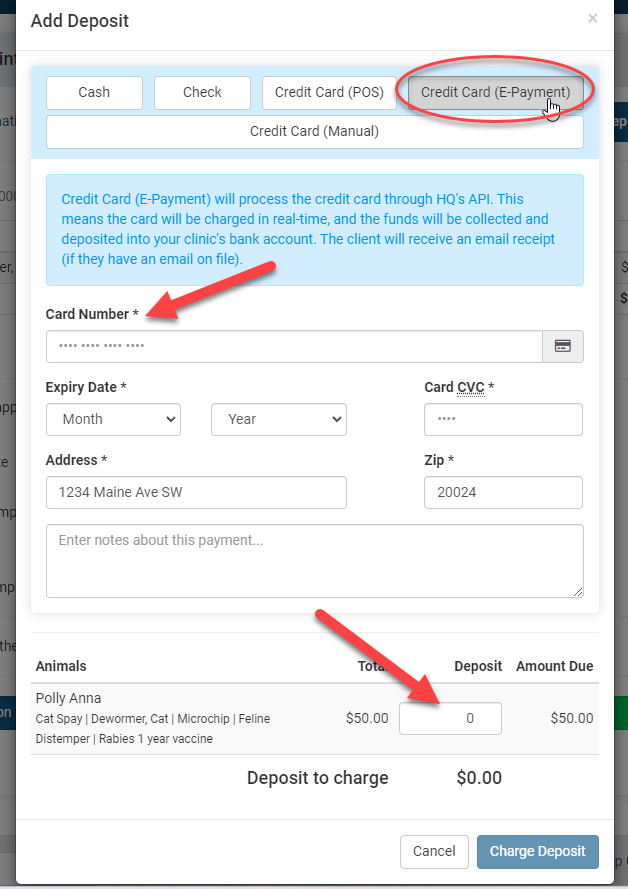
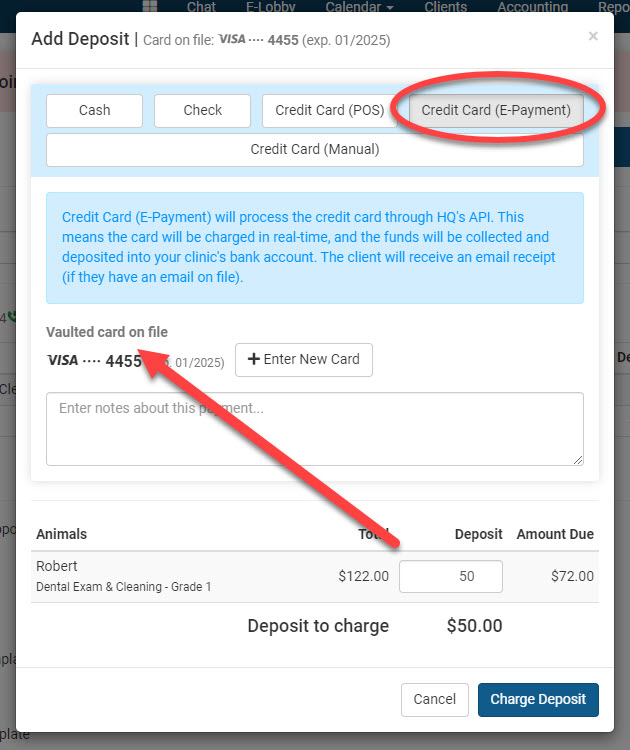
- Choose the Payment Type: Cash, Check, Credit Card. Assuming your clinic is set up with our merchant processing, the most common option for the Deposit Type will be Credit Card (E-Payment). The first thing to note is at the top of the popup if the client already has a card on file. If they do, you can simply use the vaulted card by selecting it. Although the client may want to use a different card and if so you can select the Add New Card button.
- Next you'll input the deposit amounts for each animal. Be careful here. If you make a mistake, you'll need to refund the client and do it all over again. Not a pleasant process.
- Once the deposit amounts are entered, click the Charge Deposit button to charge their credit card.
- When is the client charged?
Immediately. The system will charge the card as soon as you click Save Deposit.
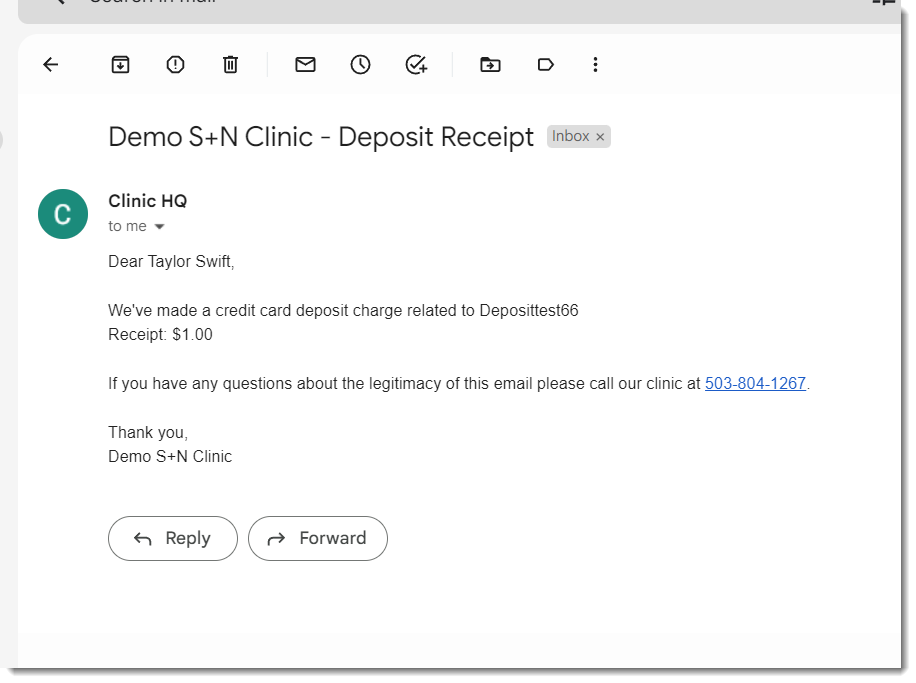
When you make the appointment, the client will get a receipt that looks like this. Note: They will get a receipt no matter the tender type (cash, check, e-payment).
- Carried To Patient Record
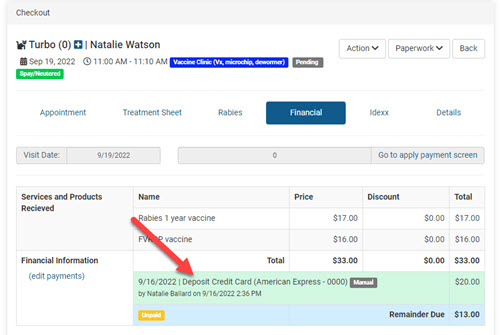
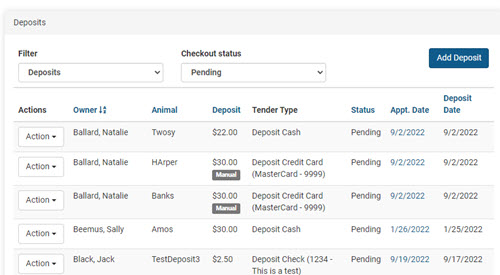
The deposit amount is then carried over to the patient record. You can view deposits in Clients > Deposits
- Carried To Reconciliation Report
It’s also carried to the Accounting > Reconciliation report.
- Carried To Financial Report
It’s also carried to the financial export and flagged as a deposit.
Deposits on Online Appointments
A deposit is any kind of pre-payment for an appointment. This can take the form of $20 before every appointment, or it can be full payment for all services.
Once you've set up deposits, there's nothing else you need to do to accept a deposit that was made online.
Tip: It may be worthwhile to review what your client sees when making a deposit online.
- How it Looks to Make an Online Deposit (Clients Point of View)
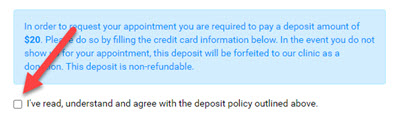
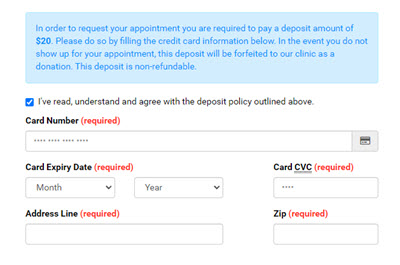
When your clients go online to make an appointment, depending on how you have it setup, they will see a screen similar to this. The language here is all editable. You'll just want to make sure if you change how much your deposits are, you reflect that in the language on the screen. This is available for editing in Settings > E-Appointments > Edit > Deposits Tab.
The client must tick the checkbox that they have read and understand the terms of the deposit. Only then, will the credit card payment field appear.
- When is the client charged?
Immediately. The system will charge the card as soon as the client clicks "Request appointment."
- Receipt
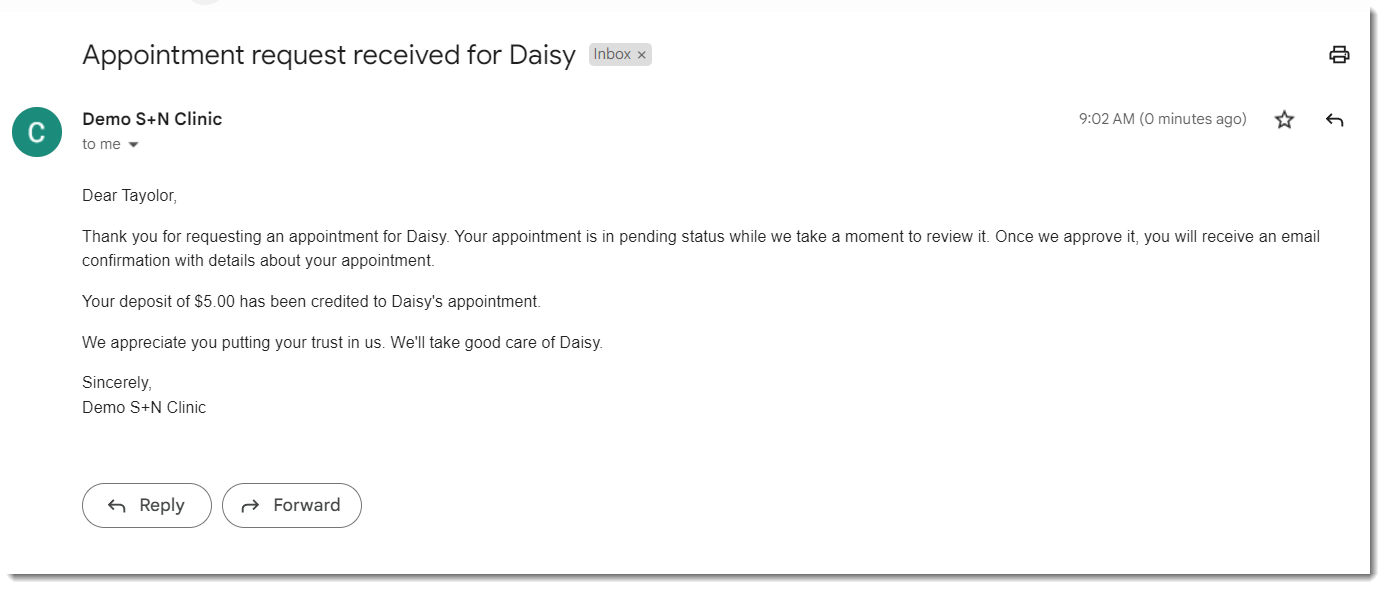
As soon as the person makes the appointment online, the card is charged and a few different things happen. First, they are sent a receipt that looks like this. Note: The language is not editable for this email.
- Reconciliation Report
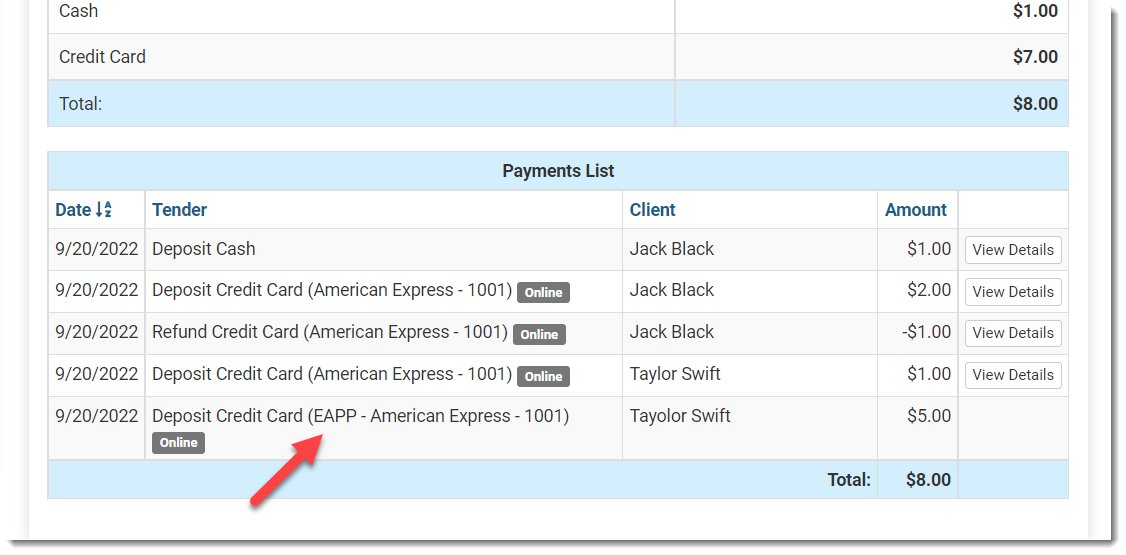
The charge is then apparent on the Reconciliation Report in Accounting. You'll notice an "EAPP" tag that lets you know it was made via an e-appointment online. You'll also notice any deposits tagged with a "Deposit" and then the tender type.
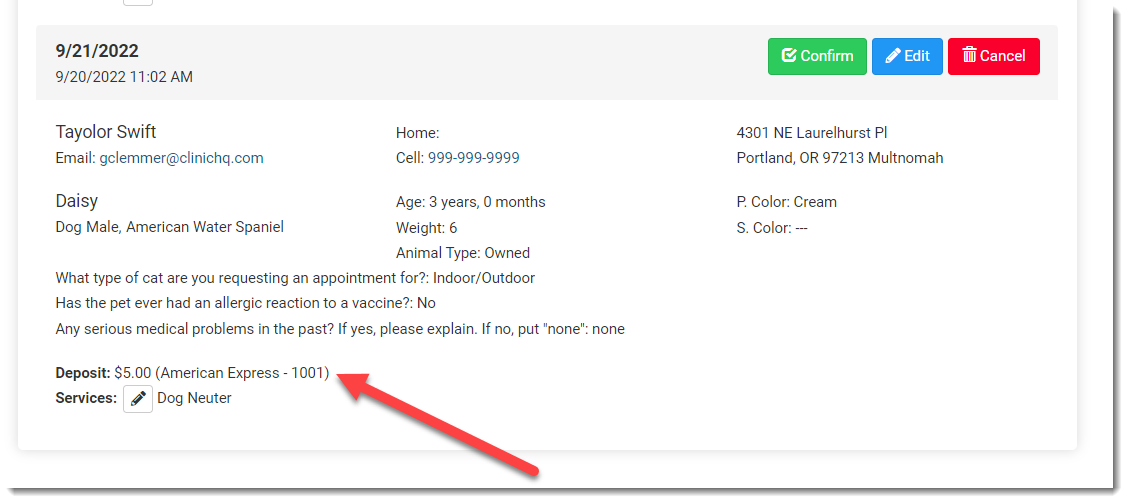
- In E-Apps Queue
You notice it's also present here in the e-appointments queue.
- Canceling an E-appointment request - What happens to the deposit?
In the event a team member needs to decline an online appointment request that has a deposit attached, the client will be refunded their deposit. A cancel button is located on the page Online Appointments next to each e-appointment. Click Cancel and the team member will be prompted to provide a reason for canceling the requested appointment. When that action is completed, Clinic HQ will send a notification to the merchant to refund the deposit.
No extra steps are required to refund the deposit of a pending e-appointment request. Simply canceling the request will refund the client. A separate email will be sent to the client notifying them of the refund action. It may take 5-7 days for the refund to hit the client's card.
What happens to the deposit if you cancel from the e-apps queue? It gets refunded automatically, the client gets sent a receipt and it goes on the Reconciliation Report as a refund.
Managing Deposits

Managing different deposit situations
If a client cancels or no-shows, you must note what happens to their deposit. If they need to add more money toward a future appointment, this should also be entered as a deposit. Since deposits require detailed tracking, we have a dedicated screen for managing them. To access it, go to Client Management > Manage Deposits.
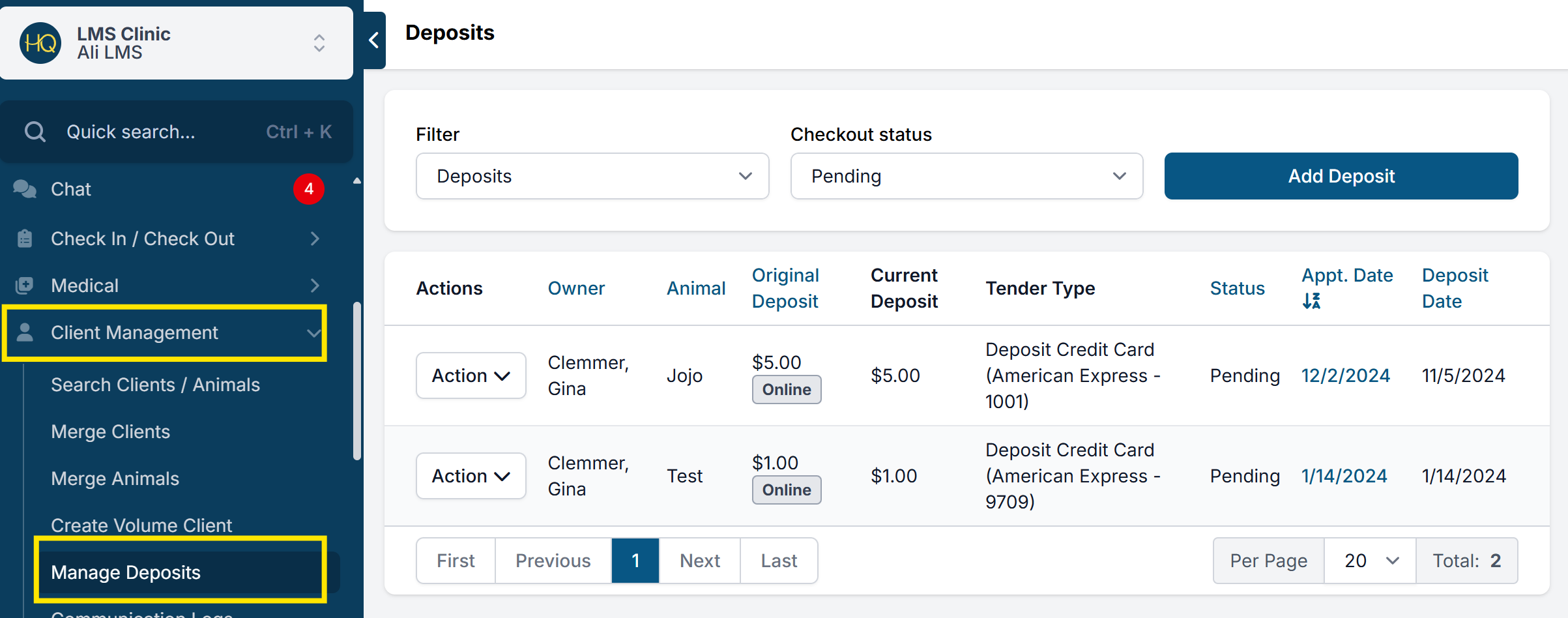
Deposit Management
By default the clients/animals displayed are for pending appointments. A deposit can be managed for pending and in-progress appointments only. Meaning if you accidently check in an animal that was a no-show, you can still repurpose that deposit! Note: Once an appointment has been checked out the deposit cannot be managed.
Tip: On this page you will see each column header is clickable to help you sort and find the client’s appointment and deposit.
Based on your clinic's policy, you will take an “Action” and choose what should happen with the client’s deposit in the event a clients cancels or no shows. You can repurpose the deposit and convert it into a donation or client credit. From this Action menu are also the options to refund a payment or print the client's receipt.
Action: Repurpose Payment
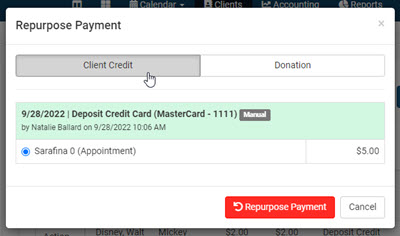
From this action you must choose whether the deposit should become a Client Credit or a Donation.
Converting the deposit to a donation: Often used when a client no-shows. The deposit is forfeited and becomes a donation. To do this:
- Click the Action > Repurpose payment. From the pop up, choose Donation as the repurposed option and then the donation pot ("Choose fund") the money should be placed in.
- In order to move these funds to a donation, you must have a pre-paid funding partnership created. A generic Donations pot or one titled No Show Deposits will be where these forfeited funds are placed. If you do not already have a fund created for these forfeits to be placed, follow the simple steps in section Funding Partnerships.
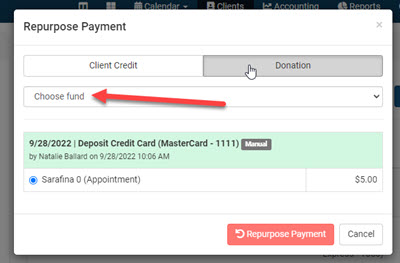
When this action is completed the client’s deposit will be moved to the Forfeited section. This is accessible from the top dropdown filter.
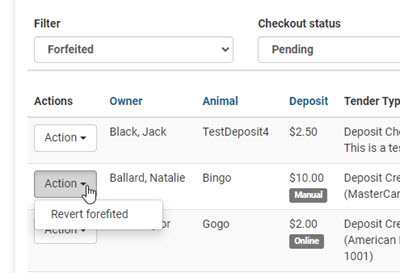
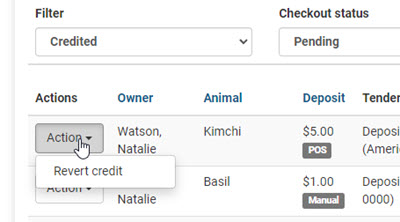
Revert Forfeited - If a deposit was mistakenly converted to donation, go to the Forfeited list and click Action to revert the money back to a regular deposit on the appointment.
Converting the deposit to a client credit: Often used if a client cancels but has another animal they wish to apply the funds to. The deposit is credited to the client’s profile. The client credit cannot be transferred to a different person. Click the Action > Repurpose payment. From the pop up, choose Client Credit.
Under the filter dropdown options, will be a section for Credited. There you can Revert Credit. If a deposit was mistakenly converted to client credit, go to the Credited list and click Action to revert the money back to a regular deposit on the appointment.
Action: Refund Payment
Next to the deposit amount is the method of transaction. The tender type and form of the transaction are important to know when refunding. If you click the Action button and choose a refund, here is what happens with each tender type related to credit cards.
Manual – recorded as a manual refund. Process the transaction in your regular merchant system.

POS – Recorded as an online refund. No extra steps are necessary to refund a payment that was originally taken through the terminal. The system manages the transaction for you by referring to the original payment in MX Merchant.

Online – Recorded as an online refund. No extra steps are necessary with refunding a payment that was originally taken as an online e-payment. The system manages the transaction for you.

Tip: What happens to the deposit if you cancel from the e-apps queue?_ It gets refunded automatically, the client gets sent a receipt and it goes on the Reconciliation Report as a refund.
Action: Revise the deposit amount or tender type
This action is only available for transactions that were taken as cash, check, or credit card (manual) deposits. This action is not commonly used but is available if a mis-entry was made for the amount collected.'
How do I delete a deposit payment?
Deleting a payment transaction is not an option. If there is an error and the payment was cash, check, or credit card (manual) then use the Revise action. In all other cases, the payment must be refunded and recharged.
Add Deposit
This tool is used in two common scenarios. 1) Staff did not apply a deposit when scheduling an appointment internally. You can come here and apply the deposit after the appointment is confirmed. 2) The client wishes to make payments in advance towards their future appointment. You cannot send an e-pay request for a deposit.
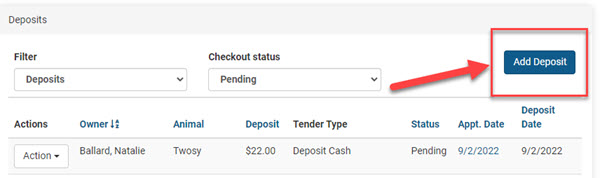 Here is how it works:
- Click Add Deposit
- Use the date range filter to locate appointment without a deposit. All public appointments that do not yet have a deposit during the chosen date range will be listed.
- Click the blue Add Deposit button next to the correct client/animal. The deposit is applied to an individual appointment. The option doesn't exist to apply a deposit across multiple animals at one time.
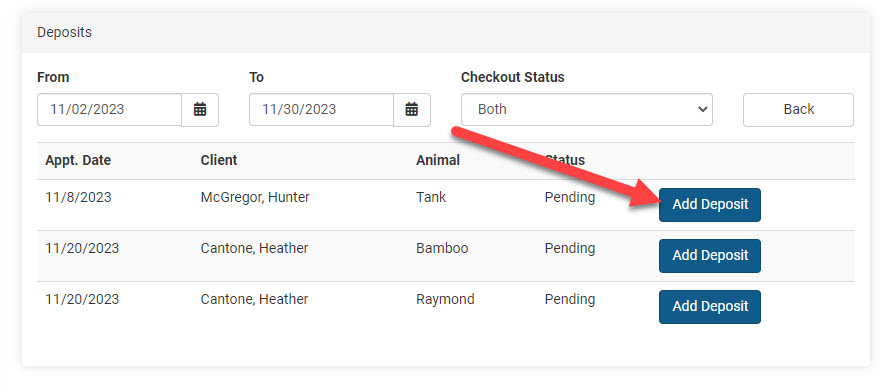
- From the pop-up choose the Payment Type (enter card details if required) and amount to apply.
- Lastly, click the blue Save/Charge Deposit button. If using E-Payment or POS the button will indicate “charge deposit.” If using cash, check, or credit card (manual) as the payment type, the button will say “save deposit.” Once the deposit is applied it will appear on the deposits list with the others and can be managed using Action.
Managing Deposits on Pending E-appointment Requests
Refunding an e-appointment deposit
In the event a team member needs to decline an online appointment request that has a deposit attached, the client will be refunded their deposit. A cancel button is located on the page Online Appointments next to each e-appointment. Click Cancel and the team member will be prompted to provide a reason for canceling the requested appointment. When that action is completed, Clinic HQ will send a notification to the merchant to refund the deposit.
No extra steps are required to refund the deposit of a pending e-appointment request. Simply canceling the request will refund the client. A separate email will be sent to the client notifying them of the refund action. It may take 5-7 days for the refund to hit the client's card.
Linking Unmatched Deposits
Unmatched deposits occur when there is an issue with the staff's appointment scheduling process.
In certain cases, a payment may be received without an appointment being scheduled. Staff charge a deposit from the client, but exit the scheduling screen without clicking on the "make appointment" button. Consequently, the payment gets processed and recorded, but there is no appointment to associate it with.
This unintentional action must be fixed. This tool will allow you to link the unassigned payment to a scheduled appointment.
- Unmatched Deposits
An unmatched deposit is a payment that is recorded in Clinic HQ but not linked to an appointment. These are easily noticed on the Reconciliation report by the red tag "Unmatched Deposit."
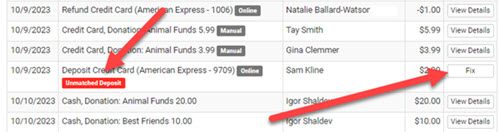
Unmatched deposits should be rare. Clinic HQ has fail-safes in place to prevent a deposit from being charged/recorded if an appointment was not made. If an appointment is scheduled internally and the e-payment deposit is applied but the appointment scheduling is canceled, the deposit will be voided in MX Merchant.
Assigning the Payment to an Appointment
Go to the deposit management screen in Clients > Deposits.
Here, use the filter dropdown menu to sort the list and display the Unmatched Deposits.
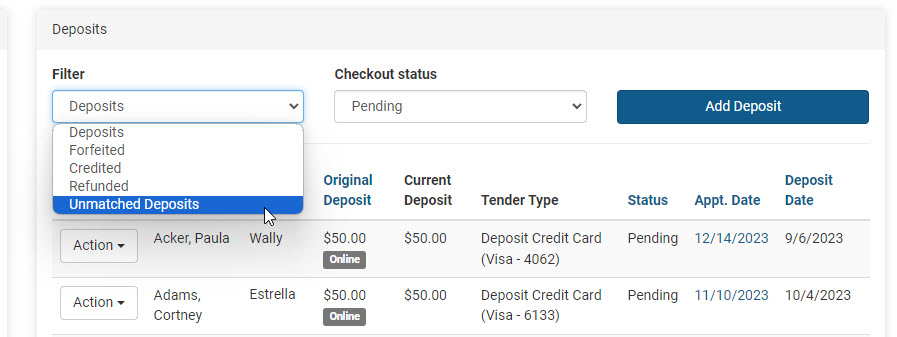
Click the Action button and choose “Link to appointment.”
From the search pop-up, enter the client's name to locate existing appointments where the deposit can be applied.
Use the blue "Link" button to assign the deposit to that appointment.
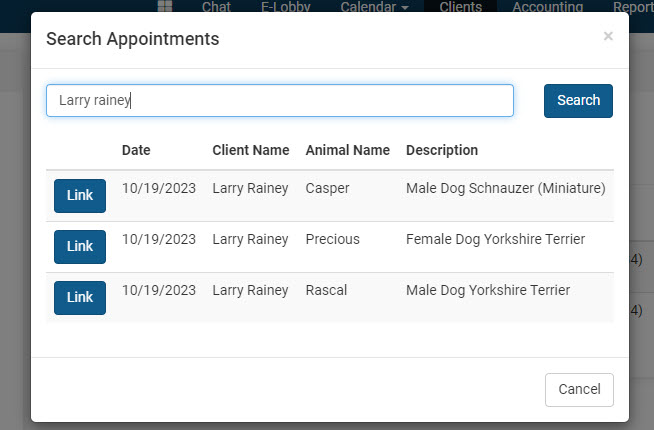
Important: this action is irreversible. Please be sure you link to the correct client/animal appointment.
If the payment is intended for multiple appointments, you must associate the full payment with one of the appointments. If this creates an overpayment on that animal appointment, the excess amount should be converted into a client credit that can be applied toward the other animals.
Volume Client Deposits
!TIP THE BIG WHAT Clinic HQ does not have a tool in place to accept deposits for Volume Client appointments. Deposits can only be collected for Public Clients during scheduling and applied directly to an appointment.
Please refer to the following alternatives to collect a standard style deposit with volume clients:
- The volume client pays the balance due in their client portal before pickup.
- Use a volume client subsidy and add prepaid money to a funding partnership.
It is important to note that the only option to collect deposits for volume clients is through the means of a prepaid funding partnership.
If your clinic needs to accept deposits for volume clients, the only suggestion at this time is to create a subsidy that draws from a prepaid funding partnership. When staff schedules a volume client appointment, they would add money to the prepaid pot for the amount of the deposit. The subsidy would then be applied to the appointments that are scheduled, drawing down from the amount available in the prepaid pot.
To create a prepaid funding partnership, go to Settings > Funding Partnerships and create a new pot. Title the new pot "VC Deposits."
Once the funding partnership has been created, go to Settings > Subsidies and create a subsidy titled "VC Deposit" that is linked to the prepaid pot. Put a restriction in place that the subsidy can only be applied to volume clients.
Now, go to the tab labeled Items this subsidy covers and click Add on cat spay, cat neuter, dog spay, and dog neuter. In the first column for client discount, enter the amount of the deposit per animal. In the middle column for pot deduct, enter the amount of the deposit per animal.
Once the subsidy is created and money is added to the funding partnership, apply the subsidy discount to each volume client appointment.
Collecting Fees without a Deposit or pre-paid Funding Pot & Subsidy
If the Volume Client No-Shows, mark the appointments as no-shows and generate an Item Sale invoice for the No-Show Fee.
Taking a Deposit on a Vaulted Card
If a client has vaulted a card you can charge a deposit to that card when making internal appointments.
Vaulted Card for Deposits
If the client has previously used e-Pay and vaulted their card, the saved card can be used to charge a deposit when scheduling internally for a new appointment. The green card icon will appear next to the client's name when scheduling an existing client.
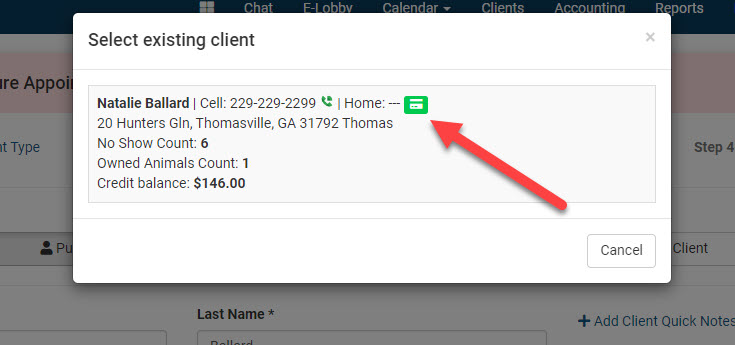
From the last step of the scheduling window, click +Add Deposit.
The first thing to note is at the top of the popup if the client already has a card on file.
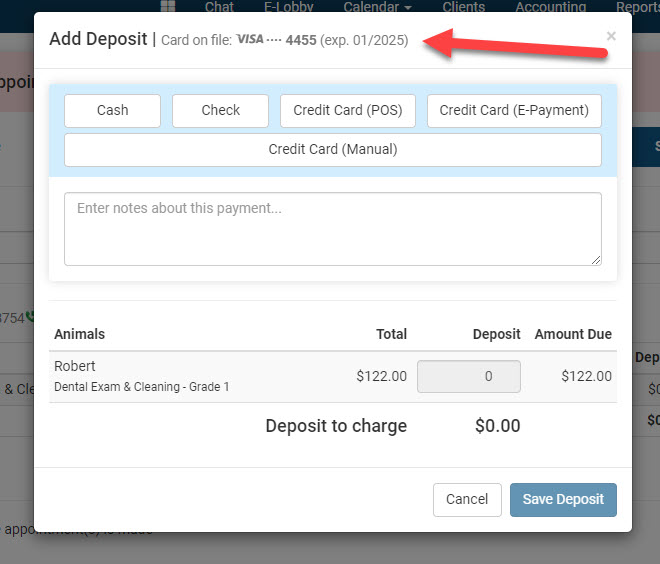
If they do, you can simply use the vaulted card. Although the client may want to use a different card and if so you can select the Add New Card button.