HQ Administration
This section covers administrative aspects of your HQ account — data migration from legacy systems, account cancellation, terms of service, privacy policy, and security practices.
Data Migration

When you sign up for HQ, you can have your clinic's current data, with some exceptions, transferred over to HQ.
How does data migration work?
Starting
We ask that you begin using HQ right away, and once you are sure you want to do it, then we can work on the migration. We don't charge for the actual work of the migration, however we require clinics to purchase a one year subscription paid upfront, as it is important to ensure your clinic is sticking around. Some migrations are easier than others and the process can take a good bit of time and a lot of hard work from our team. It may take an average of four weeks but up to eight to complete the migration.
The Migration Process
Step 1: Provide HQ with a database export from your old software. Once we receive the data, our developer will review and prepare it for the next step in the process. If you’re uploading the data, please rename the file(s) using your full clinic name.
Step 2: We informally call this phase "translations." During this step, we manually clean and organize several pieces of data that have been pulled from your old system. The key areas we focus on include: Items (services/products/vaccines), colors, breeds, declined surgery reasons (optional), deceased reasons (optional), and rabies manufacturers (optional). By hand we will go one by one through every single items that has ever been used by your clinic and match/reclassify them to a standardized medical item in HQ. The length of time on the process varies. Some clinics only have a few hundred items to translate while others have thousands. It is a key step, since this is how we get your old data outfitted to Clinic HQ.
Step 3: Mock migration. This puts the data back together in a mock Clinic HQ environment to display how the data will look in the new format and for the final run.
Step 4: An HQ team member will schedule a meeting with your clinic to review the mock migration. During this review, we’ll examine sample appointments and reports to confirm the data transferred correctly into HQ. Sometimes, we may find errors during this process. If we do, the errors will need to be fixed, a new mock migration will be run, and another meeting will be scheduled to review the updates. This process will be repeated as many times as needed to create an ideal mock.
Please note: there may be minor differences between the data in HQ and your old software. While we aim to make the mock as accurate as possible, a small margin of discrepancy is expected—even in the final version.
Final step: The actual migration! Once your clinic has agreed to the review of the final mock migration, our developers will push the data to your live Clinic HQ profile. Once this occurs we cannot make any changes to the data if you find a problem. When the final step is completed, Clinic HQ will erase the database export you provided at the beginning of this process. All data will now solely be in HQ. We cannot provide the original database reports used in the migration should you ever cancel your Clinic HQ subscription.
What comes over:
- Client name
- Client address
- Client phone
- Client email
- Animal name
- Animal species
- Animal breed
- Animal sex
- Animal age
- Animal weight
- Animal colors
- Veterinarian
- Services received, including vaccines
- Rabies vaccine lot number
- Rabies vaccine lot expiration
- Rabies tag number
- Microchip number
What does not come over:
- Future appointments
- Veterinary notes
- Test results
- No financial information (all animals paid out)
How much does it cost?
It's free, but you must pay for a year of service upfront. It's also non-refundable after we begin work on the migration. Once we receive your data and begin work, your clinic will be billed for a year of HQ. After this period, if you would like to return to a monthly subscription, please start a chat with Fin and ask to speak with a human agent.
What programs can you migrate from?
We know for sure we can migrate data from:
- Avimark
- Cornerstone
- DVM Manager
- Impromed
- IntraVet
- IntraVet (v3 the old one)
- Quickbase
- VIA
- ezVet
- Hippo
- VetBlue
- Any excel file
If it's a program outside of these, you will need to provide a copy of the database, and we will determine if we are able to migrate it.
Checklist for Migrating Data
After you have read about how a data migration works, follow these steps for Data Migration to Clinic HQ

NOTIFY CLINIC HQ Contact Clinic HQ and let us know you are interested in doing a data migration. You can start a chat with Fin and ask to speak with a human agent to get this communication started. We need to know who the point of contact will be for the migration process and what software you are migrating from. See section Data Migration on known software we can migrate from.
GO LIVE WITH CLINIC HQ
Begin using Clinic HQ fully to schedule and check in/checkout animals.
EXPORT YOUR OLD DATA
Export your complete database from the old software. If you are not sure how to do this, you will need to contact your tech support for your old software. This should be inclusive of appointments up until the time you went live with Clinic HQ.
UPLOAD OLD DATA TO CLINIC HQ
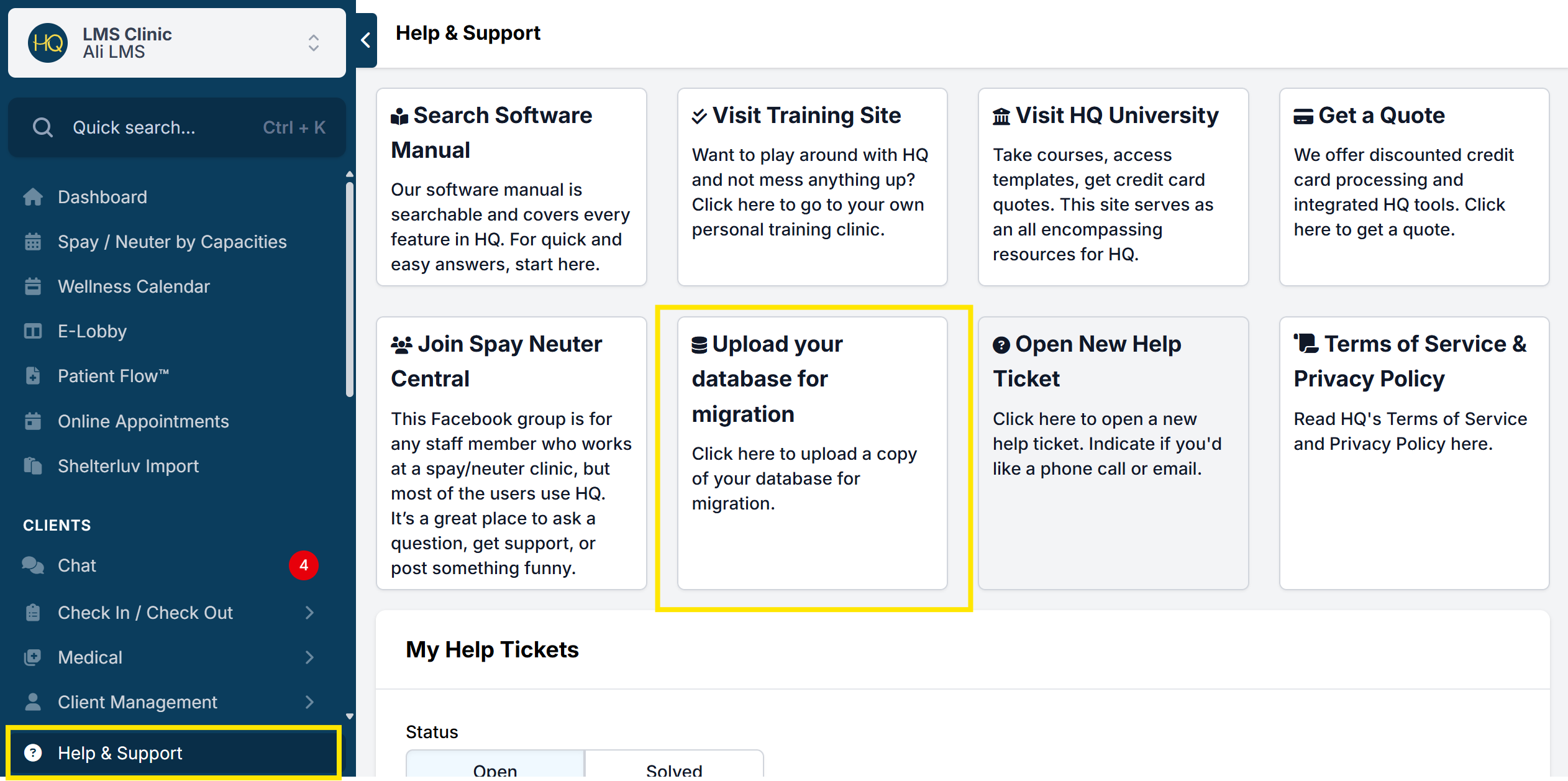
Before you upload the data, please rename the file(s) as your full clinic name. Please log in to Clinic HQ and go to 'HELP'. From this page, locate the button/link to 'upload your database for migration."
PAY ONE YEAR SUBSCRIPTION OF HQ
Clinic HQ will begin work on data prep and translations then bill the clinic for one year of HQ which is non-refundable. The payment method on file under Organization & Billing will be the card charged.
SCHEDULE MOCK MIGRATION REVIEW
After data is translated you will be asked to schedule a meeting to review the mock migration
SCHEDULE DATE OF FINAL RUN
Once the final mock is approved, Clinic HQ will plan the date for the data to go live on your profile. If your clinic used the old software after the first data export was provided, we will need a more up to date export to include any of the latest appointments from the old software.
MERGE CLIENTS
After the data is made available in your Clinic HQ Profile, you will need to merge clients. All of your old database rescues/shelters will be listed as Public Clients. You must merge these public clients into the newer Volume Client profile on HQ.
Canceling HQ

Canceling Your HQ Account
Over the past 15+ years, HQ has maintained an incredible 99.98% clinic retention rate. That’s because, unlike many other software companies, we focus on building great tools, not just making a profit.
HQ was created and is still run daily by animal activists who are personally out in the field doing this work. They deeply understand the unique challenges that come with this type of work, because they live it too. Their mission is to make the world a better place for animals.
That said, we understand that HQ might not be the right fit for every clinic. If that’s the case for you, we fully support your search for a solution that better meets your needs. Our priority is your clinic’s success and satisfaction. If you’re not happy with HQ, here are some options to consider.
- Let us try and fix it. We love to make the software better and spend thousands of hours a year working on it. 100% of changes come from users. So, if you haven’t already, please schedule a meeting to tell us what your deal breaker issue is and see if we can fix it (at no cost to you). It’s easier to fix HQ and you keep using it, than to go through an enormous change to another software. Why not try?
- Schedule more training. Sometimes, it’s not about a missing feature, it’s that there has been turnover within your staff and nobody knows all the ins and outs of the software. That’s a pretty easy fix – let us retrain your staff. Take our step-by-step video courses HERE
Tried all this and still want to switch? Here is what you need to know. Please review this entire guide before taking any action.
How to Cancel
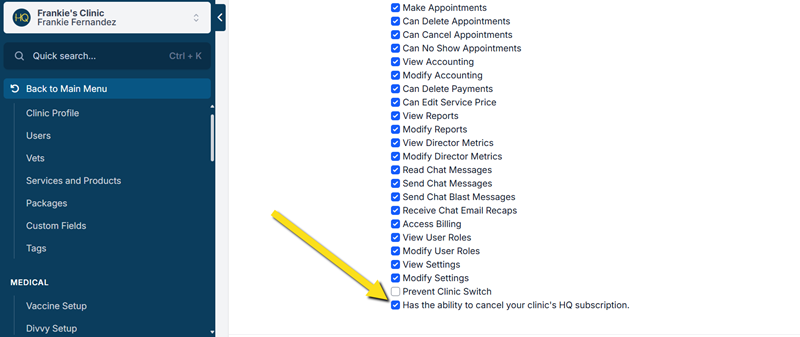
You can now cancel your own HQ account. To do so, you must have the user permission set under Settings > Users > Roles > Edit (Role) > Has the ability to cancel your clinic's HQ subscription. We recommend very few users have permissions set to cancel your subscription. If you modify this permission, you need to log out and back in for it to take effect.
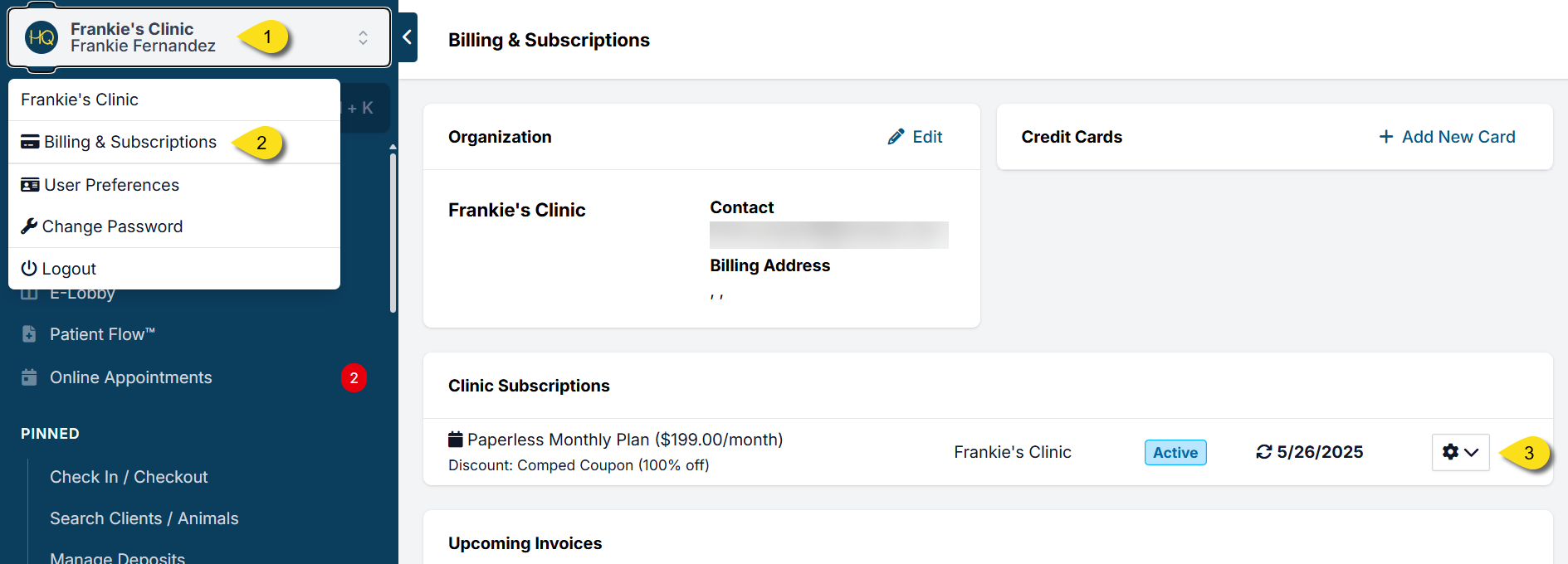
To cancel, go to Profile > Organization & Billing > Clinic Subscriptions. Click on the Settings Dropdown gear icon and click Cancel Subscription.
Once you click on Cancel Subscription, you will receive a popup letting you know this action is IRREVERSIBLE. You will also have the option to cancel immediately or cancel at the end of the billing cycle:
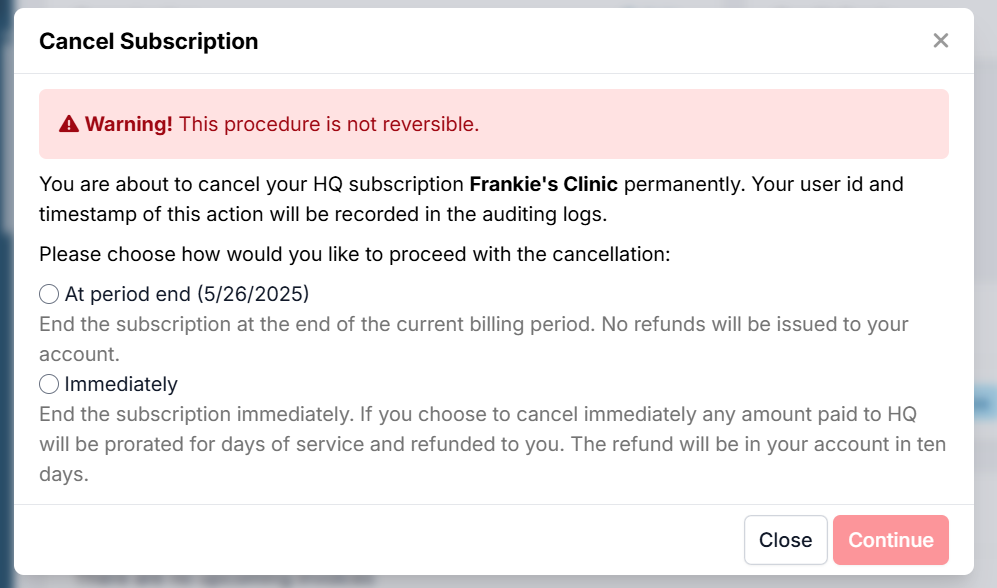
Click Continue, and your subscription will be canceled based upon the option you chose above.
Exporting Your Data
Often other software companies will seek a “database export.” Since we have so few clients ever leave it has not been a priority for us to create a database export. In HQ Terms of Service agreement, which you can review HERE in section 13 it says “Please note, no backup file of your data will be provided. However, data for clients, animals and services can be exported from Clinic HQ’s report section as needed.”
Unfortunately, we will not be able to do anything to assist you.
Data Deleted After Thirty Days
Once you cancel your account, we delete your data from our database after thirty days. It will not be possible to get it back.
Steps to Export Your Data
To export your data, you can follow these steps.
- Go to Reports > Custom Reports. Here you can choose to include any kind of information by clicking on all the displayed categories (e.g. Service Items, Subsidies, Animal details, Client details etc.) and export to an Excel spreadsheet by clicking the Run To Excel button. The only caveat here is that you'd have to export the data year by year since the maximum range allowed is one year.
Here are other suggested data that may need to be exported.
What happens to microchip and credit card processing discounts?
As you may know, we’ve negotiated discounted 24PetWatch microchip prices for $4.95 when you buy 500 or more at a time and the credit card processing is also discounted. Once your relationship has ended with HQ, these perks are no longer available. 24PetWatch has the right to raise your microchip fee, as does MP Group, our partner processor.
We value your business. If you’re considering switching software companies, please do schedule a time to sit down and chat. It ultimately could be a big time and money saver for your group. If you’d simply like to cancel, please start a chat with Fin, ask to speak with a human agent, and let us know which day to turn your service off.
Canceling Considerations for Multi-Clinics
If your clinic is closing one profile, but maintaining another, there are a few things to consider.
- Data Access: If your organization is fully canceling one profile subscription, you will still need to export your data from that profile as suggested above. Once the subscription is canceled, you will not be able to view or click through any appointments or reports seen on that profile.
- Patient Records: Your clinic is still able to access the medical record for patients seen on the canceled profile. To do so, you must only access these through the Medical History popup, which you can open by searching for the patient, then clicking the blue or green Plus sign next to the animal's name.
- Switching Accounts: Please note, you are not able to do any action that requires your user to switch profiles to the cancelled account. For example, you cannot view or edit previous appointments if they were scheduled on the deleted account. If you need to maintain the ability to look up appointment details from that account, you should switch to the Read Only subscription, as discussed in the next section.
Caution: If a user switches to a cancelled profile, they will become "stuck" in that profile. The only solution is to delete and recreate their user login.
Changing to a "Read Only" Account
Using HQ just for look up purposes only We provide a look up only option where you can still access HQ, but cannot make any appointments. Currently that fee is $75 per month. Only one user will have access and will be able to retrieve data on clients and reports.
If you are interested in this option, please start a chat with Fin and ask to speak with a human agent. Let us know when and why your clinic needs to make the switch, and which user login you'd like to retain access.
Any unused portion of your paid subscription will be converted to a client credit and applied to the new monthly subscription fee of $75. A separate invoice will be charged to the clinic for any texts sent via Medical Record Requests.
Terms of Service

Clinic HQ Terms Of Service
Please review our Terms of Service HERE
Privacy Policy

PRIVACY AND SECURITY POLICY
Please review our privacy policy HERE
Security

Keeping your HQ account safe
What can I (the user) do to ensure the content is secure?
- Keep your Chrome browser up to date
- Create limited user roles and do not share user logins..
- Use Two-Factor Authentication.
- Review our manual page on Preventing Data Breaches.
What does Clinic HQ do to ensure the content is secure?
Read more on this in the Privacy Policy
User Roles & Anti-Theft Measures
To prevent employee theft, there are two important things you can do:
Restrict Payment Removal Permissions
- Limit the ability to remove payments to a single trusted individual.
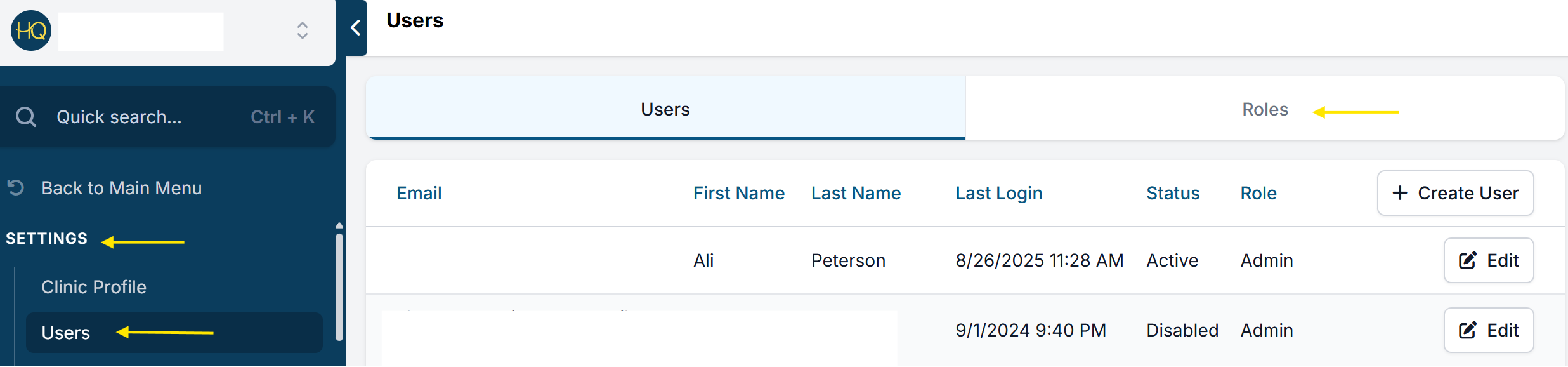
- Go to Settings > Users > User Roles.
- Create a new role (e.g., Accounting Admin).
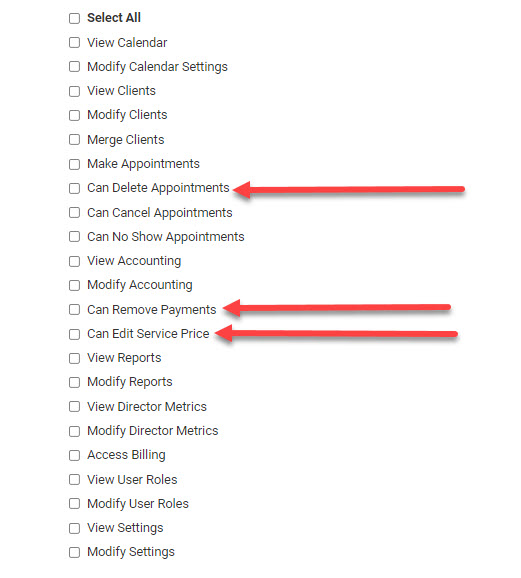
- Enable all privileges, including "Remove Payments".
- Assign only one person to this role, typically a manager or trusted accounting staff member.
This ensures that any payment removal must go through an authorized individual. All other staff members should be assigned roles without the ability to remove payments. This creates a necessary control point and accountability for any adjustments to payments.
Consider which of these specific roles everyday users should have access to:
See our full page about user roles HERE
Reconciling Bank Deposits
At the end of each day, you should run the reconciliation report and count what you have in the cash drawer plus your credit card receipts to make sure everything balances out. Then put the following protocols in place:
- A manager should print the recon report and initial next to the totals to confirm everything is balanced at the end of the day.
- Then fill out a bank deposit slip for the same amounts.
- Photocopy the slip and attach it to the printed recon pages, and put it in a three-ring binder.
- Paperclip the bank deposit slip and money together and store it in an appropriate place until a manager is ready to make the bank deposit.
- Manager makes the deposit and gets the receipt from the bank, then attaches the receipt of the same deposit amount to the recon slip copy bundle.
- For each deposit, there should be a print of the recon report, a photocopied deposit slip, and ultimately a bank receipt of that deposit.
- Every month, the accounts person should go in and pull up the deposits via the bank software and again confirm the amounts deposited.
See more about reconciliation and how to run reports for them HERE