Web Browser

HQ requires the latest version of Google Chrome. Many essential functions will not work properly in other browsers.
- Simply download Chrome HERE on each of your devices and follow the prompts to install it.
- We’ve also outlined steps to help you make sure Chrome runs as efficiently as possible for your clinic’s workflow.
Fitting HQ To Your Screen
This may seem like a small detail, but adjusting your screen properly will give you more space to work.
Adjusting Zoom
- Click the Chrome settings icon (⋮) in the upper-right corner of your browser.
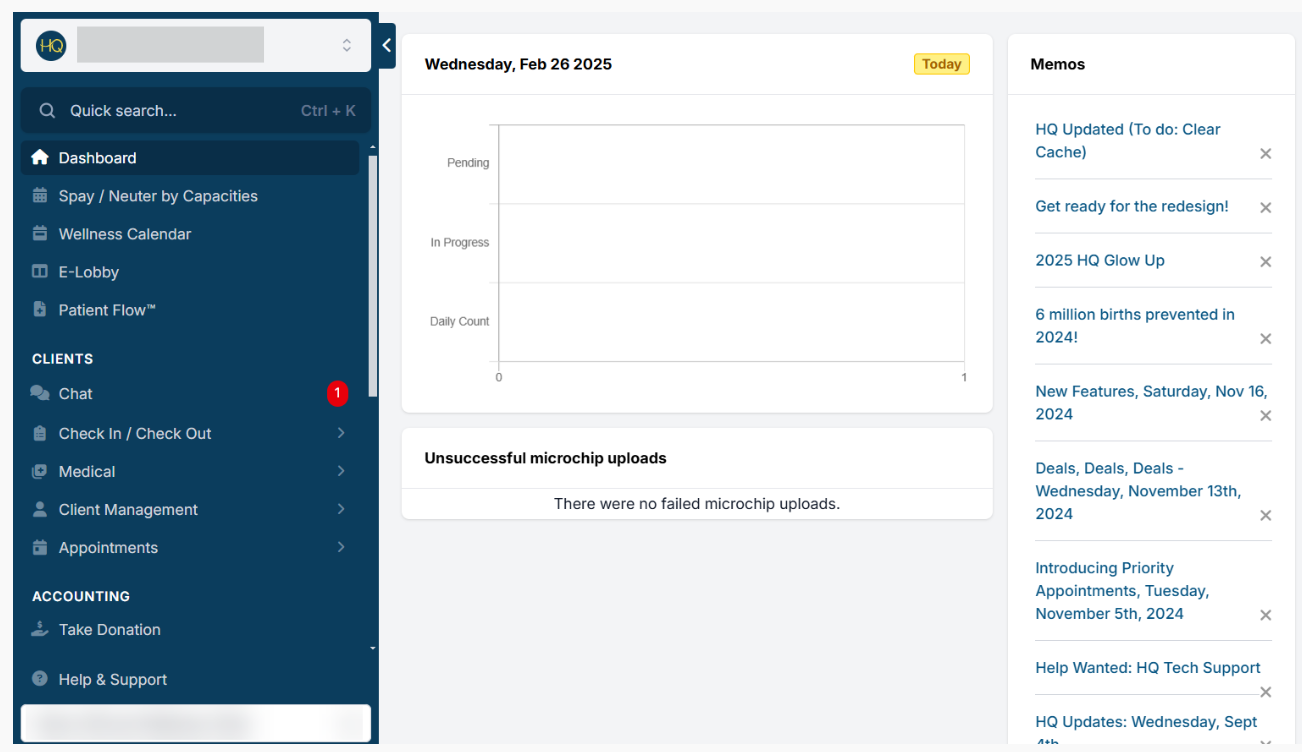
- Set the zoom level to 90–100% to ensure the entire HQ screen is visible.
The screen should look like this:
Collapsible Navigation Menu
For even more space, you can collapse the left-hand navigation menu:
- Click the blue tab with the upward arrow in the top corner.
- To temporarily view the menu again, hover your mouse over the left edge of the screen.
✅ Pro Tip: If you rarely use the navigation menu, leave it collapsed and simply hover to access it. No need to toggle it on and off!
Bookmark Pages
Bookmarking important pages in Chrome makes them faster and easier to access.
How to Add a Bookmark
- Click the link to open the page in a new browser tab.
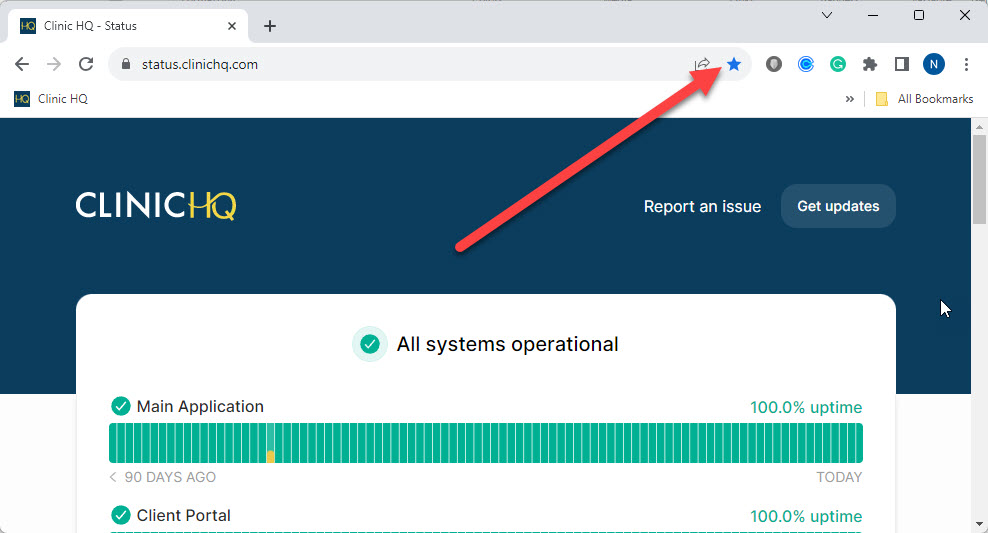
- At the end of the URL bar, click the star icon.
- Choose a name and folder (optional), then save.
Recommended Bookmarks
Start by bookmarking:
Latest Version of Chrome
It’s important to use the latest version of Chrome, since updates often:
- Fix bugs
- Improve performance
- Add new features
- Enhance security
Keeping Chrome up to date helps HQ run smoothly and keeps your data safe.
How to Check for Updates
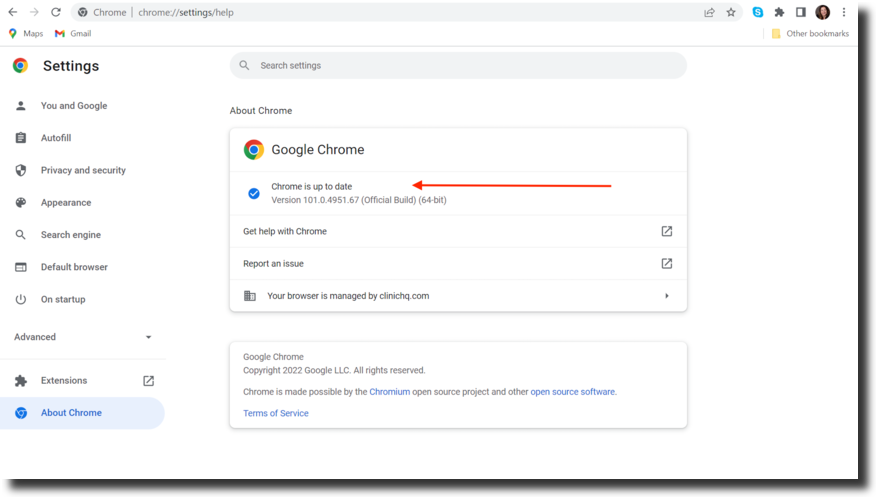
- Click the three dots (⋮) menu in the top-right corner of Chrome.
- Select Settings.
- In the left-hand panel, click About Chrome.
- Chrome will automatically check for updates and install the latest version if needed.
Clearing Your Cache
When you visit websites, small bits of information (cache) are saved in your browser. Over time, this can slow things down. Clearing your cache regularly helps Chrome run faster and keeps HQ working smoothly.
✅ Pro Tip: You can keep saved passwords, but we recommend clearing your cache frequently.
How to Clear Cache in Chrome
- Click the Chrome settings icon (⋮) in the upper-right corner.
- Hover over History, then select History again from the menu.
- On the left-hand panel, click Clear browsing data.
- Set the time range to All time.
- Click Clear data.
Using Multiple Tabs
During the workday, having multiple HQ tabs open makes it easy to switch between tasks without losing your place.
Example: You might keep one tab open for the calendar, another for checkout, and a third for accounting.
How to Open and Manage Tabs
- To open a new tab, click the plus (+) icon at the top of Chrome.
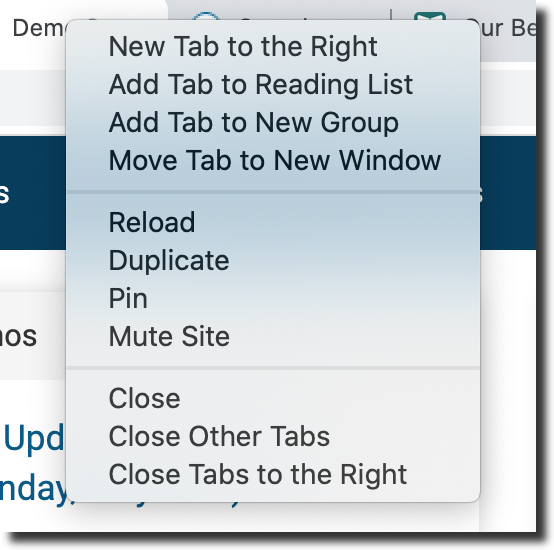
- To duplicate a tab, right-click an existing tab and select Duplicate from the menu.
- You can then move between tabs depending on what you’re working on.
Pinning a Tab
Pinning a tab keeps a website open in a small, fixed spot in your browser for easy access. Pinned tabs stay open even if you close other tabs, making it quick to return to your most-used pages.
Why It’s Helpful
Throughout the workday, you may want several HQ pages open at once — for example:
- One tab for the calendar.
- Another for checkout.
- Another for accounting.
Pinning these tabs makes it easy to keep them available while freeing up space in your browser.
How to Pin a Tab
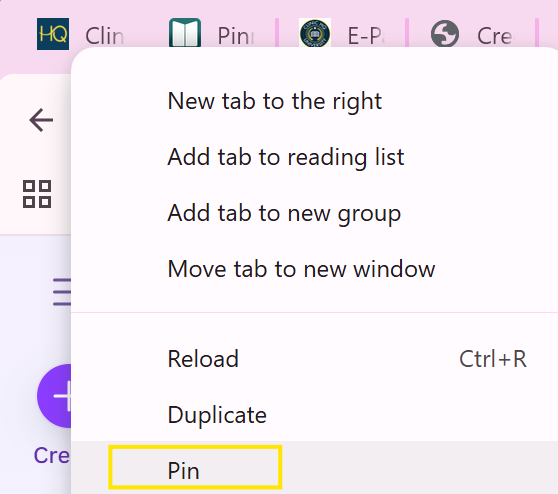
- Right-click on the tab you want to pin.
- Select Pin from the menu.
- The tab will shrink and stay fixed to the left side of your browser
Creating a Shortcut to HQ
An internet shortcut is a quick link to a website or webpage. Saving one to your desktop or browser allows you to open the site with a single click.
Creating a Chrome Shortcut
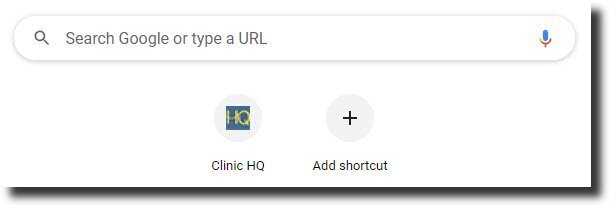
- Open Chrome to your homepage.
- Click the pencil icon in the bottom-right corner.
- Select Shortcuts.
- Add the Clinic HQ URL and name it for easy access.
Now you’ll have a shortcut directly to HQ whenever you open Chrome.
 .
.
Allowing HQ Pop-Ups
Pop-ups are small browser windows that appear automatically when visiting certain websites. While many pop-ups on the internet are ads, HQ uses them for important functions.
Why Pop-Ups Matter in HQ
Some features in HQ require pop-ups — for example, displaying a rabies certificate. If pop-ups are blocked, you’ll see an error message and a red icon in the upper-right corner of Chrome.
- In the address bar, click pop-up blocked icon.
- Configure Chrome to always allow HQ pop-ups.
- Refresh your browser — the issue should be resolved.
You can also check out Chrome's guide to pop-ups HERE.
How to Allow Pop-Ups in Chrome
If the pop-up icon does not appear, you can manually enable them:
- Click the Chrome settings icon (⋮).
- Select Settings.
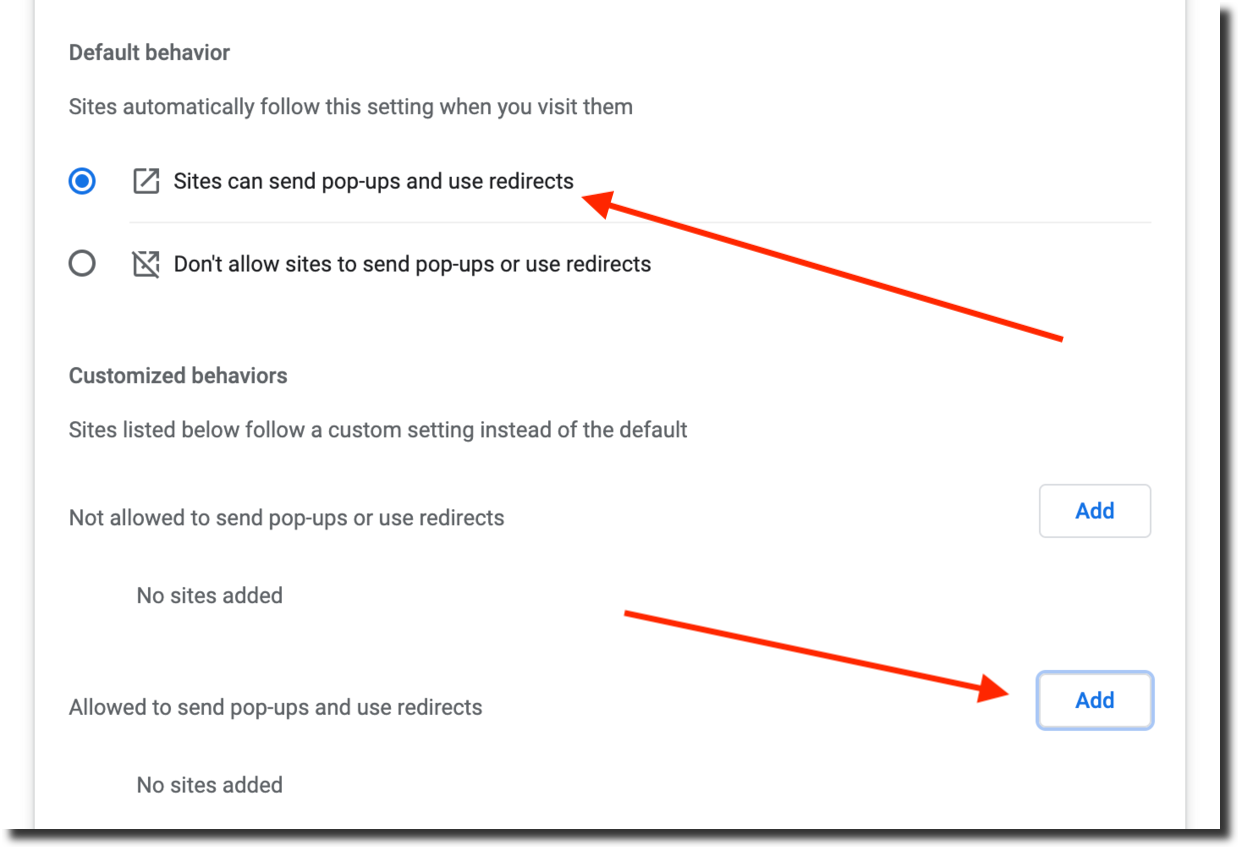
- Go to Privacy and Security > Site Settings > Pop-ups and Redirects.
- Choose one of the following:
- Allow all sites to show pop-ups.
- Allow only Clinic HQ.
Allowing Geolocation
Many websites require users to enable geolocation in order to provide services relevant to their location. HQ uses geolocation to validate addresses and position maps correctly.
How to Enable Geolocation in Chrome
- Open the calendar link in HQ and select Spay/Neuter by Capacities from the drop-down.
- Click on any date in the calendar, then select Make Spay/Neuter Appointment.
- A geolocation pop-up will appear in the upper-left corner of Chrome.
- Click Allow to share your location.
Once enabled, the Address Validator knows your location, and HQ can position maps in Reports accordingly.