Navigation

We pride ourselves on making Clinic HQ simple and intuitive to navigate.
This section will show you where to find the tools and features you need.
The Navigation Panel
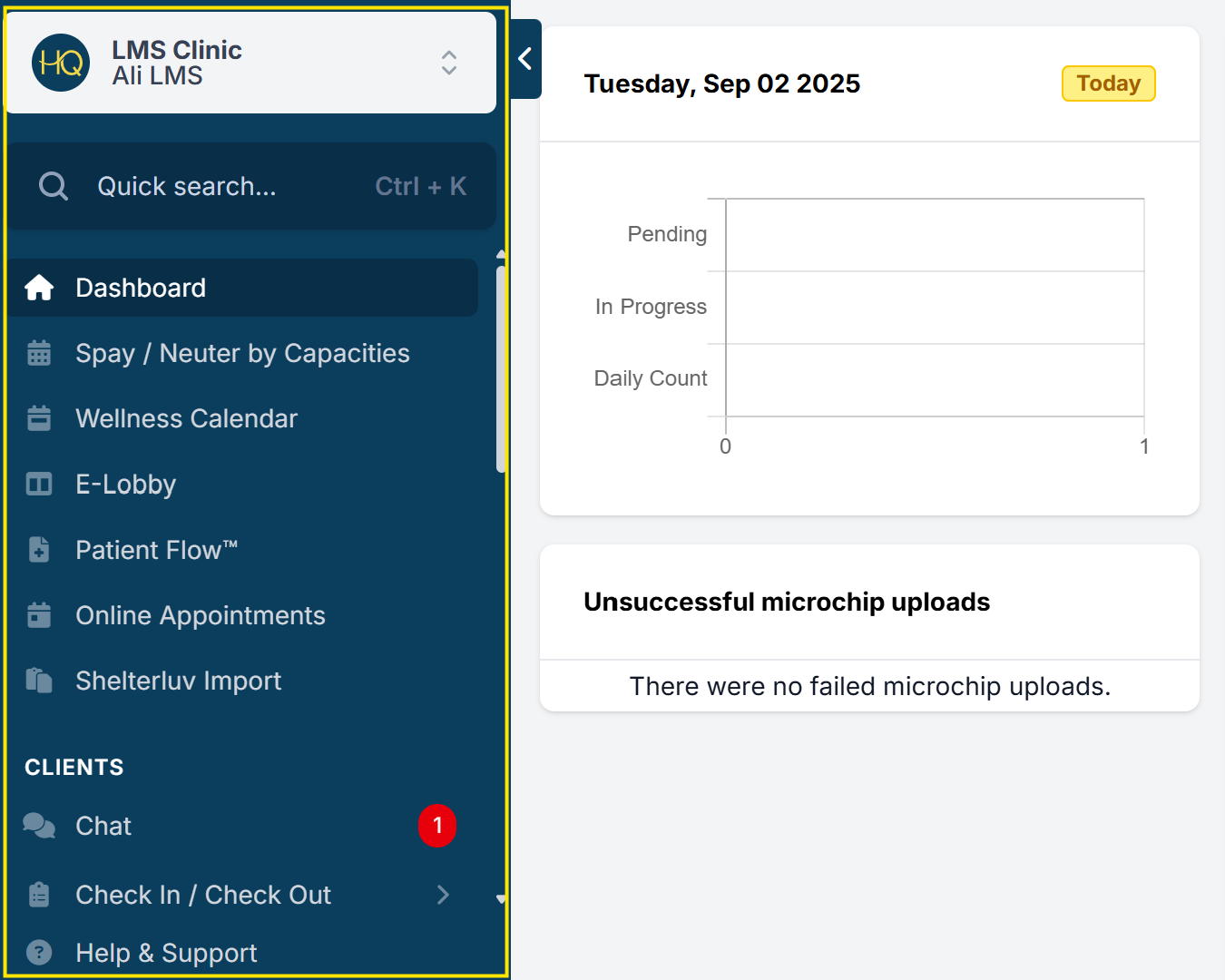
Everything you need is easily accessible from the left-hand navigation menu.
The categories are organized as follows:
- The Dashboard
- Clients
- Accounting
- Reports
- Settings
- Help and Support
Quick Search
HQ's navigation system is built to keep your workflow efficient. Open Quick Search by pressing Ctrl + K on your keyboard, or by clicking the search bar at the top of the navigation menu.
Quick Actions
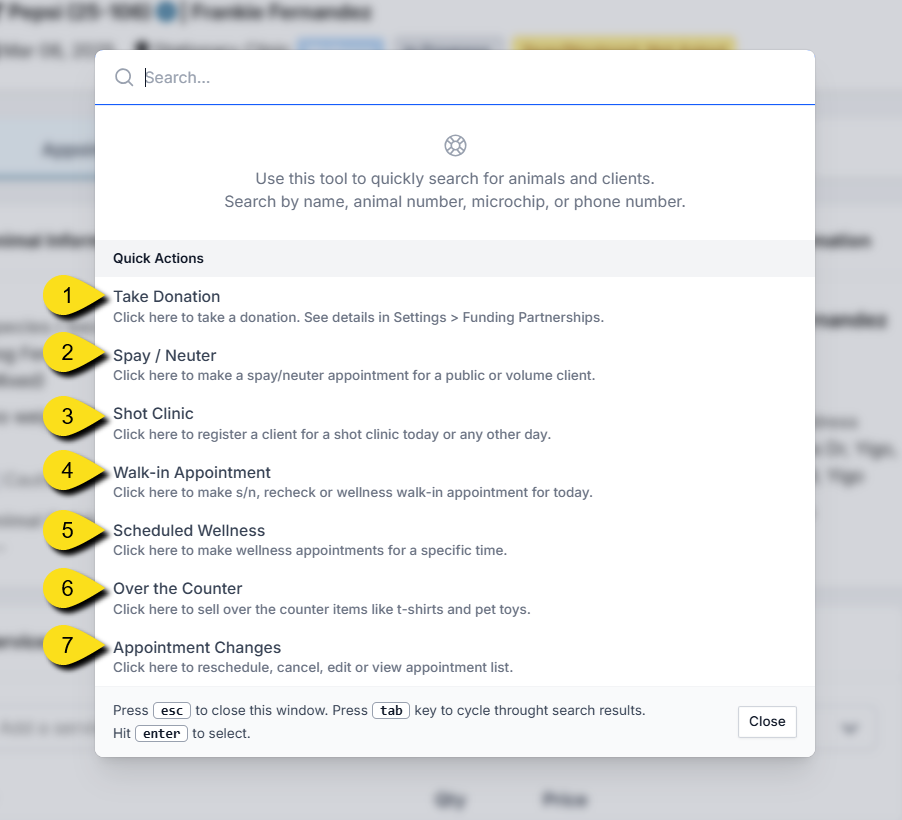
Quick Actions are shortcuts to common scheduling workflows — think of them as a traffic director, pointing you to the right place in HQ without guesswork. Jump directly to popular tools using the shortcuts listed under Quick Actions.
- Take Donation – Quickly process a donation. (Requires a donation pot to be set up in Funding Partnerships.)
- Spay/Neuter – Opens the Spay/Neuter Calendar to schedule surgery appointments.
- Shot Clinic – A starting point for logging clients during a vaccine/shot clinic. Allows you to check if the client or animal has been seen before and create a new appointment. Scheduled Wellness appointments are recommended for better management.
- Walk-In Appointment – Flexible tool for starting any type of appointment (spay/neuter or wellness) when clients arrive without a scheduled time.
- Over the Counter – Log sales of items like T-shirts or e-collars that don't require client/patient records. The transaction is captured in end-of-day reconciliation.
- Appointment Changes – Access tools to reschedule, cancel, or delete appointments.
Special case — Scheduled Spay/Neuter: If your clinic uses time-based spay/neuter scheduling, an extra shortcut will appear here. This is for the rare clinic that assigns exact times (e.g., 9:00 AM, 10:00 AM) instead of check-in windows. If you don't see this option, the feature is not enabled in your settings.
Search
- Use the Search bar to find clients and animals.
- The top five matches will appear automatically.
- Works best with specific names (e.g., "Abraham Lincoln").
- For common names (e.g., "Bella"), use the full Search Clients/Animals page.
Auto-Populate
As you type, results auto-populate to help you quickly find what you're looking for.
The Dashboard
The dashboard is where most clinics start their day.
From here you can:
- See where you are in your clinic flow.
- Check for new memos.
- Confirm all microchips have been registered.
- Review appointments that have not been checked out.
Accessing the Dashboard
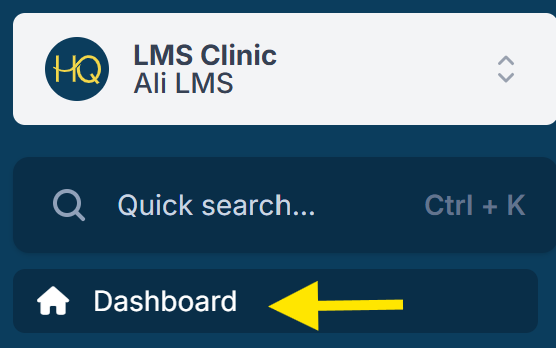
No matter where you are in HQ, clicking your clinic's name in the right corner will bring you back to the dashboard.
Calendar Snapshot
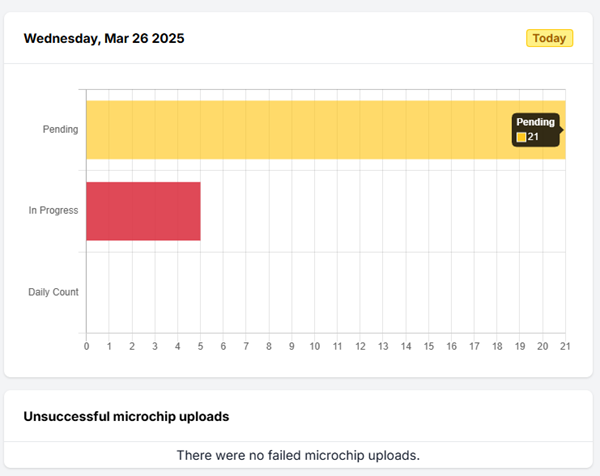
The calendar snapshot highlights two key metrics:
- Checked-Out Animals – the number of animals checked out of HQ so far today.
- Pending Appointments – the number of animals not yet checked in.
Microchip Alerts
On the dashboard, you may see a section for Unsuccessful Microchip Uploads. This section displays error messages returned by the microchip company when an upload fails.
What to do:
- If the error is fixable, correct the mistake in the record and then re-check out the appointment.
- If you're unsure what the error means, see the Microchip section of this manual.
- As a last resort, start a chat with Fin and ask to speak with a human agent for further assistance.
✅ Pro Tip: The Failed Uploads section only appears temporarily. If the error clears from the dashboard, review the Microchip Log for more details.
Memos
- Memos are short messages from HQ about important updates — anything from bug notifications to new features.
- Click the memo link to read it.
- When finished, click the X to delete it.
✅ Pro Tip: Deleting removes the memo from your view only. Once deleted, it cannot be restored.
Status: In Progress
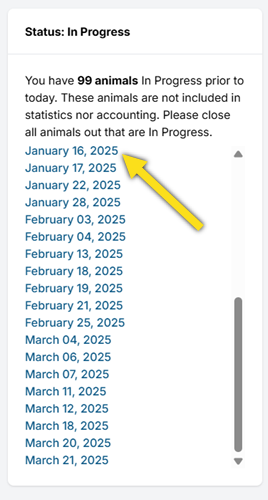
On the right side of the dashboard, the In Progress section lists appointments that have not been checked out.
- All animals must be checked out by the end of the day.
- If animals remain "In Progress," data will not flow into reports or accounting, and microchips will not be registered.
- This section should always be kept at 0 animals In Progress.
- This list shows only previous-day and older in-progress appointments, not same-day ones.
- Click on the active links to access and close out these appointments.
Pinning Key Pages
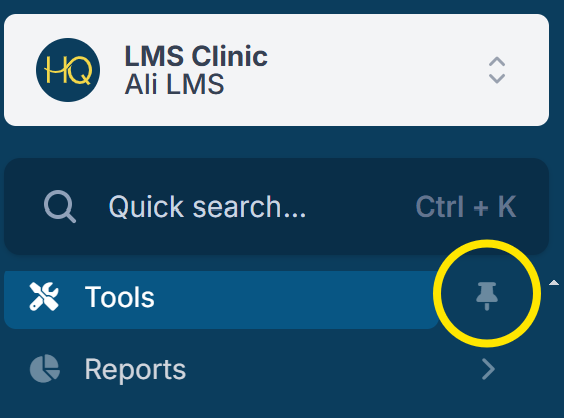
You can pin your most-used pages by clicking the pin icon. This keeps them easily accessible so you can open them quickly whenever you need.
Organization & Billing
Clinic HQ offers one traditional subscription, often referred to as the "Paperless" Plan.
- Cost: $299/month
- Includes: Unlimited users, unlimited data, and access to new features as they are released
Subscription Changes & Review
- Click your clinic's name in the top-left corner of HQ.
- Select Organization & Billing.
- View previous invoices and payments from the left-hand menu.
Change Billing Contact
- Click your clinic's name in the top-left corner of HQ.
- Select Organization & Billing.
- Click the Edit button on the Billing Information section and update the contact details.
Need to cancel your HQ account? Click here to see how.