SOP Daily Checklists
This section covers daily standard operating procedure checklists for your clinic team.
It highlights what to do before your clinic opens, during clinic hours, and at the end of the day to ensure everything is recorded and closed out correctly.
What To Do Before Your Day

Our motto at CHQ is "pre-everything." By this, we mean you should prepare and complete everything you possibly can in advance. Doing so will make your day run faster and smoother.
Here’s what you can (and should) do ahead of time:
- Review Consent Forms: Check for any issues that may exclude the patient from surgery. If the client requested additional services on the form, update the appointment accordingly.
- Send a Payment Link: A pre-payment link allows the client to pay for all services before check-in.
- Prepare the Patient Packet: A good patient packet includes the following.
- Cage Card
- Patient Identifier (neck collars for dogs and masking tape for cat carriers)
- Paper Treatment Sheet or Drug Baggie Insert (optional)
Review Consent Forms
Consent forms often include health-related questions such as:
- “Has this animal been eating and drinking normally?”
- “Has this pet been to the vet in the past thirty days?”
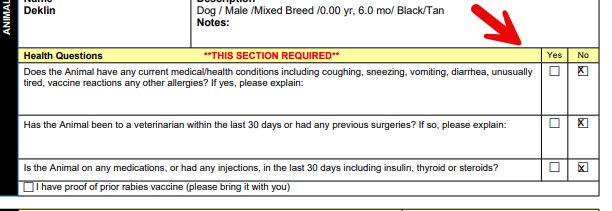
You’ll need to review these forms to ensure nothing concerning has been reported.
Steps to review consent forms:
- Go to Check In / Check Out > Print Email Paperwork.
- Select the correct date, click Select All, then click Print Selected.
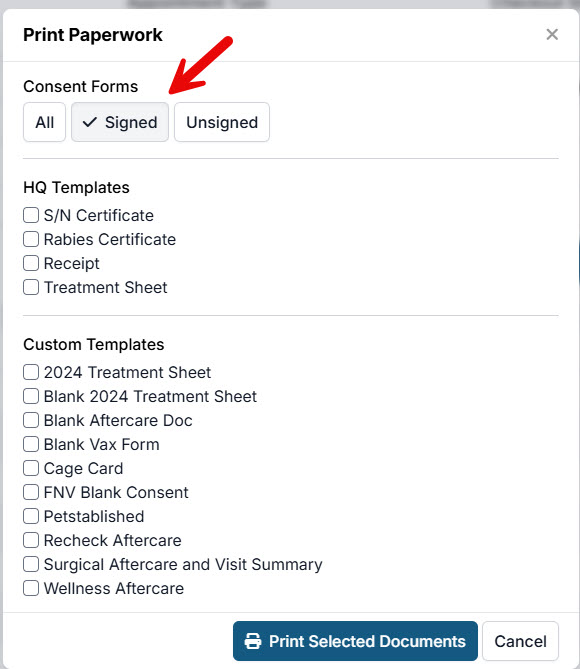
- Under the Consent Forms section, click the Signed button, then click Print Selected Documents.
- In the print preview, scroll through the documents and review the answers to the health questions.
- If you notice anything concerning, call the client to discuss before proceeding.
Send Pre-Payment Link
Sending e-payments is a simple step that saves time by collecting payment before the appointment.
Steps to send an e-payment link:
- Go to E-Lobby or Check In / Check Out and look for the credit card icon next to each client.
- Click the icon, then select Send Payment Request.
Make a Patient Packet
Step 1: Print Cage Cards
- Go to Check In / Check Out > Print/Email Paperwork.
- Select the correct date, click Select All, then click Print Selected.
- Under Custom Templates, choose your cage card template.
- In Chrome’s print preview, click the printer icon.
- Set Pages per sheet to 2.
- Set Scale to Custom: 200.
- Make sure double-sided printing is turned off.
- Click Print.
- Use scissors to cut the sheets in half and trim excess white space.
- Cards that are too big can block the view of the animal.
- Cards that are too small may be hard to read.
Tip: For cats, print an extra cage card to tape on the side of the carrier as a second form of ID (the first form is masking tape).
Step 2: Write Neck Collars & Masking Tape
- Dogs: Pre-write neck collars and paperclip them to the cage cards.
- Cats: Prepare two pieces of masking tape and write the pet's first and last name. Stick the tape on a clipboard so it can be peeled off easily.
Step 3: Print Treatment Sheets (Optional)
- Paperless clinics: Skip this step.
- Clinics using treatment sheets:
- Go to Check In / Check Out > Print/Email Paperwork.
- Select the correct date, click Select All, then click Print Selected.
- Under HQ Templates, choose Treatment Sheet, or select your clinic’s custom version.
Notes:
- The HQ treatment sheet is one page.
- If your clinic’s sheet is two pages, you’ll need a duplex (double-sided) printer.
- Recommended printer Brother HL-2405W monochromatic, duplex, laser printer.
Printing “Blank Setups”
It’s a good idea to prepare blank setups for walk-ins or unexpected situations. A blank setup can include:
- A blank consent form
- A treatment sheet or drug baggie insert
- A cage card
- A neck collar
Clip these items together so they’re ready to use if someone arrives without paperwork or if a handwritten hard copy is needed.
Notes:
- You can store blank versions in Settings > Templates. (Do not include merge fields.)
- Aim to have about 50 blank setups ready at check-in.
- Clients can fill out the forms on paper, and you can later enter the information into HQ curbside.
Approve e-Appointments

You can approve e-appointments at any time during the day. However, it’s a good habit to double-check and approve all pending appointments before heading home.
Steps to approve e-appointments:
- Select Online Appointments in the left navigation menu.
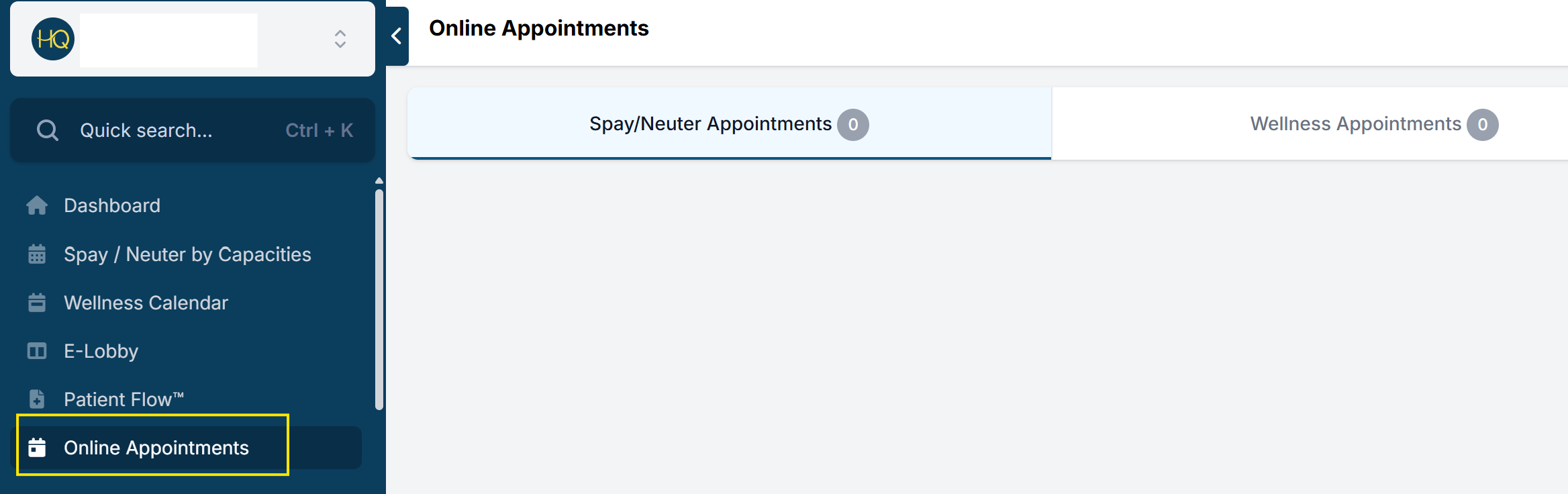
- Review both appointment types: Spay/Neuter and Wellness. Pending e-appointments may appear in either section.
- Review each appointment and verify key details, including the pet’s age, weight, address (if address restrictions apply), client notes, and any custom questions your clinic uses.
- If there are no issues, review and refine the selected services. Add any additional services requested on the consent form, or services the animal is likely to need. For example, if proof of a rabies vaccine was not provided and state regulations require one, add the rabies vaccine service.
- If the client or animal has visited your clinic before, HQ may pre-select a Suggested match. Review the highlighted details and choose a different record—or clear the selection—if the suggestion is wrong.
- Under Make appointment for, choose the option that matches the records you selected. See Choosing How to Make the Appointment below.
For the complete Wellness approval workflow—including the critical service review before confirmation—see Review and Confirm the Request.
How Suggested Matches Work
When you open a pending e-appointment, HQ compares the submitted owner name, phone numbers, email address, and street address with your existing client records. If the client paid online, HQ can also use the payment customer ID. Matching name and contact details are highlighted so you can see why a record appeared.
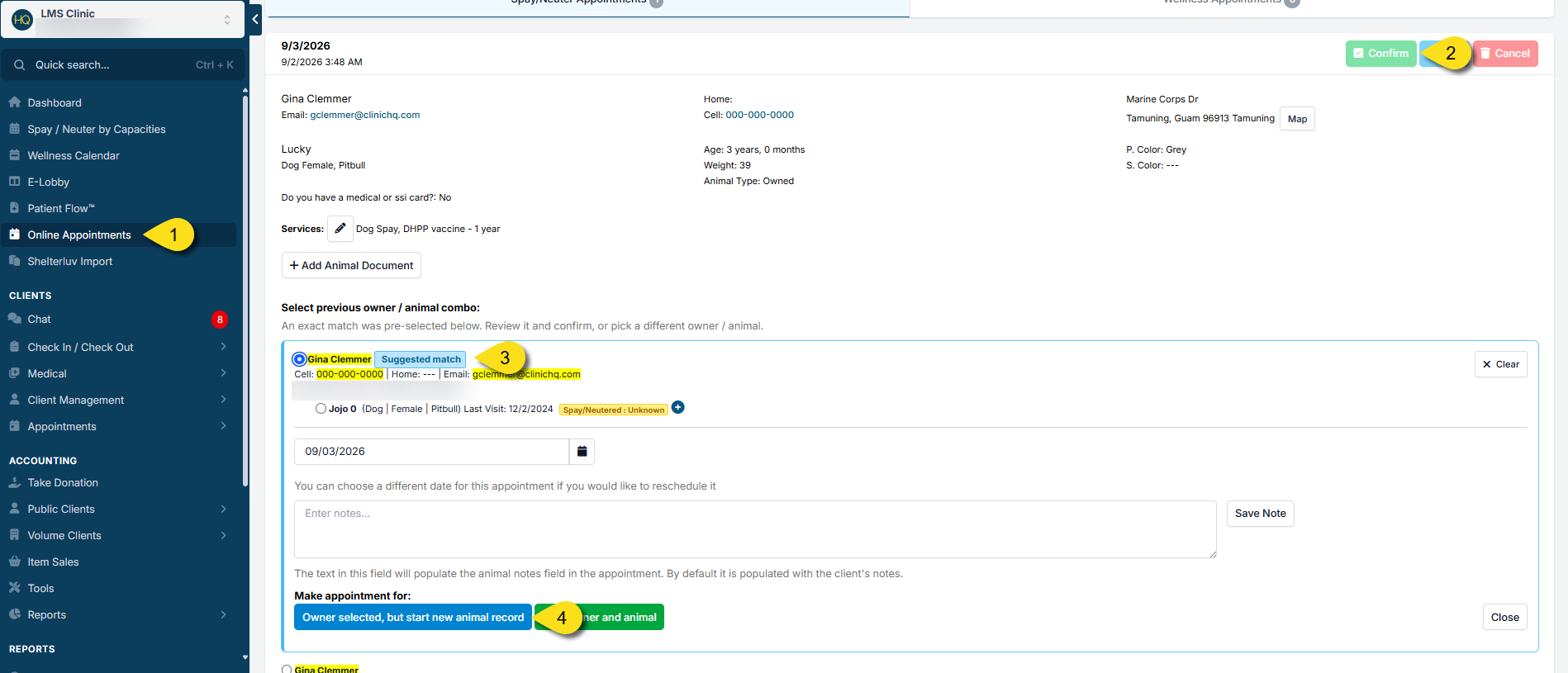
HQ may pre-select an owner as a Suggested match when:
- The payment customer ID matches an existing client; or
- The first and last name match, along with at least one of the following: a phone number, email address, or street address; or
- The phone number, email address, and street address all match, even if the name does not.
When more than one owner record qualifies, HQ pre-selects the highest-ranked one. This does not guarantee it is the correct record, so always review the highlighted details before continuing.
After an owner is selected, HQ shows that owner's non-deceased animals of the submitted species. An animal with the same stored name may be pre-selected as a Suggested match. Similar or partial names can still appear in the list, but they are not pre-selected. Gender and color help rank the results but are not required for a suggested match.
A suggested match is only a pre-selection. Nothing is saved until you choose a Make appointment for option and complete the appointment.
Choosing How to Make the Appointment
The available buttons depend on the records you selected:
- Owner and animal selected — shown after you select an existing animal. It links the appointment to that existing owner and animal.
- Owner selected, but start new animal record — shown after you select an existing owner. It links the appointment to that owner and creates a new animal record.
- New owner and animal — always available. It creates both a new owner record and a new animal record.
What To Do At The End of Your Day

Making Sure All Clients Have Paid By The End of Day
It is important that all public clients pay for all services by the end of each day. HQ provides a quick and easy way to verify payments and ensure nothing is missed before closing.
For volume clients, you will generate an invoice once all VC appointments are checked out.
Review and Apply Payments for Public Clients
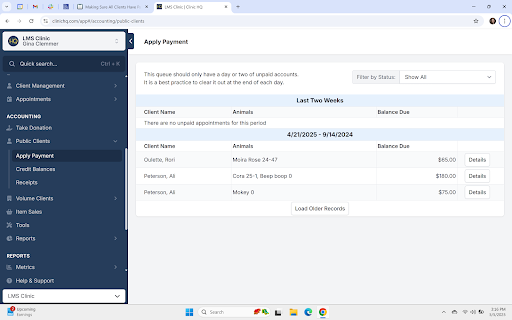
Use the Accounting > Public Clients > Apply Payment page to review outstanding balances and record payment.
- If no clients appear on the page, all public clients are fully paid.
- If clients are listed, one or more animals still have outstanding balances.
Apply a Payment for Public Clients
To make a payment:
- Click the Details button for the client.
- Select the animals to apply payment to.
- Choose a tender type and fill out the payment information.
- Click the Make Payment button.
All public clients should be fully paid by the end of each business day.
In the example below, three clients have animals with outstanding balances:
Create Invoices for Volume Clients
At the end of each day, once all animals are checked out, create invoices for any volume clients who had animals that day. When an invoice is generated, it is pushed to the volume client portal where the client can submit payment. To generate an invoice:
- Open Accounting > Volume Clients.
- Select Bill.
- Choose the date range to bill for, such as the current date.
- Select Search.
- Review the charges to confirm accuracy.
- Select the checkbox for each volume client to be billed.
- Select Generate Invoices.
The volume client also receives an email notification letting them know their invoice is ready.
- If the volume client is paying the invoice online using the Volume Client Portal, no additional action is required from the clinic.
- If the volume client is paying via cash or check, you will need to apply payment under Accounting > Volume Clients > Apply Payment.
Important: If you do not use integrated credit card processing, volume clients cannot pay their invoice via the VCP.
Reconcile your Drawer for Cash and Checks
- Run the reconciliation report in HQ under Accounting > Reports > Reconciliation.
- Look at the totals at the top of this document and match those to the following:
- Cash (by counting the cash you took in that day)
- Checks (by totaling the value of checks)
Balancing Credit Card Transactions
When processing an in-person credit card transaction, keep the receipt in the cash drawer. These receipts allow you to confirm exactly what was charged.
To verify credit card totals:
- Tally all in-person credit card receipts.
- Compare the total to the credit card amount shown on the Reconciliation Report.
- Exclude deposits and any transactions that were not processed in person.
Documenting the Reconciliation.
After verifying all totals:
- Print the Reconciliation Report.
- Initial the cash, check, and credit card line-item totals.
- For credit cards, place a check mark next to each transaction that has a corresponding receipt.
- Three-hole punch the report.
- File it in a three-ring binder along with a copy of the bank deposit slip.
Getting a Bank Deposit Ready
At the end of the day or week, it is common practice to bundle cash and checks and deposit them into the bank.
Prepare the Cash and Check Bank Deposit
To prepare a deposit:
- Run the Reconciliation Report and confirm there are no errors or discrepancies in cash and checks.
- Bundle the cash and checks together in a deposit envelope.
- Complete a bank deposit slip.
- Make a photocopy of the completed deposit slip.
- Attach the photocopy to a copy of the Reconciliation Report that you have initialed to confirm the total amount.
- Provide the documents to your accounting staff so they can verify the deposit when it appears in the bank.
Approving E-Appointments (End-of-Day)
Approving e-appointments can happen at any time during the day. Before heading home, it is a good practice to double-check that all pending appointments have been reviewed and approved.
To review and approve e-appointments:
- Select Online Appointments in the left navigation menu.
- Review both appointment types: Spay/Neuter and Wellness. Pending e-appointments may appear in either section.
- Review each appointment and verify key details, including the pet’s age, weight, address (if address restrictions apply), client notes, and any custom questions your clinic uses.
- If there are no issues, review and refine the selected services. Add any additional services the animal is likely to need. For example, if proof of a rabies vaccine was not provided and state regulations require one, add the rabies vaccine service.
- If the client or animal has visited your clinic before, HQ may pre-select a Suggested match. Review it carefully; see How Suggested Matches Work above.
- Under Make appointment for, choose the option that matches the records you selected. See Choosing How to Make the Appointment above.
For the complete Wellness approval workflow—including the critical service review before confirmation—see Review and Confirm the Request.