16.2. Microchips
Clinic HQ has partnered with Petstablished, 24PetWatch, and PetLink to save your clinic time and money!
If your clinic utilizes any of these 3 companies for your microchips, you can enroll in automatic registration of microchips directly from HQ. This integration helps ensure that every microchip is registered properly, saving your team time and reducing manual entry.
It's important to note, your clinic is welcome to use any microchip you like with HQ, all other chips will just need to be manually registered.
See more details on our partnerships with each microchip company, here:
Entering Chips
Microchips can be added in multiple places:
In Patient Flow:
- Go to Patient Flow > Exam & Pre-med > Exam > Update Animal to find the microchip provider field and select the provider. Then enter the chip number.
- From Patient Flow > Surgery > Microchips, click Update and a popup will appear allowing you to enter the microchip information.
The animal's appointment page:
- On the Appointment Tab, edit the Animal Information and fill in the microchip details.
- On the Treatment Sheet tab, using the Microchip section.
Common Mistakes
Entering an incorrect chip number
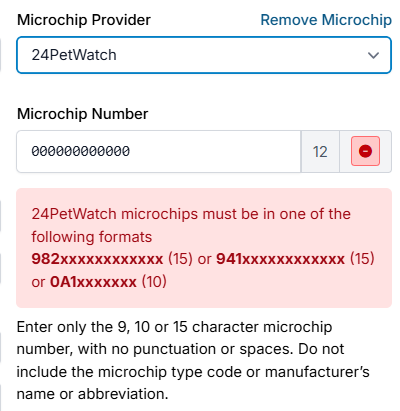
We try to catch invalid chip numbers if the chip doesn’t conform to standard chip sequence formatting. However, chips are often not uniform, and we do not have all variations setup in our chip validator. If we do catch an error, an error message will be displayed that looks like this:
Helpful Tip: You can purchase a barcode scanner, insert your cursor in the chip field, and scan the barcode sticker with your scanner. This will auto-fill the chip number, which means you do not have to type it in. It’s a time saver and an error reducer. Any barcode scanner will work. You can find one on Amazon for $20.
Forgetting to enter the chip
We have built a feature in HQ where when you input a service item for a microchip; you are not able to checkout unless you insert a microchip. There is no way to disable this feature. If you do not wish for this feature to be applied to your clinic, you can choose this microchip item “Microchip (no chip number provided).”
Registering a chip that is already registered in 24PetWatch
If you try and register a chip that is already registered through 24PetWatch, you will receive an error message that lets you know the chip is already in the database. There is currently no way to enter the chip twice in HQ.
Auto-Registration
If your clinic is using one of the integrated microchip companies, you will first need to enable the microchip integration in setup. You can read more about that here.
Daily Auto-Registration Process
The auto-registration process will happen overnight, to ensure all data from the day is entered and complete. For more information on what is needed for auto-registration, visit our Microchip Auto-Registration page.
To push a microchip through for auto-registration, the appointment MUST be checked out.
Only public client and volume client appointments with a listed VCO will be auto-registered. HQ will NOT register volume client chips where no volume client owner is present.
Alerting the Owner their microchip has been registered
The primary way an owner will be alerted is via email. That’s why it’s essential to have the correct email on file for every pet owner in HQ.
- If no email address is input, the pet will still be registered, but the owner will not receive an email with pertinent information related to their registration.
- If no email address is input for a 24PetWatch chip, the owner can go to https://microchip.24petwatch.com/PreReg-PetOwner.aspx and register there. This will allow the owner to make changes to their phone number, mailing address, and email (should they get one at a later date) so they can always keep their account current.
Understanding Microchip Tags
All microchips will default to a Pending microchip tag. If your clinic utilizes an integrated microchip company, you will notice Microchip tags next to the microchip number stating if the microchips are:
- Registered
tag means the microchip was successfully auto-registered by HQ: - Pending: This tag means the chip has not yet been auto-registered by HQ. You will see this tag on your current day's microchips. Clinics who do not utilize either 24 Pet Watch or Petstablished will see the 'Pending' tag on their microchips, and they will not change to 'registered' or 'failed.' There is not an option to remove the pending tag manually.
- Failed: This tag means there was an error regarding auto-registration. If the error is fixable within HQ, such as missing an owner detail, you can update the appointment then click Checkout again to push the registration to be resubmitted. If this does not solve the error overnight, your clinic should contact the support teams for either 24 Pet Watch, Petstablished, or PetLink:
For 24PetWatch chip errors, you can email Sharon.Simas@pethealthinc.comFor Petstablished chip errors, you can email Susan Eng susan@wagtopia.comFor PetLink chip errors, you can email support@petlink.net
These tags will populate in patient flow, the animal's history, and in both the appointment and treatment sheet tabs.
Correcting Failed Registrations
It is best practice to review both the Microchip Log and the HQ dashboard daily to identify any failed microchip registration uploads.
The Microchip Log can be found under Clients > Medical > Microchip Logs. From there, you can search by appointment date to ensure there are no errors.
Failed uploads are indicated by a red X. Hover over the red X to view the reason for the error.
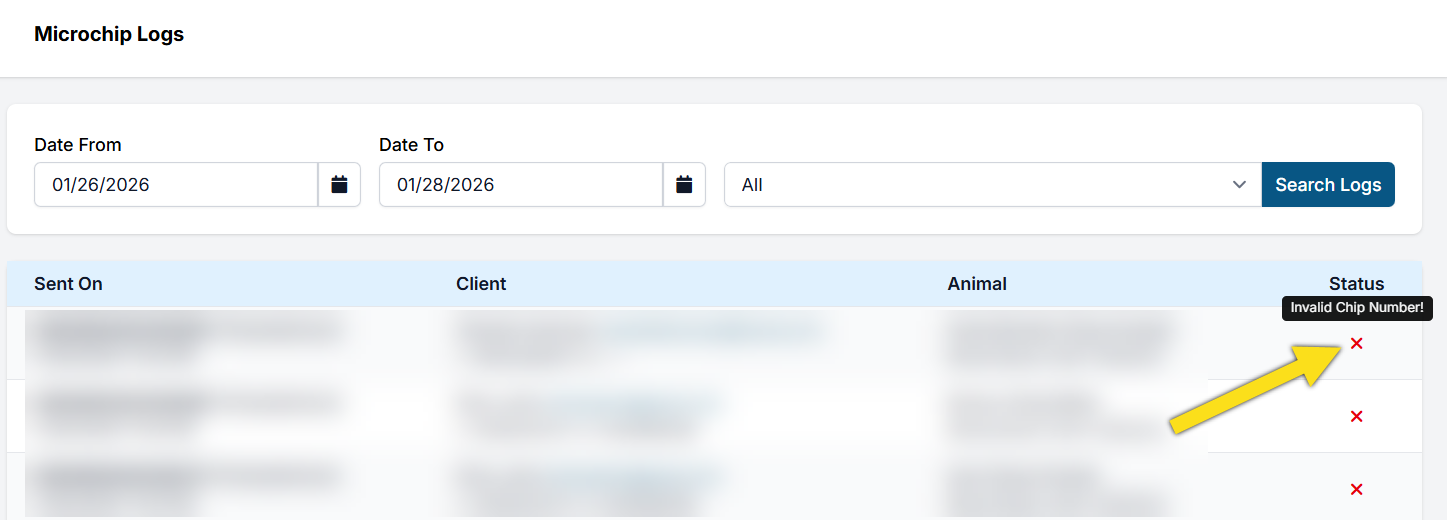
If the issue can be corrected within HQ—such as an invalid email address or an incorrectly entered microchip number—edit the appointment and update the information. Once corrected, click the green Checkout button to resend the registration overnight.
If the issue is not fixable within HQ, you may need to reach out to Petstablished, 24PetWatch, or PetLink to revise the registration.
You can learn more about the Microchip Log, here.