14.10. Template Troubleshooting

Common Template and E-Consent Issues and Fixes.
- If you have not reviewed what templates are and how merge fields work, review that section first using this link: (blank)HERE.
- If you need help uploading templates or making changes, review the Settings documentation (blank)HERE.
Clinic HQ support has identified the following issues as the most frequently reported. Use the sections below to troubleshoot and resolve each problem.
E-Consent Troubleshooting.
For this section, checkboxes, textboxes, date fields, and signature fields are referred to as fillable fields. Appointment type refers to the main three types of appointments: Spay/Neuter, Wellness, Recheck.
Issue: Appointment Type Is Not Available on Template Settings.
Solution.
You must delete the original e-consent assigned to that appointment type. Only one e-consent template can be assigned per appointment type.
If a spay and neuter consent is already assigned, you cannot upload and assign a second spay and neuter consent.
- Open Settings.
- Select Templates.
- Locate the existing template.
- Click Action.
- Select Delete.
Issue: Form Looks Correct in HQ but Fields Cannot Be Filled in.
Solution A.
- Open Settings.
- Select Templates.
- Click Action.
- Select Edit on the e-consent template.
- Confirm that fillable fields were dragged and dropped onto the template.
- If fields were not added, drag and drop them now.
- If fields will not drop, delete the template and re-upload it.
- Drag and drop all fillable fields before saving.
- Review instructions for adding fillable fields here: HERE..
Solution B.
The template was uploaded using an unsupported browser such as Firefox. Clinic HQ supports Chrome only.
- Delete the existing template.
- Re-upload and configure the e-consent using Chrome.
Issue: Fillable Fields Do Not Line Up for the Client.
There are two possible causes.
Solution A.
- Confirm the browser zoom level is set to 100 percent.
- Open the browser menu using the three dots in the upper right corner.
- Verify the zoom level is exactly 100 percent.
- Reposition the fillable fields.
- Save the template.
Browser zoom changes can cause fillable fields to appear aligned for staff but misaligned for clients.
Solution B.
The template contains merge fields that are not inside fixed tables. Text populated by merge fields varies in length and can shift surrounding content.
This issue is resolved by editing the Word document and reuploading it to HQ.
- Open the consent form in Microsoft Word.
- Right-click the table.
- Select Table Properties.
- Select Row.
- Set Row height to Exactly.
- Repeat for every table row containing merge fields.
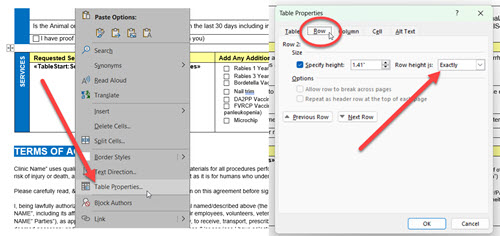
#_ Setting row height to Exactly prevents tables from expanding and shifting content.
#_ If merge fields are not already in tables, download the HQ Recommended template here: (blank)HERE..
E-Consent Setup Tips.
- Ensure browser zoom is set to 100 percent when placing fillable fields.
- Drag fields fully inside the template boundaries before dropping them.
- Drop the field first, then reposition it using the four-arrow tool.
- Do not stretch or distort the signature field, as this can distort the client’s signature. If you need to expand the box, keep the same ratio.
Other Template Troubleshooting.
Issue: Merge fields are not populating.
Solution.
If the template prints without populated data, the merge field coding has been lost. The document must be corrected in Microsoft Word.
- Download the latest merge fields master list here: (blank)Download the latest master list.
- Download the template from your settings.
- Open your custom template in Microsoft Word.
- Remove any fields that are not populating correctly.
- Copy and paste replacement fields from the master list.
- Save the updated custom template.
- Upload the updated template back into HQ.
Upload Issues.
Known issues that prevent templates from uploading or generating correctly include the following.
- A blank page at the end of the document.
- Tables without fixed row heights set to Exactly.
- Headers included in the document.
- Hyperlinks must be removed from the Word document.
- Images not in JPEG format.
- Templates uploaded using unsupported browsers such as Firefox. Clinic HQ supports Chrome for all template uploads.