Templates
14.11. Adding Fields to a Template
Template Fields
To add a template field such as a textbox, checkbox, signature field, or date, follow these steps:
Adding the template:
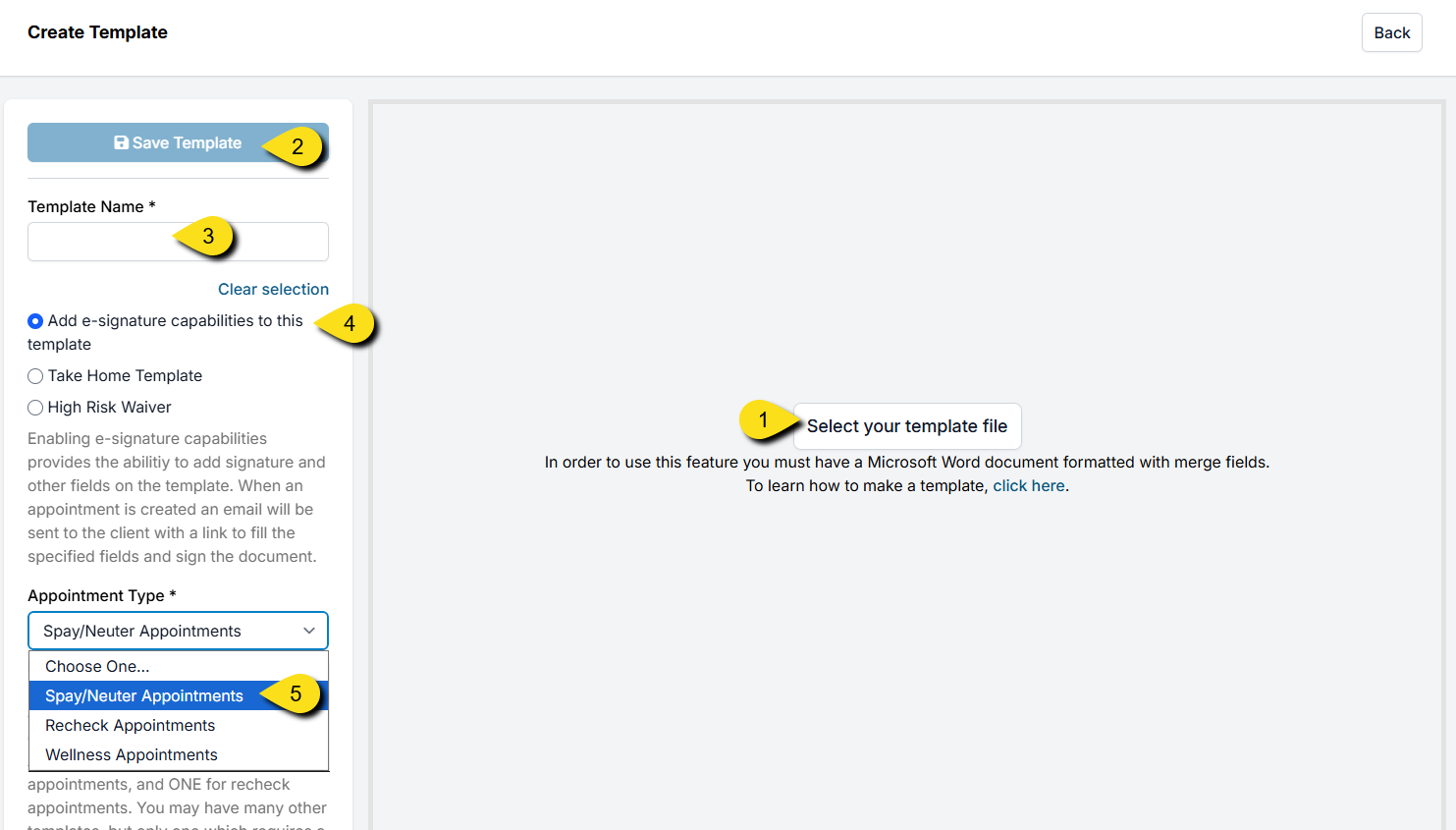
- Go to Settings > Templates.
- Upload your document file by clicking Select your template file.
- Give your template a name, such as Surgical Consent Form.
- For special templates, such as a consent form, HRW, or a Take Home Template, click the corresponding checkbox.
- For consent and take home documents, assign the corresponding appointment type. Note: You can only create one of each of these per appointment type.
Adding the field:
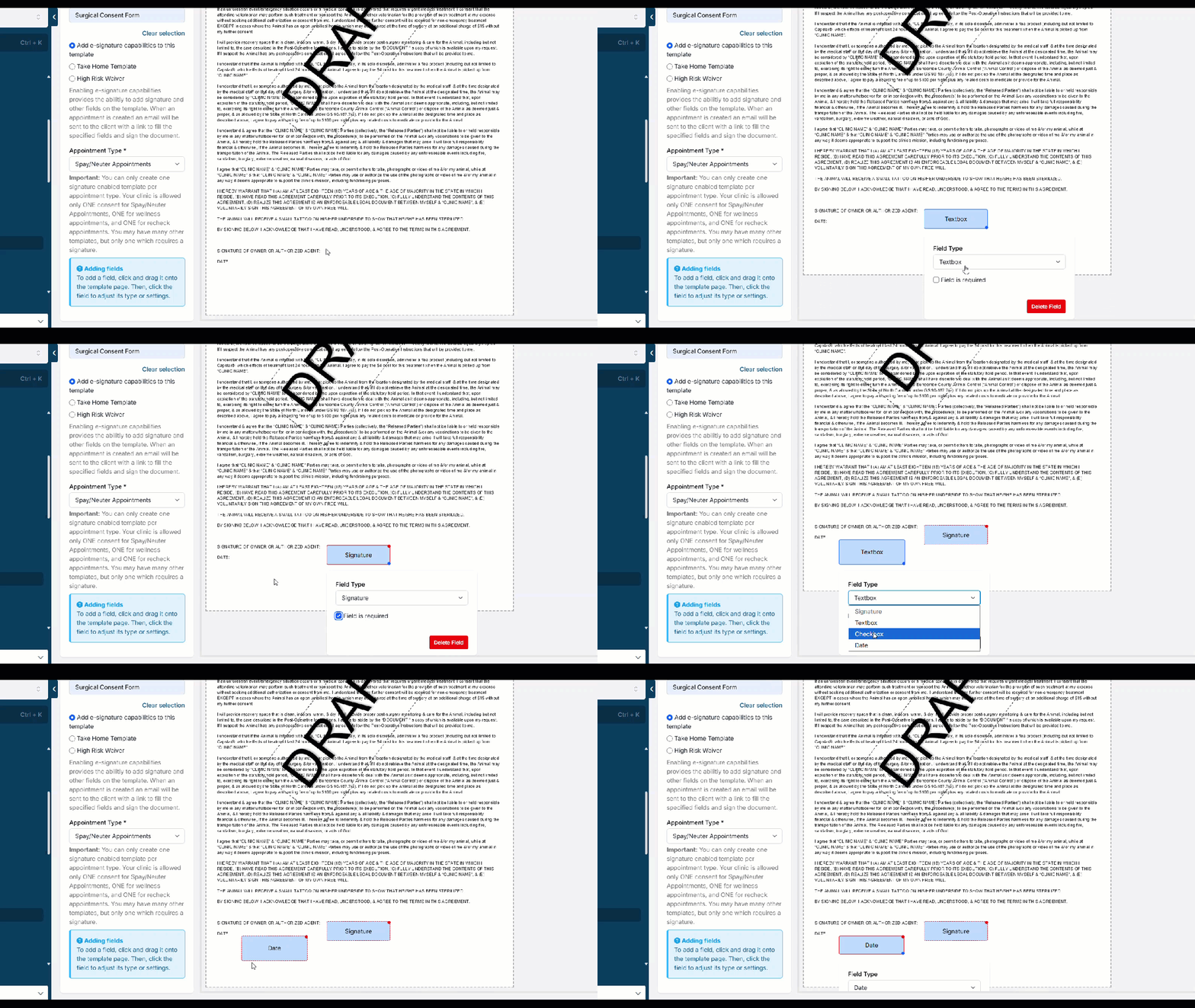
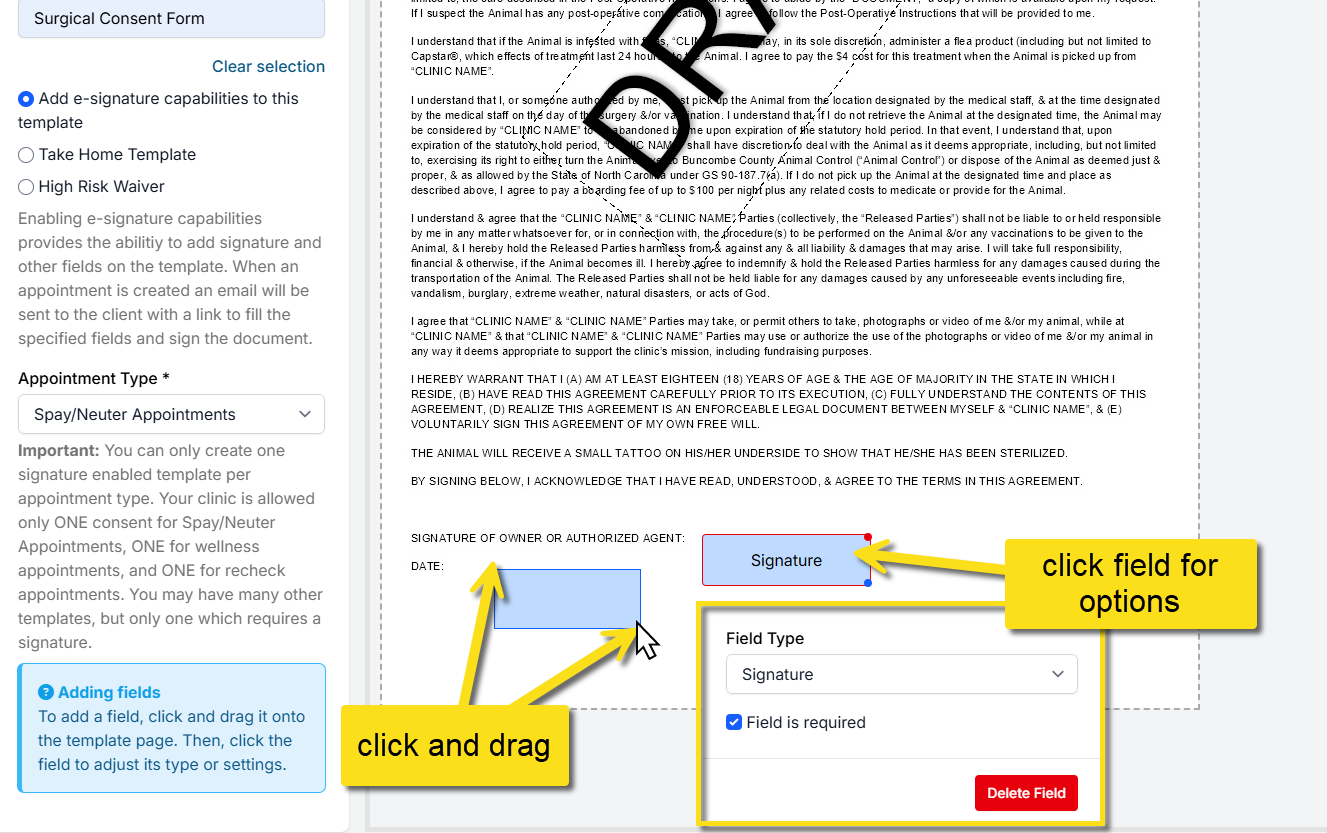
- Click and drag your mouse where you want the field to go.
- A textbox will appear by default. If you want to change the field type, such as changing it to a signature box, click on the field.
- Select the field type from the dropdown menu.
- If it should be a required field, tick the Field is required box.
- Once all fields are added, save your template.
Demonstration