18.5.1. Providing Copies of Medical Records
Medical Record Requests
There are two routes for clients to request copies of their medical records in HQ.
- By calling the clinic: A client may request records directly through the clinic staff and you can simply send them a copy via email, text, or print/download.
- Through a secure download link: You can put a link on your website where clients verify their identity and order copies of the medical record to be texted or emailed to them. They can request their full medical record or just a copy of their treatment sheet from their last visit.
The most efficient way to provide medical records is by adding an automated request link to your website, which requires the Call & Text Add-On to be fully set up. Learn more about that HERE.
Clients can choose to verify their identity and receive records via text or email. Text messages cost five cents each (e.g., one for the authentication code, one for the records), you are not charged for incoming texts. Email delivery is free of charge. While there may be a small cost for texting, the process is fully automated and saves staff time. Texting cannot be disabled, as some clients may not have an email, and they need to be provided a way to receive the verification code via text.
Automated Request Link
When your clients click the link, this is what they will see:
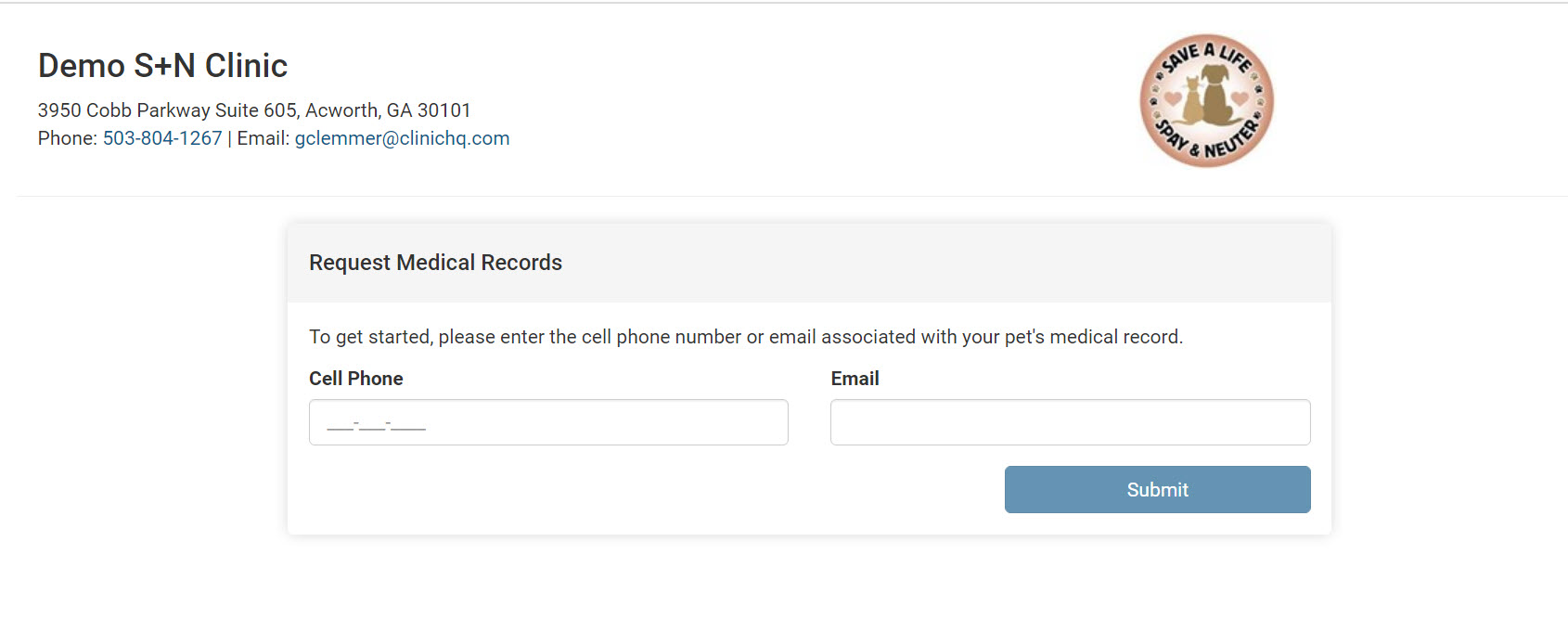
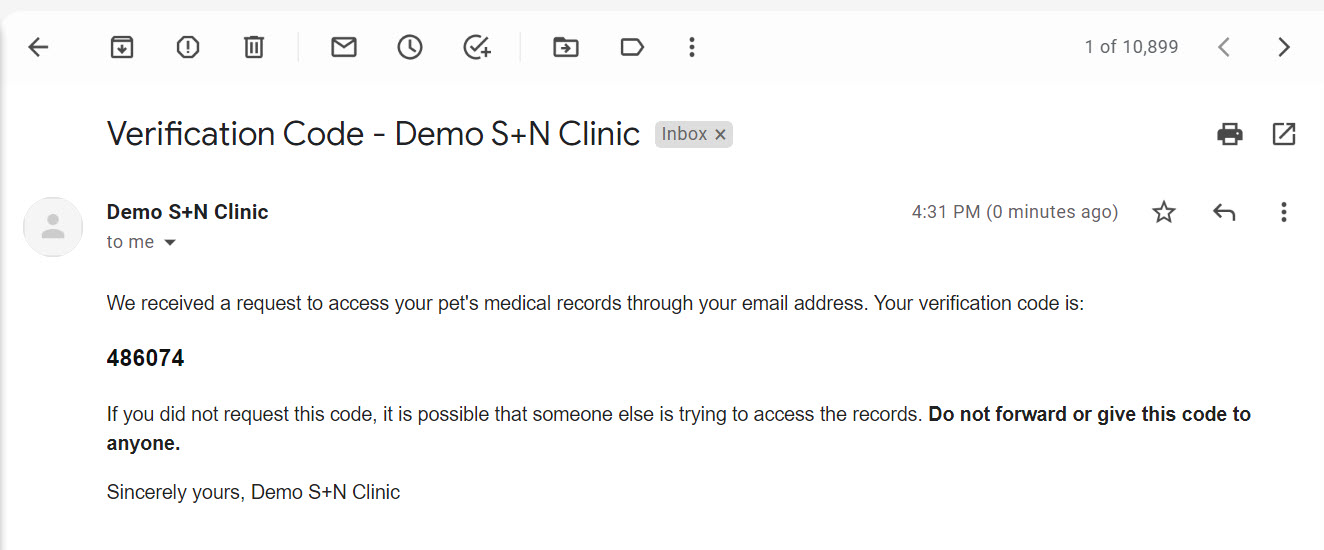
They will be texted or emailed a code. This is how HQ verifies their identity. They have 10 minutes to put in the code and click submit.
Once they put in the code, the system will pull up all animals associated with that phone number. Note: Animals must be in a checked-out status to pull up. The list of animals is organized by the most recent animal first. They are able to select one or more animals from this list.
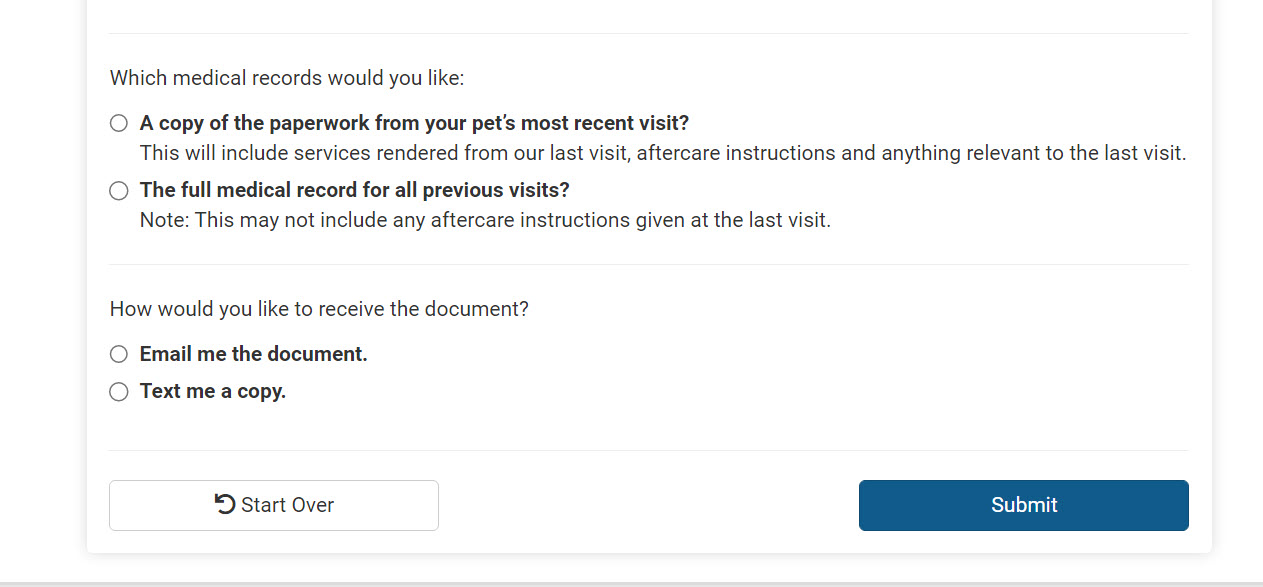
The clients can then select whether or not they want the paperwork from the most recent visit only or the full medical record, which includes the treatment sheets from all previous visits. They can then also indicate if they would like the document emailed to them or texted to them.
Important: If you have different kinds of take-home paperwork based on different factors like species, owned, or community cat, what you will need to do is set up one generic take-home paperwork for medical records. It is not possible to have multiple types of take-home paperwork and for the system to know which exact piece of paper you physically handed to the client. We suggest using our "take-home paperwork templates to create one standardized "take-home" document for each appointment type HERE
However, if the client chooses the full medical record, they will receive a medical record where the first page is a summary of their visits and a treatment sheet for each visit. This is the same medical record as when you go to the client profile and select medical record.
Steps to put the link on your website
- First, check that your take home templates are assigned. Go to Settings > Templates and you should see a grey take home paperwork tag on your template. If you don't see that, learn how to set it up HERE
- Go to https://app.clinichq.com/settings/medical-record and copy and paste the link onto your website. You can easily attach it to a button on your website, such as the one pictured below.

For a more detailed setup guide, please jump to this section.
How Does It Work for When You Have More Than One Clinic?
You will have the same link for all clinics. The one link represents all of your clinics. No matter which of your clinics the patient was treated at, it will pull the medical records from any of your clinics. Each profile must have Call/Text Add-on enabled.
Sending Medical Records From Within HQ
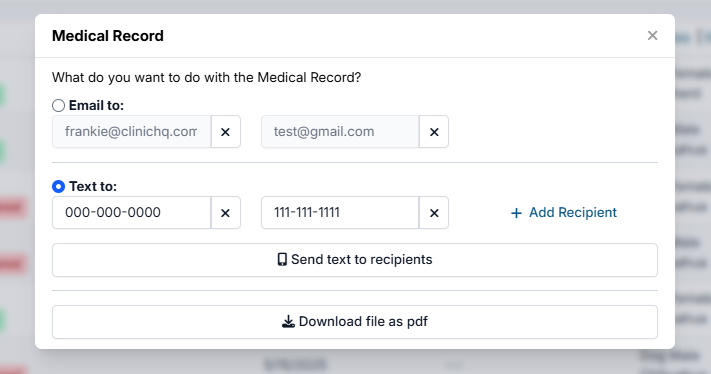
To send medical records from within HQ, search for the client profile. Select the Animals tab, find the animal, and click Action > Medical Record.
Here you will be presented with three options. You can email the record, text the record, or download the record to your computer. You have the option of emailing or texting the record to more than one person. Note: The clinic is charged five cents per text.