15.1. Setting Up the VCP
15.1.1. VCP Setup - New Account
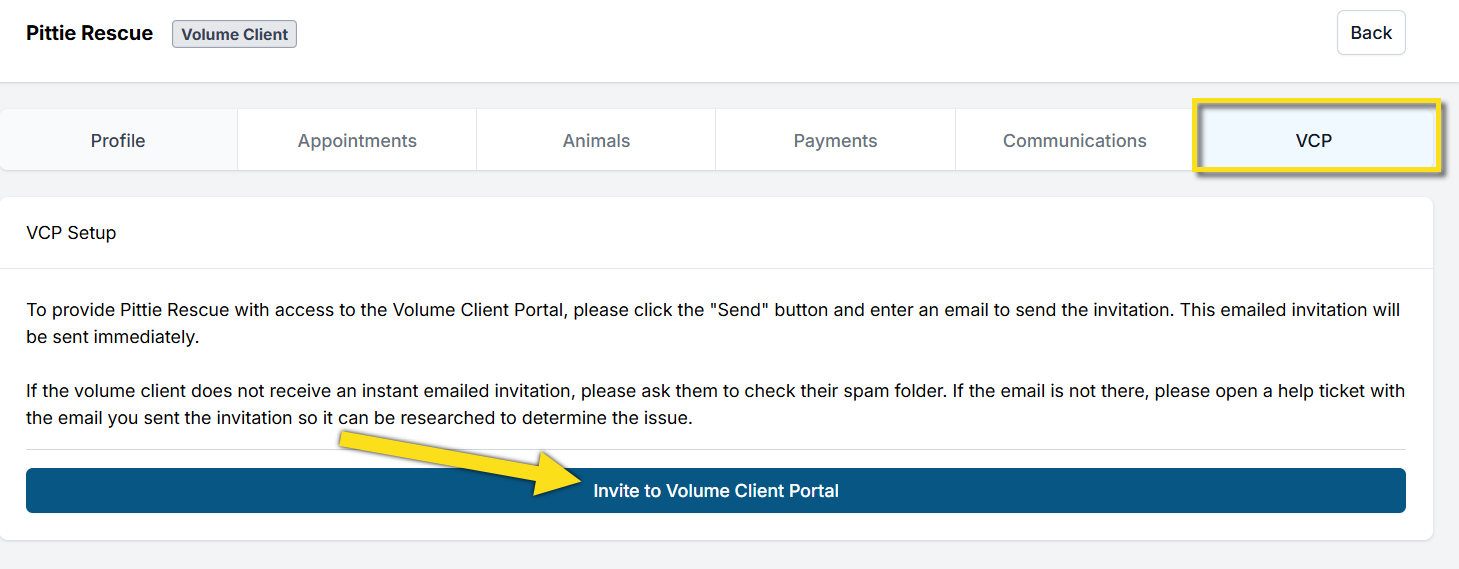
VCP - Invite Client to Portal.
If the volume client does not already exist in the system, follow the steps for creating a volume client here: Volume Clients.
- Search for the volume client's profile using Quick Search.
- Select the VCP tab.
- Click Invite to Volume Client Portal.
- Enter the client's email and send the invitation.
Volume Client - Accept Invitation.
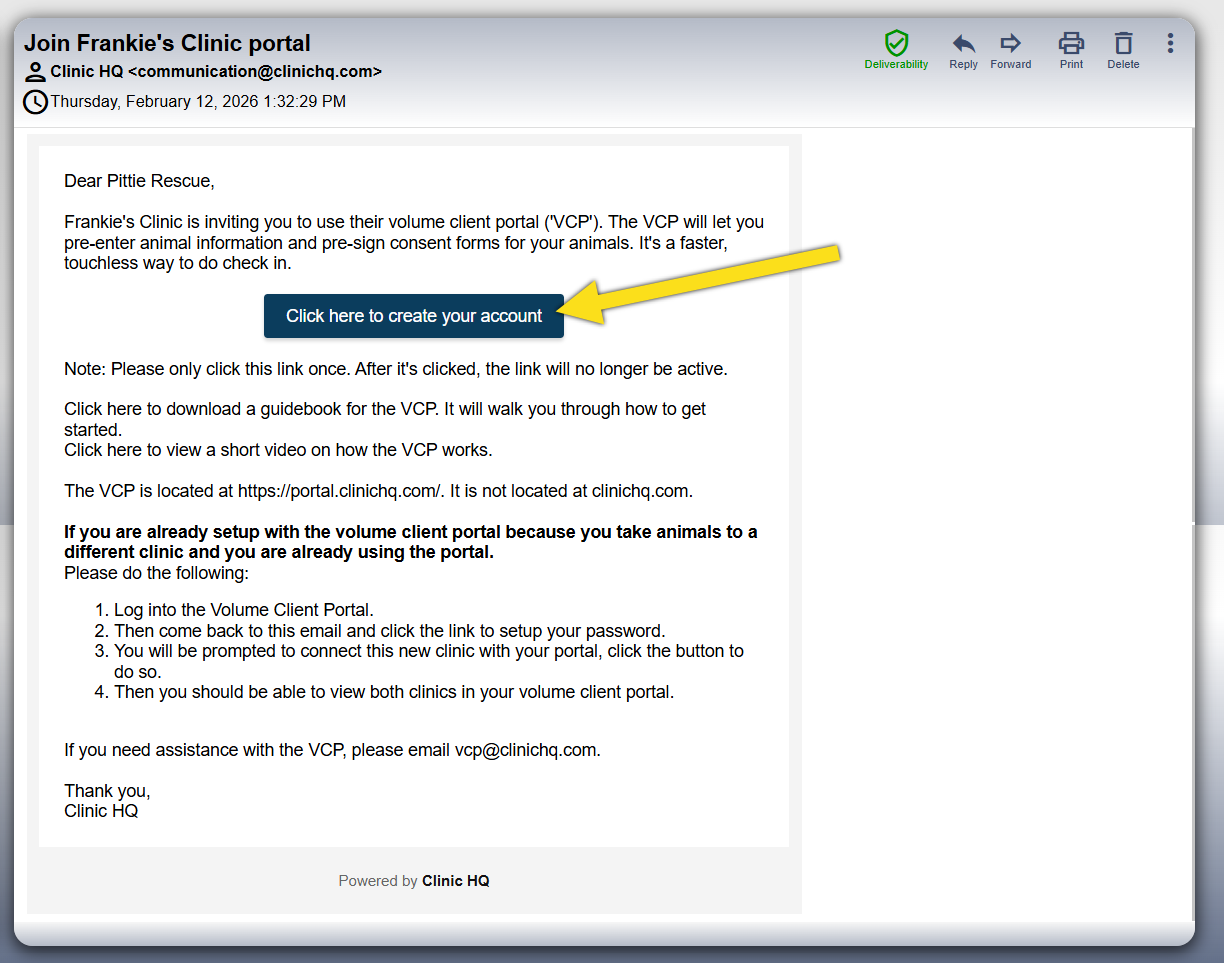
- The volume client will receive an email invitation. The will follow the email prompts to create their account.
- If the system recognizes a previous account, it will ask if they want to create a New Account or Connect Account.
- If they are not using a Portal account with another clinic, they should click New Account.
- If the organization already uses the Volume Client Portal with another clinic, they should follow the Connect Account instructions in the invitation.
#_ The client will enter the requested information.
- The client will create a password. The password must be at least eight characters long and include at least one non alphanumeric symbol.