15.1. Setting Up the VCP
15.1.2. VCP Setup - Connect Account for Multi-Clinic
Volume Client Portal Setup – Existing Account.
If a Volume Client brings animals to multiple clinics using Clinic HQ, they can link all clinics under one Portal account.
This allows the Volume Client to access appointments and records across different clinics from a single login.
Before Connecting a Volume Client to Your Clinic.
Before connecting a Volume Client Portal account to your clinic, appointments must already exist in Clinic HQ.
- Appointments must be created in Clinic HQ before the clinic will appear in the Portal.
- The Volume Client must have upcoming appointments scheduled at your clinic.
For detailed instructions, review the following resources.
Key Points for Multi-Clinic Portal Setup.
- Single login for multiple clinics.
** Volume Clients use one login to access appointments from multiple clinics.
** A separate Portal account is not required for each clinic. - One Portal per rescue or shelter.
** Each rescue or shelter has one Portal account.
** Multiple users may have individual logins and roles.
** All users must belong to the same rescue or shelter.
Linking an Existing Volume Client Portal with Your Clinic.
- Search for the volume client's profile using Quick Search.
- Select the VCP tab.
- Click Invite to Volume Client Portal.
- Enter the client's email associated with their current portal account.
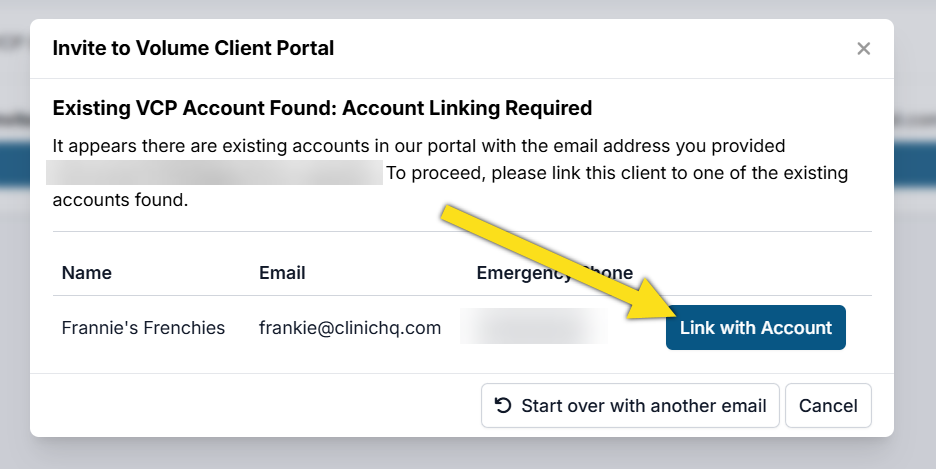
- If the email matches an existing Portal account, a prompt will appear to link the account to your clinic.
- Confirm the linking action.
❌ Caution: Review all information carefully before linking a Portal account. This action cannot be reversed.
❌ Caution: If a Volume Client Portal is already active, you cannot add a pre-existing user without permanently deleting Portal access.
An alternate email address must be used if Portal access cannot be reset.