15.2. Features of the VCP
Entering Animal Data.
Once Portal access is granted, volume clients can enter animal data using a guided interface.
- Click the Edit button for the animal.
- The Animal Info screen opens for data entry.
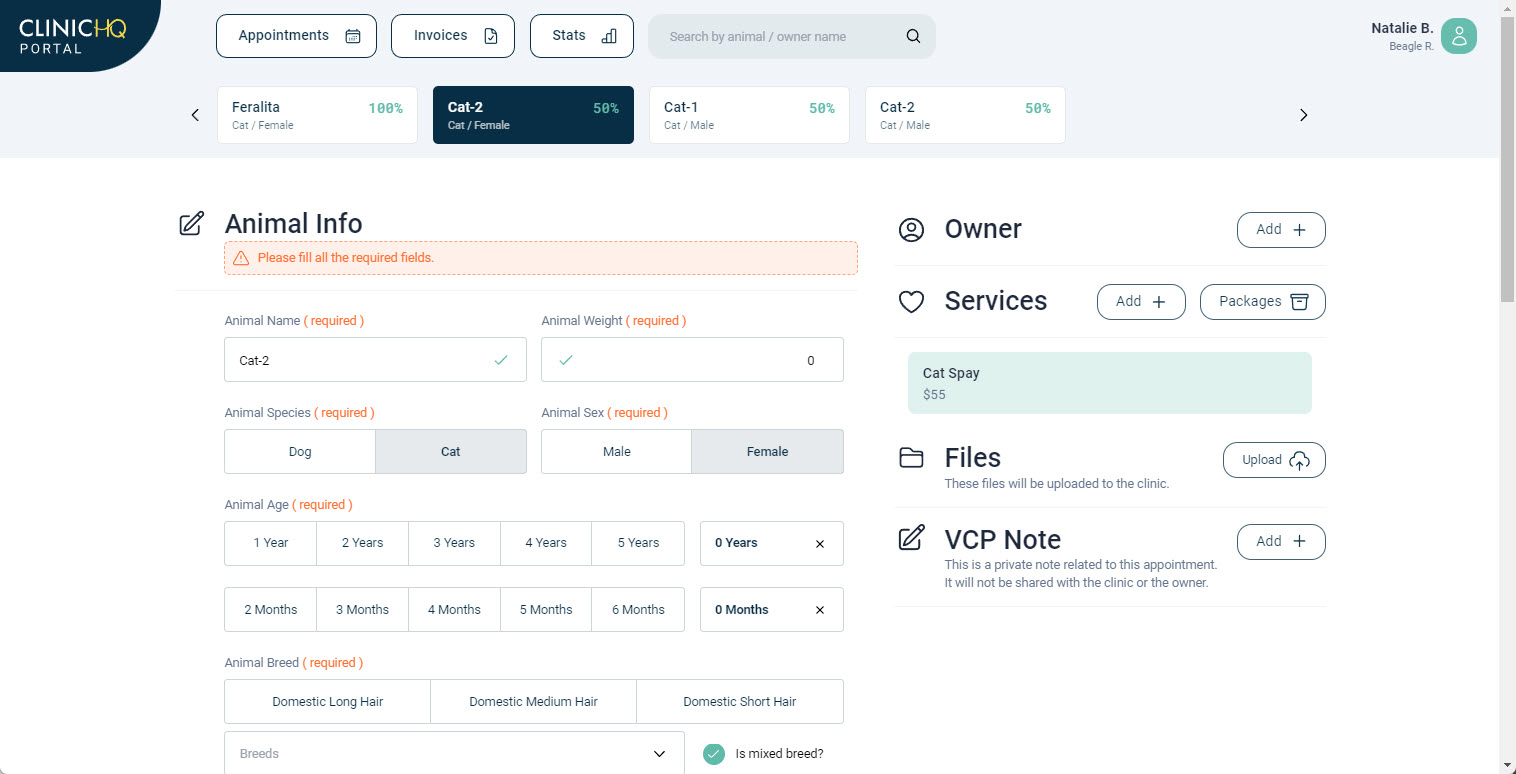
#_ After completing animal details, the volume client selects Services or Packages for the animal.
Editing Available Services on the Volume Client Portal.
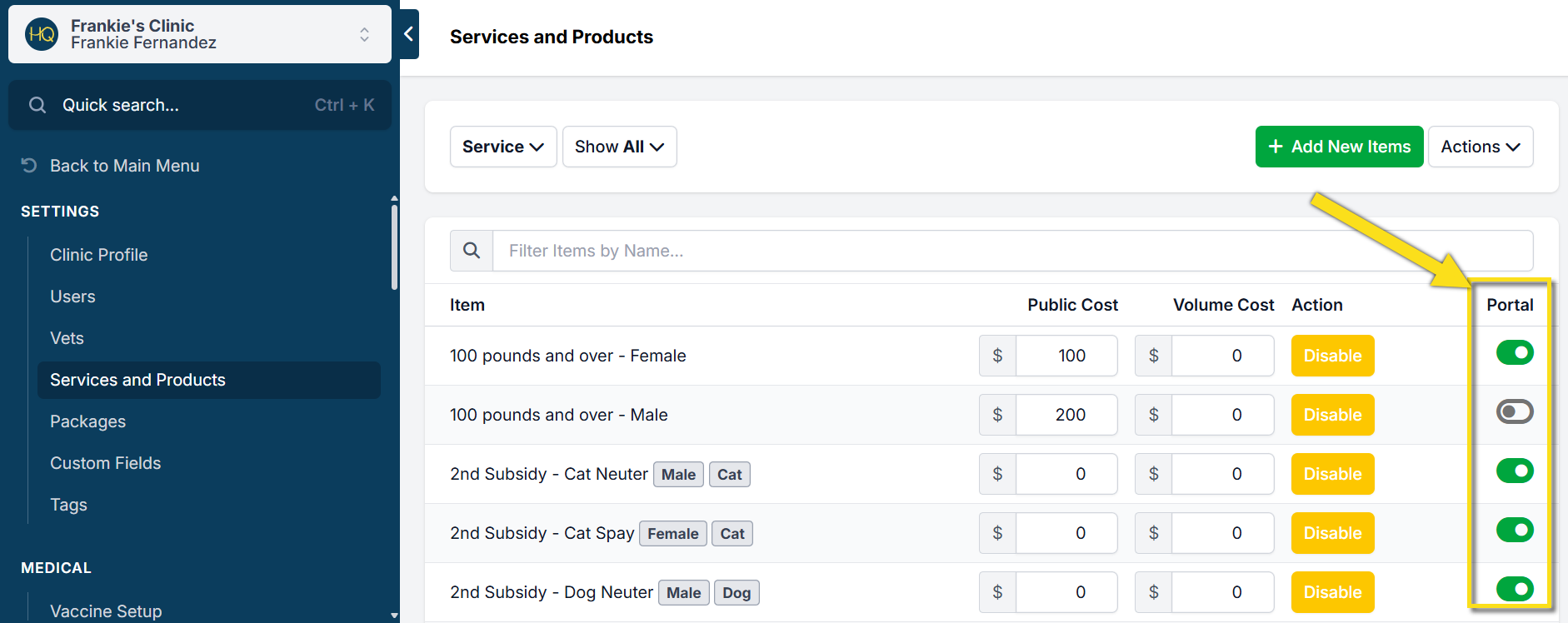
You can control which services and products appear in the Portal by adjusting service settings.
- Open Settings.
- Select Services and Products.
- Enable or disable the Portal toggle for the applicable services or products.
Signing Consent Forms.
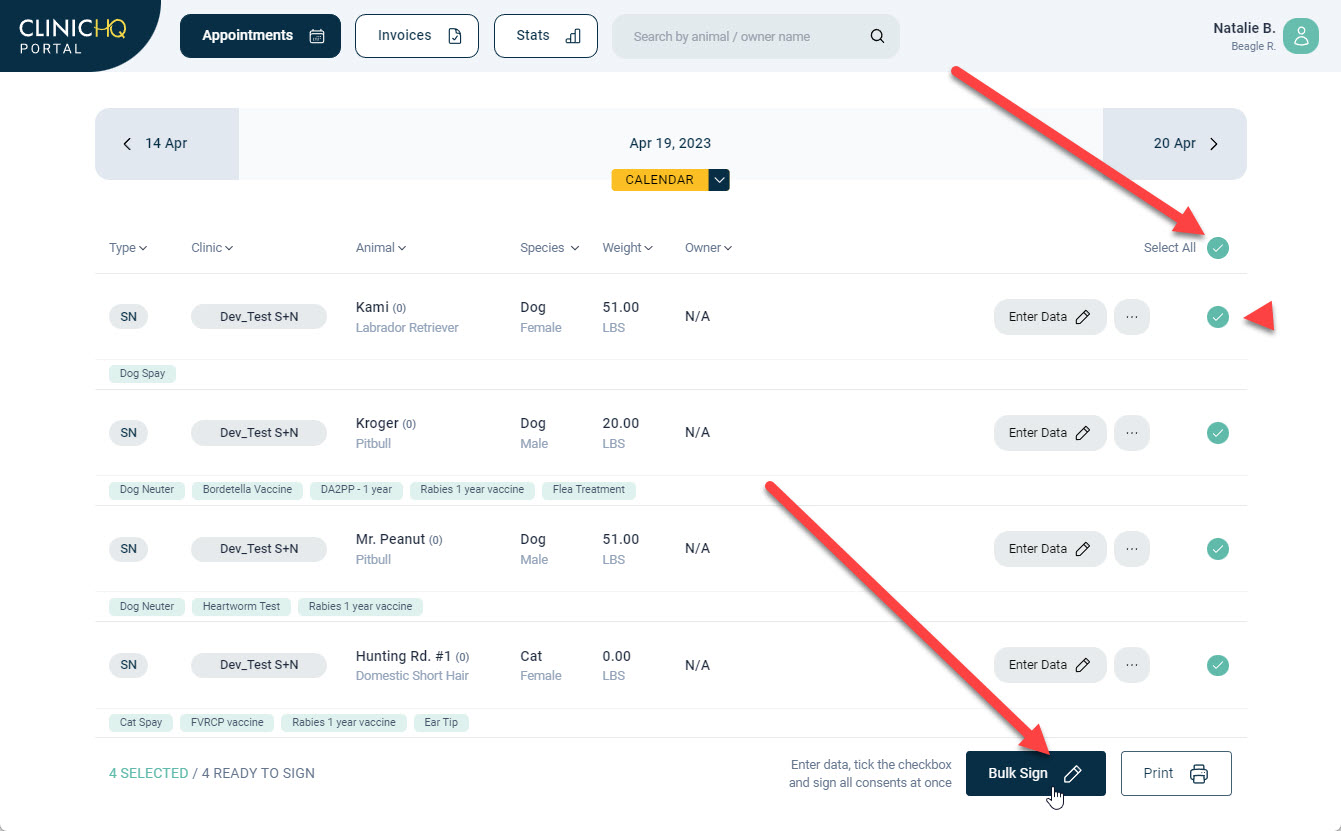
After all animals and services are entered, volume clients can complete consents.
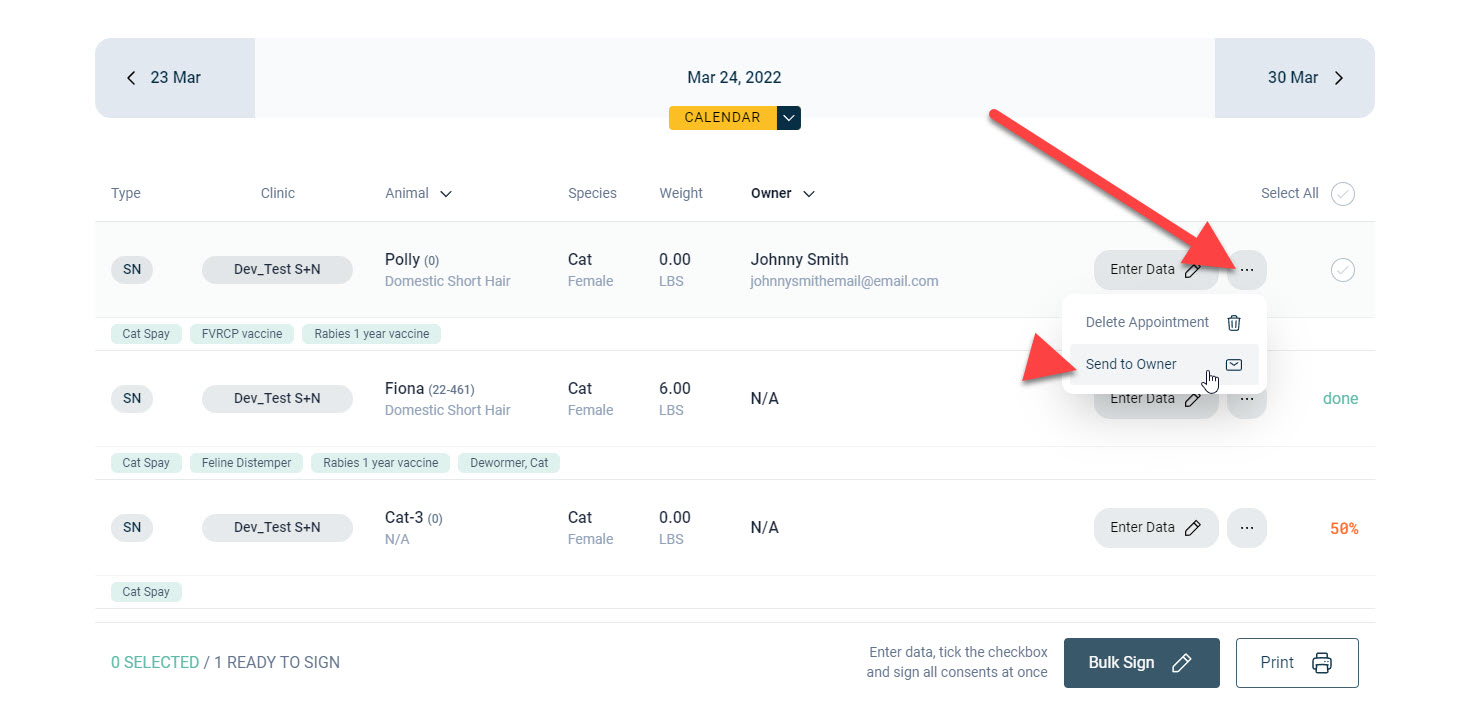
- Consents can be signed in bulk for all animals.
- Individual consents can be sent to owners if an owner is listed.
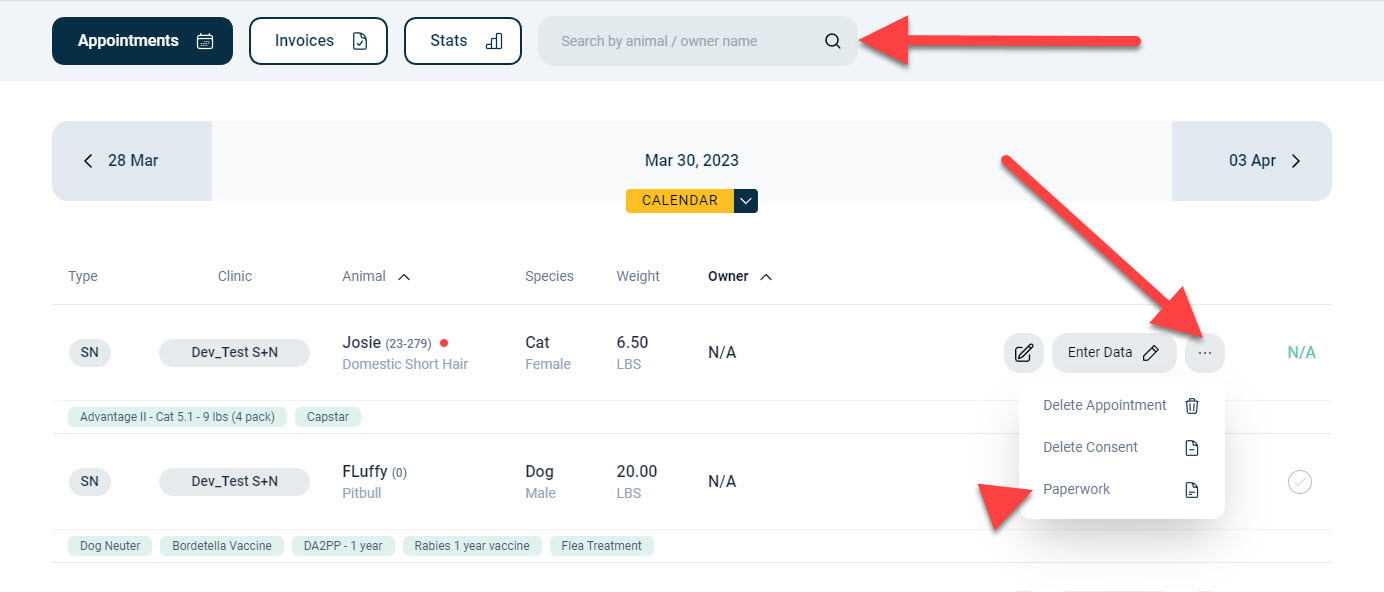
Accessing Paperwork.
Paperwork can be accessed from the Search Animals section or from the appointment page using the three dots action menu.
The paperwork available for download or printing is determined by clinic settings in Settings > VCP Settings.
Viewing and Paying Invoices.
Volume clients can view and pay invoices through the Portal if your clinic uses the MP Group card processing integration.
✅ Pro Tip: When a volume client pays through the Portal, they may choose to save card information for future payments. The clinic cannot automatically charge the saved card. The volume client must review the invoice and manually submit payment each time.
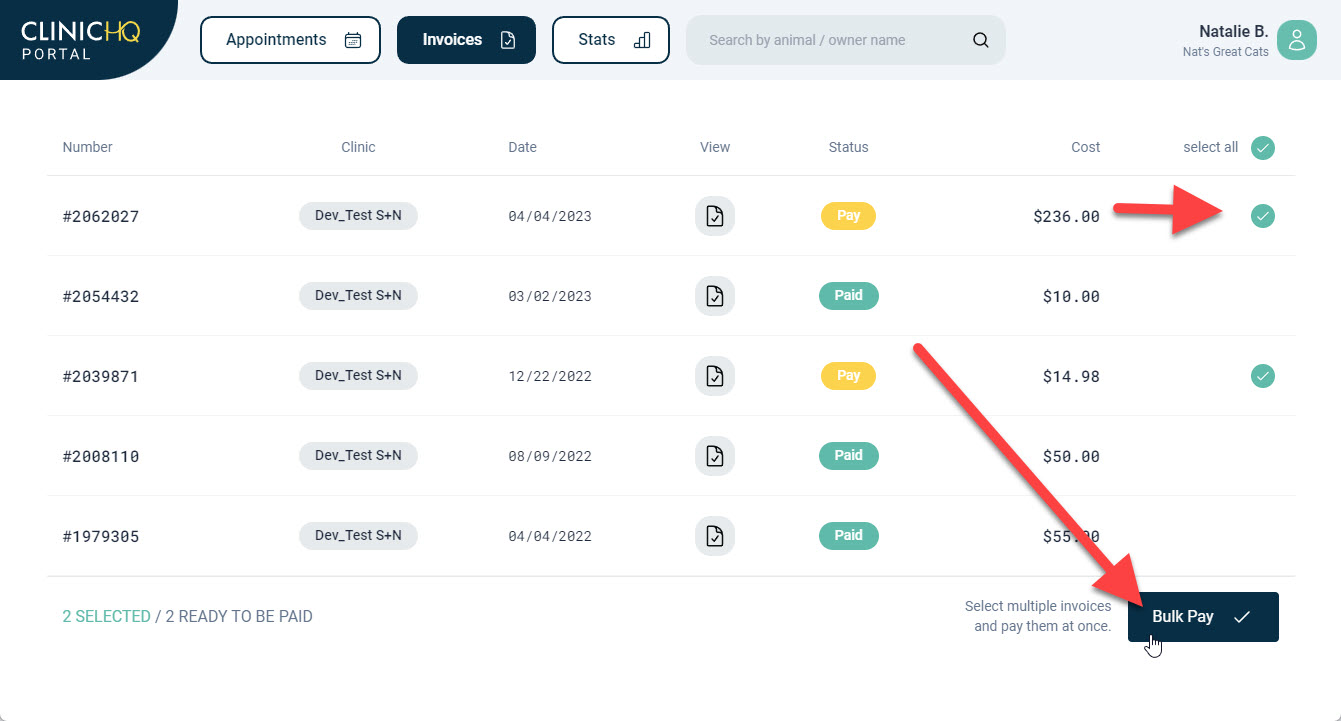
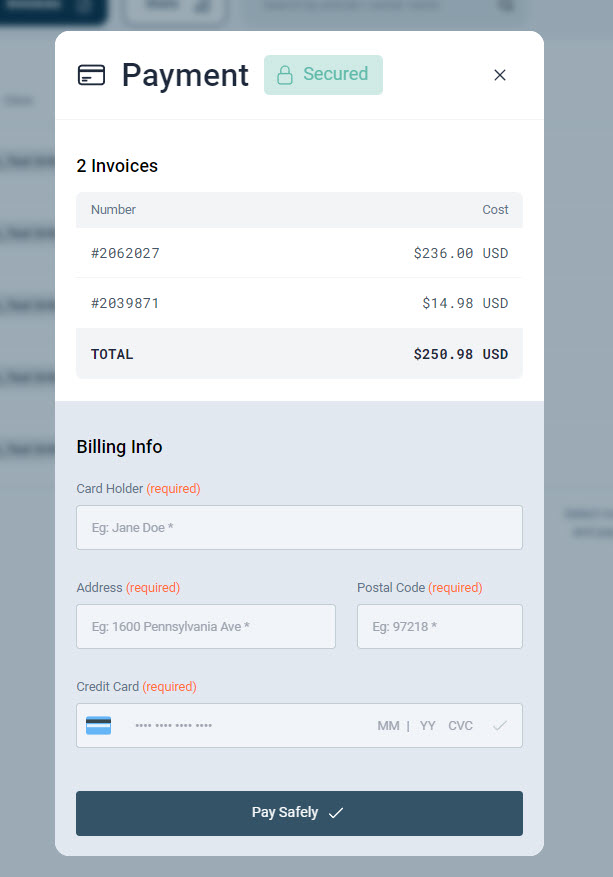
If a saved card is used and multiple Portal users exist, user roles should be configured to limit payment permissions.
✅ Pro Tip: Portal invoice payments require the appropriate permission to be enabled within the user role settings.
- Open Profile.
- Select Settings.
- Select User Roles.
- Edit the applicable role.
- Enable permissions to view and pay invoices.
User Management.
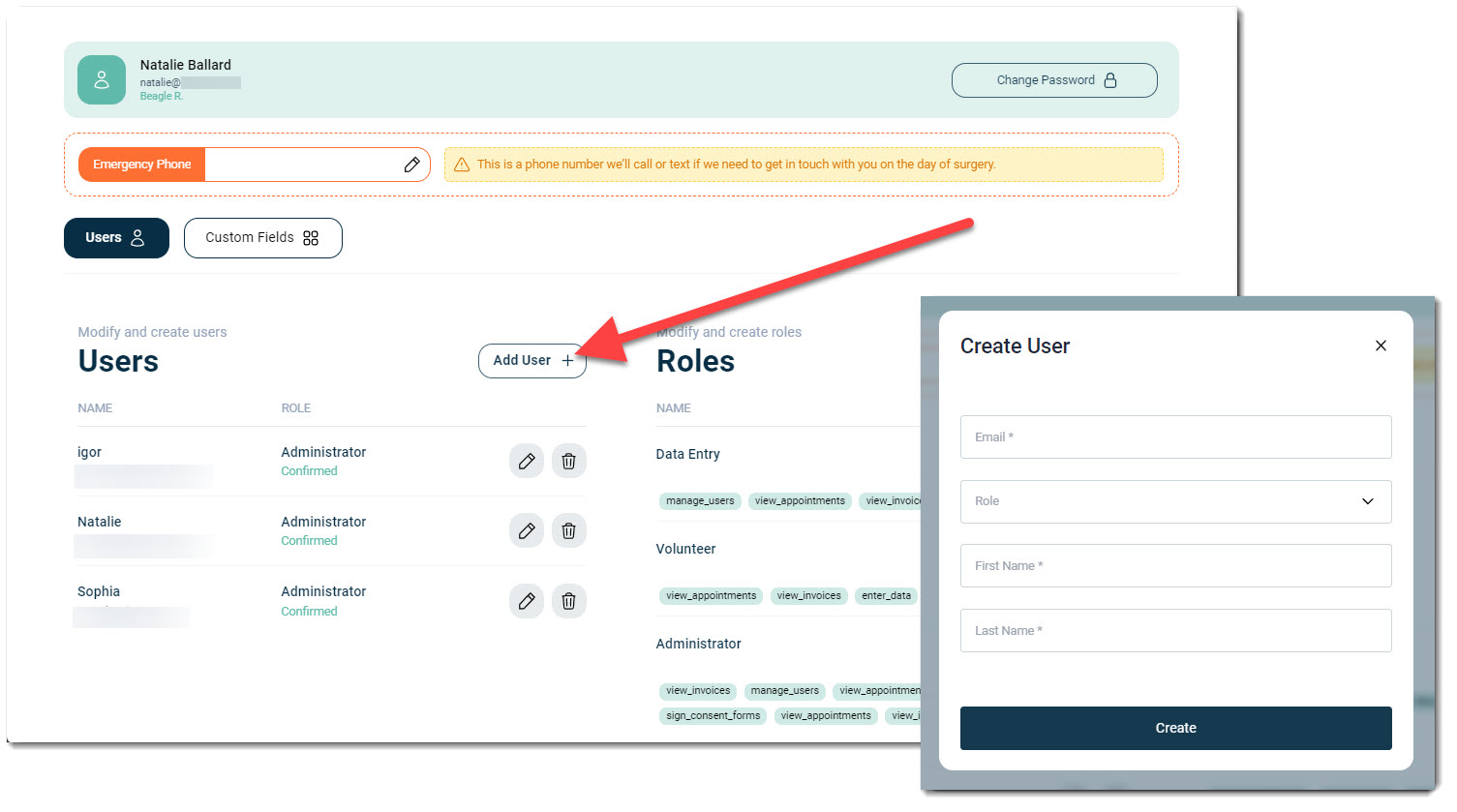
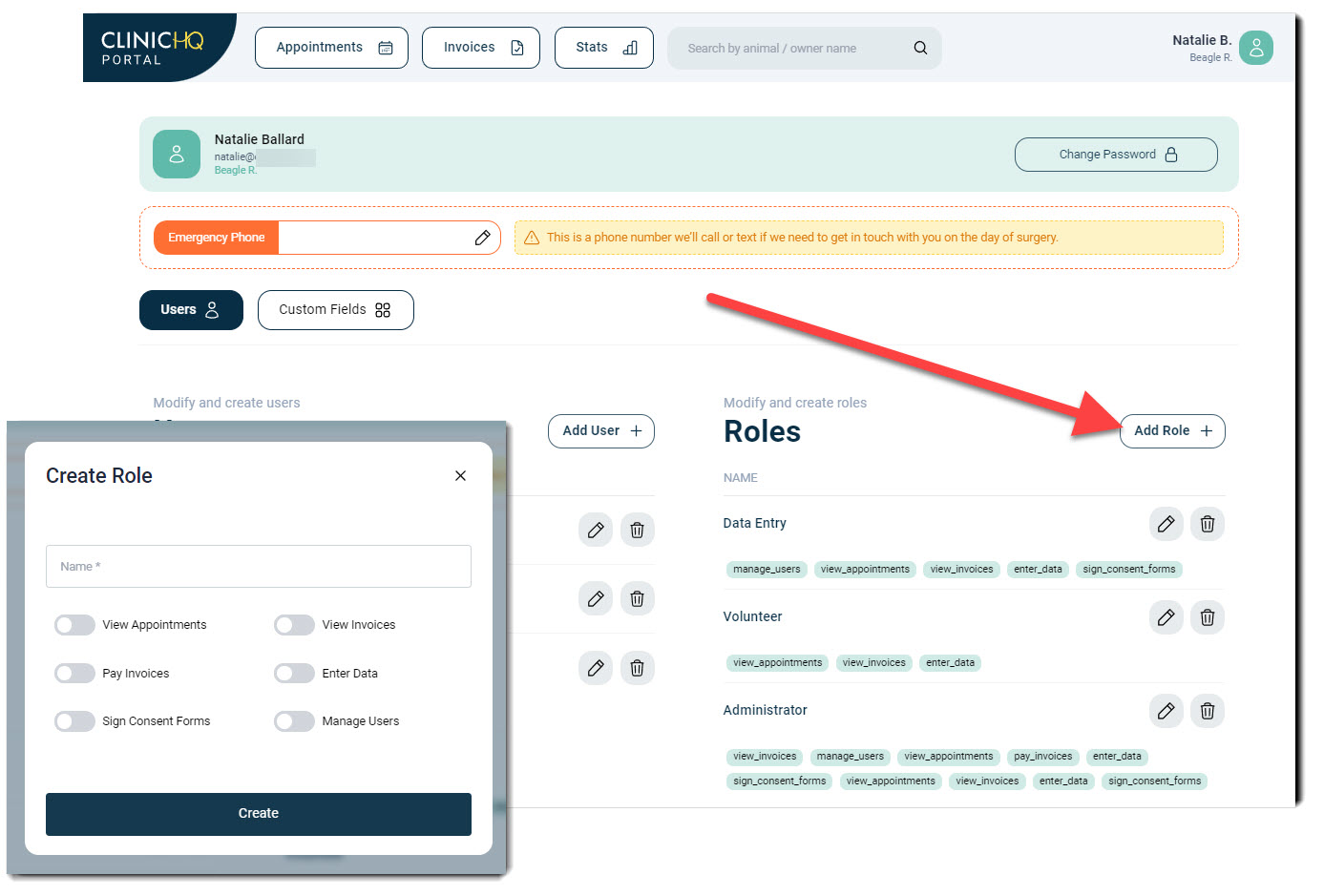
After accepting a Portal invitation, volume clients manage their own users.
- Users can be added or removed as needed.
- Roles can be assigned to control user permissions.
- It is recommended to assign at least two admin users per Portal account.
Uploading Animal Documents.
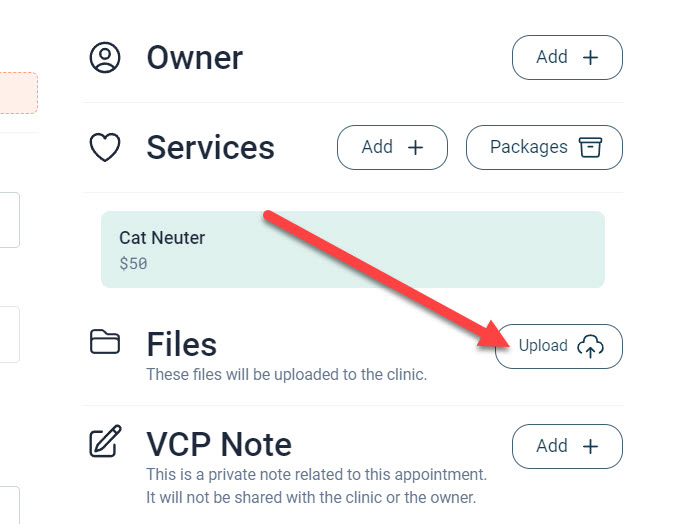
Volume clients can upload documents for individual animals through the Portal.
- Common uploads include vaccine records, bloodwork, and supporting medical documentation.
- When a document is uploaded, a VCPD indicator appears during checkout.
- Documents can also be viewed from Patient Flow by expanding the appointment and scrolling to the Documents section.
- Documents are accessible from e-Lobby by clicking the plus icon.
Chat.
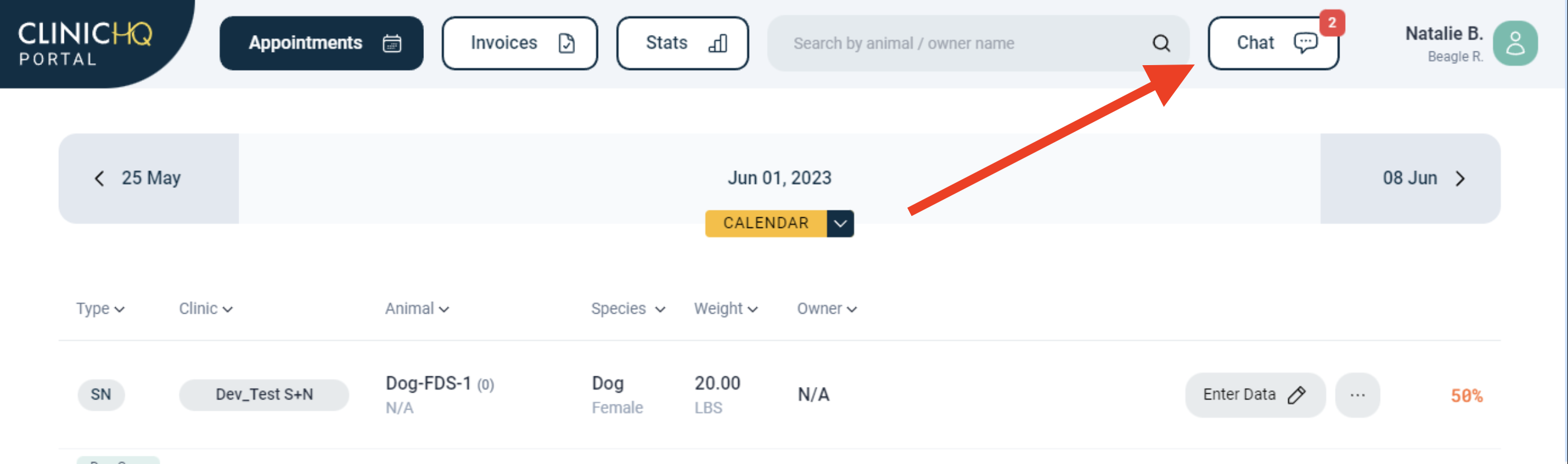
Volume clients can communicate with clinics using the Chat feature in the Portal.
- Select the Chat icon from the toolbar.
- Choose a clinic.
- Enter a message and send it.
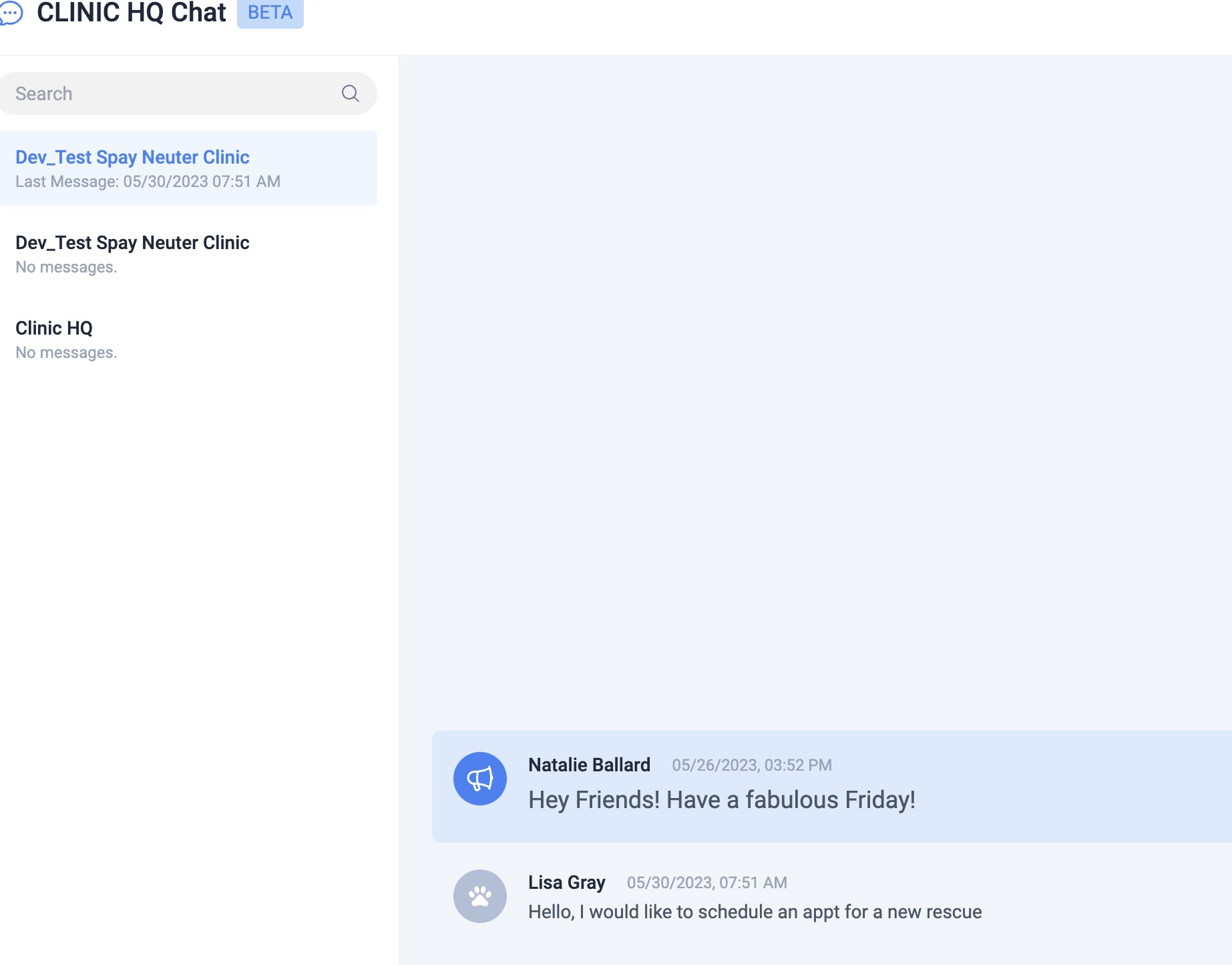
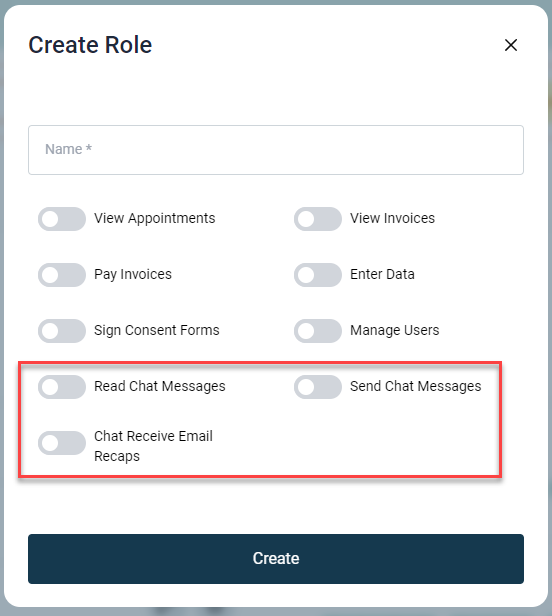
User roles control chat permissions and email notifications.
- Email recaps of chat messages can be enabled by selecting Chat Receive Email Recaps within user role permissions.