15.1. Setting Up the VCP

How To Set Up A Volume Client With Their Own VCP.
Before setting up your client with a VCP, you will need to set up some appointments for them in HQ.
View the instructions in the section on making appointments.
Ask the client to provide an email to send a portal invitation to. If the client also goes to other clinics that use Clinic HQ, ask for their existing portal email.
Create a New Account.
If the volume client has never used Clinic HQ's Portal before, follow these steps:
- Search for the volume client's profile using Quick Search.
- Select the VCP tab.
- Click Invite to Volume Client Portal.
- Enter the client's email and send the invitation.
Connect Account for Multi-Clinic Portal Setup.
The Portal is designed to allow the volume client to have one account login that can access appointments from multiple clinics.
The user does not need a separate Portal login for each clinic they use. Here's how to link their existing Portal account to your clinic:
- Search for the volume client's profile using Quick Search.
- Select the VCP tab.
- Click Invite to Volume Client Portal.
- Enter the client's email that is already in use on their Portal.
- Click Send Invitation. If an active, existing account is found, their organization information will populate.
- Verify it is the correct organization, then click Link with Account.
How Your Client Signs into the VCP.
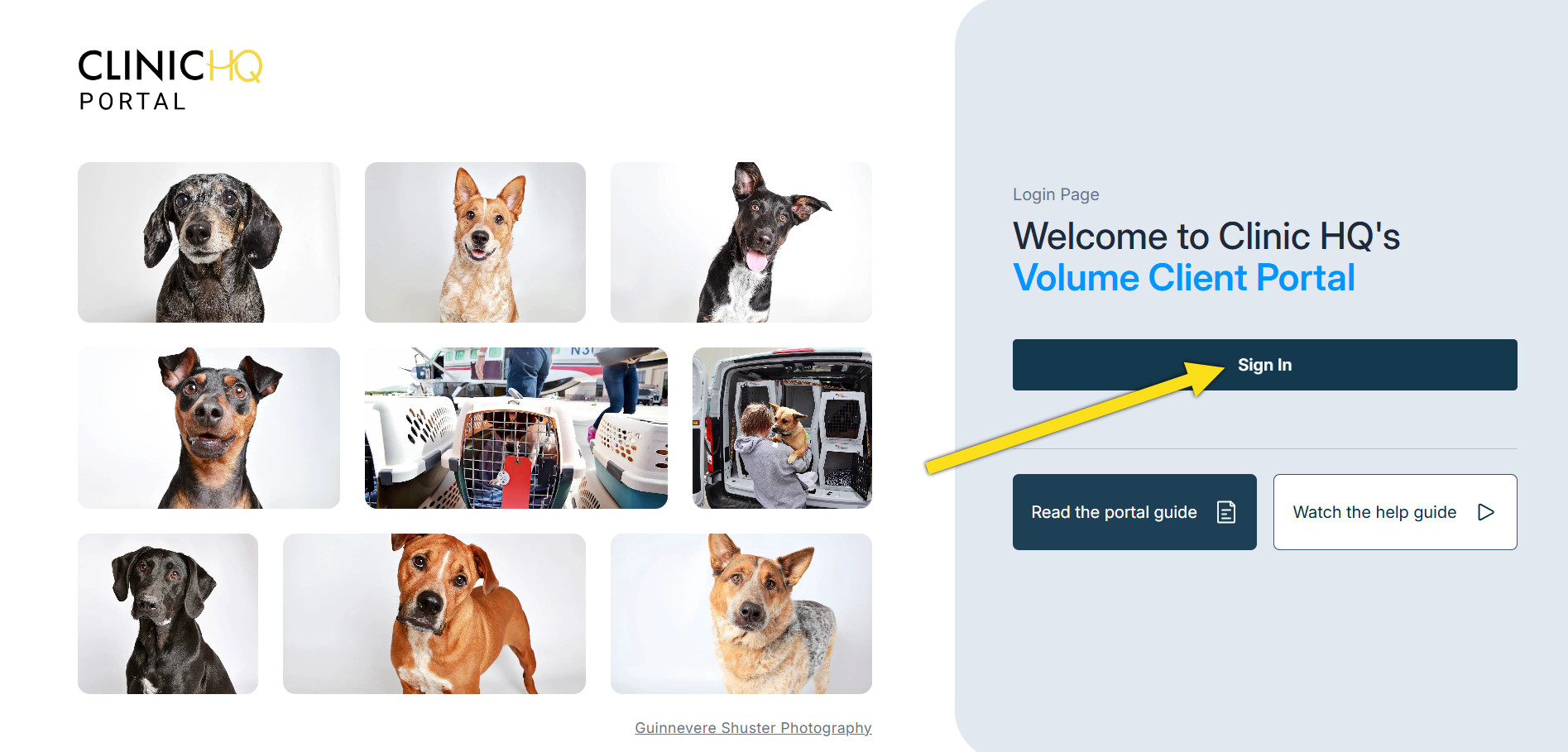
After credentials are set up, the volume client will be taken to the main portal page.
If not, they can navigate here to log in: https://portal.clinichq.com
They click the Sign In button and will be redirected to enter their credentials.
Resending the Signup Link.
If your volume client did not receive the link, generate a new invite link.
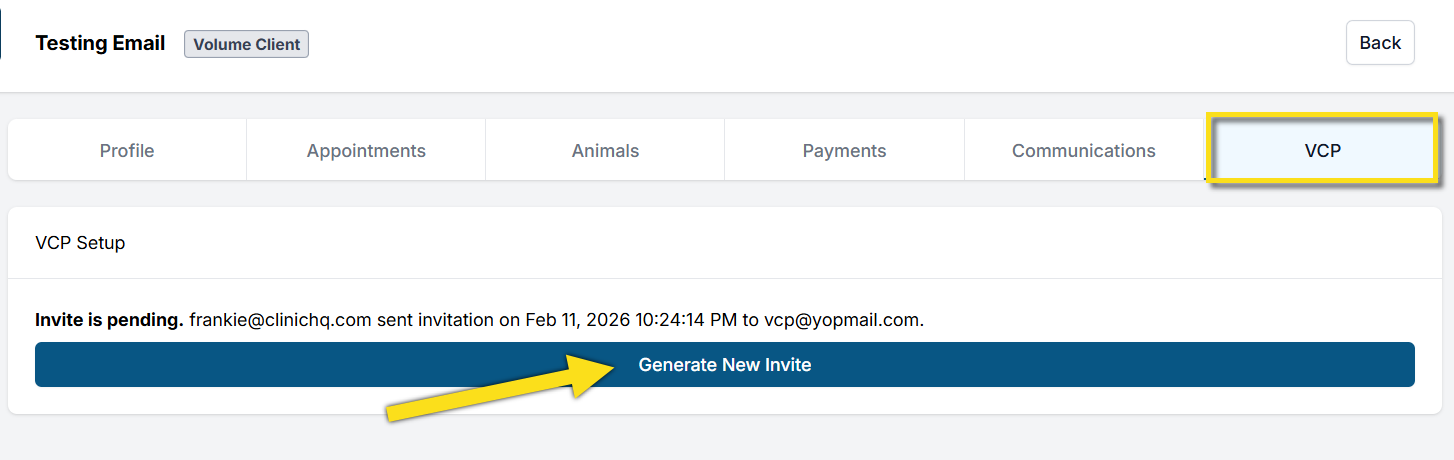
To resend the invite, click Generate New Invite and enter the email address again.
A new invite will be sent and logged under History.
If the client still does not receive the email, have them check their spam folder.
The email will be from communication@clinichq.com
If the client has received the invite and logged in, the volume client profile Client Portal tab will update and show when they last logged in.