1.3.5.3. Two-Factor Authentication
Two-factor authentication (2FA) adds an extra layer of security by requiring both your password and a second form of verification. This makes it much harder for unauthorized users to access your account.
When you log into Clinic HQ with 2FA enabled, you’ll enter:
- Your email
- Your password
- A 6-digit code generated by the Google Authenticator app
How to Enable Two-Factor Authentication
- Download the Google Authenticator app on your personal phone:
#_ Log into Clinic HQ and go to Profile > User Preferences.
- Click Enable next to Two-Factor Authentication.
- On your phone, open Google Authenticator and tap the + icon.
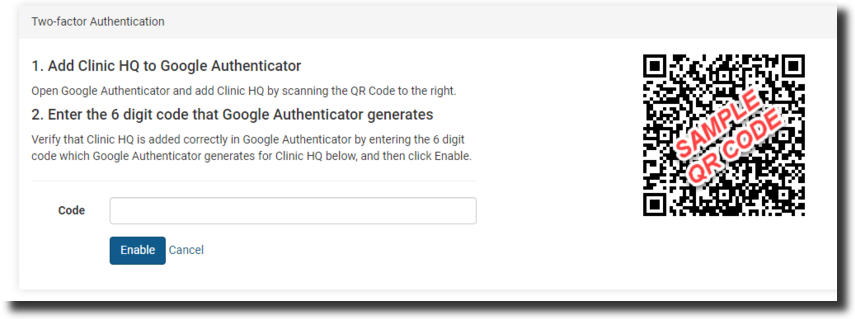
- Select Scan QR Code, then use your phone’s camera to scan the unique QR code displayed on your computer.
- Your account will now appear in Google Authenticator with a 6-digit code that refreshes every 15 seconds.
- Enter the 6-digit code in HQ and click Enable.
You’re all set!
Testing Your Login
- Click your Profile button and log out of Clinic HQ.
- Log back in with your email and password.
- When prompted, open the Google Authenticator app and enter the current 6-digit code before it expires.
- Click Log In.
1.3.5.2. Changing Your Password
It’s a good idea to change your password if it has been compromised, is too simple, has been shared, or you’ve forgotten it. Keeping your account secure is always worth the extra step!
1.3.5.4. Passkey Authentication
Passkeys are credentials that validate your identity using touch, facial recognition, a device password, or a PIN. They can be used as a simple and secure alternative to your password and two-factor credentials.