1.3.5.4. Passkey Authentication
Passkeys are credentials that validate your identity using touch, facial recognition, a device password, or a PIN. They can be used as a simple and secure alternative to your password and two-factor credentials.
Why use a passkey?
Passkeys offer stronger security than traditional 2FA by eliminating passwords and using cryptographic keys that can’t be phished or intercepted. Because the private key never leaves your device and authentication is tied to the legitimate website’s domain, attackers can’t steal or reuse your credentials. They’re also easier for users, replacing codes and passwords with quick biometric or device-based verification.
Set up
- Click on your Clinic Name in the upper left corner of your screen.
- Navigate to User Preferences.
- Open Passkeys.
- Click Add a passkey.
- Click Create passkey. Your device will prompt you to save a passkey for Clinic HQ to your device. Follow these prompts to complete setup. Depending on the device, you can choose to use biometric sign ins such as facial recognition and touch ID, or a device password or PIN.
Logging in
- Go to https://clinichq.com/ > Login.
- Click Log in with a passkey. You may need to select your stored passkey if multiple users access the same device.
- If using biometric data, scan your face or fingerprint. For passcodes or PINs, enter the information in the popup.
Deleting Passkeys
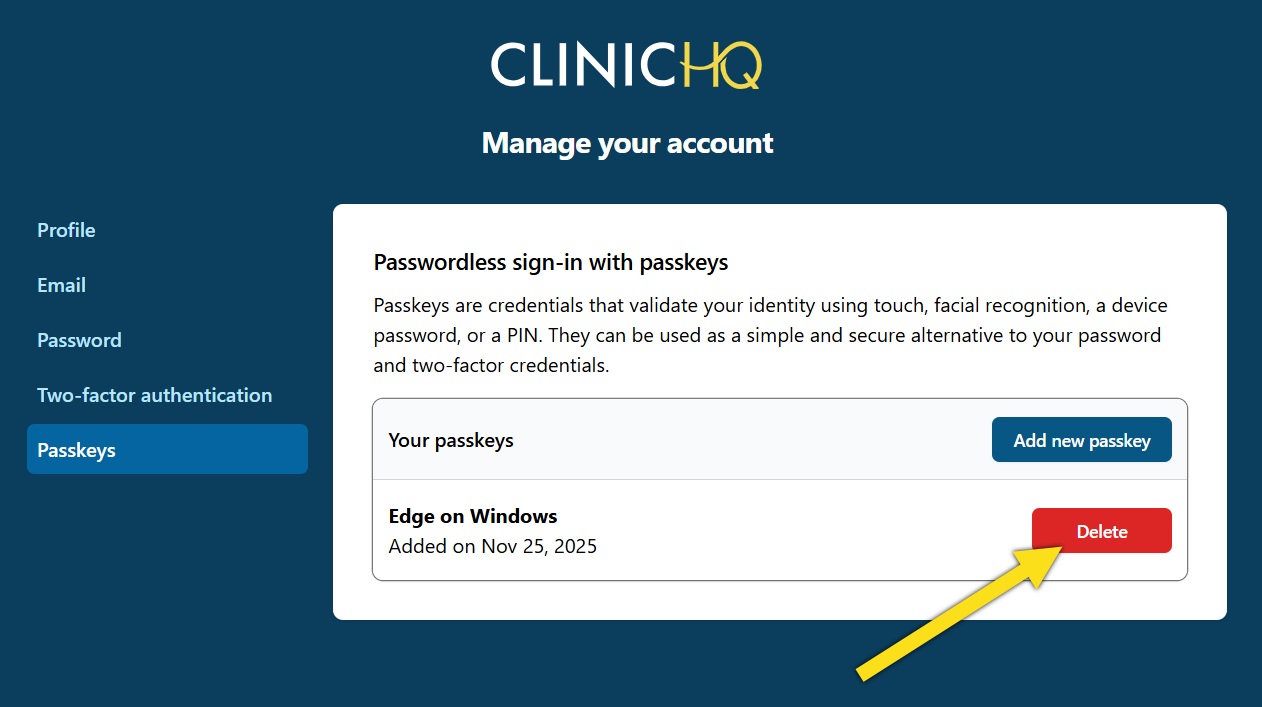
If you no longer use a device or need to remove a passkey for security reasons, you can delete it directly from your account settings. Deleting a passkey ensures that the associated device can no longer be used to access your account. After removal, make sure another authentication method such as a password, 2FA, or an additional passkey is still active so you don’t lose access.
1.3.5.3. Two-Factor Authentication
Two-factor authentication (2FA) adds an extra layer of security by requiring both your password and a second form of verification. This makes it much harder for unauthorized users to access your account.
1.3.5.5. Preventing Data Breaches
Here are some important guidelines for secure user management in Clinic HQ. Protecting your clinic’s data starts with strong user management. The following best practices reduce the risk of unauthorized access and support responsible system use.