1.3.5. Account Management (User Preferences)
1.3.5.2. Changing Your Password
It’s a good idea to change your password if it has been compromised, is too simple, has been shared, or you’ve forgotten it. Keeping your account secure is always worth the extra step!
It’s a good idea to change your password if it has been compromised, is too simple, has been shared, or you’ve forgotten it. Keeping your account secure is always worth the extra step!
How to Change Your Password
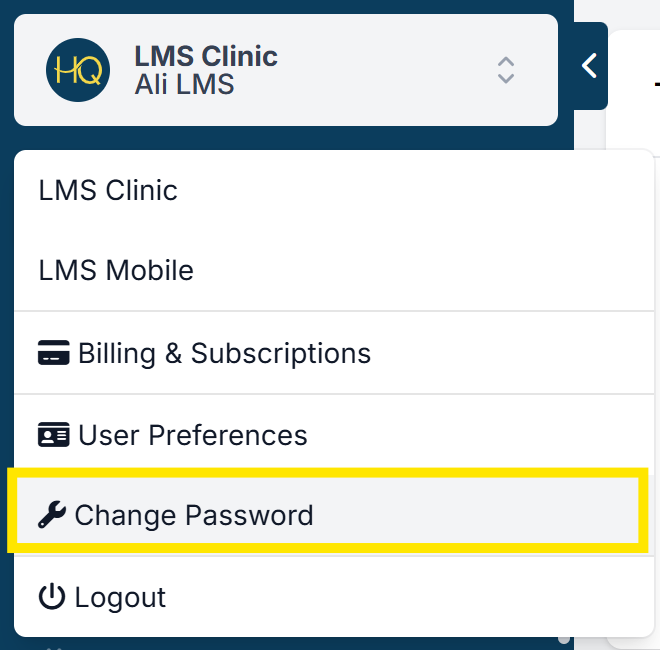
- Click your Clinic Name in the top-left corner.
- Select Change Password.
- Enter your current password in the first field.
- Enter your new password in the next two fields to confirm it.
Password requirements
- At least 8 characters long
- Includes at least one non-alphanumeric character (e.g., ! or *)
How to Reset a Forgotten Password
- Click the Login button in the upper-right corner of HQ, or follow THIS link.
- Enter your email address.
- A temporary password will be sent to your inbox immediately.
- Use this temporary password to log in.
- Then follow the steps above to change it to a new, memorable password.
Didn’t receive the email?
- Check your spam or junk folder.
- If it’s not there, ask someone in your clinic to open a help ticket, and we’ll assist.
1.3.5.1. Updating User Information
Easily manage and update your personal account details by navigating to the user preferences section. You can modify your name, phone number, or email address here. Simply follow the steps to keep your information up to date.
1.3.5.3. Two-Factor Authentication
Two-factor authentication (2FA) adds an extra layer of security by requiring both your password and a second form of verification. This makes it much harder for unauthorized users to access your account.