3.2. Wellness Calendar

The Advanced Wellness Calendar in HQ is designed for clinics with complex scheduling needs. It supports detailed, time-based appointments for various wellness services.
Unlike basic wellness scheduling, it allows for:
- Assigning different room types.
- Categorizing appointment types.
- Managing diverse appointment requirements efficiently.
Understanding Appointment Types
Each appointment type defines both its purpose and expected duration. Appointment types are created by your clinic manager in Settings.
To review them:
- Go to Settings > Scheduling > Wellness Settings.
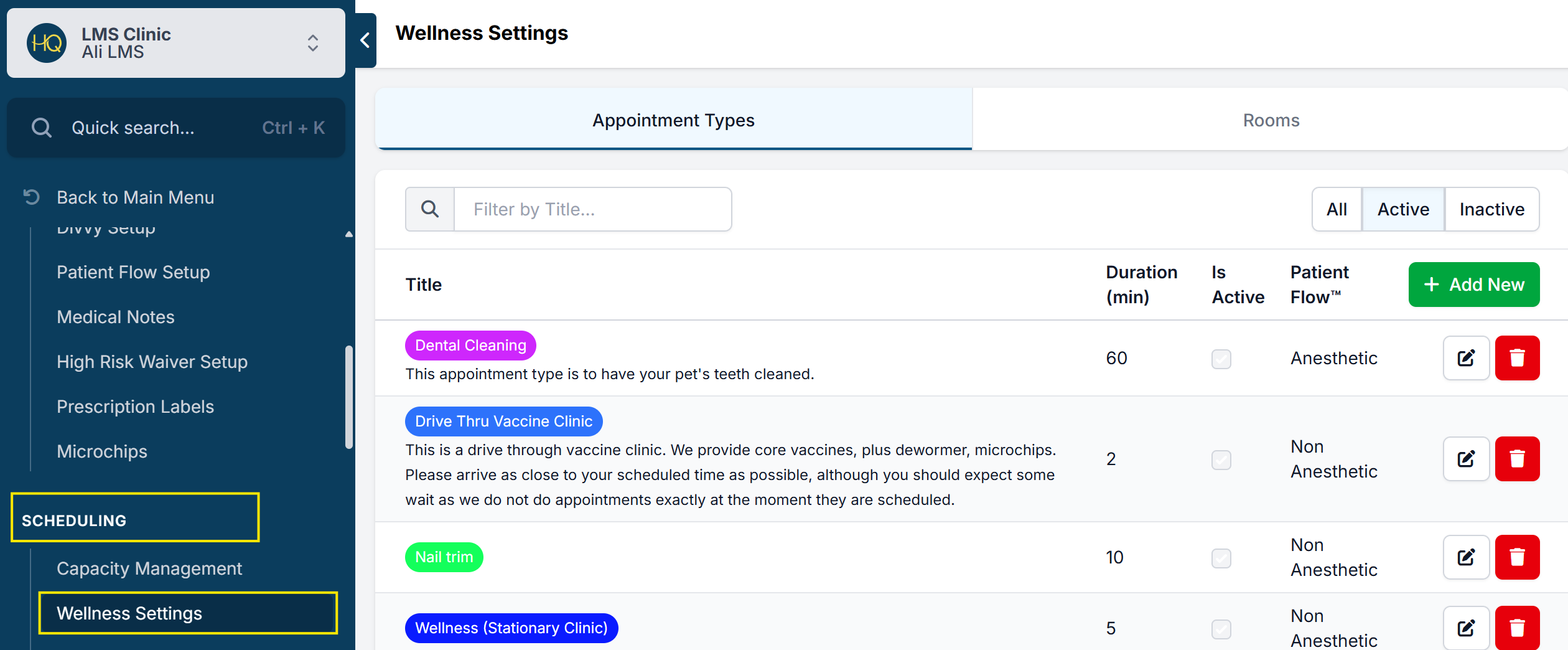
✅ Pro Tip: Not all users have permission to view settings. If you don’t, skip this step and return to the Wellness Calendar.
Understanding Room Types
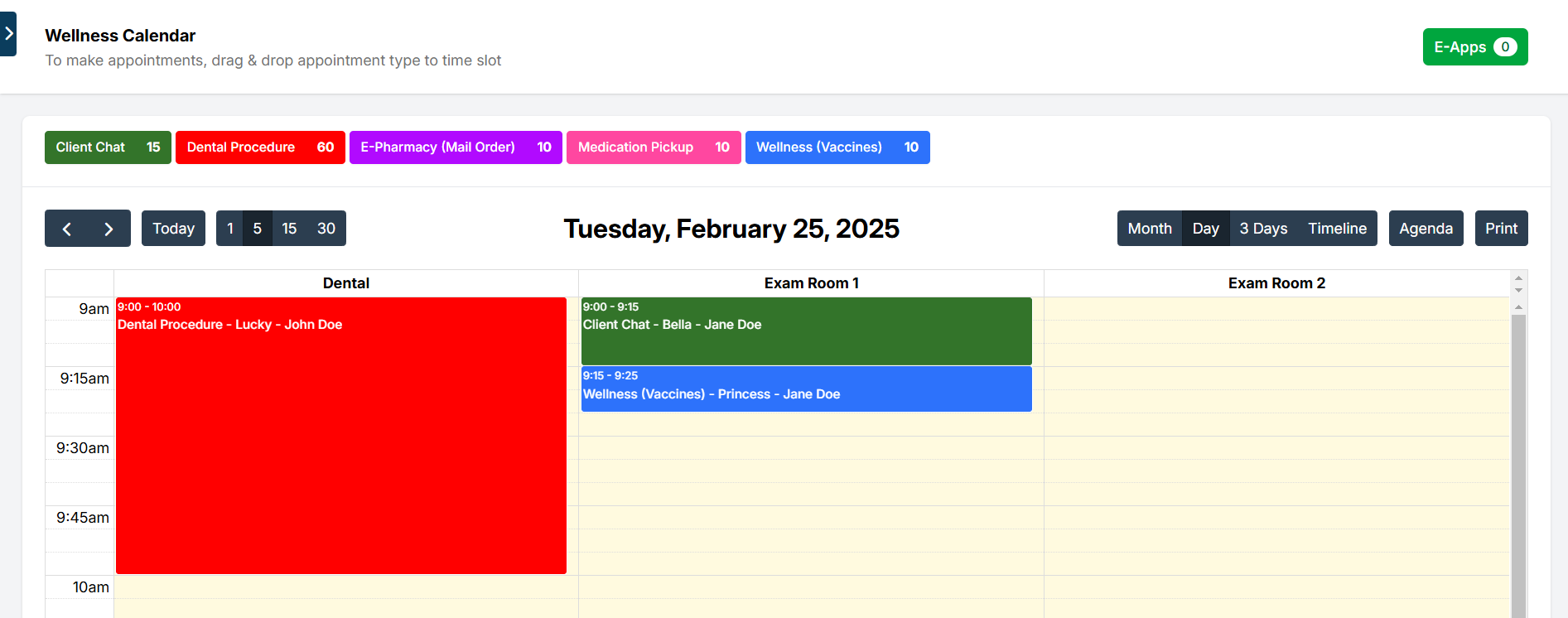
Your clinic can determine which rooms appear on the calendar. Each room is shown as a separate column and can be designated for specific appointment types.
Example: A room labeled Dentals may be restricted to dental-related appointments only. Some clinics also repurpose rooms for veterinarians, which is perfectly acceptable.
Navigating the Wellness Calendar
- Use the left/right arrows in the upper-left corner to move between days or months.
- Adjust the view using the 1, 5, 15, and 30-minute buttons. This changes the calendar to display in those intervals, which helps with properly slotting appointments.
- Switch views with the Month, Day, 3 Days, and Timeline buttons.
- The Agenda view provides a list of appointments for a particular day. ** It also shows E-Appointment reservations that have not yet been confirmed (marked as E-APP in the title), helping to avoid overbooking.
- You’ll also notice an E-Apps button in the upper-right corner. Details for this feature are covered in the manual section on E-Appointments.