Spay Neuter Calendar
3.1. Spay/Neuter Calendar

In this section, you’ll learn how to navigate the spay/neuter calendar, understand what the tiles and numbers mean, and manage mobile locations. Mastering these tools ensures you can schedule and edit smoothly.
Moving the Calendar
There are three ways to move between months:
- Arrows in the upper-left corner.
- Drop-down menu in the upper-right corner.
- Gray squares on the calendar grid. The shaded box with an outline shows today’s date — a simple visual reminder.
Turning On the Correct Tiles
A “tile” is a box on the calendar showing the capacity or availability for a specific service.
- Click the Tiles button in the upper-right corner and tick the boxes you want to display.
- Tile visibility is tied to your user login, so each staff member can customize their own view without affecting others.
- Tiles cannot be reordered. If you’re missing categories (e.g., Cat Neuter or Female Dog), they must be added in Capacity Management
Standard HQ Tiles
HQ comes with standardized tiles — no setup required.
- Recheck (Rechk): Follow-up for spay/neuter issues (e.g., infection, lethargy). Other follow-ups should be scheduled as wellness appointments.
- Wellness (Well): Non-spay/neuter appointments such as vaccines, dentals, or microchipping.
- Public (Pub): Appointments for public clients.
- Transport (TTran): Animals transported by your organization for services.
- Self Transport (STran): Animals delivered by the volume client themselves.
- E-Appointments (E-Apps): Requests awaiting approval. Prevents overbooking.
- Vets (Vets): Number of veterinarians scheduled for the day. Roles can be customized (e.g., relief, training).
- Traps (Traps): Number of cats marked as “in a trap.” Cats still also appear under their species/sex tile.
Understanding the Numbers
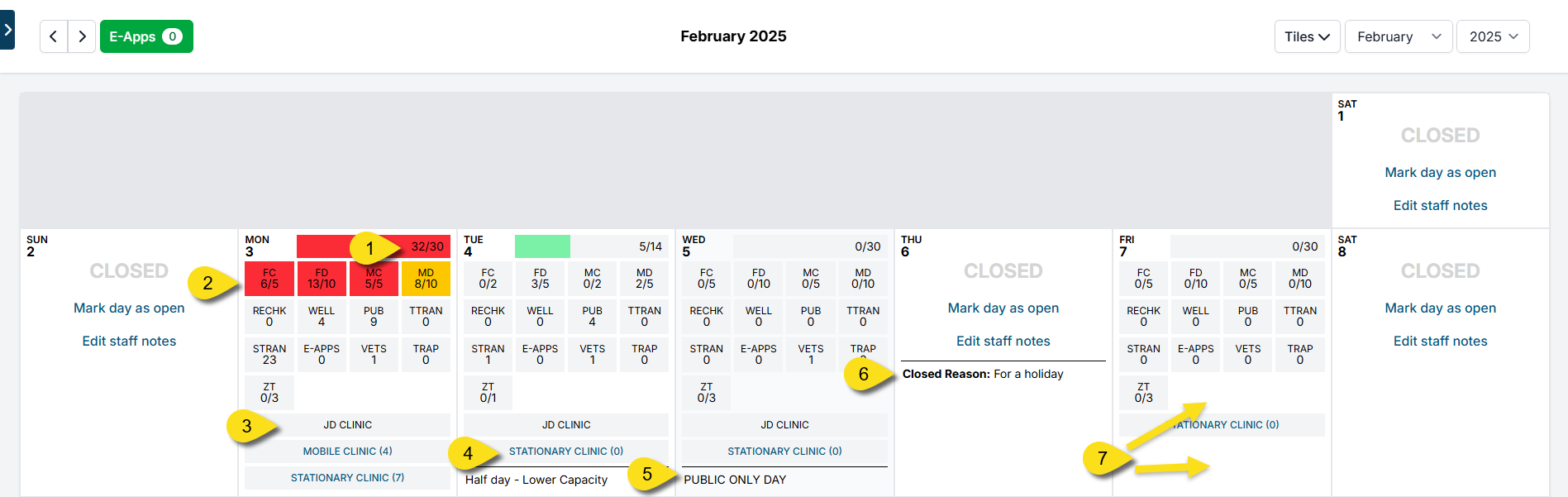
- Daily Capacity – Set in Settings > Capacity Manager or by clicking a blank calendar square. ** Red shading: At/over 90% capacity. ** If capacity exceeds the max allotment, no appointments show online (though staff can still book manually).
- Tiles by Animal Type – Example: “FC” for Female Cats. ** First number = animals booked (e.g., 6). ** Second number = daily capacity (e.g., 5). ** Orange shading: 70–90% booked ** No shading: Under 70% booked ** 100% capacity: Date hidden from online booking (but staff can still book/overbook with an alert).
- Scheduled Vets – Managed in Settings > Vets > +Schedule. ** Shows which vets are scheduled and their role. ** Roles can be labeled (e.g., “Clinic Vet,” “Relief Vet,” “Training Vet”).
- Mobile Locations – Displays clinics set up under Settings > Mobile Locations.
- Staff Notes – Freehand notes visible to all staff. ** To add, click a date and select Edit Staff Note.
- Closed Day – Mark days your clinic is not open. ** Go to Settings > Clinic Profile > Preferences (for recurring closures) ** Or click a blank day on the calendar and choose Mark Today as Closed (for one-off closures). ** You must reschedule or cancel existing appointments on closed days via Appointment Changes.
Editing Calendar Days
Clicking within a day provides several options:
- Make Spay/Neuter Appointment – Add a new spay/neuter appointment.
- Make Recheck Appointment – For post-surgical complications only (not general follow-ups).
- Make Basic Wellness Appointment – Add a wellness appointment without assigning a time slot. (Advanced Wellness appointments are managed on the Wellness Calendar.)
- Appointment Changes – View and manage that day’s appointments. From here, you can edit, reschedule, cancel, or delete.
- Adjust Capacity for Today Only – Override daily max capacities for a single day. ** Example: “Cat-Only Mondays” – zero out dog slots and repeat weekly.
- Adjust Vet Type for Today Only – Change which vets are working and their roles for that day.
- Edit Staff Notes – Add or update a visible note for staff.
- Mark Today as Closed – Close a single date, with a reason. ** To reopen, click Mark Day as Open. ** Remember to move or cancel appointments still scheduled on that day.
✅ Pro Tip: The general idea is to set up your calendar in Capacity Manager first, then use the daily edit tools to make adjustments as needed.