24.17.2. Rooms
Wellness Calendar Rooms
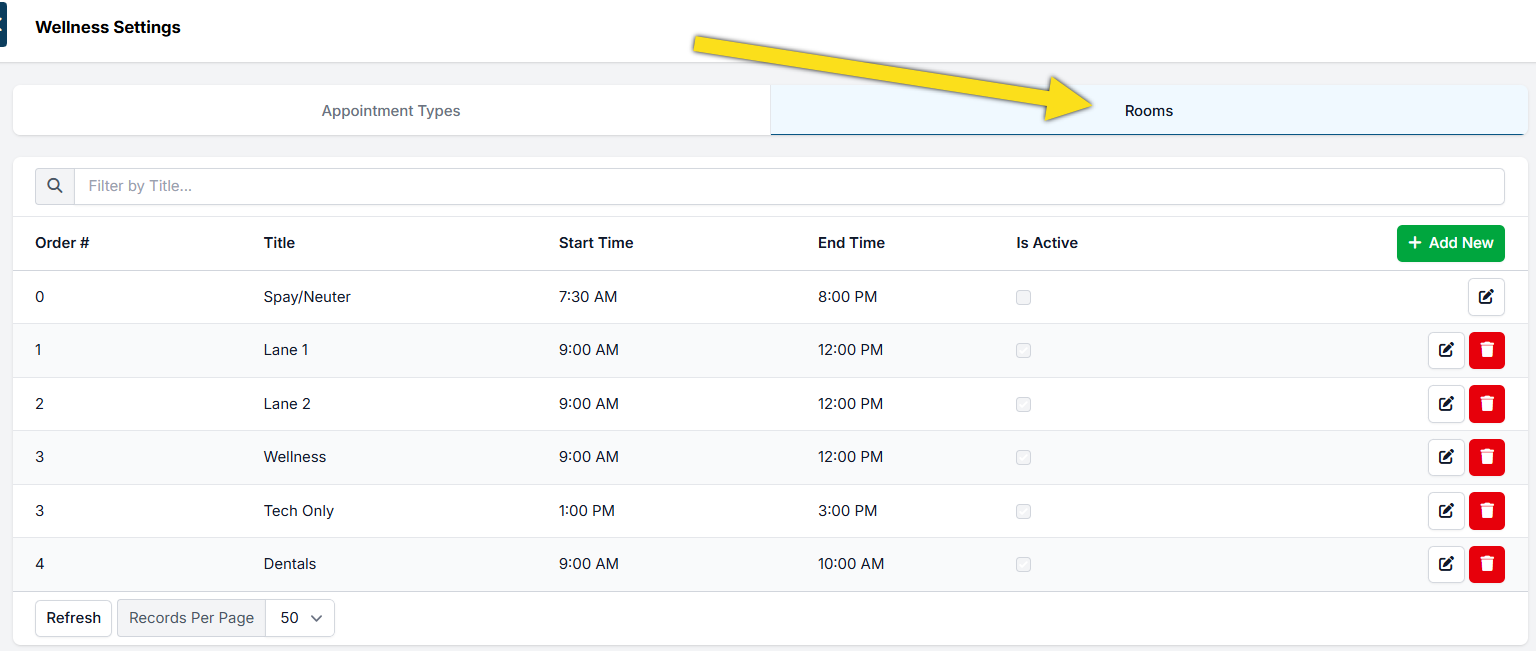
Wellness Rooms control the operating hours and scheduling of appointments on your wellness calendar. They appear as columns on your wellness calendar, which appointments will be dropped into. Rooms can be configured to match your physical capacity, vets, or specific types of appointments. For example, a room for dentals can be restricted to dental appointment types only.
Create a Wellness Room
- Begin by creating a few appointment types your clinic offers following the previous guide. Once completed, navigate to Wellness Settings > Rooms.
- Click + Add New to create a new room.
- Complete the pop-up fields.
- Title: Name of the column displayed on the calendar. Cannot exceed 25 characters.
- Start Time: When the first appointment is scheduled to check in.
- End Time: When the last appointment for the room ends. Example: If you want your last appointment to be at 3 pm and the appointment length is 15 minutes, then your end time should be 3:15 pm.
- Order: The arrangement of the rooms on the calendar from left to right. "1" being the column furthest left.
- Is Active: If selected, this makes the room appear on the calendar.
- Any Appointment Type: If selected, all appointment types can be booked during the hours of this room. If you need to restrict which appointments can be booked at certain times, you will need to untick this setting and assign specific appointment types to the room.
Note: The Spay/Neuter room is only available if you use time-based S/N scheduling under Settings > Clinic Profile.
Appointment-specific Rooms
- Untick Any appointment type.
- From the dropdown menu, select the appointment type that can be scheduled in this room.
- Click +Add
- Do this for each appointment type that should be restricted to booking this room.
- Once configured, click Save.
Known Bug on Wellness Settings
Rooms cannot be deleted
In Settings > Wellness Settings > Rooms, rooms cannot be deleted. The solution is to Edit the appointment type and uncheck the "Is Active" box and Save. Appointment types that are not active will be moved to the Inactive list. These can be made active again if you need to reuse the appointment type.