24.17.3. Anesthetic or Mixed Service Wellness Considerations
Overview
Some HQ settings apply only to the overall Wellness umbrella, so they must be configured to cover all wellness sub-types rather than individual appointment types. These settings include Confirmations & Reminders, Consent Forms, and Take-Home templates. This section outlines recommended HQ setup for clinics that offer mixed wellness services.
Wellness Appointment Confirmations & Reminders
Confirmations and reminders cannot be customized by wellness sub-type (for example, Dentals vs. Vaccines). Messages can only be assigned to the Wellness appointment type. As a result, all instructions for wellness visits must be included in a single confirmation and reminder message.
Use conditional language to address different visit types, such as:
- “If your pet is scheduled for a Vaccine or Wellness Exam…”
- “If your pet is scheduled for a Dental…”
Wellness Templates
Anesthetic Wellness Consent Considerations
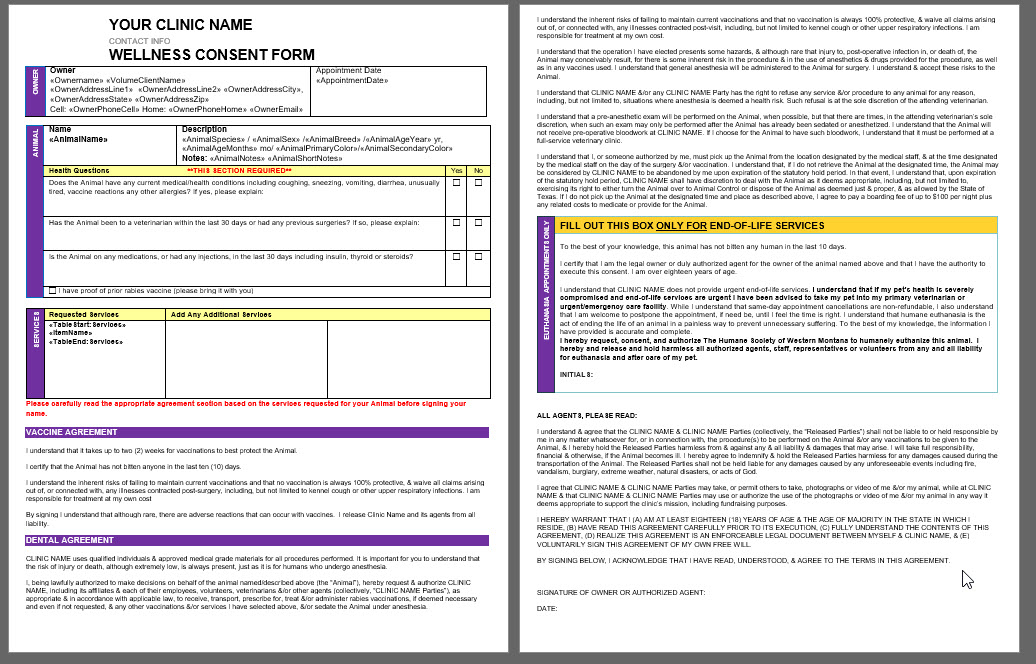
Your clinic will need one consent form that covers all wellness scenarios.
- Download the HQ-recommended templates HERE
- Edit the Wellness Vaccine Clinic Consent form to include waiver terms that cover risks associated with vaccines, anesthetic complications, and euthanasia terms if applicable. Anesthetic risk language may be reused from the Spay/Neuter Consent Form, with sterilization-specific references removed.
- Change the template title to Wellness Consent Form.
- Upload this template under Settings > Templates and assign e-signature capabilities for Wellness appointments.
Here's an example form that was edited to suit multiple appointment types.
Aftercare Instructions for Treatments or Anesthetic Procedures
Begin with Clinic HQ's recommended Wellness Visit Summary. Edit the template's second page to add aftercare instructions. Your custom template must contain the Client Communication merge field to include their medical notes.
There are two options on how to use Wellness aftercare templates:
Use one generalized aftercare document with Item Triggered Notes for service-specific aftercare instructions.
For example, if the animal received a dental cleaning, use the dental cleaning service item to populate a note about the effects of sedation and provide a small dinner instead of a full meal. This pre-written message will only appear on the visit summary if the animal has a dental on their services. To set this up:
- Go to Settings > Medical Notes.
- Find the Item Triggered Notes section.
- Click Add Item.
- Search for the service item.
- Enter aftercare instructions in the External Client Communication box.
- Save your setting.
Upload service-specific custom templates for each appointment type, then manually send them to clients after their visit.
Edit an existing visit summary template and change the second page instructions to be service-specific. For example, if the animal received a non-spay/neuter surgery such as mass removal or amputation. Upload this as a custom template in Settings > Templates. At Checkout, staff will use Print/Email Paperwork to print/send the corresponding aftercare instructions to owners.