24.14.2.1. Dymo Troubleshooting
Troubleshooting Overview
When your Dymo LabelWriter isn't working, our aim at HQ is to make sure you know how to fix it. We have compiled the following common issues and fixes for your team to reference when troubleshooting the prescription label printer. If you are unable to resolve the issue on your own, please open a help ticket.
Important note: We no longer support troubleshooting for Dymo 450s, 550s or Dymos connected to a Mac.
WATCH DYMO PRINTER SETUP VIDEO
When diagnosing Dymo issues here's the quick list of what to check first:
- That the web services is enabled.
- It's the correct version of the driver. Be sure DYMO CONNECT is not installed anywhere on your device.
- Control panel printers - printer is online.
- The machine is turned on.
- Changing USB ports or checking WiFi connectivity.
- Label sizes are correctly selected in HQ.
- Chrome is up-to-date.
- Chrome Setting: Local Network Access is set to Allow
Please refer to the printer model for the correct troubleshooting and resolution tips.
Cannot Print Error
Issue: Error Message: Framework Not Installed Error
Most often this error appears if you do not have the correct version of Dymo installed. 450 & Wireless series: For a PC, the driver MUST be 8.7.4.
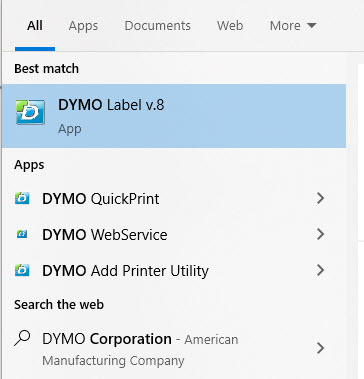
- Resolution: Check which version you have installed on your computer. Here is how to double check the driver: a) From the Windows icon look for a search bar. Type in "Dymo." This will pull the different programs installed on your device. b) Look to see if Dymo Connect is installed. If it is - we don't want it and it will need to be uninstalled. c) You should have Dymo Label v.8 installed.
- Uninstall Dymo Connect. From the search bar, type in "Add or remove programs." Open this application and find Dymo Connect. Click on the app section and a button to uninstall should appear. Click Uninstall and follow the prompts.
- If you do not have Dymo Label v.8 installed, follow the instructions in Dymo Set Up.
Issue: Error Message: Printer Not Found Error
This error will appear with any of the following conditions:
- Your printer does not have power. Resolution: Turn the printer on or try a different power source.
- Your USB port is dead. Resolution: Try a different USB port on your computer.
- Your printer is a 550 series and you do not have Dymo authentic labels in it. (cannot use the watermarked labels with a 550.) *Resolution: Use Dymo authentic labels, HERE.
- Your printer is a 550 series and Dymo Connect is not installed.
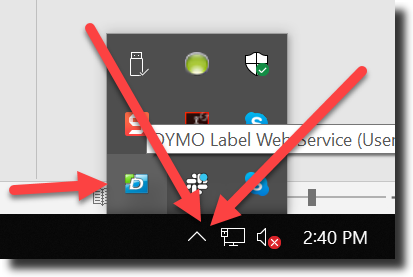
- Web Services is not turned on. Resolution: Go to the Start menu > Dymo > Dymo WebService to turn it on. You should now see it displayed in the lower right corner of your screen in the little “Show Hidden Icons” dialogue box (PCs only).
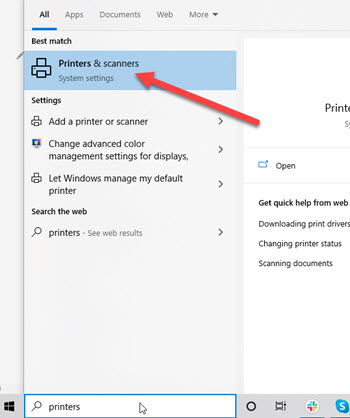
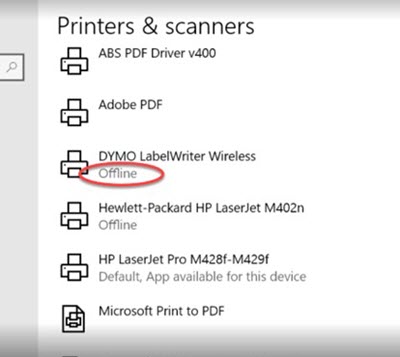
!TIP Tip for #1 and #2, on the Windows icon type the word "printer" and select Printers and scanners. Then look at the Dymo Printer status for if it is offline or not. Monitor this section when trying to power on the printer or change ports.
Issue: Error Message: "It was not possible to save the prescription and/or load the label. Please review checkout info. Common mistake is vet name not filled.” Error
This error indicates that a key component to the print order is missing.
Here are some things to look for:
- Is the veterinarian listed on the Treatment Sheet?
- Is the vet's license number saved in their vet profile?
- Does the animal have an ID#? (this is assigned when the patient is checked in.)
- Is the label size selected in Settings > Clinic Profile
- Did Dymo Connect get installed on the computer? This is the wrong driver. Read how to install the correct one (blank)HERE.
- Is the Chrome browser up to date? HQ recommends you do this regardless of whether it's the cause of your issue.
- Have you cleared the browser cache recently? HQ recommends you do this regardless of whether it's the cause of your issue.
Printed Label Issues
Issue: Printing Blank Labels
Resolution: Your printer is a 550 series and you do not have Dymo authentic labels in it. (cannot use the watermarked labels with a 550.) Here are Dymo authentic labels from Amazon
Issue: Multiple Labels Used with Each Print
If the Dymo Lablewriter is feeding multiple labels with each print there are two reasons this may occur:
- You have the incorrect label size set in your Clinic HQ Settings. Resolution: update the label size in Clinic HQ Settings> Clinic Profile> Preferences.
- The label is sitting loose it the printer.
Issue: Text is cut off on the right-hand side of the label
450 & Wireless Series This error manifests as a few characters of the text will be cut off on the right hand side of the label. The problem here is you have an incorrect driver. For a PC, the driver MUST be 8.7.4. Resolution: Uninstall Dymo Connect (if it is installed) and ensure the correct Dymo version is installed.
- Here's how to double check the driver:*
- *Check which version you have installed on your computer. For a PC, the driver MUST be 8.7.4. Here is how to double check the driver: a) From the Windows icon look for a search bar. Type in "Dymo." This will pull the different programs installed on your device. b) Look to see if Dymo Connect is installed. If it is - we don't want it and it will need to be uninstalled. c) You should have Dymo Label v.8 installed. #_ Uninstall Dymo Connect. From the search bar, type in "Add or remove programs." Open this application and find Dymo Connect. Click on the app section and a button to uninstall should appear. Click Uninstall and follow the prompts. #_ If you do not have Dymo Label v.8 installed, follow the instructions in Dymo Set Up.
Calling Dymo
If none of the resolutions above solve your issue, please call Dymo at 1-877-724-8324, Monday to Friday: 9:00 AM - 5:00 PM EST. You may also open a help ticket with Dymo at https://www.dymo.com/support/contact-us.
24.14.2. Dymo Set Up
To print labels in HQ, you must use a Dymo Wireless LabelWriter and a Windows-based device such as a PC or Surface Go tablet. Printing from Mac devices is not supported.
24.15. Microchip Preferences
Microchips are an essential part of patient records in HQ. While your clinic can use any microchip brand, HQ offers several integrated partners that provide added benefits, including automatic registration and access to discounted chips. This section of settings is where you link your clinic to our integrated partners and set your default chip provider.