4.8. Mobile Clinic Scheduling

Managing the mobile unit schedule can be challenging when your clinic location changes frequently. Mobile Scheduling makes it easier by allowing you to manage multiple locations within the HQ calendar. Clients can then book appointments online based on both location and availability.
Location Scheduler
HQ provides a location scheduler so clinics can set up and manage where their mobile unit will be.
Setup steps:
- Go to Settings > Clinic Profile > Preferences and enable Mobile Locations.
- Click Save. This will create a Mobile Locations page under Settings > Scheduling.
- Add locations in Settings > Mobile Locations > +Create Mobile Locations.
- Here you can: ** Enter the name and address. ** Select the type of location (e.g., mobile or stationary). ** Enable/disable online scheduling. ** Set a status (e.g., active/inactive).
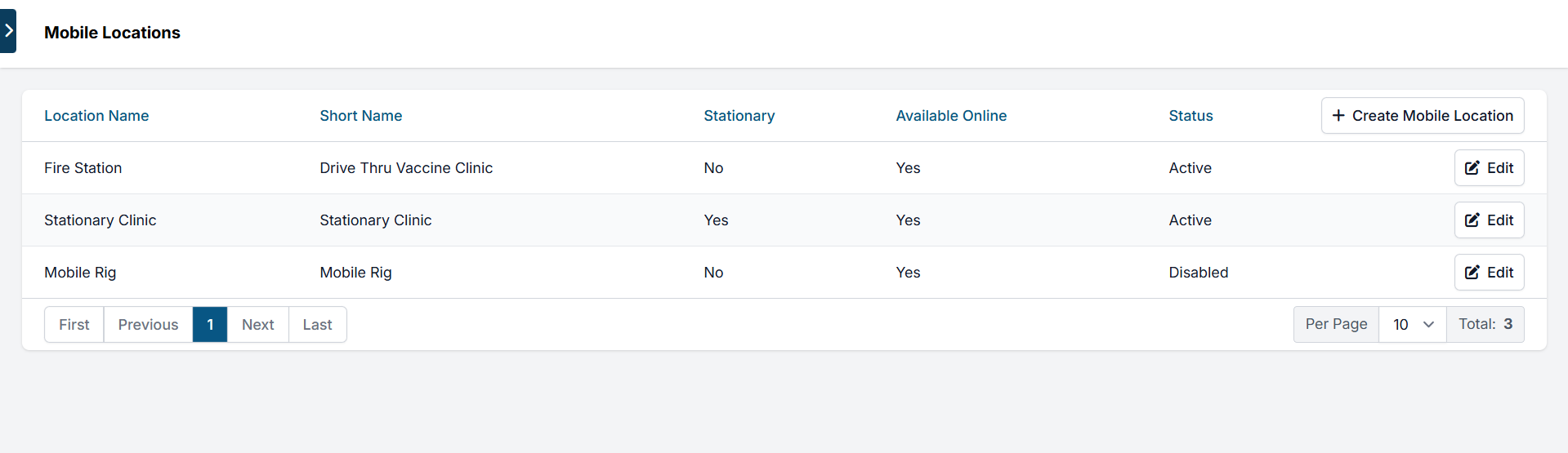
Editing Mobile Locations
To assign a mobile location to a specific calendar day:
- Open the calendar and click the day you want to update.
- Select Adjust mobile locations for today.
- In the popup, choose the clinic for that date.
- You may set it to repeat weekly.
- Click Add. #_ To add multiple locations on the same day, repeat the process within the same popup.
Notes:
- When multiple locations are added for a day, they will appear as links in the calendar window, showing the number of appointments for each.
- Stationary locations appear on every open day automatically and cannot be removed for individual days. From the calendar:
- Clicking a location link opens that day’s appointment summary for that location.
- You can edit the staff note or create a new appointment, which will prompt you to select the location.
Adjusting Capacity
Capacity settings differ for mobile locations compared to the standard spay/neuter calendar.
- Capacity applies to the entire day, not per location.
- If multiple locations are scheduled for the same day, they will share the same capacity. Example:
- Main clinic: 20 appointments.
- Mobile clinic: 10 appointments.
- If both are open on the same day, the shared capacity should be set to 10.
Online Appointments
When mobile locations are enabled and set for online booking:
- Clients booking via e-appointment will see available days and locations.
- They can also view a map to check proximity before booking.
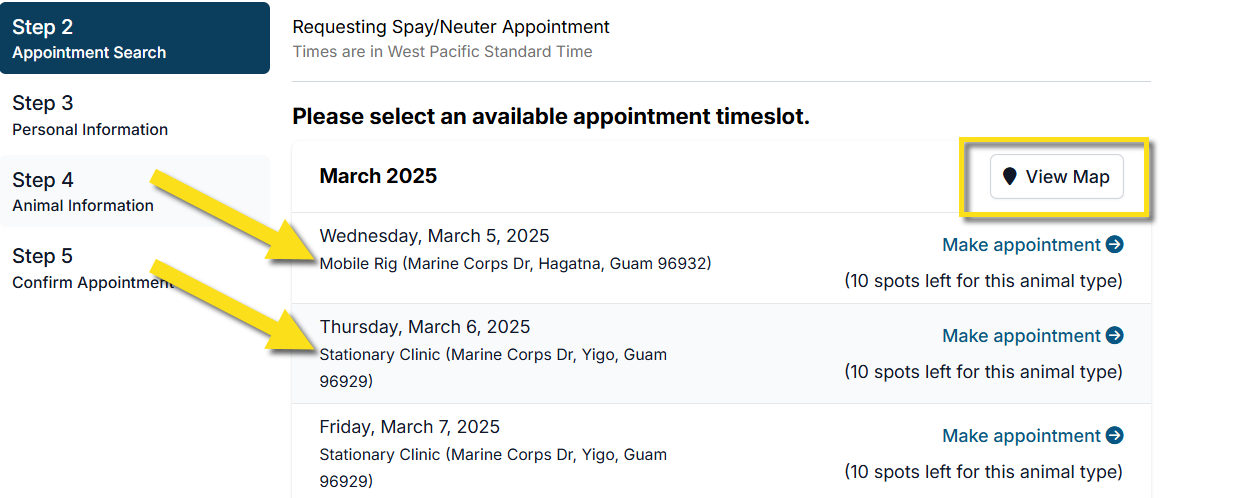
✅ Pro Tip: If your clinic frequently operates multiple locations at once, consider setting up a separate HQ profile per location.
- Profiles share a backend database for easy client lookup.
- Each location controls its own calendar and capacity.
- Each profile counts as a separate subscription.
Location-Specific Confirmations & Reminders
Client communications automatically include the chosen location.
To customize:
- Go to Settings > Confirmations & Reminders.
- Select the reminder type you want to edit.
- Insert the location field into your text.
- This ensures the confirmation includes the specific location details.
Do this for each confirmation and reminder type as needed.
Hardware Tip
For mobile operations, the Microsoft Surface Go is a recommended option.
- Lightweight and portable.
- Detachable keyboard and pen.
- Useful for client check-in tasks such as line management, client lookup, and digital consent forms.