6.4. Vaccine Clinic Scheduling Strategies
6.4.2. Schedule Vaccine Appointment (Externally)
Vaccine clinic appointments should be scheduled through your E-Appointments link whenever possible. This allows clients to pre-register, saving staff significant time on clinic day.
Vaccine clinic appointments should be scheduled through your E-Appointments link whenever possible. This allows clients to pre-register, saving staff significant time on clinic day.
Creating a Vaccine Clinic E-Appointment
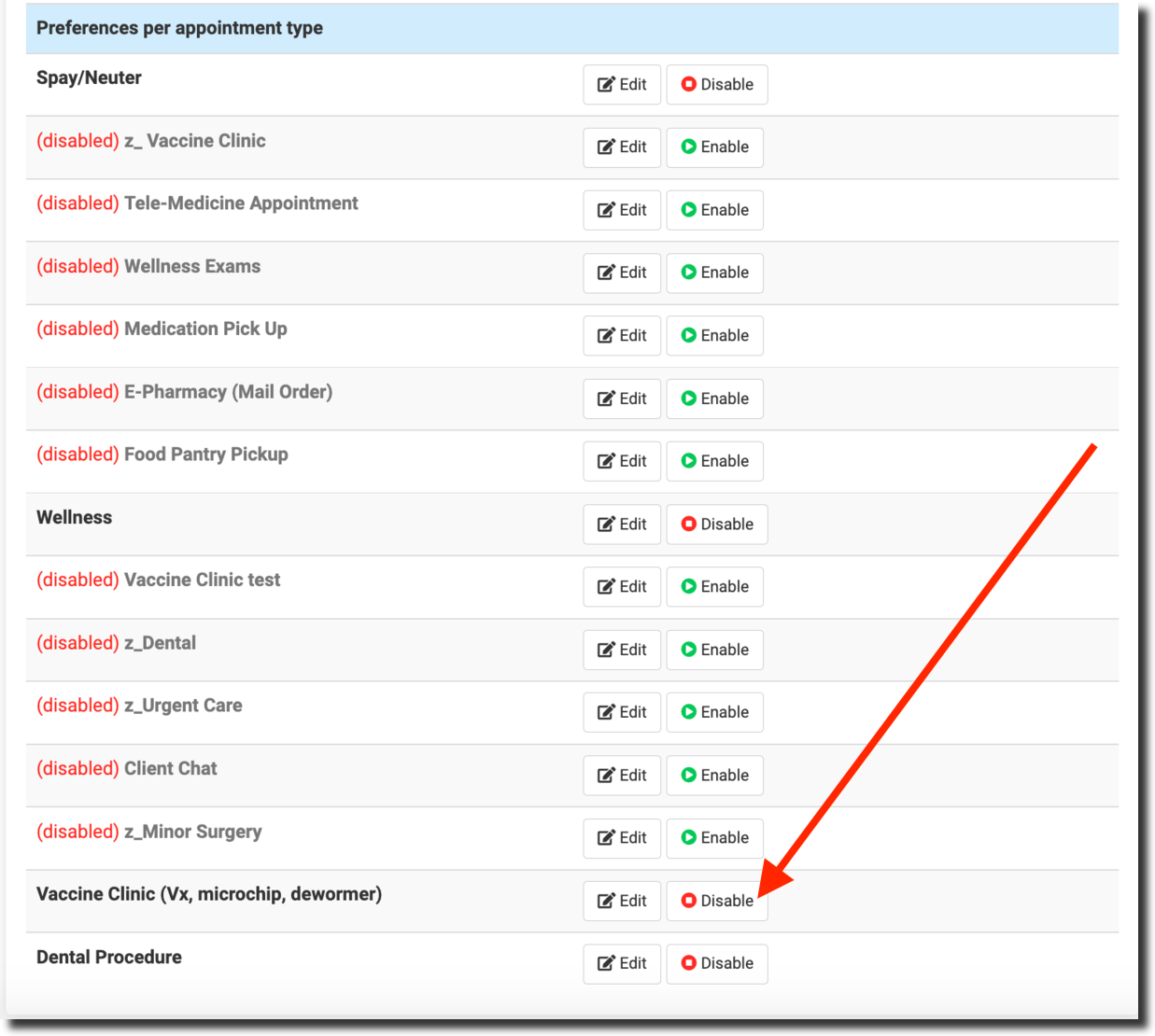
- Go to Settings > E-Appointments.
- Ensure the Vaccine Clinic appointment type is created and enabled.
- Generate an E-Appointment link for clients (see Creating Public E-Appointments for detailed setup).
- Share the link on your website, social media, or other communication channels.
Client Experience
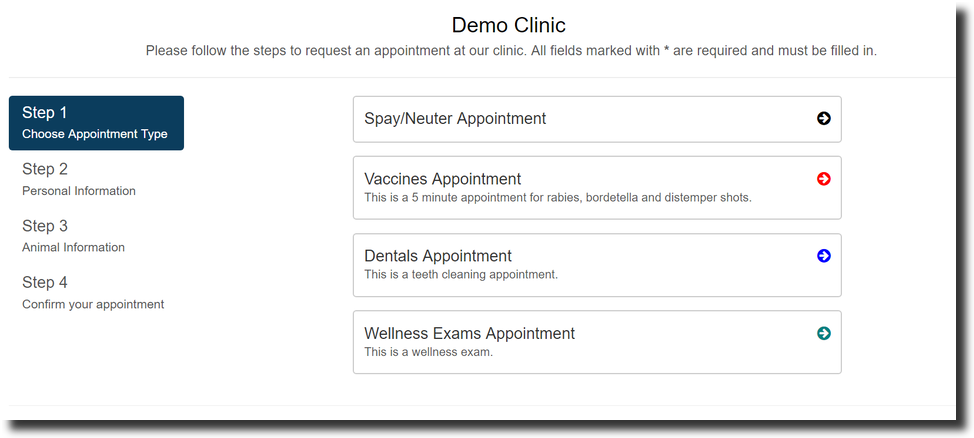
- Client clicks the E-Appointment link.
- Selects Vaccine Clinic appointment type.
- Chooses an available date and time slot.
- Fills in owner and animal information.
- Selects the required vaccines/services.
- Completes payment (if applicable) and submits the request.
- After submission, clients receive an email notification (if an email is provided) that their request is pending review.
- Once your clinic confirms the appointment, they receive a confirmation email.
Managing Deposits
- Deposits, if enabled, can be managed under: Clients > Client Management > Manage Deposits.
- To enable/disable deposits for vaccine appointments: ** Go to Settings > E-Appointments > Edit (vaccine appointment) > Deposits tab.
- Tick the relevant option.
Preparing for Clinic Day
- The evening before, print all paperwork: Clients > Check In/Checkout > Print/Email Paperwork.
- This ensures rabies certificates, consent forms, and service records are ready when clients arrive.