16.3.2. PetPoint Integration
What does it do?
This integration between PetPoint and Clinic HQ is currently one-directional, meaning data flows from PetPoint into Clinic HQ. It allows you to import selected animal's data, and bulk import multiple animals at once.
This system offers major time-saving benefits by streamlining your intake process and cutting down on dual data entry. The first month to test the integration is free, then it is $99 per month. To read more about how to set it up, visit the setup page here.
What data comes over?
The following data can be pulled over in an import:
- Animal Name
- PetPoint ID
- Species
- Sex
- Weight
- Age
- Breed
- Color
- Attributes from PP (will be inserted as an animal note)
- Intake Date
- Microchip number
Accessing the tool
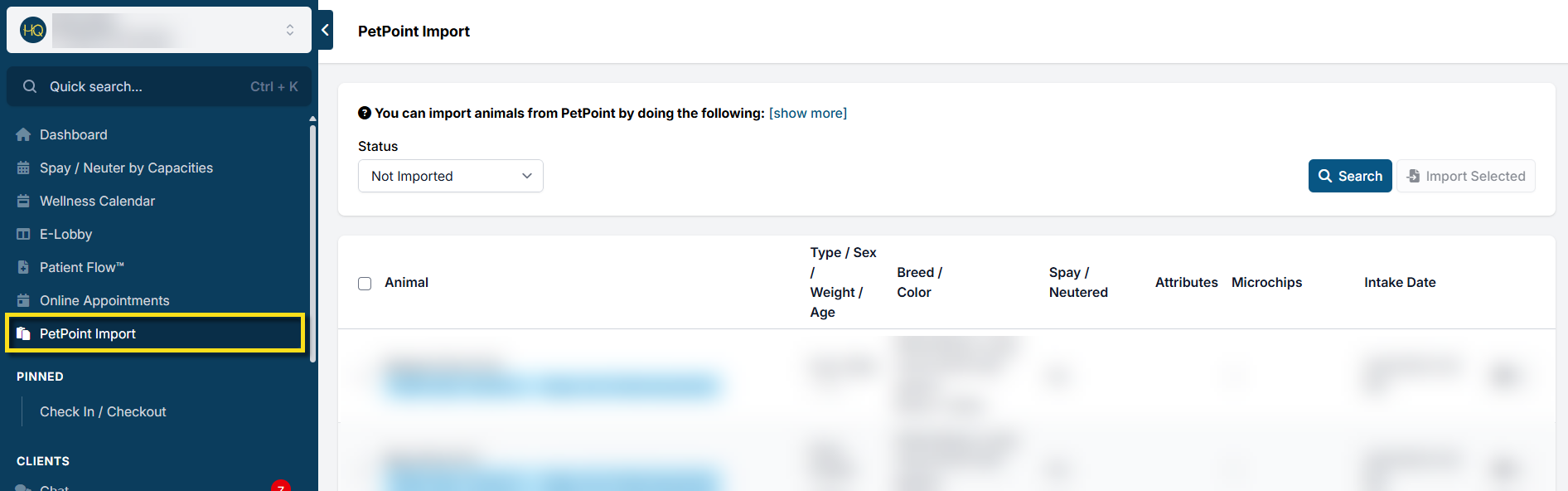
Once you have activated the integration in HQ Settings, you'll notice a new link in your navigation panel called PetPoint Import.
Importing Data
You can import PetPoint animals into HQ by doing the following:
- The status box will automatically be set to Not Imported. Click Search to load in animals.
- Click the tick box next to each animal you want to import and click the Import Selected button.
- When you import, it makes an appointment in HQ for the animal on the date they were entered into PetPoint. It assigns the service "PetPoint Intake." HQ automatically checks out the appointment. This is the maneuver that gets them in the HQ database.
- When you're ready to do medical services, simply make a new appointment for the pre-existing animal. All the data should be in there.
Additional Functions
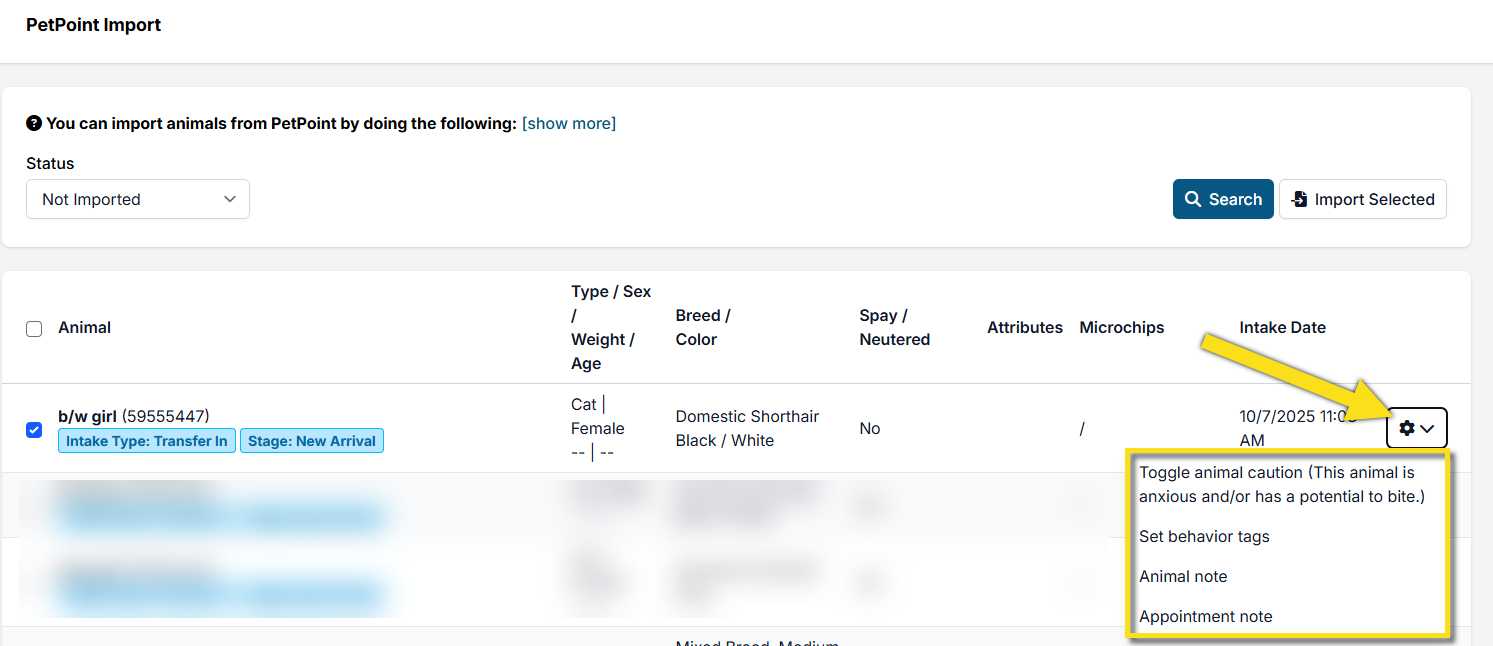
At the time of importing, you can assign behavior tags, mark caution, and add animal/appointment notes. To do so, click the gear icon next to the animal, then click the corresponding action.
Sending the medical record to an adopter
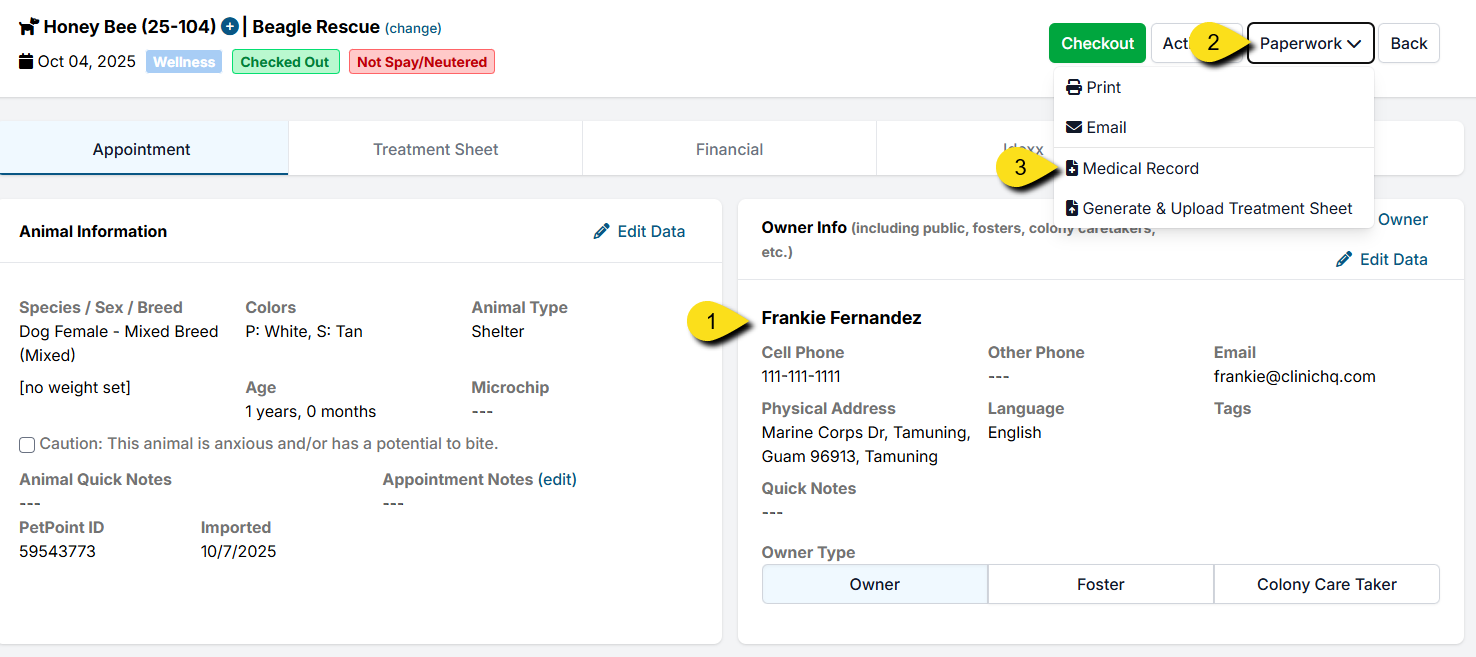
Once the pet is adopted, you can assign an owner and send their medical record. To do so, find the animal's last appointment (you can use quick search to find them).
- Update the patient's record with the new pet parent's info in the Owner section.
- Select Paperwork in the upper right corner of their appointment.
- Select Medical Record and tick the box for email, or save as a PDF.
Breed Mapping
PetPoint breeds are customizable for each organization, which means breed names can vary widely. To ensure accurate imports into Clinic HQ, you can now map your PetPoint breeds directly within your clinic settings.
You can find this feature under: Settings > Integrations > Shelter Add-On > Map Breeds.
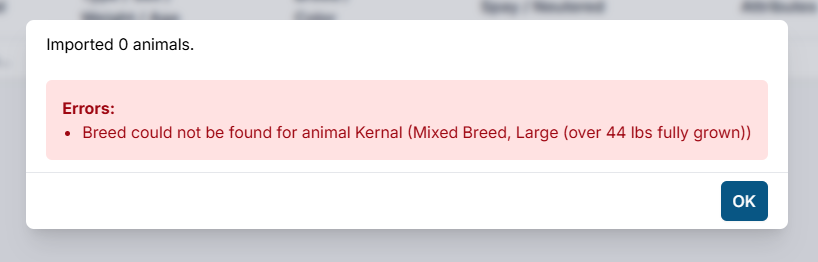
Clinic HQ automatically maps the most common breeds for you. You’ll only need to manually map additional breeds if you see an error like this during an import:
Learn how to map breeds for PetPoint imports HERE.