18.1. Appointment Confirmations

No-Shows Are No-Nos.
Reducing No-Shows with Confirmations and Reminders.
Utilizing appointment confirmations and reminders is one of the most effective ways to reduce no-show rates.
Appointment confirmations are automated communications sent immediately when an appointment is officially scheduled or confirmed in HQ.
Confirmations are sent when a clinic team member selects Make Appointment for internally booked appointments or when an e-appointment request is approved.
What Should Be Included in an Appointment Confirmation.
The appointment confirmation is the first written correspondence a client receives and sets expectations for the upcoming visit.
As the appointment date approaches, clients will also receive reminders.
The following sections provide examples you can copy and customize.
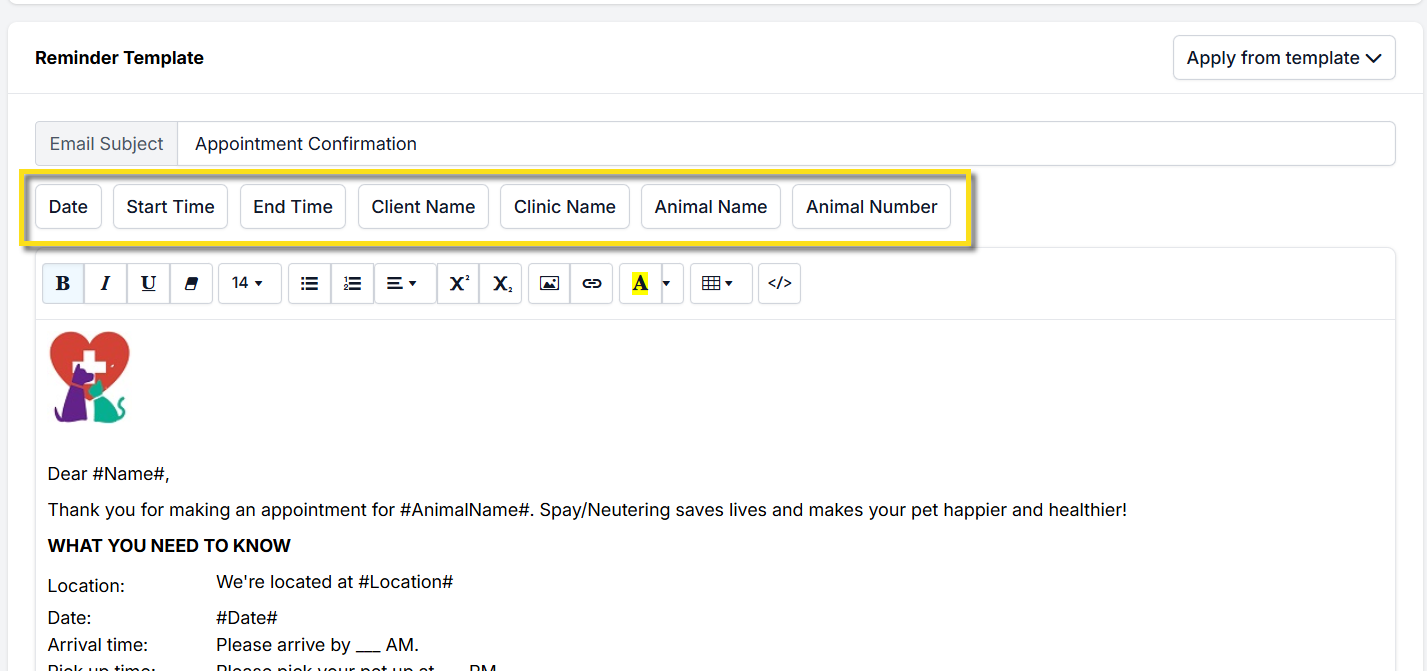
When creating automated communications in Clinic HQ, always use autofill fields.
Autofill fields are different from merge fields used in Microsoft Word templates.
Message Formats.
- Text Messages — Limited to 160 characters and intended for concise updates.
- Robocalls — Support short to medium-length messages and provide a verbal confirmation option.
- Emails — No character limits, allowing for detailed instructions and information.
Essential Information.
At a minimum, every appointment confirmation must include the following.
- Date and Time
Clearly state when the appointment is scheduled. Many spay and neuter clinics use drop-off windows instead of exact times.
In these cases, include a range such as 7 to 8 a.m.
Wellness appointments typically use exact times and should use the #Date# and #StartTime# autofill fields. - Contact Information
Provide details on who clients should contact with questions or appointment changes.
For text confirmations, these two elements are critical.
✅ Pro Tip: Available autofill placeholders vary based on client type and appointment type.
For volume clients, the animal name placeholder is not available.
Details to Include in Emails.
Emails should include the essential information listed above, along with the following details.
- Animal Name or Number
Use the #AnimalName# and #AnimalNumber# placeholders as applicable. - Location
Clearly state where the appointment will take place.
For mobile clinics, use the #Location# placeholder. - Instructions for Fasting
Include fasting requirements when applicable. - E-Consent Instructions
Explain how clients can complete the e-consent form. - Cancellation Policy
Clearly outline clinic policies for cancellations and no-shows.
Including this information ensures clients are fully prepared for their appointments.
Resending Appointment Confirmations.
Appointment confirmations can be resent from the client profile.
Before resending, verify that the email address is correct and free of spelling errors.
- Search for the client or animal using Quick Search.
- Open the client profile.
- Select the Appointments tab.
- Locate the appointment to resend.
- Select Action.
- Select Resend Consent and Confirmation.
If an email address is updated, a confirmation prompt may appear.
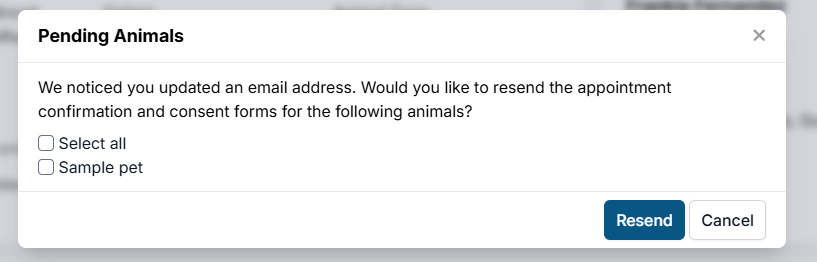
From this screen, select the animals for which you want to resend the confirmation, then select Resend.
❌ Caution: Appointment confirmations are not sent for same-day appointments.
They are only sent for appointments scheduled on future dates.