8.2. Rescheduling Appointments
8.2.1. Rescheduling A Whole Day
If you need to move all appointments from one clinic day to another, follow these steps to keep the process smooth and organized.
If you need to move all appointments from one clinic day to another, follow these steps to keep the process smooth and organized.
Step 1: Open the New Clinic Date
- In the calendar, open the date you want to move appointments to.
Step 2: Select the Original Date
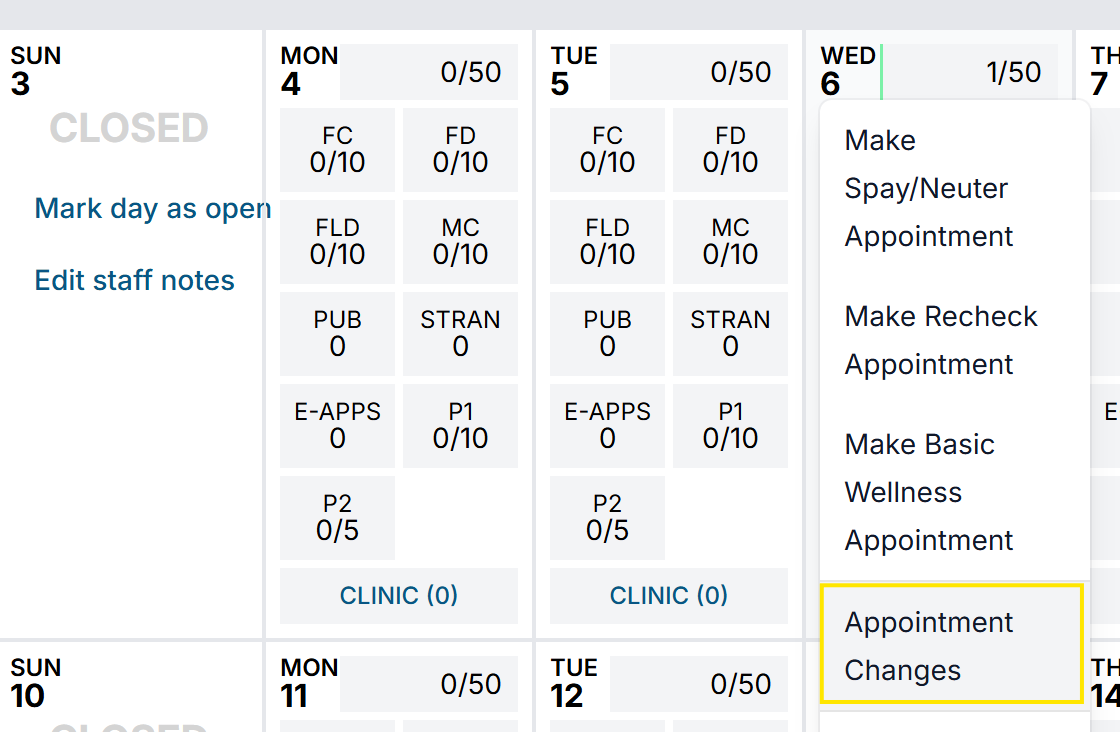
- In the calendar, click the original clinic date.
- Select Appointment Changes.
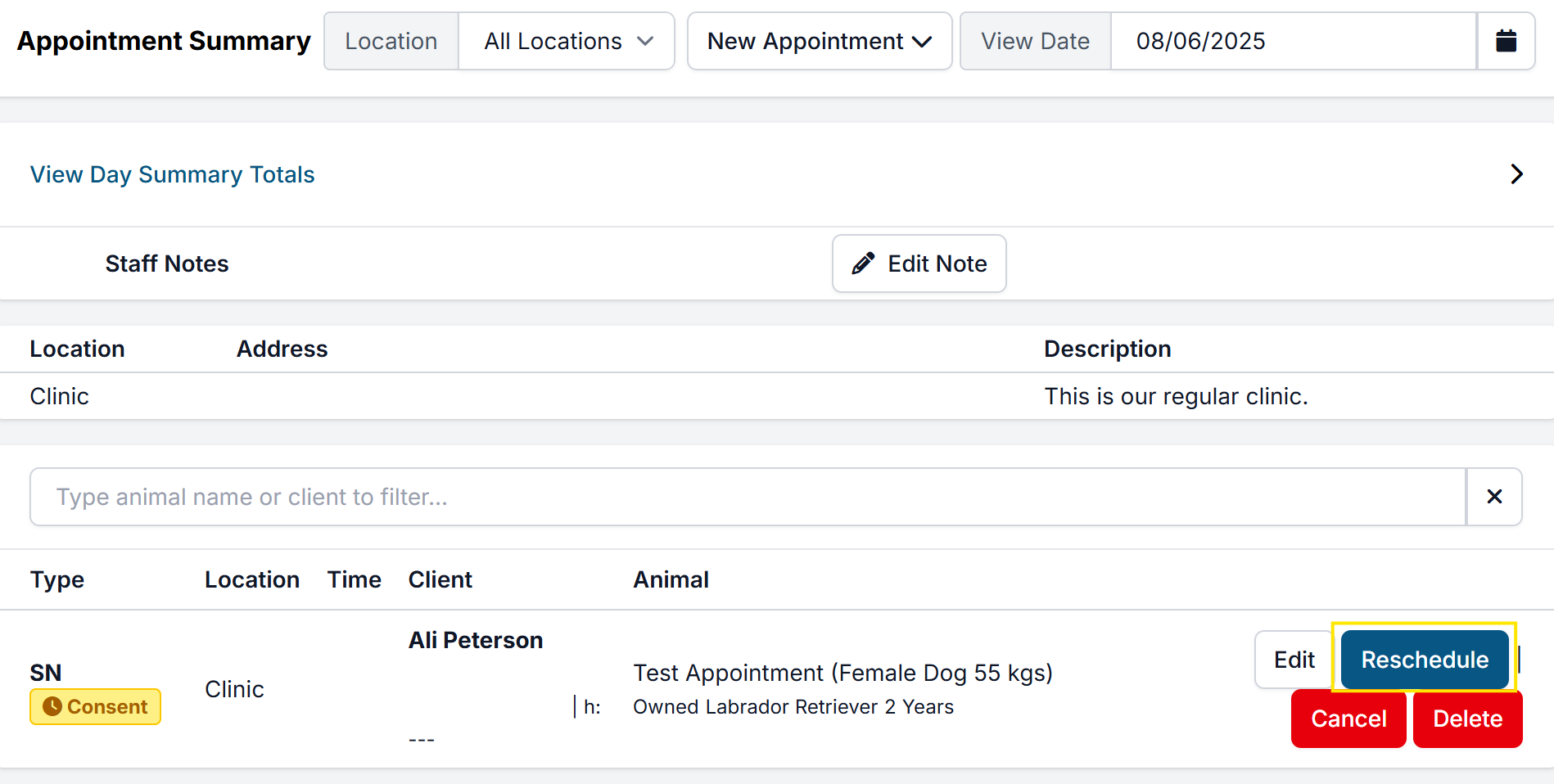
- For each appointment, click Reschedule and move it to the new date.
Each patient will automatically receive an email notification with RESCHEDULED in the subject line.
Recommended Client Communication
Notify Clients via Text
- Open E-Lobby.
- Update the date picker (top right corner) to the original clinic date.
- Scroll through the patient list and send a text to each client individually about the reschedule.
Send a Personal Email (Extra Step)
- Go to Custom Reports.
- Export a list of email addresses for all clients originally scheduled.
- Send a personalized email confirming the new date and explaining the change.
- This gives clients a direct line to ask questions or request adjustments.