8.3. No-Showing Appointments

If a client does not arrive for their appointment, you can mark them as a no-show in HQ. This ensures the appointment status is recorded in the client’s history.
No-Showing S/N, Basic Wellness, and Recheck Appointments
- From Checkout:
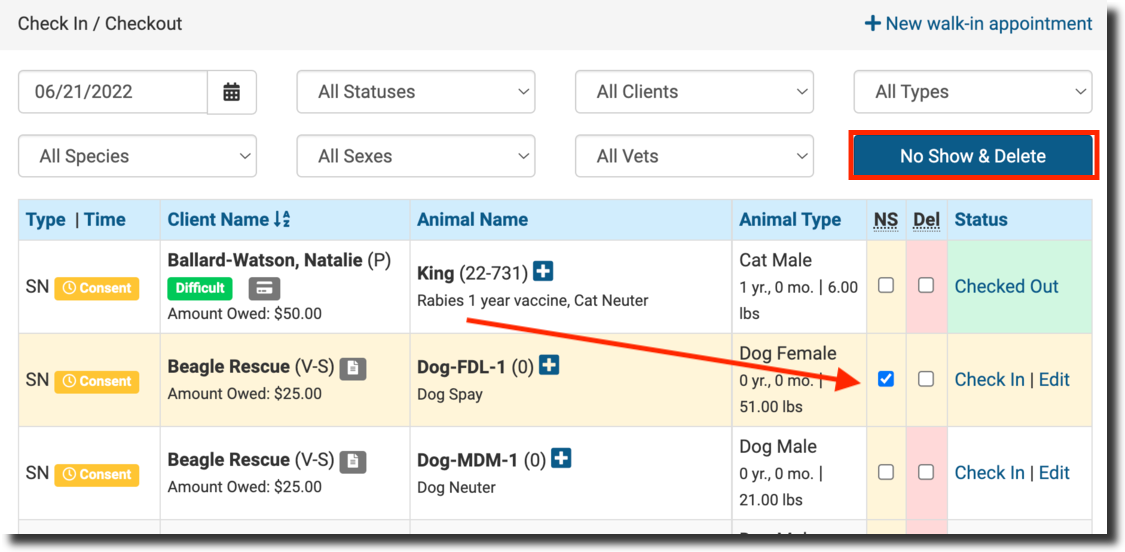
- Go to Clients > Checkout.
- Select the NS checkbox.
- Click No Show and Delete.
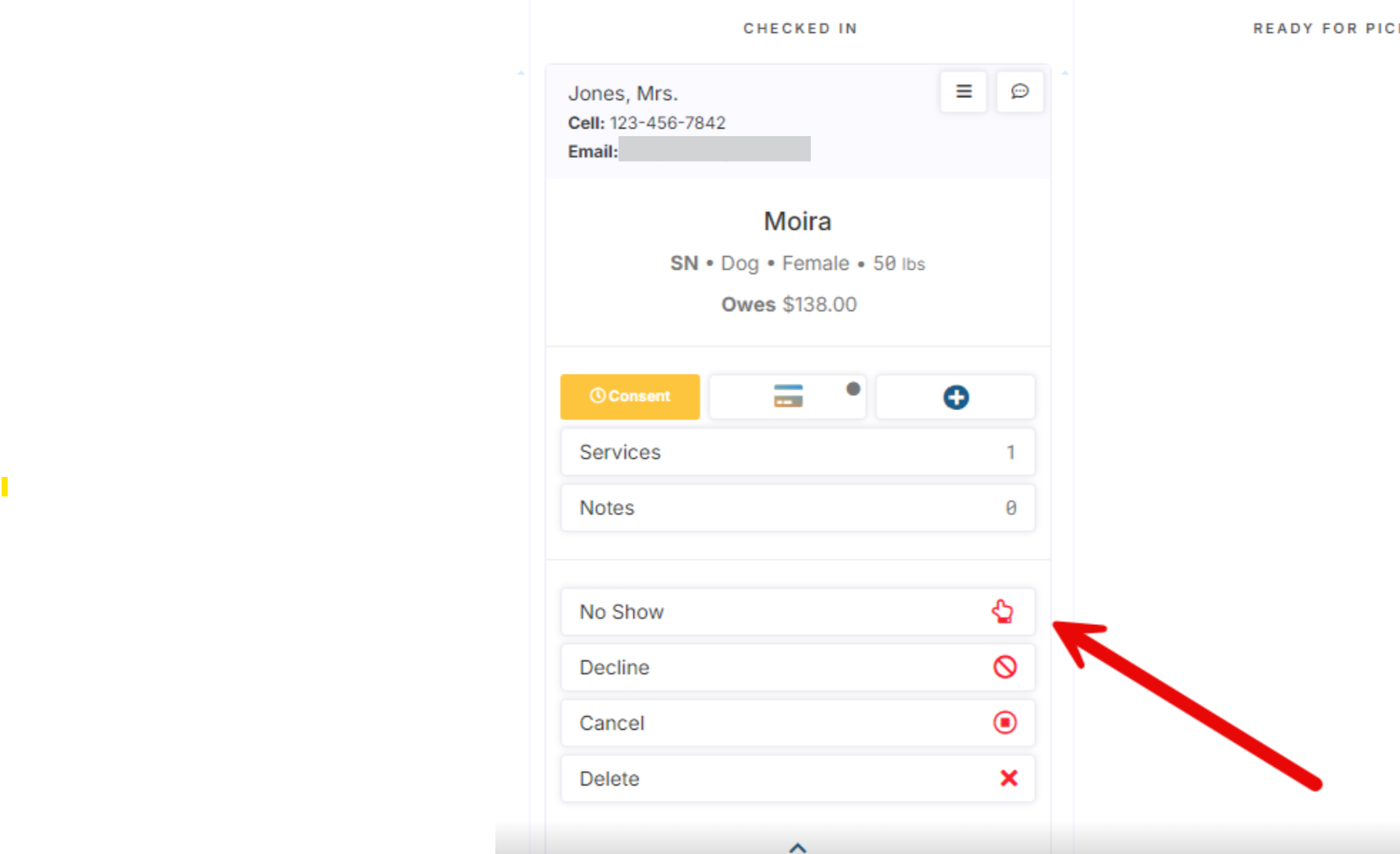
- From E-Lobby: ** Locate the appointment and mark it as a No Show.
Undoing a No-Show
If an appointment was marked as a no-show by mistake:
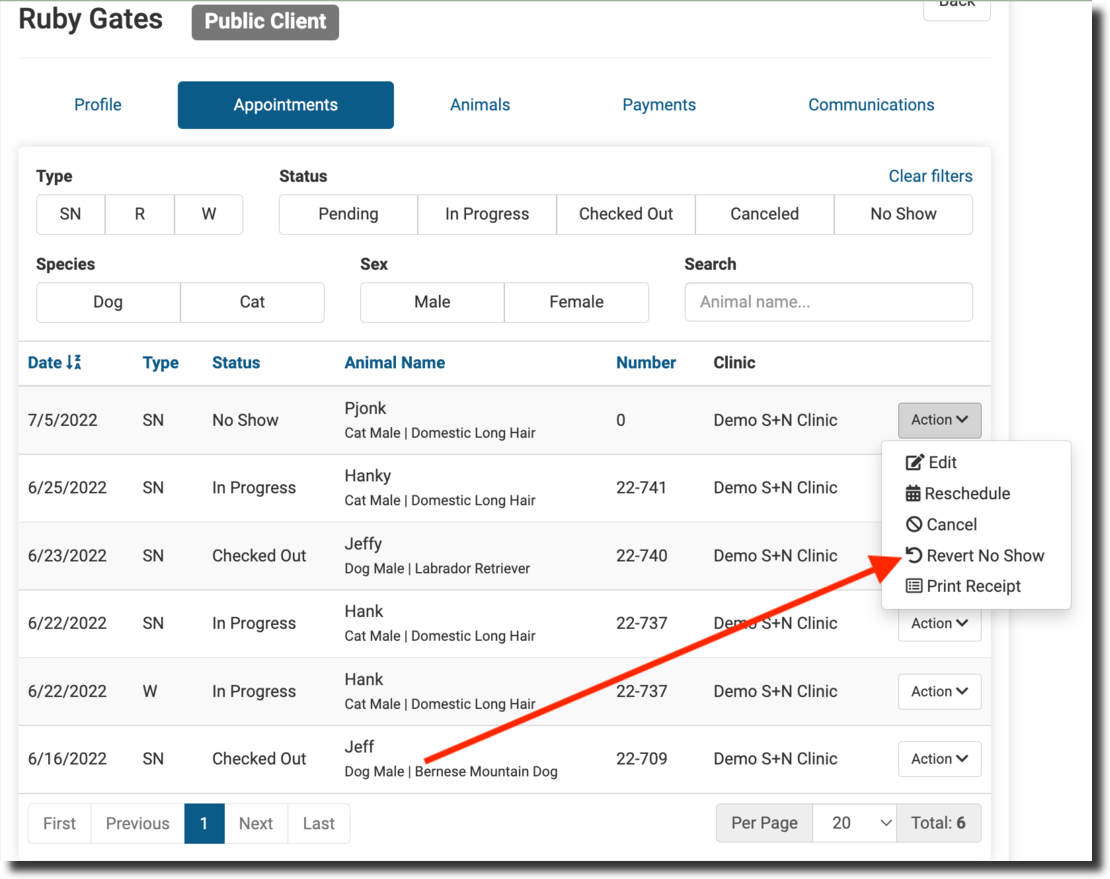
- Go to Search Client/Animal > Client Profile > Appointments tab.
- Use the Action menu to select Revert No-Show.
No-Shows with Deposits
- Appointments with deposits or payments show a blue info icon in the NS/Delete column.
- You must manage the payment before marking the appointment as a no-show:
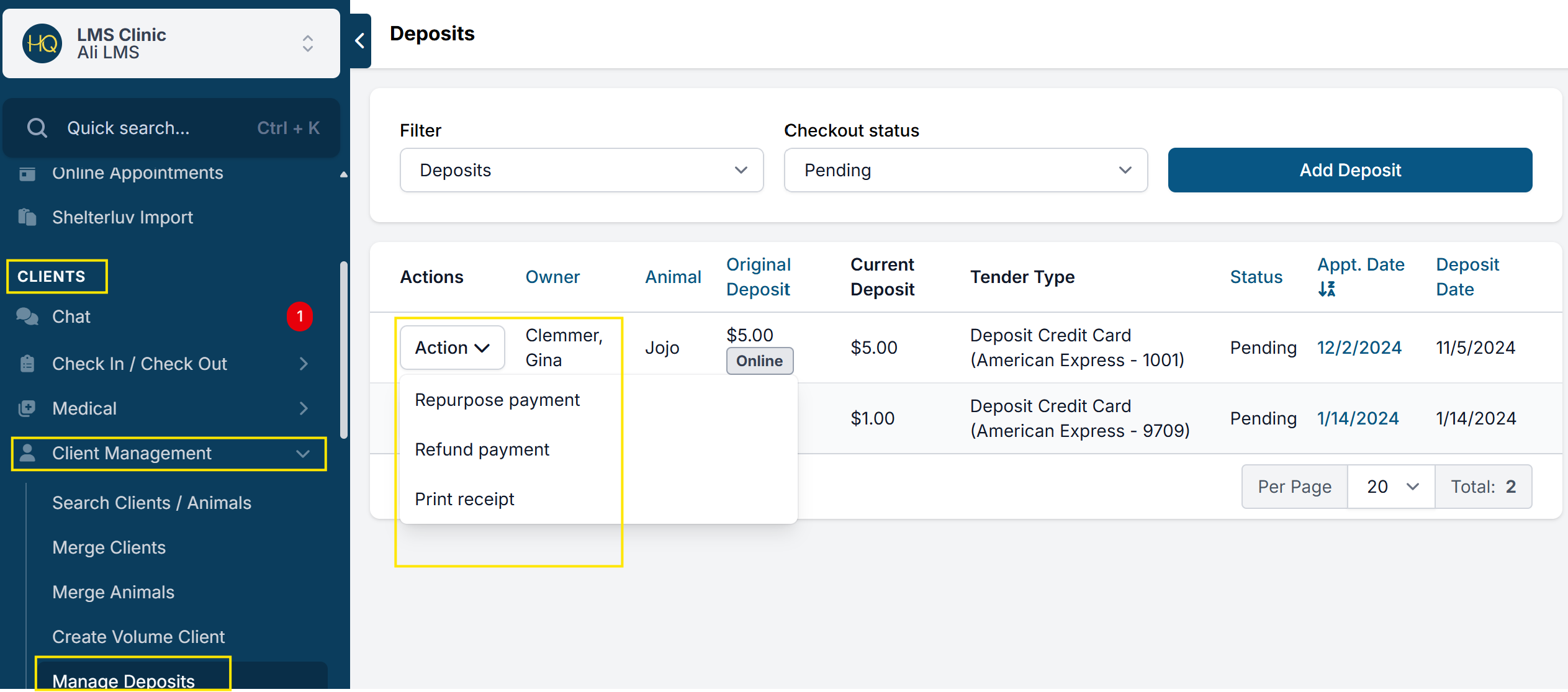
- Go to Clients > Client Management > Manage Deposits.
- Click Action next to the deposit.
- Choose whether to:
- Repurpose (e.g., convert to client credit or donation).
- Refund.
#_ Once the deposit is handled, return to Checkout and mark the appointment as a No Show.
✅ Pro Tip: Many clinics have a non-refundable deposit policy. In this case, repurpose the deposit as a donation. Be sure to select the correct donation pot.
Important Reminder
Do not edit or remove services from a no-showed appointment.
- Services and prices should remain intact for accurate records.
- Simply manage the deposit (repurpose/refund) and mark the appointment as a no-show.