Changing Appointments
8.4. Converting Public to Volume Clients & Vice Versa

Sometimes a Volume Client (e.g., a rescue group) may book multiple appointments online using the public client form. These can be converted into Volume Client appointments by merging records.
Steps to Convert Public Client Appointments
- Create the Volume Client (if not already created)
- Example: Erwin’s Rescue.
#_ Open the Merge Tool:
- Go to Clients > Merge Clients.
- Under Volume Clients, search for the rescue and click Add.
#_ Add the Public Client Record:
- Switch the merge tool dropdown to Public Clients.
- Search for the client record (e.g., Inez Erwin).
- Click Add.
#_ Merge the Records:
- Ensure the Volume Client is selected as the primary record.
- Merge the records together.
Reverse Scenario
If you need to convert a Volume Client back to a Public Client, follow the same steps but select the Public Client as the primary record during the merge.
Example
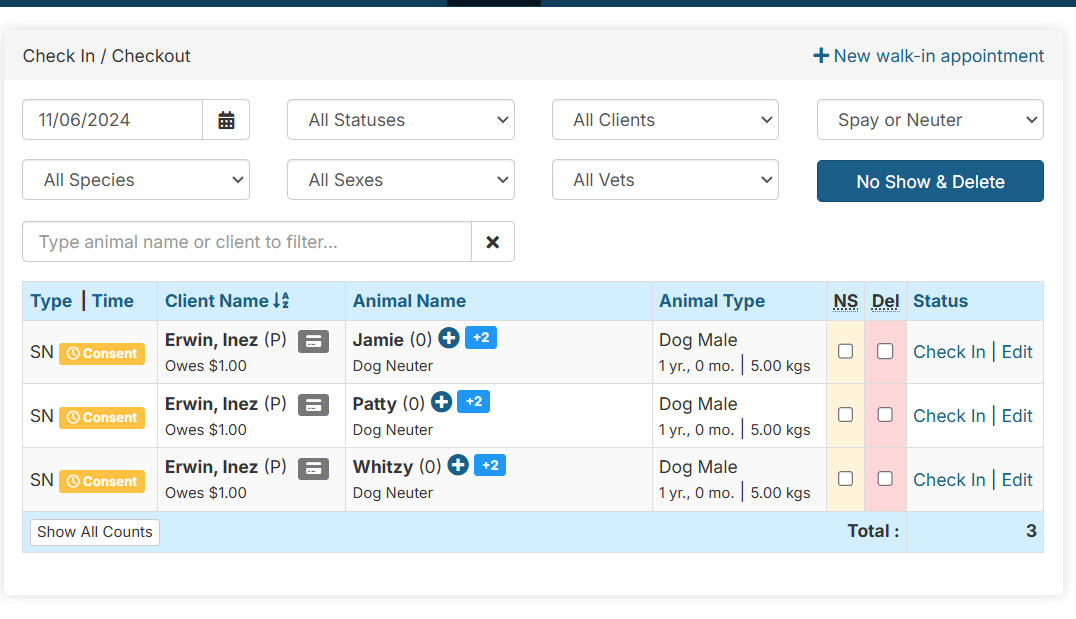
Inez Erwin books 10 public appointments but actually runs Erwin’s Rescue.
- These appointments should be reassigned to the rescue’s Volume Client profile by merging the public record into the rescue’s account.