8.1. Canceling Appointments
8.1.4. Revert a Canceled Appointment
If an appointment was canceled by mistake, you can easily undo it.
If an appointment was canceled by mistake, you can easily undo it.
Steps to Revert
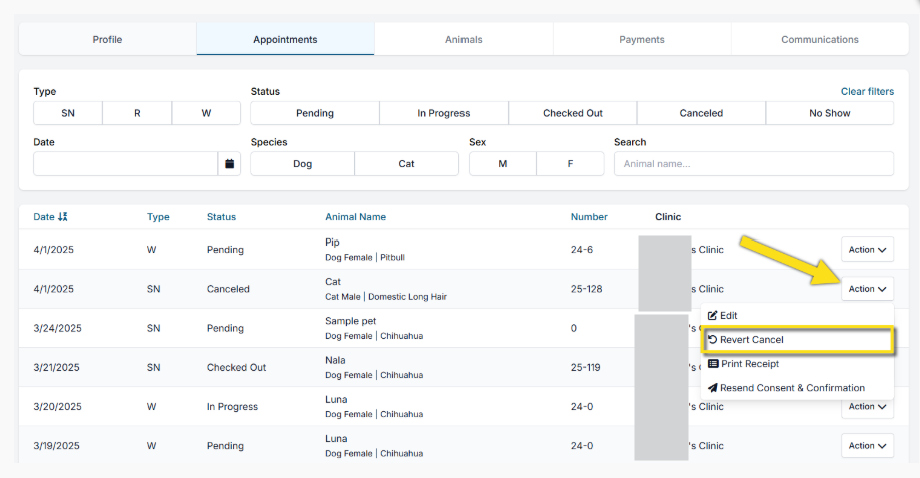
- Go to the Client Profile and open the Appointments tab.
- Locate the canceled appointment in the list.
- In the Action menu (to the right), select Revert Cancel.
- The appointment will be restored to the schedule on its original date.
8.1.3. Canceling an Appointment with a Deposit
You cannot cancel an appointment while a deposit or payment is still attached. The deposit must first be repurposed, refunded, or deleted.
8.1.5. Deleting Appointments
Deleting an appointment removes it completely from the system. It should only be used in limited situations, such as: