8.1. Canceling Appointments
8.1.3. Canceling an Appointment with a Deposit
You cannot cancel an appointment while a deposit or payment is still attached. The deposit must first be repurposed, refunded, or deleted.
You cannot cancel an appointment while a deposit or payment is still attached. The deposit must first be repurposed, refunded, or deleted.
Managing Deposits Before Canceling
- Go to Client Management > Manage Deposits.
✅ Pro Tip: Pin this page to your navigation panel for easy access.
#_ Locate the deposit:
- Sort by clicking any blue table header (e.g., Owner A–Z).
- Use the page numbers at the bottom to navigate.
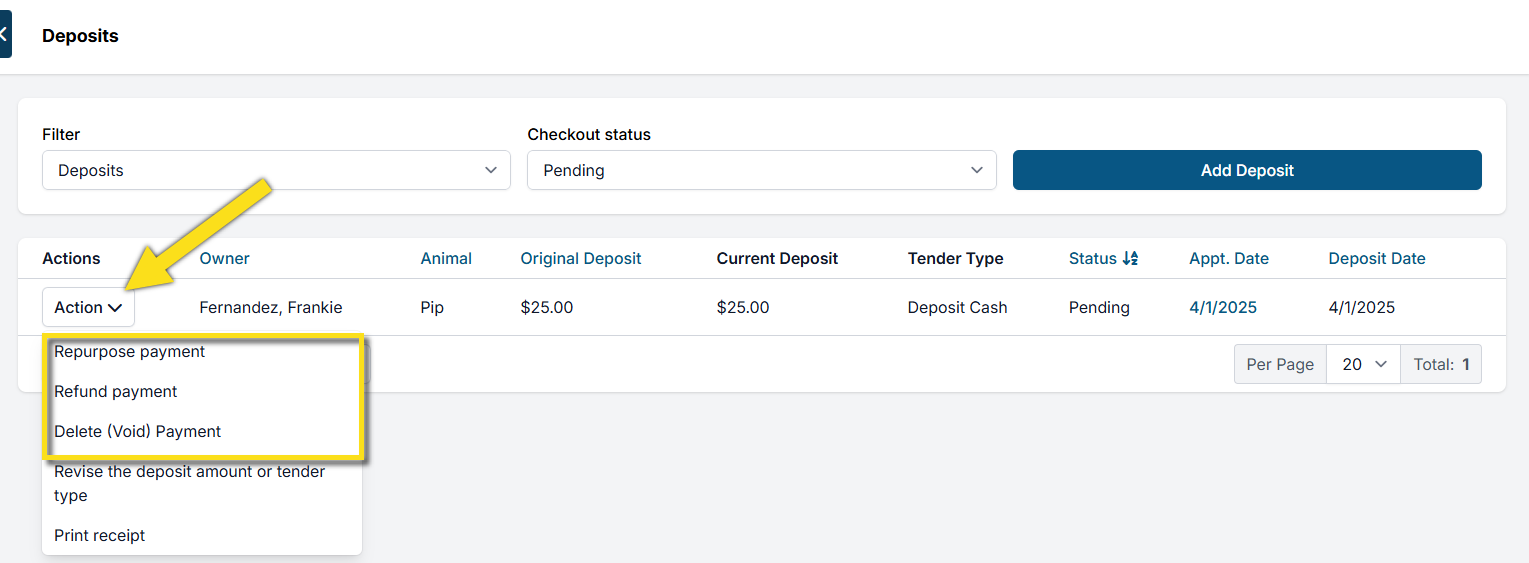
#_ Click the Action button for the deposit.
- Choose one of the following options:
- Repurpose Payment: Transfer to client credit or convert to a donation.
- Refund Payment: Return the deposit to the client.
- Delete/Void Payment: Available only in rare cases; not for processed e-payments or POS transactions.
#_ Once the deposit is managed, proceed with canceling the appointment.
- See: Canceling Spay/Neuter, Basic Wellness & Recheck Appointments
- See: Canceling Advanced Wellness Appointments
Deposits on E-Appointments
If a client submitted a deposit online and you cancel from the E-Appointments screen:
- HQ will automatically refund the deposit to the original payment card.
- The client receives an email confirming both the cancellation and the refund.