11.4.5.10. Missing Animal(s) in PF
Cannot Locate Animal in Patient Flow
If an animal has been checked in but does not appear in Patient Flow (PF), follow these steps.
Check the Flow Filters


Make sure the Patient Flow filters are correctly set:
- Species: Confirm you are viewing the correct category—Dogs or Cats.
- Teams: Ensure it is set to All Teams.
- Status: Make sure the status filter is set to All so you can see both animals waiting and those marked as done for the current phase.
- Anesthetic Type: Verify whether the appointment is Anesthetic or Non-Anesthetic.
Check Settings
If an Advanced Wellness Appointment is missing:
- Go to Settings > Wellness Settings.
- Check the assigned flow for the appointment type:
- Anesthetic or Non-Anesthetic: Appointments set to either will appear in PF.
- Disabled: Appointments set to Disabled will not appear in PF after check-in.
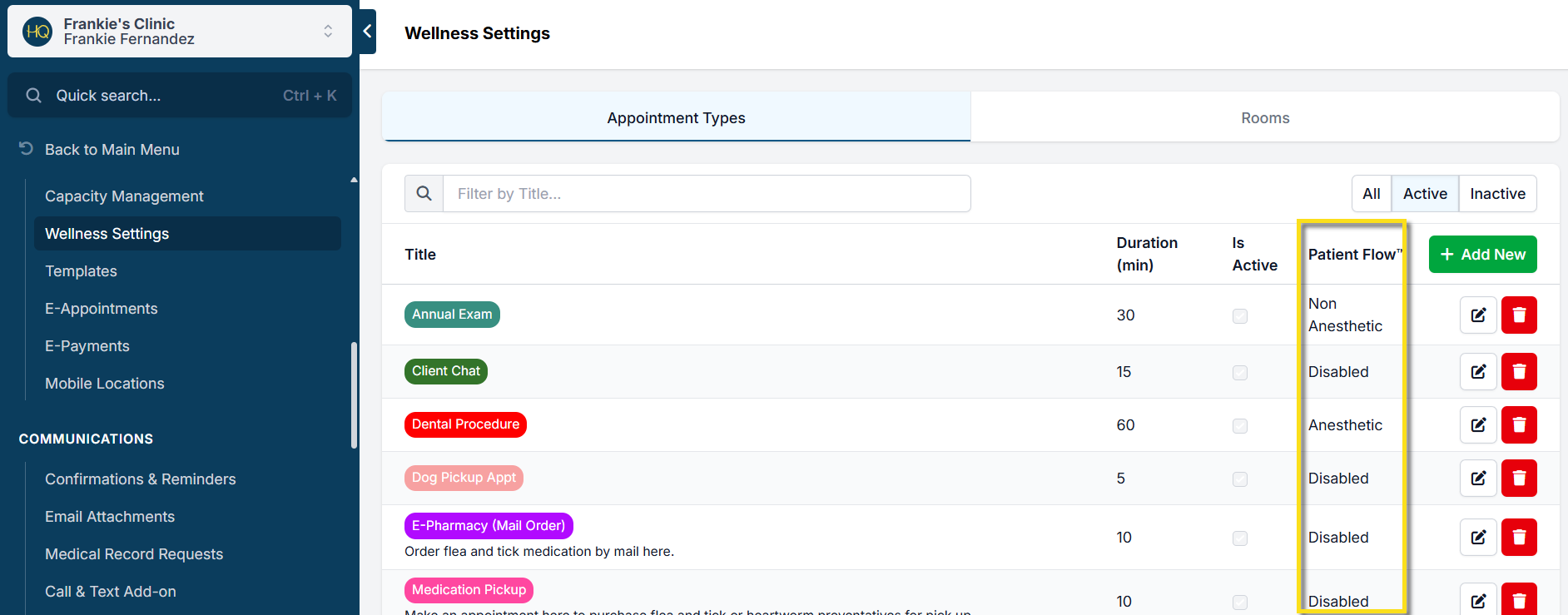
If the appointment type is set to Disabled:
- Click the pencil icon next to the appointment type.
- Update it to Anesthetic or Non-Anesthetic. This change will affect future appointments.
If your current appointment is checked in, you will need to manually push it into PF (see instructions below).
Basic Wellness or Recheck Appointments
If the appointment is already checked in, follow the steps for manually pushing to PF first, then adjust your settings for future appointments.
Changing for not checked in/future appointments:
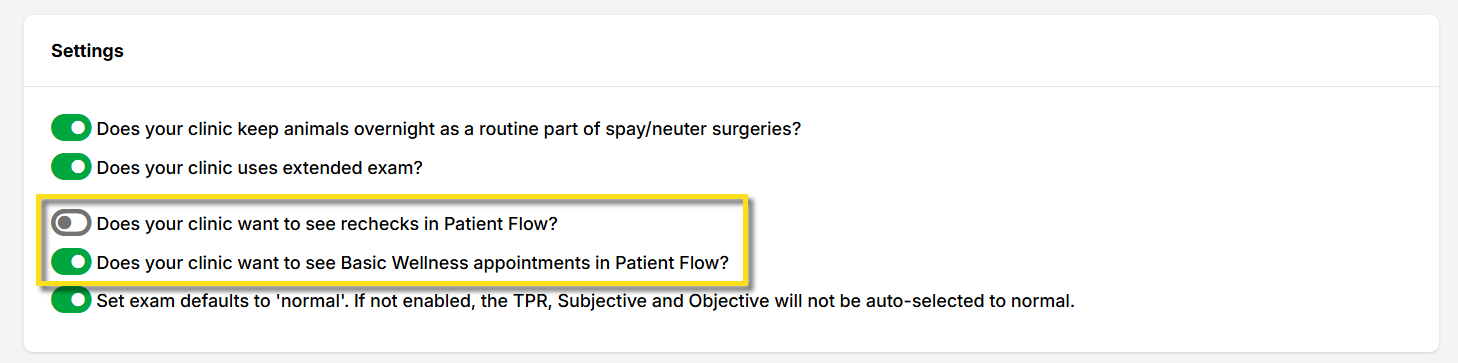
- Navigate to Settings > Patient Flow Setup.
- Scroll to Settings and locate the toggle for Basic Wellness or Rechecks.
- Make sure the toggle is on (green). If on, these appointments will default to Non-Anesthetic. To log controlled substances, you can later move the appointment to Anesthetic within PF.
- Check in the appointment and verify it now appears in PF.
Manually Adding Appointments to Patient Flow
Only appointment types enabled for Patient Flow will be automatically added at check in. If an appointment type was not previously enabled and you've checked it in, follow these steps to manually add it:
- Go to Check In/Checkout.
- Click on the appointment’s status (In Progress).
- In the top-right corner, select Action.
- Choose whether to add the appointment to Anesthetic or Non-Anesthetic PF.
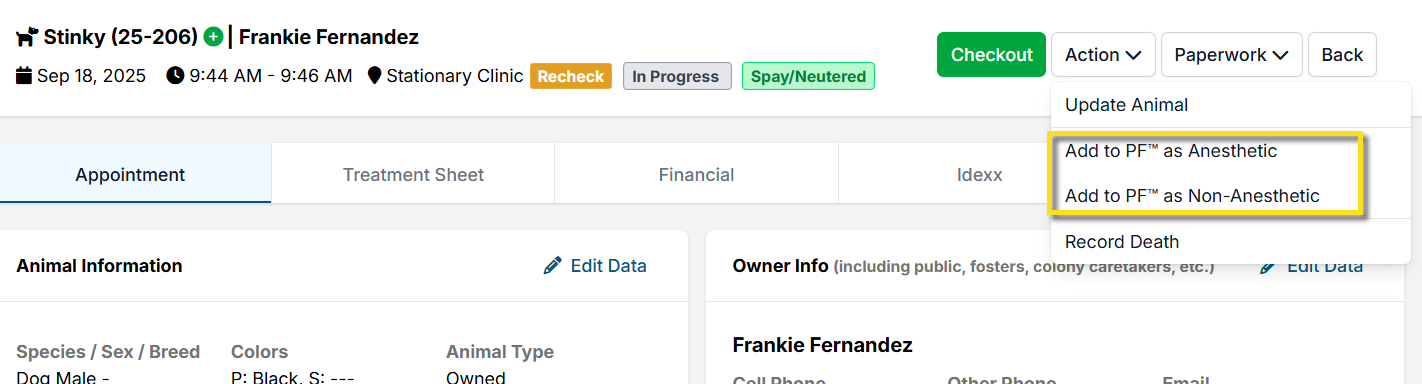
Note: If this setting does not appear, you may need to undo any recent changes to settings like enabling that appointment type for PF. Refresh your browser after reverting changes.