15.3. VCP Login Help
Volume Client Portal Login Troubleshooting.
If your Volume Client (VC) is having trouble logging in, follow these steps before submitting a help ticket.
Step 1. Confirm the Correct Login Location.
Verify that the VC is attempting to log in to the Volume Client Portal and not the clinic side of HQ.
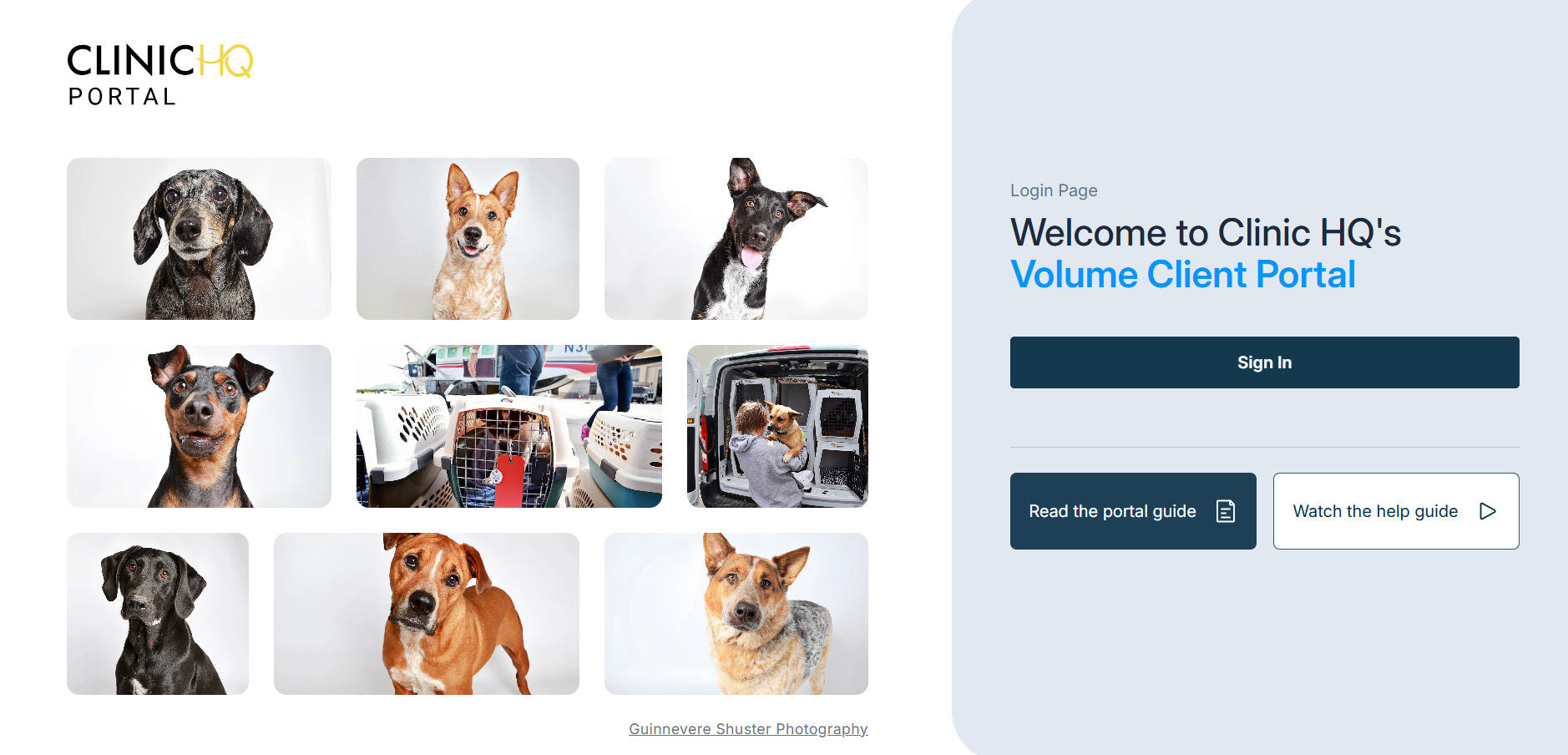
They should navigate to www.portal.clinichq.com and see the login screen shown below.
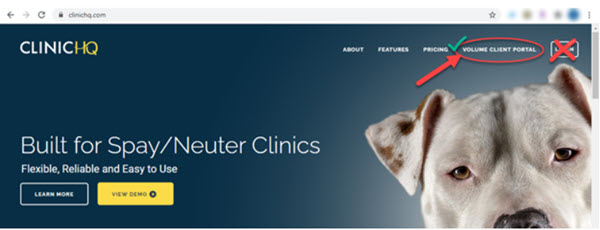
If the VC navigates to www.clinichq.com they must select Volume Client Portal in the upper right corner to be redirected correctly.
The Volume Client cannot use the clinic login button on clinichq.com, as that site is for clinic users only.
Step 2. Verify the Portal Is Active.
Search for the VC in Clinic HQ.
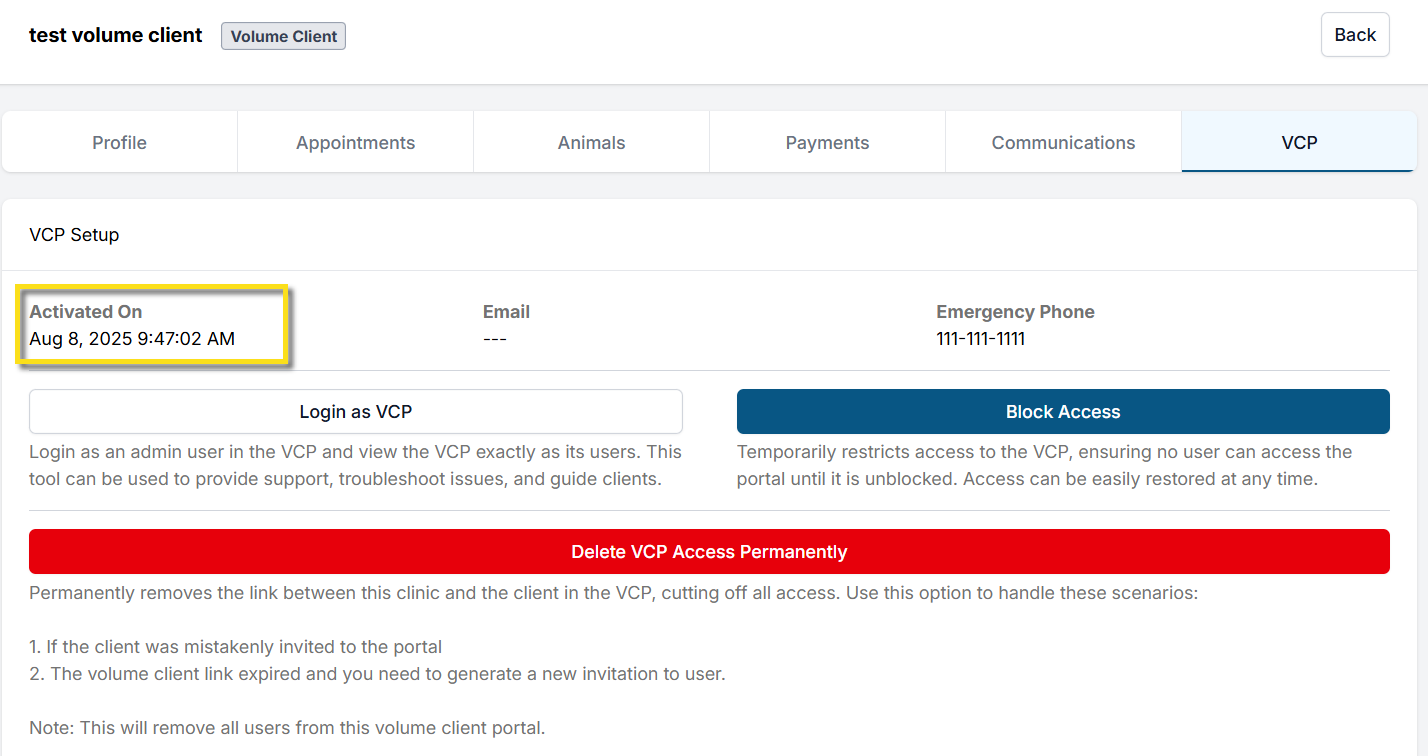
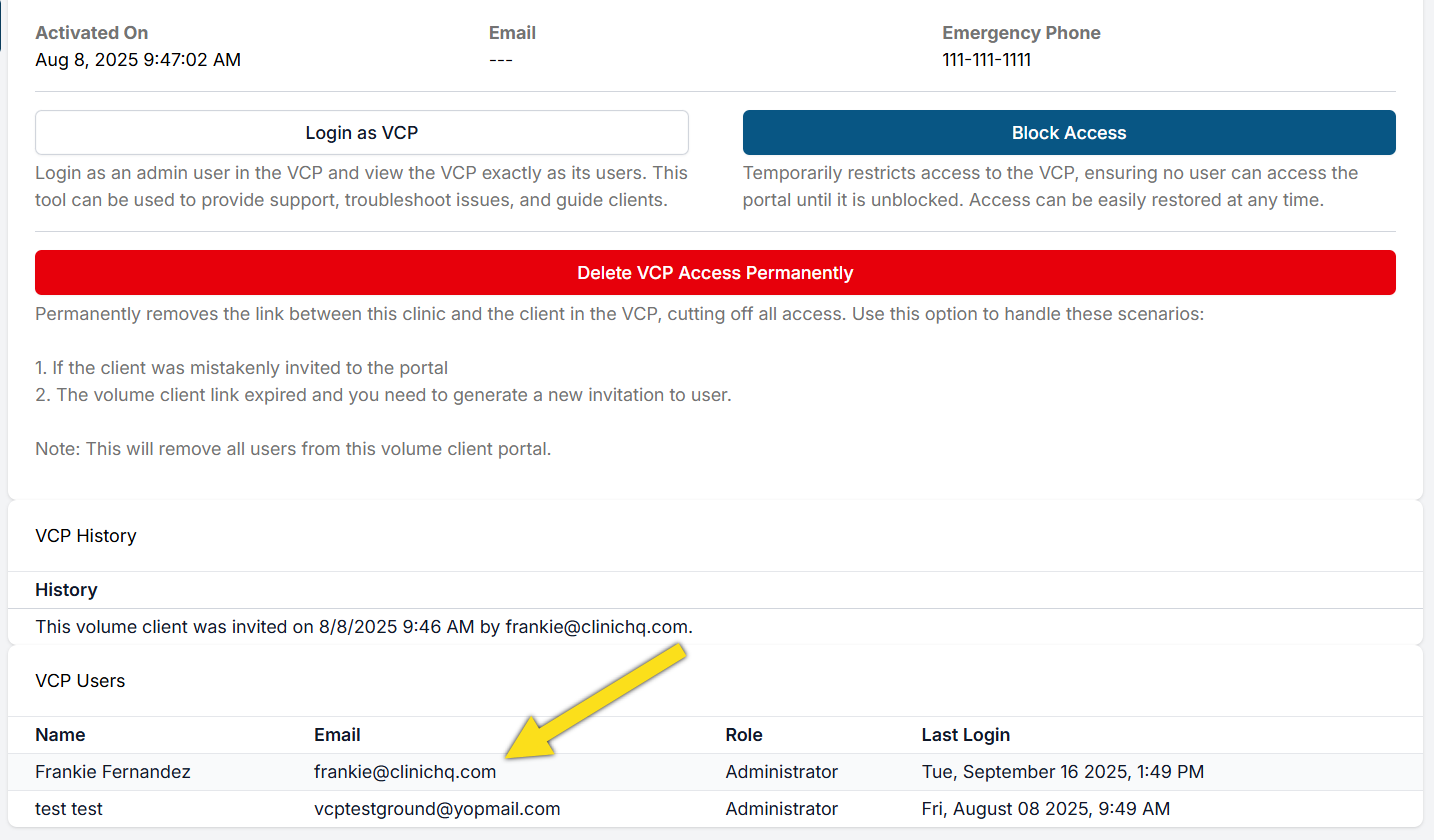
Open the client profile and select the VCP tab.
If the VC has not accepted the portal invite, resend the invitation.
Step 3. Verify the Email Address Used for Login.
Use the VC profile to confirm the email address associated with the portal account.
Check whether the user has logged in previously.
If they have not logged in, instruct them to search both their inbox and spam folder for the portal invitation email.
If they cannot locate the original email, direct them to attempt login at www.portal.clinichq.com and select the password reset option.
Remind the VC to check their spam folder for emails from Clinic HQ.
Step 4. Reset the Password.
If the VC is on the correct site, the portal is active, the email address is correct, and the user has logged in previously, instruct them to reset their password.
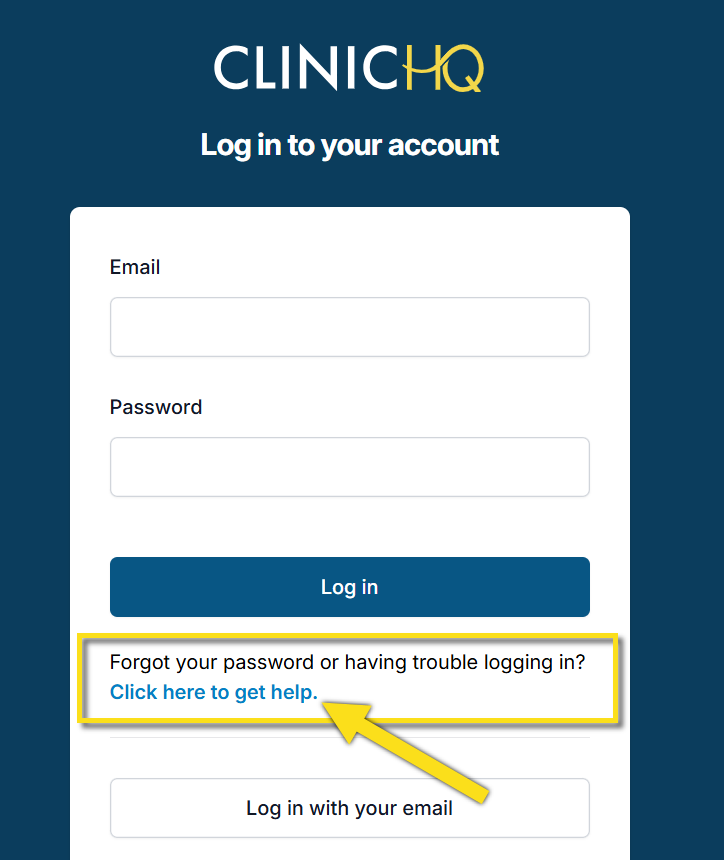
From the login screen, select the Click here to get help link.
The VC will be prompted to enter their email address to receive a password reset email.
Remind them again to check their spam folder.