15.4. Managing VCP Users
VCP User Management.
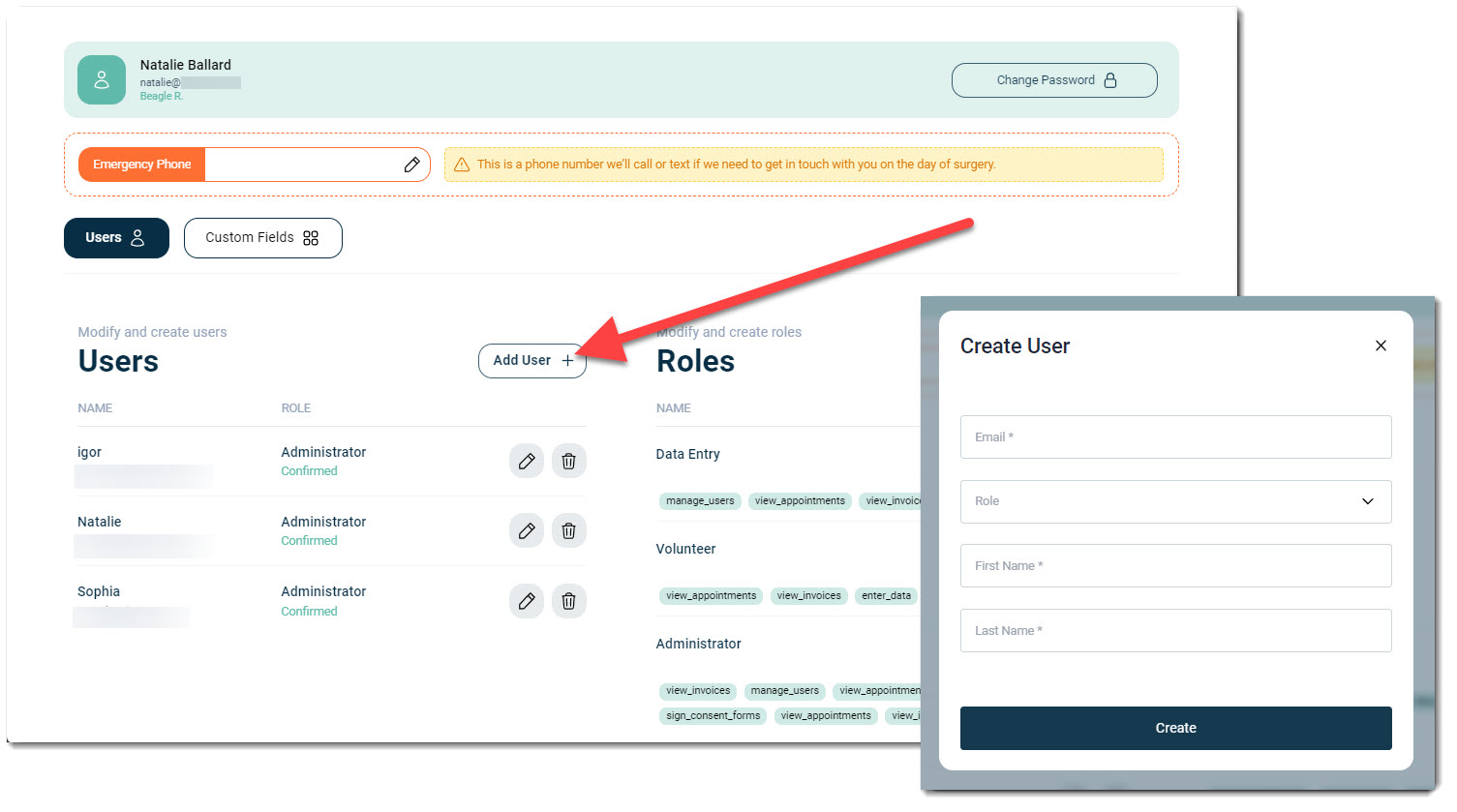
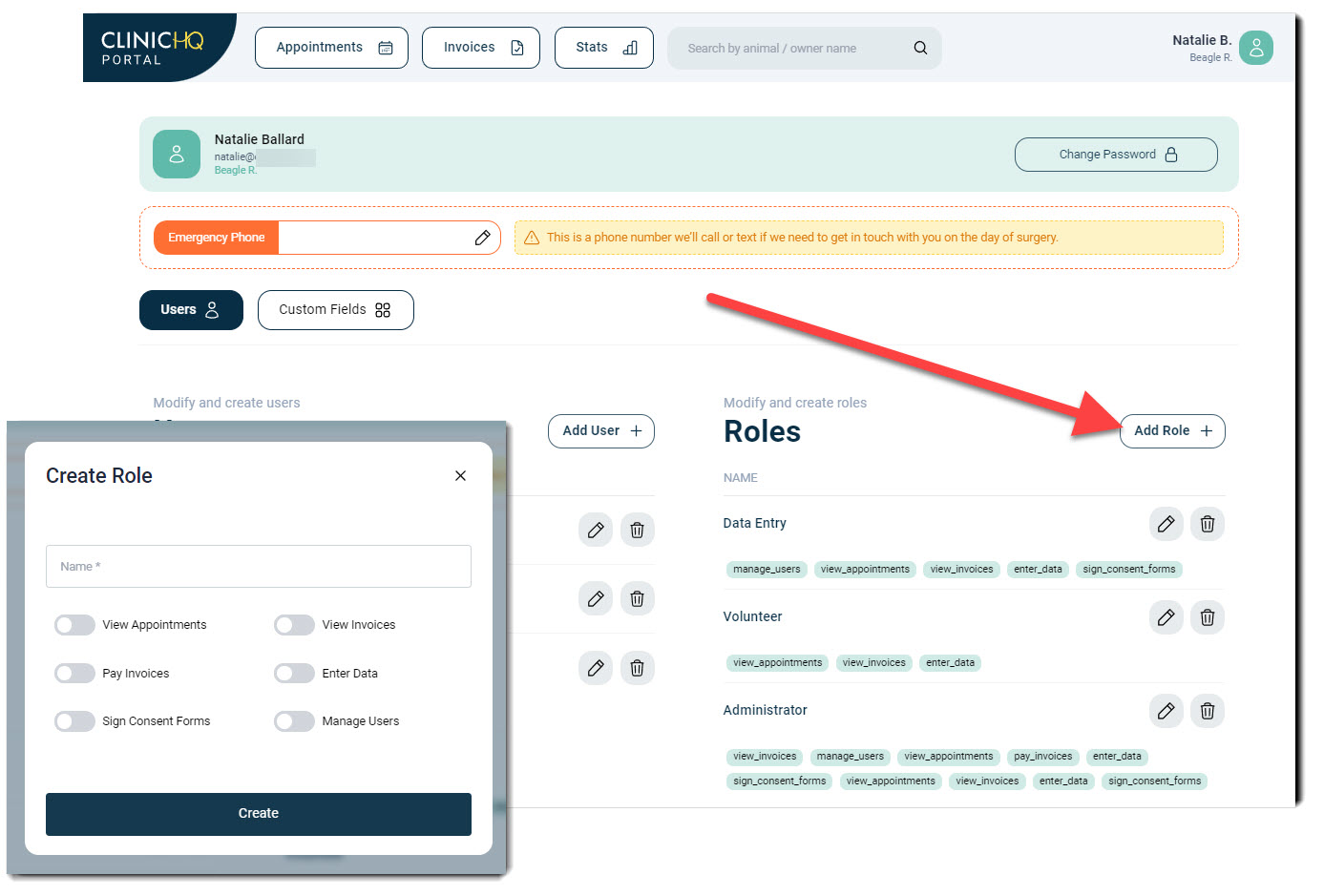
The VCP can have multiple users and user roles, similar to how clinic users are managed in HQ.
The intent is for each rescue or shelter to have one Portal account with multiple users accessing scheduled animals, records, and invoices.
Each VCP user has their own individual login.
This allows access to be removed if someone leaves the organization and allows permissions to be restricted, such as limiting who can view invoices or make payments.
Managing VCP Users.
After the Portal invite is accepted, Volume Clients control their own users.
Each volume client administrator can add or delete users as needed and assign roles to control permissions.
It is recommended to have two administrator users for each Volume Client Portal.
Updating Usernames.
Usernames can only be updated by the individual user on their own account.
- Open Settings from the top right corner.
- Select Change Password.
- Click Profile and select Update Name.
- Click Save.
Note: The user must sign out and sign back in for the change to take effect.
Clinic Staff Modifying VCP Users.
Clinic staff can add, modify, or delete users in a volume client’s Portal when needed.
- Open Search Clients and Animals.
- Locate and open the volume client profile.
- Select the VCP tab.
- Click Login As VCP to access the Portal.
- In the Portal, open Settings from the top right corner.
- Add, modify, or delete users as required.
Deleting VCP Users.
- Open Search Clients and Animals.
- Search by Volume Client and select the appropriate profile.
- Navigate to the VCP tab.
- Click Login As VCP.
- In the top right corner, select your profile and open Settings.
- Locate the user to be removed and click the Trash icon.
- Confirm the deletion when prompted.