Templates
14.7. Miscellaneous Templates
Templates Overview.
Templates are Microsoft Word documents. You create copies of your forms in Word. Then, you use merge fields which pull data from HQ into the form.
Templates can pull basic data such as owner and animal information or more complex data including requested services, amounts paid, test results, and drugs used in surgery. Information collected from Custom Fields in HQ can also be turned into a merge field.
Template Creation Options.
When working with templates, you have two options.
- Edit industry-leading templates to make them your own.
- Watch a video on how to edit templates: https://www.screencast.com/t/M9DL9VJbpT
- Start from scratch and create your own template in Microsoft Word.
- Copy and paste merge fields from this merge field document, only open in Microsoft Word to maintain field coding: https://university.clinichq.com/hq-templates-resources/
- Once your template is created, follow the upload steps below.
Uploading Forms.
- Open Settings.
- Select Templates.
- Click New Template in the upper right corner.
- Enter a client-facing title for the document.
- Select Add e-signature capabilities if it is a consent form. Note: Only one consent form is allowed per appointment type (S/N, Wellness, Recheck).
- If it is a consent form, select the appropriate appointment type.
- Click the Select Your Template File button to upload the Word document.
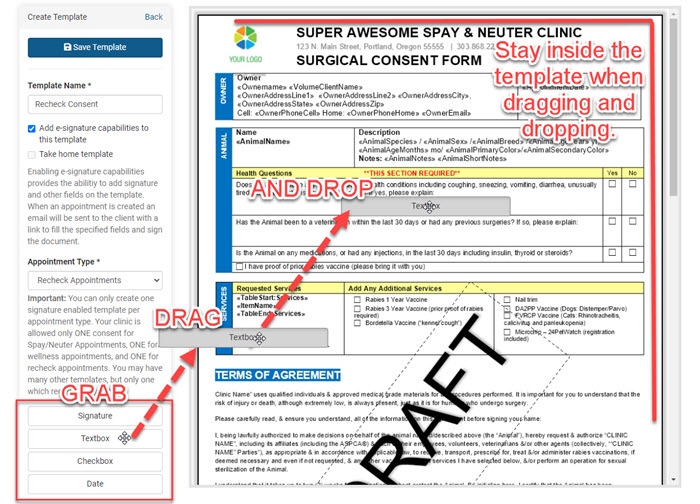
- Use the form tools to add checkboxes, text fields, dates, and signatures as needed.
- Click Save Template in the upper left corner.
Known Template Issues.
The following issues may prevent templates from uploading or functioning correctly.
- A blank page at the end of the document.
- Not having fixed tables in the document (Table properties > Row > Row height should be set at Exactly)
- Headers included in the document.
- Hyperlinks in the document. (blue underlined link – right-click on the website or email and Remove Hyperlink)
- Images that are not JPEG format.