23.2.2. Paying for HQ
Paying for your HQ subscription via ACH
We've added the ability for you to pay for your HQ subscription via ACH. ACH (Automated Clearing House) is an electronic network for financial transactions. It’s widely used for direct deposits, bill payments, and business-to-business (B2B) payments. The benefit of switching to ACH payments for you is ACH reduces the risk of payment interruptions from expired, lost, or stolen credit cards. We are asking all of our clinics to switch to this method as it simplifies accounting issues and reduces fees for us here at HQ.
How to add to HQ:
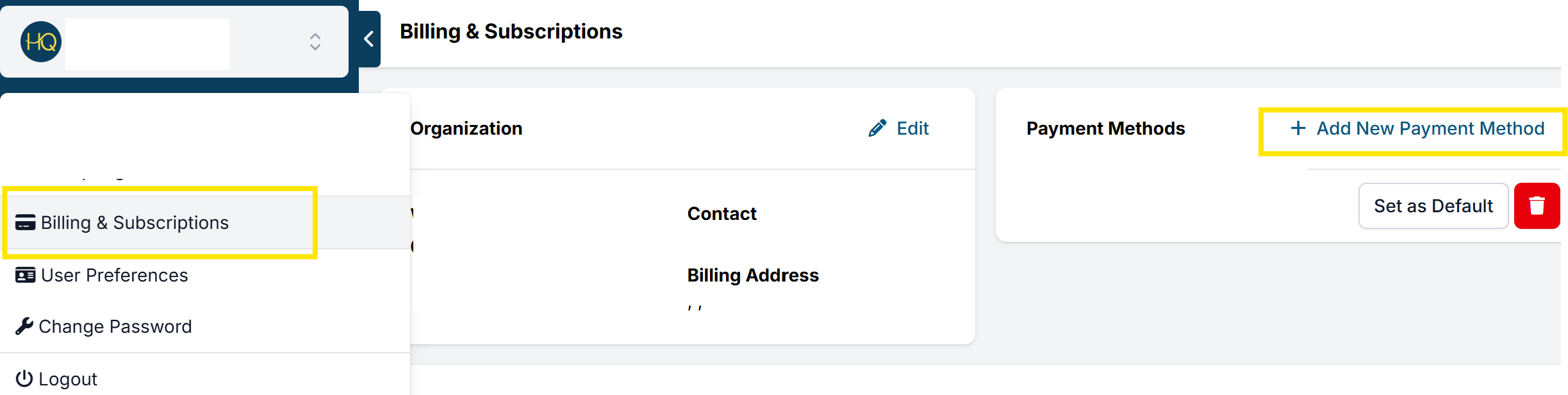
- Click on your clinic's name in the upper left corner.
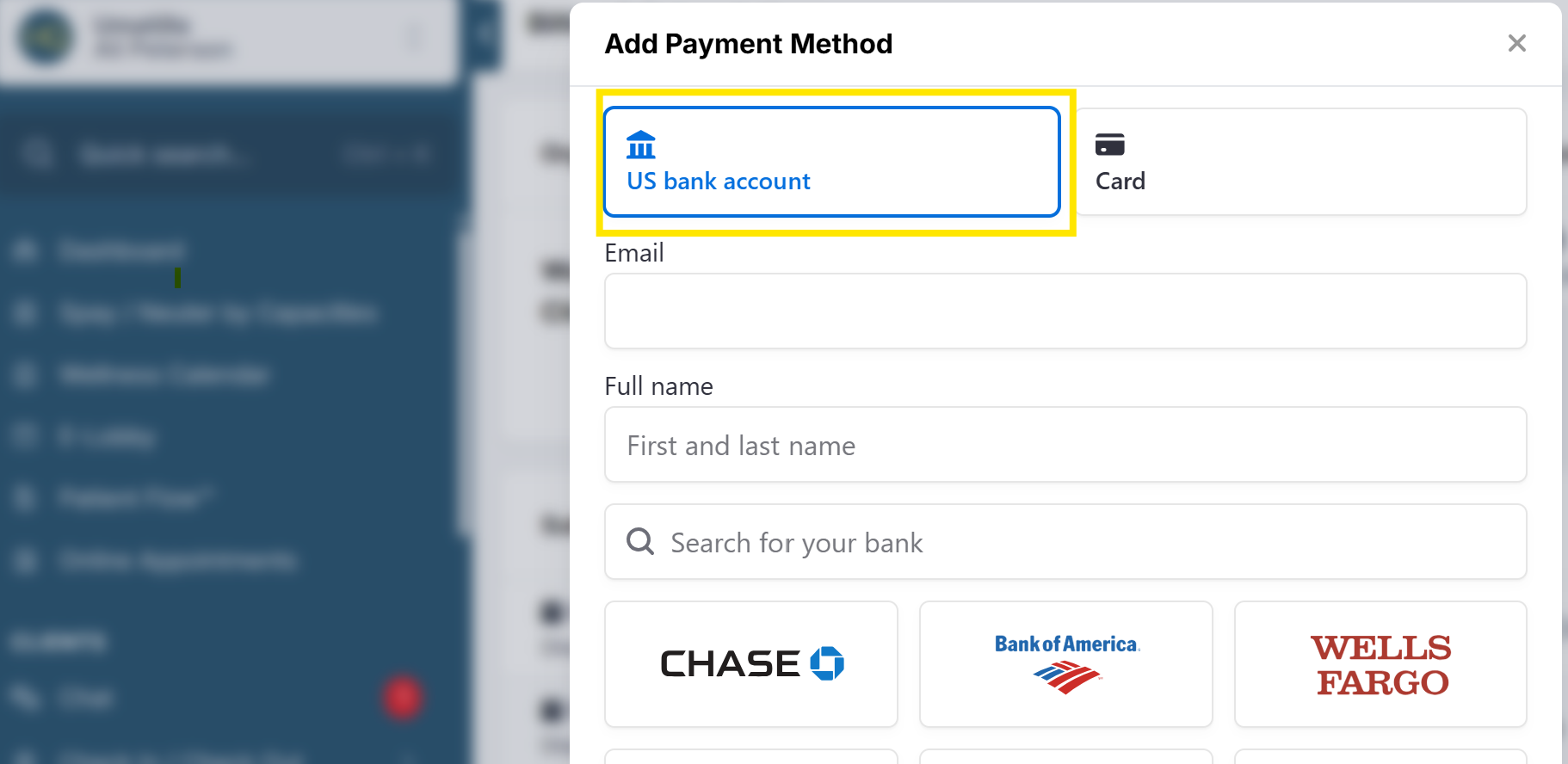
- Select Organization & Billing > Add New Payment Method link, then select the US Bank Account (ACH) option.
- Sign in to your bank. If this option is unavailable for your bank, you will need to manually verify the account.
- If desired, click Set as Default to notify the system to charge future transactions to this account.
Manual Account Verification:
If you are unable to sign into your bank in order to verify the account, you will need to manually enter your bank details.
- In the Add New Payment Method popup, click Enter bank details manually.
- Enter your routing and account number. Click Submit. A micro-deposit transaction will be sent to the account. This can take 1-2 business days. You should also receive an email with next steps to verify the account.
- Once you see the micro-deposit transaction in your account, go to the email and click Verify Now.
- Find the 6 digit verification code in the transaction description starting with “SM” and complete the verification prompts. Once verified, the account will show up as a useable payment method within HQ's billing page.
- If desired, click Set as Default to notify the system to charge future transactions to this account.
Removing ACH Payment Method
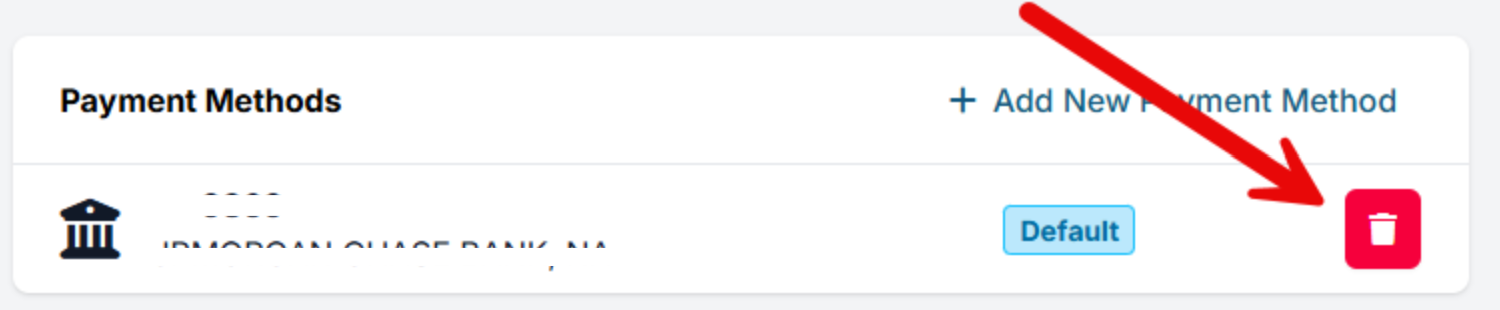
If you need to remove your ACH payment, simply click the delete button under payment settings.
Paying via card
How to do that:
- Click on your clinic's name in the upper left corner.
- Select Organization & Billing.
- Under Payment Methods, click +Add New Payment Method.
- Select Card and follow the prompts to connect your card.
- Set your payment method as Default if applicable.
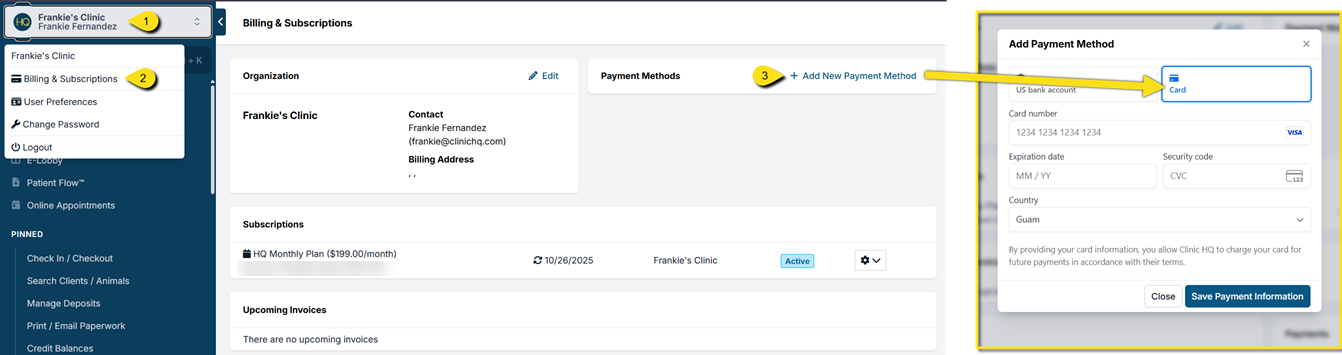 After the first 30 days, you must add a valid payment method to HQ to utilize our services.
A notice will be sent five days before an invoice is due. Upcoming invoices will then be generated on your renewal date. If there is no credit card on file or the credit card is declined, there is a five-day grace period before services are turned off. Once you input your card, it will be billed the next day, and once processed, a receipt will be emailed to the billing contact on file.
Important: If your account is at risk of being suspended, please use a credit card as your form of payment. ACH payments can take upwards of 5 days to clear and your account may be locked while awaiting the transaction.
Clinic HQ's billing system accepts debit/credit or ACH only. HQ will not accept checks payments.
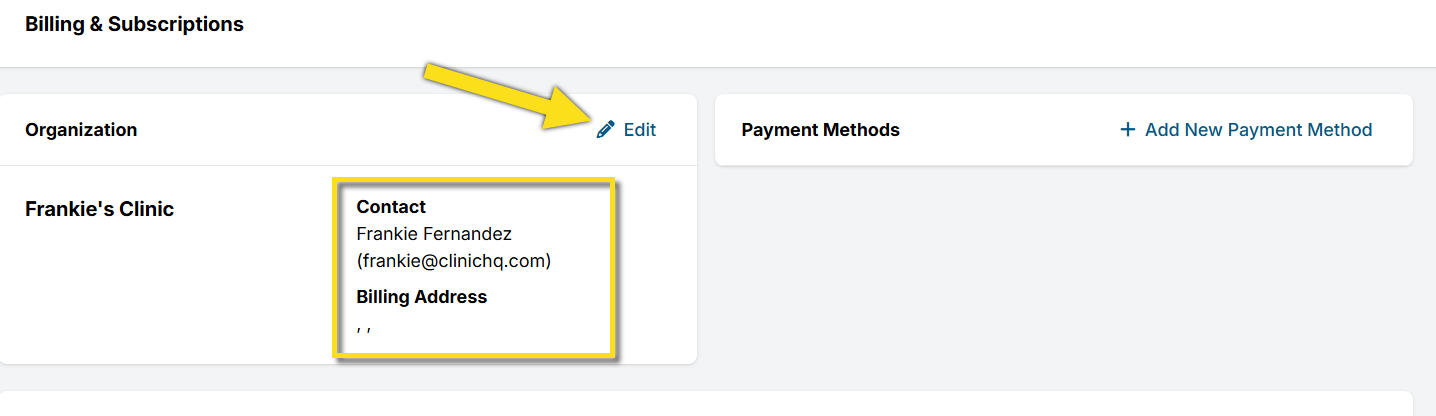
Establishing (Or Changing) Your Billing Contact
The billing contact on file is the person who receives notices about your upcoming invoices. They also receive receipts here. To establish or change your contact, follow these instructions:
- Go to Profile > Organization & Billing > Organization > Edit.
- Update the contact information and click Save Organization.