1.3.5. Account Management (User Preferences)
Maintaining strong account security is essential for protecting client information and safeguarding access to Clinic HQ. All users are expected to implement key security measures, including creating strong passwords, enabling two-factor authentication (2FA), and generating recovery codes for emergency access. Users should also set up passkeys for a more secure login experience that is resistant to phishing and credential theft.
Together, these account management tools significantly reduce the risk of unauthorized access and help prevent user-related data breaches.
User Preferences
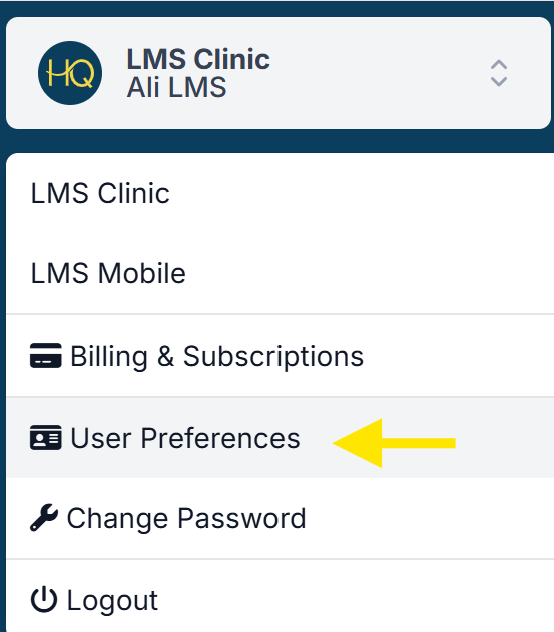
To manage your account, navigate to User Preferences
- Click on your clinic's name in the upper left corner of the navigation menu.
- Click User Preferences.
Enable Two-Factor Authentication (2FA)
2FA adds a second layer of verification to your login process, requiring both your password and a time-based code or authentication prompt. This prevents attackers from accessing your account even if your password is compromised.
Save Recovery Codes
Recovery codes provide a secure fallback method for accessing your account if you lose access to your authentication device. These one-time use codes should be stored in a safe location and used only when needed.
Set Up a Passkey
Passkeys provide a highly secure, phishing-resistant authentication method by replacing passwords with credentials tied to your device protected by biometrics or a device PIN. This allows for faster, more secure logins and ensures that credentials cannot be intercepted or reused by attackers.
1.3.4. Password Setup
Your password protects your personal information and keeps your data secure. Follow the steps outlined below.
1.3.5.1. Updating User Information
Easily manage and update your personal account details by navigating to the user preferences section. You can modify your name, phone number, or email address here. Simply follow the steps to keep your information up to date.