1.4. HQ Navigation
1.4.5. Expanding & Collapsing
Adjusting your screen properly may seem like a small detail, but it gives you more space to work in HQ.
Adjusting your screen properly may seem like a small detail, but it gives you more space to work in HQ.
Adjusting Zoom
- Click the Chrome settings icon (⋮).
- Set the zoom to 90–100% to fit the entire screen.
Your screen should look like this:
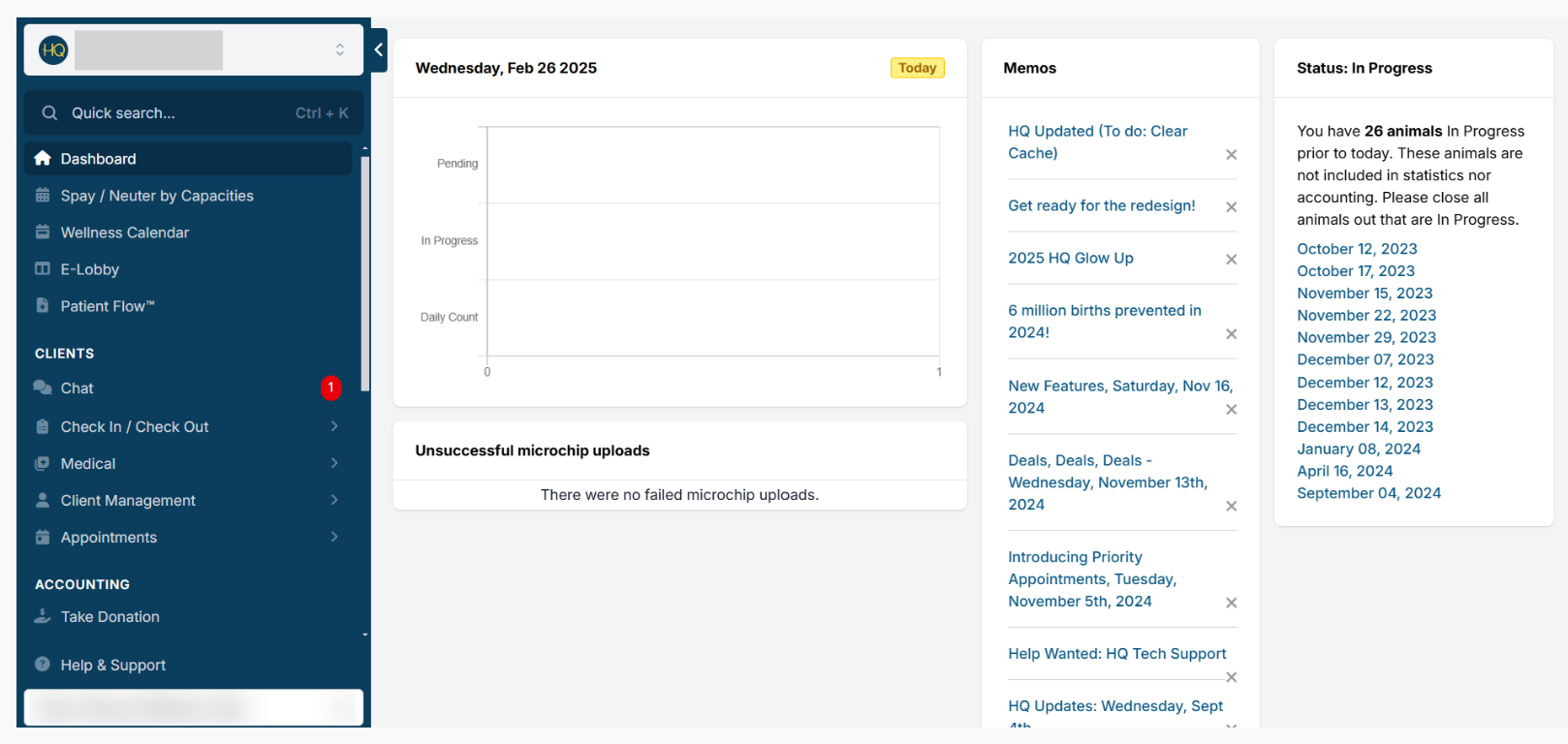
Collapsible Navigation Menu
For even more workspace, you can collapse the left-hand navigation menu:
- Click the blue tab with the upward arrow in the top corner.
- To bring the menu back temporarily, hover over the left side of the screen.
✅ Pro Tip: If you don’t use the navigation menu often, leave it collapsed and just hover when needed—no need to toggle it on and off for quick page changes.