1.5.2. Open a Help Ticket
How to Open a Help Ticket
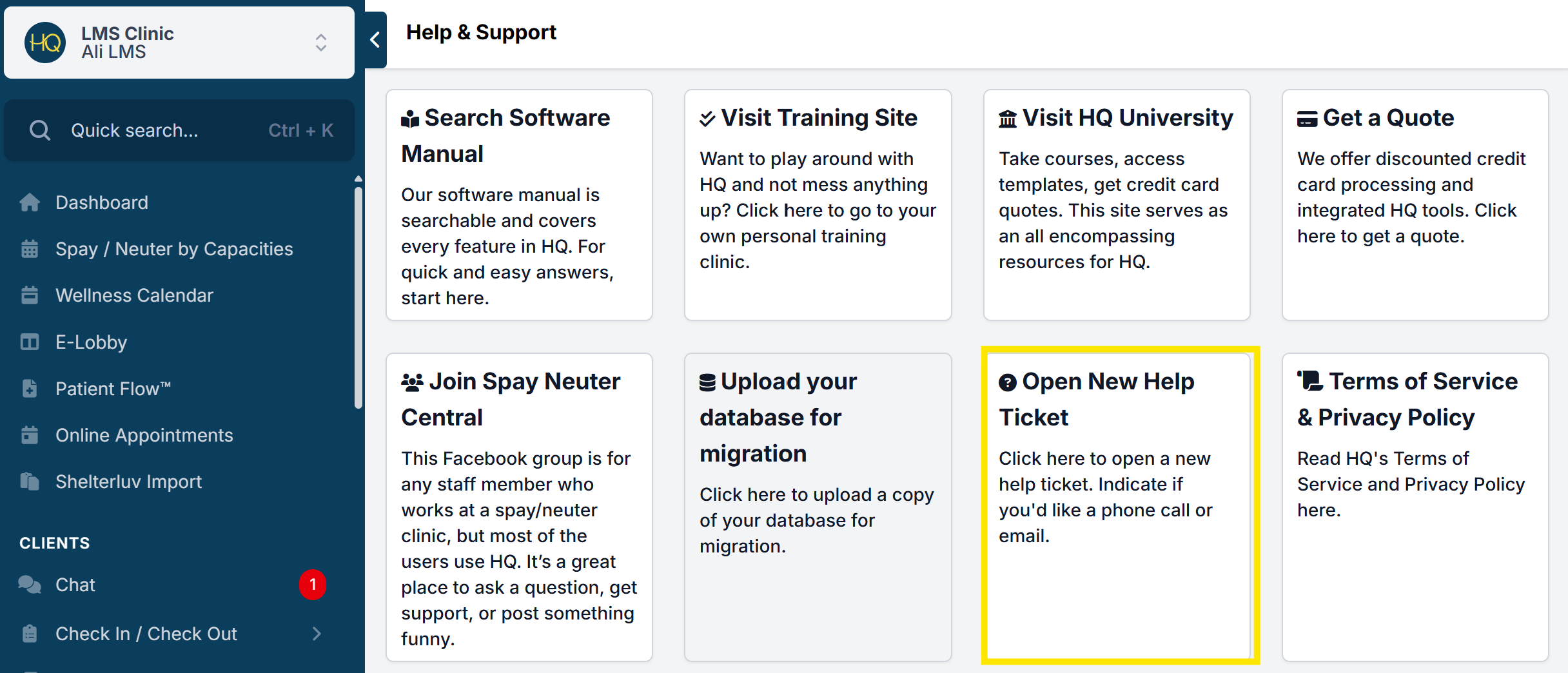
- Go to the Help & Support page in the left-hand navigation menu.
- Click Open New Help Ticket.
- Choose how you’d like us to respond (phone or email). ** If you select phone, provide a direct number where we can reach you, and keep your phone available.
- Add a subject line (brief summary of the issue).
- Enter a detailed description of the problem. ** If related to an appointment or animal, include the appointment date, client name, and animal name(s).
- Select the appropriate priority level.
- Attach any helpful files. Screenshots are especially useful.
Viewing Your Help Ticket
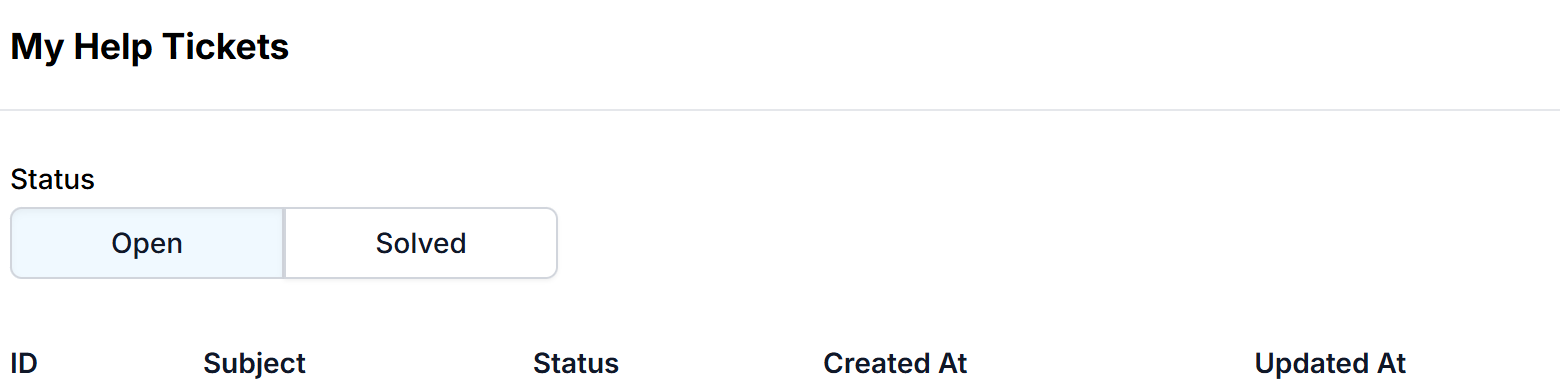
To *check the status *of your ticket:
- Go to the Help menu.
- At the bottom of the page, you’ll see all open and solved tickets submitted under your profile.
Ticket Status Tags
- New – Your ticket has not yet been reviewed by staff.
- Open – An agent is actively working on your ticket.
- Pending – An agent is waiting for your response. (If no reply is received within two days, the ticket will close.)
- On-Hold – The ticket is awaiting an update from someone outside the help desk team.
Important Note
Even if you selected phone as your response preference, please check your email. If we cannot reach you by phone or if it’s outside business hours, we may respond by email instead.
1.5.1.4. Making Your Own Mini-Manual
Did you know you're able to create a booklet for the topics that matter most to your clinic? You may want to build a mini version of this manual, tailored specifically to your clinic’s needs.
1.5.2.1. What HQ Does Not Provide Assistance On
We aim to provide all the information you need to run your clinic smoothly with Clinic HQ. At the same time, we want to be clear about the areas we are unable to troubleshoot or support.