1.2. HQ Uses Google Chrome
1.2.6. Using Multiple Tabs
During the workday, having multiple HQ tabs open makes it easy to switch between tasks without losing your place.
During the workday, having multiple HQ tabs open makes it easy to switch between tasks without losing your place.
Example: You might keep one tab open for the calendar, another for checkout, and a third for accounting.
How to Open and Manage Tabs
- To open a new tab, click the plus (+) icon at the top of Chrome.
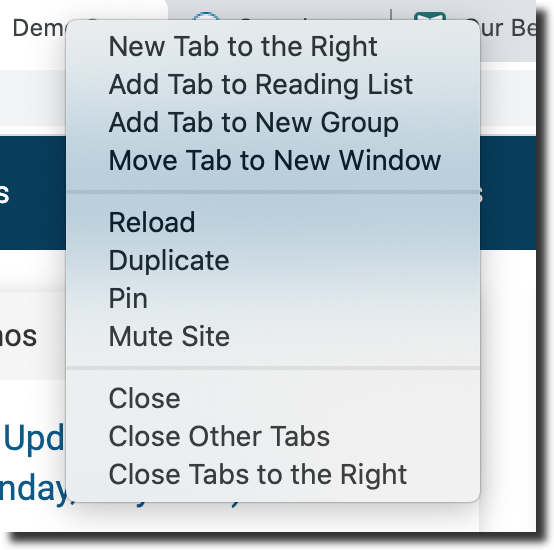
- To duplicate a tab, right-click an existing tab and select Duplicate from the menu.
- You can then move between tabs depending on what you’re working on.
1.2.5. Clearing Your Cache
When you visit websites, small bits of information (cache) are saved in your browser. Over time, this can slow things down. Clearing your cache regularly helps Chrome run faster and keeps HQ working smoothly.
1.2.7. Pinning a Tab
Pinning a tab keeps a website open in a small, fixed spot in your browser for easy access. Pinned tabs stay open even if you close other tabs, making it quick to return to your most-used pages.